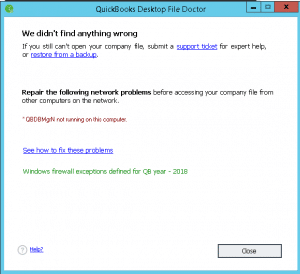
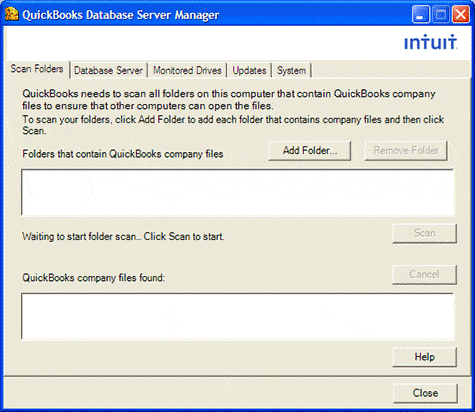
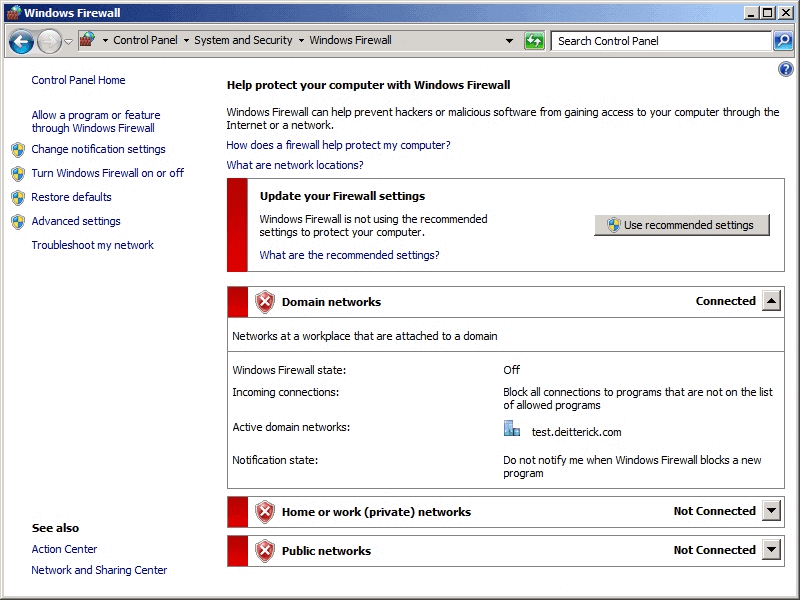
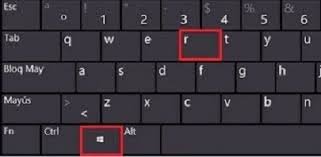
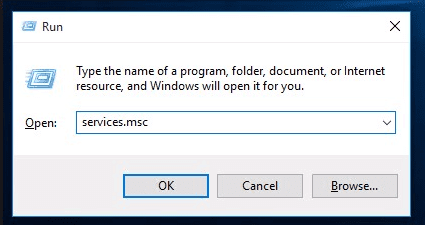
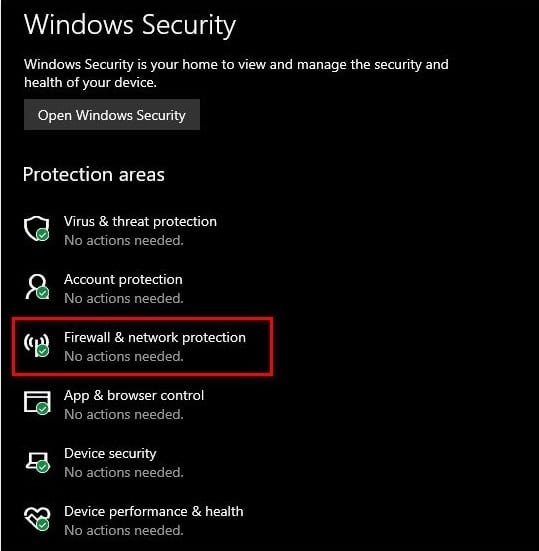
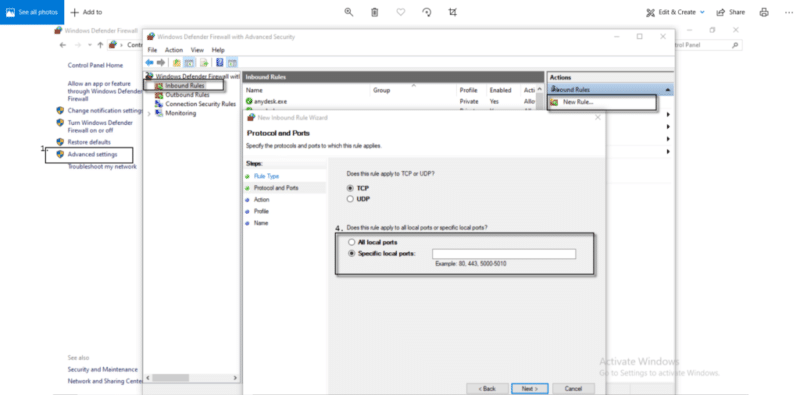
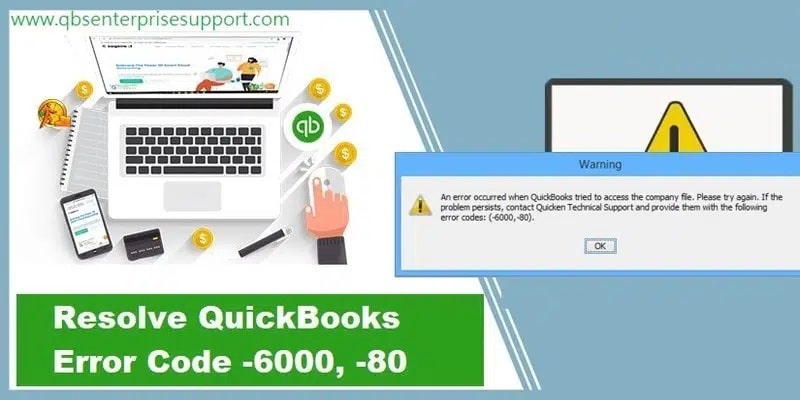
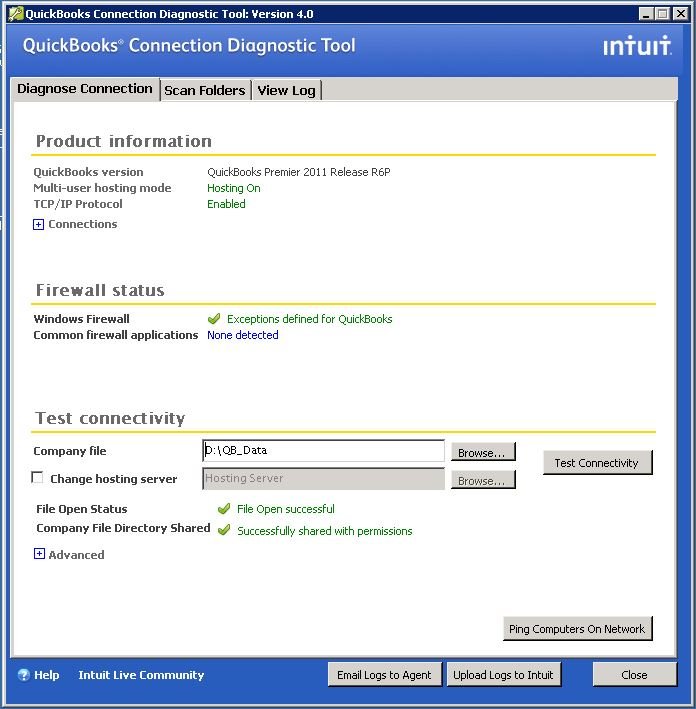
If you are a QuickBooks user, no matter whether you are using QuickBooks from decades or you have just started with it, but at least once you might have heard about QuickBooks database server manager. Also, you might have also used this amazing tool, in some or the other way. In the recent times, many users have reported the database server manager not running on the computer error. This error might lead to multiple restrictions to you, just like hindering the access to multi-user mode. The error message “QBDBMgrN not running on this computer” means that the database server manager has stopped working and also it indicates that the security firewall is interfering and hindering the QuickBooks to connect and communicate with the internet servers and fails in opening or starting.
Many users generally panic after encountering this error, keeping that in mind, we have come up with this article, which will be revolving around the causes and ways to mend this error. Thus, keep reading this article carefully. Moreover, you can also consult our accounting professionals, in case you are seeking for technical assistance.
What does QBDBMgrN not running on this computer error means?
Before you learn the factors causing the error and also the methods to resolve the same, it would be necessary for you to find out what actually this error is all about. QBDBMgrN is basically an executable process on windows which has the .exe extension and can be seen in the task manager of the system. The QBDBSM was introduced by Intuit in order to enable multiple-users to access the company file and database on the hosting server having the company file.
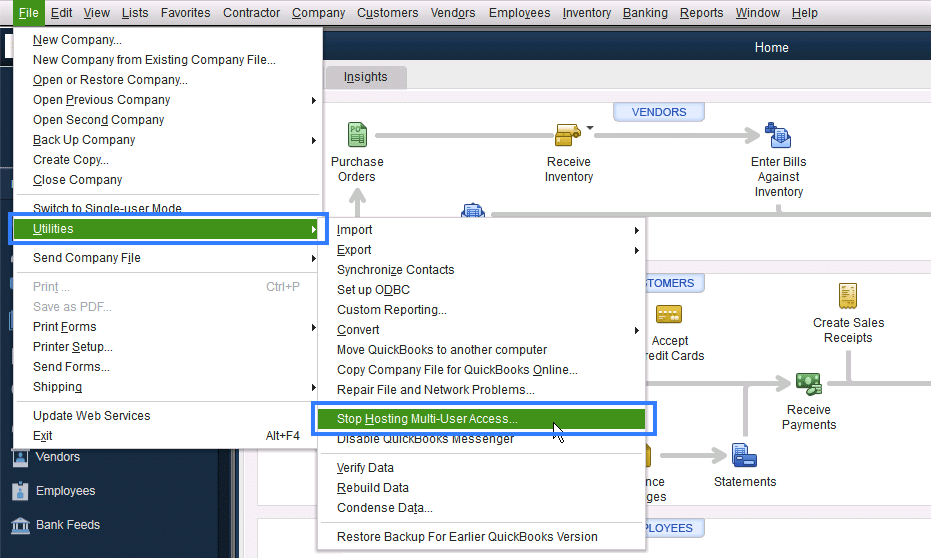
When the error occurs with the database server manager, you can only access the single user mode and switching to the multi-user mode might show an alert stating the QBDBMgrN is not running on this computer. There are various other facts associated with QuickBooks database server manager not running on this computer error, which we will be discussing later in this post.
Why user gets QBDBMgrN not running error message?
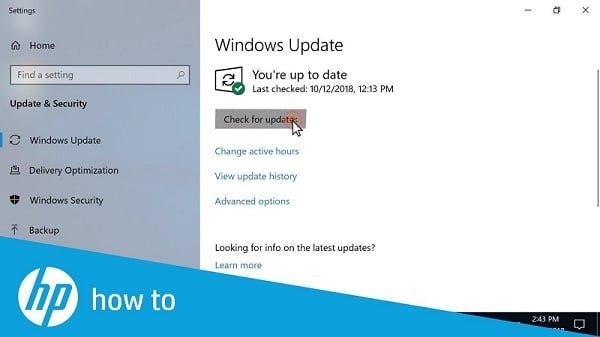
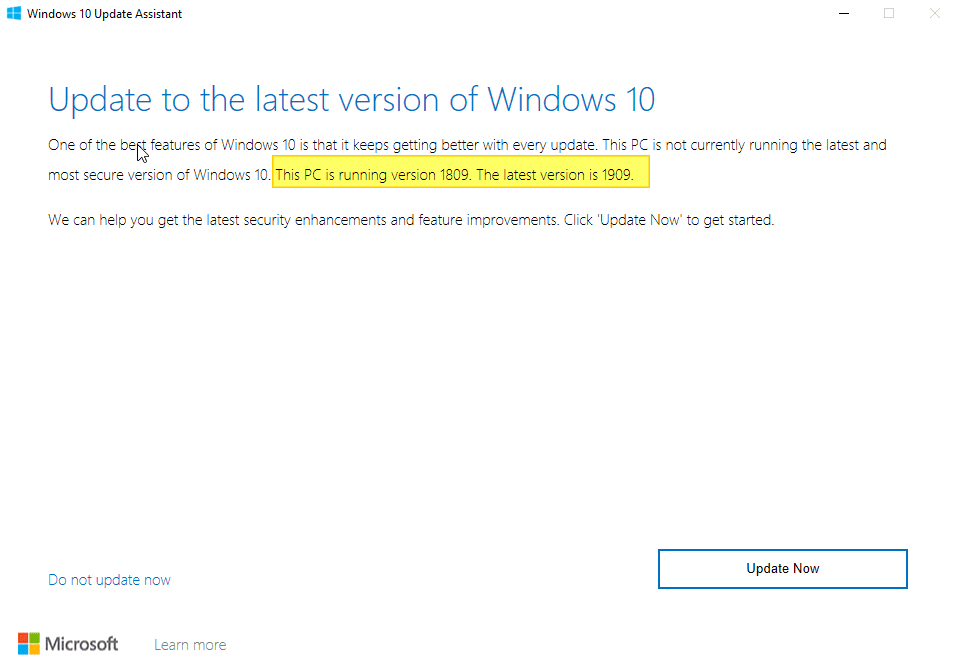
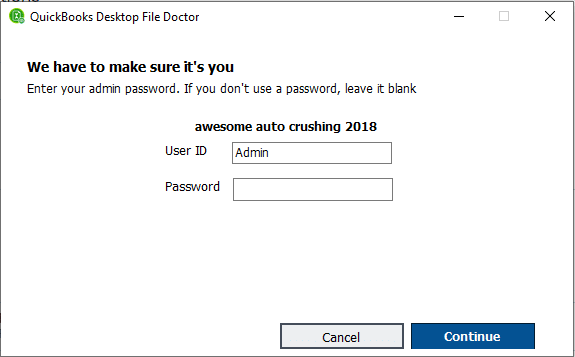
The QBDBMgrN is not running on this computer error is usually seen when you updates the QuickBooks desktop to the latest update and skip to update the windows firewall along with that. Outdated firewall might spot the QuickBooks database server manager error as an unknown service and then block that, to protect from any sort of malware. This ultimately ends up in failure to connect to the internet and you receives an error message, while trying to correct the issue with the QuickBooks file doctor. There can be a few other factors leading to such an annoying error, a few of which are enumerated below:
Improper configuration of firewall or the internet is creating problems.
You can also encounter such an error if the 3rd party firewall software is blocking the access to QuickBooks.
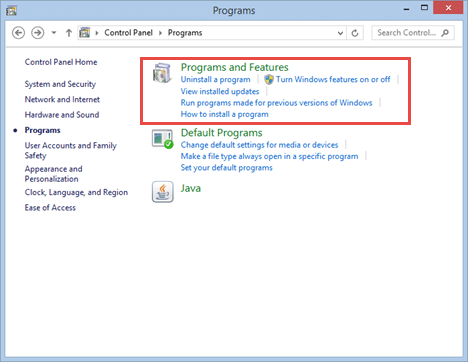
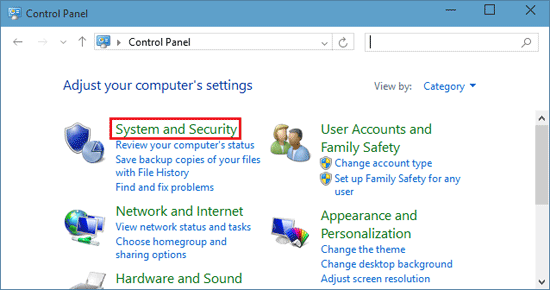
Hit the Start option moving to the control panel, by moving to the Start menu and opening search bar, followed by entering the control panel in the search box.
After opening the control panel, hit a click on the programs and features option.
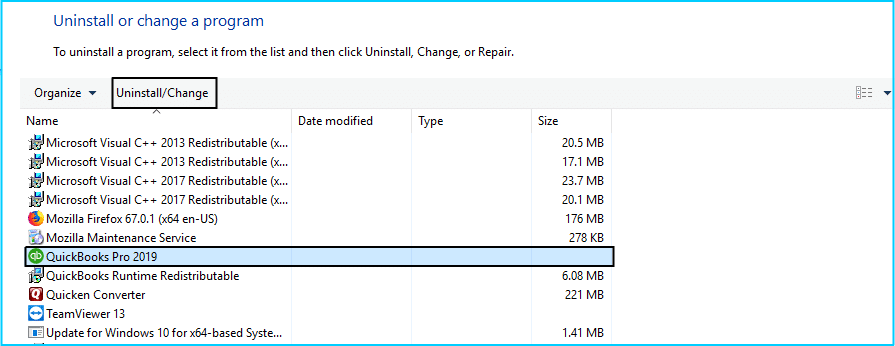
Click on uninstall program. In case you are unable to spot the options, then in that case select programs and the move to program features.
Click on program list and then click on uninstall, continue, and next options respectively.
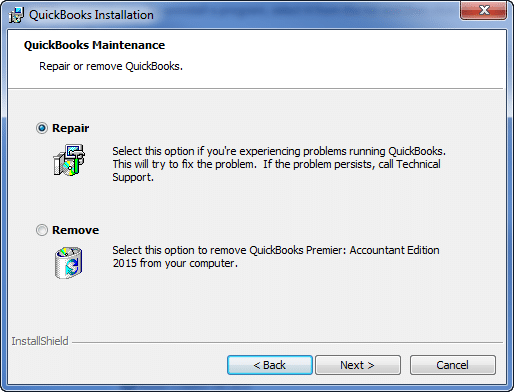
Once done with that you are required to click on repair option and then hit next. Also, wait till the time repair process comes to an end.
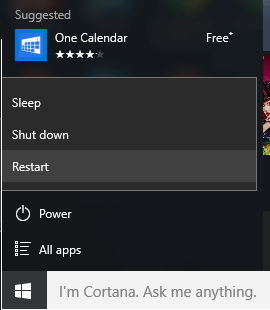
Hit Finish tab and then reboot the system if prompted.
Well, this brings us towards the end of this article. While concluding the article we expect that the information that we have shared in above might be of great help in Fixing QBDBMgrN not running on this computer error. However, a situation might arise when even after implementing all the above solutions, the error continues to trouble you. In such a situation, you are recommended to keep calm and consult a certified accounting professional to handle the situation. Getting in touch with a professional might help you in successfully fixing the bug without any further damage.
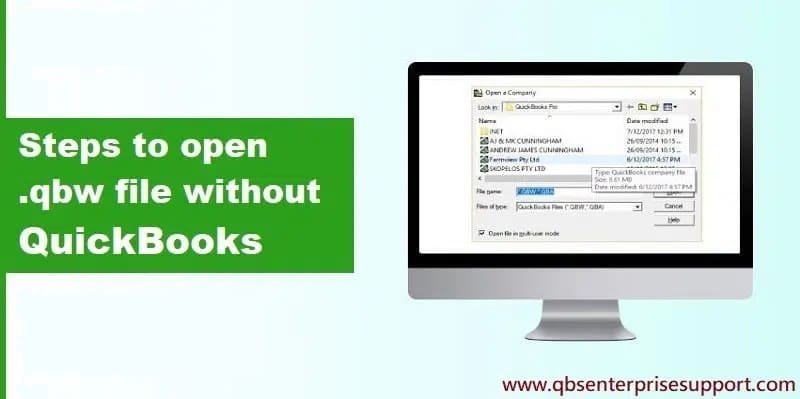
The emerging startups and established businesses are very well familiar with the fact that manual bookkeeping isn't sustainable in the long run. Instead, using the features offered by accounting software is the best choice to manage a company's finances. And when it comes to accounting software, one accounting software that is most raved about is QuickBooks. This versatile software can handle a plethora of tasks with its simple but innovative features. Being a QuickBooks user, at times you might wish to open qbw file without QuickBooks, but fail to do that. A data file contains important information in the form of different file extensions, .qbw is one of them. Opening a .qbw extension file without using QuickBooks can be a time savior for you and you can access data files from anywhere.
To make the process of opening QBB, QBW and QBX File without QuickBooks desktop breezy and unchallenging, we have brainstormed this guide, which will instruct you on successfully opening QBW files without using QuickBooks. Let's get started without further delay. Also, you can get instant assistance from our accounting experts who will help you in carrying out all the QuickBooks tasks smoothly.
QBW file is the core of QuickBooks. All the files that are created in the software are saved with .qbw format. Well, many of you are not aware of what is qbw file in QuickBooks. Thus, it is important to first learn a little about qbw file.
QBW is basically a type of file extension used for the QuickBooks company data file. These file extensions consist of the financial data, letters, images, logos, and templates. The qbw file carries sensitive data, which makes it very important for you to have the backup of the file and stored at various locations. There are certain steps that can be followed by users, in order to open these files without using the QuickBooks. Following are some of the uses usually for which this file extension is used:
Financial data:
Cash flow projector
Loan manager
Business Planner
Financial Statement Designer
Logos
Images
Templates
Letters
Importance of file extensions in QuickBooks desktop
Do you know the importance of file extensions in QuickBooks Desktop? If not, then check out the pointers below:
The QuickBooks file extension permits you to quickly look for the nature of the file's contents.
It also provides a simple method of keeping all the files.
The file extensions are best in terms of security purposes.
It helps to spot all sorts of documents by looking at the filename.
The file extensions are used to identify the authentication of the data files.
Index of file extensions used in QuickBooks
The list of extensions used in QuickBooks are listed below:
All these files are important for containing the data. It is recommended to all the users that they should always create a backup of their data for the same. Not only this will make the task of shifting data on the network easier, but also will make the system crashes less troublesome.
Why file extensions are required in QuickBooks?
Files extensions are basically used to recognize or categorize the authentication of the company data files.
These file extensions are a simple way to keep all files.
They are considered to be the best, when it comes to security purposes.
These files extensions are used to allow users to spot the nature of the file’s contents just by seeing them.
Identification of all kinds of documents by looking at the filename becomes easier, due to file extensions.
Steps to Open QuickBooks File Without QuickBooks Desktop
Now that we have learnt various facts related to qbw files, it is time to find out the steps that will help you in opening the qbw files without QuickBooks. So, let us begin:
Step 1:
The initial step is to click on Start menu and then tap on All Programs option. After that, a list will open up on the screen, and you should scroll-down and select and click the Intuit option. Followed by accessing the folder and selecting QuickBooks.
Step 2:
Moving ahead, you will have to select the Company file that is to be exported from QuickBooks. This can be done by clicking on the Open option and then typing in the Password if required.
Step 3:
Now the next step requires the user to Agree on customer, vendors or employees list. These options can be seen at the top of the screen and then you should click on the Customer center.
Step 4:
It should be noted that Qbw can be easily imported to an excel report. To do this, you will have to take the excel option at the top of the screen and then select the Export excel option, followed by clicking on the export option after saving the file.
Step 5:
The next step will demand you to open the imported file. This might require excel version 2010 or later. Whereas, it is recommended to adopt the current version of excel, in order to access the QBW files without using QuickBooks.
Step 6:
After being satisfied with importing the file, you should hit a click on the Data tab. Moving ahead, you need to click on the Other resources tab.
Step 7:
Once done with the above step, you will have to watch out for the QBW file in Windows and then direct it. If the file is unavailable or you are unable to locate it in the Windows, then you will have to search for qbw file separately.
Step 8:
After placing the file it is required to hit a click on the New .qbw file that will open up directly.
Steps to Convert a .QBX file to a normal .QBW file
You can also open the qbw file without opening QuickBooks by converting the QuickBooks file. The steps involved in this process are as follows:
First step is to open the QuickBooks file (.QBX or .QBA).
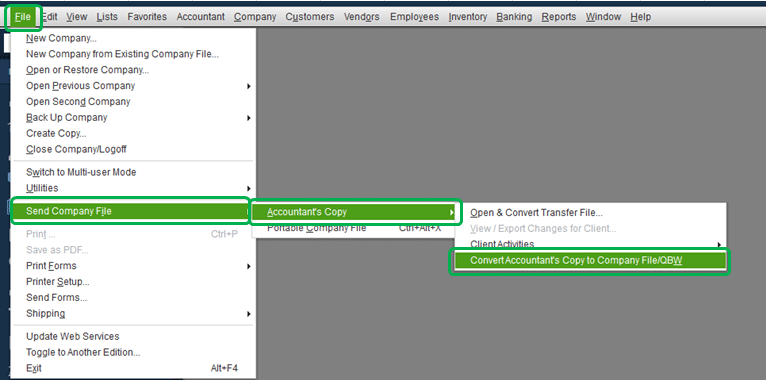
Navigate to the File menu and then choose the Send company file and select the accountant's copy.
You are then required to select Convert accountant's copy to company file/QBW, and then hit OK.
The next step is to choose the location where you wishes to save the converted .QBW file and then hit Save.
The final step demands you to cease the process by clicking on the OK tab.
It should be noted that the option to create a .QBX file is available for you to send the company file to the accountant. Right now, the ability to convert an accountant's copy to a working file (.QBA) or a regular company file is only possible in the QuickBooks desktop accountant edition.
The process of opening QBB, QBW and QBX File without QuickBooks desktop becomes easy after carrying out the instructions mentioned above in this post. However, if you are unable to open qbw file even after carrying out the above steps, then in that case please feel free to connect with us anytime. We are a hub of tech-savvy professionals who work round the clock to provide the assistance to users.
Did you stumble upon QuickBooks error code 6000 304 and can’t figure out what’s causing it? Your search ends here. At times, when you try to access the QuickBooks company file, this error shows up on the screen. It is a 6000 series error that is often associated with a damaged company file or insufficient disk space. This error further indicates that there isn't enough disk space to open the file. Every QuickBooks error brings in its own set of solutions, and even error 6000 304 can be rectified using some simple solution steps.
Considering to this, we have drafted this piece of writing, where will be scrutinizing the QuickBooks error 6000 304, and the ways in which you can easily dump it. Relocating the company file to larger hard disk, and turning off quotas, or also increasing the disk quota of your account that is running QuickBooks can work in mending such an error. Riffle through the piece of writing till the end, in order to find out the complete solution of error code (-6000, -304). Moreover, you can also get in touch with our U.S based accounting experts at 1-800-761-1787. Our experts will be happy to help you in getting rid of from such an error.
What is QuickBooks Error 6000, 304?
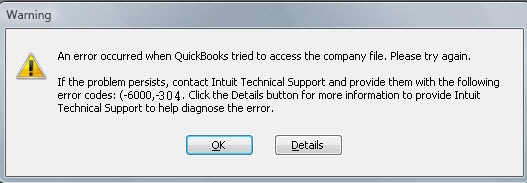
As we mentioned earlier, QuickBooks error 6000 304 is usually experienced, when you try to open the company file. It comes with an error message as given below:
Warning
An error occurred when the QuickBooks tried to access the company file. Please try again. If problem persists, contact Intuit technical support and provide them following codes (-6000, -304).
This can be very annoying, as well as confusing for us to tackle with. This error generally occurs in case there is insufficient disk space on your computer system or in case the disk quotas are turned on. There can be various causes of this error. Also, fixing this is possible and it becomes much easier, once you learn the actual causes behind QuickBooks error 6000 304. Let us find it out!
Factors Leading to the QuickBooks Error 6000, 304
Though there can be a plenty of causes behind the occurrence of QuickBooks error 6000, 304. However, we are going to share with you two of the most common ones:
Another factor leading to this error can be that the software crossed its memory usage limits.
You can face this error in case the disk space is running low and this prevents the software from loading the company file.
Now that you have explored all the causes and facts related to QB error code 6000, 300, it is high time to find out what all methods can be implanted to get rid of this annoying error.
In order to resolve the error, you can relocate the company file to a larger hard disk, turn off disk quotas, or increase the disk quota of your account that is running the QuickBooks program. For more details let us check out each of the methods one by one:
Method 1: Perform a Clean Install of QuickBooks
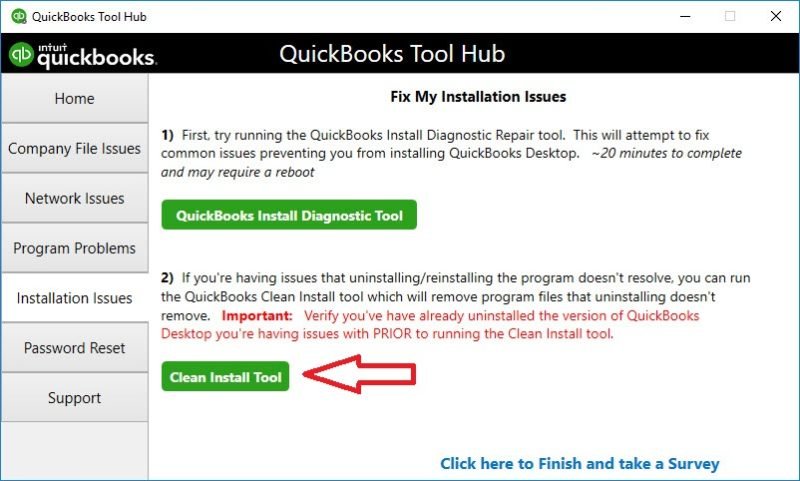
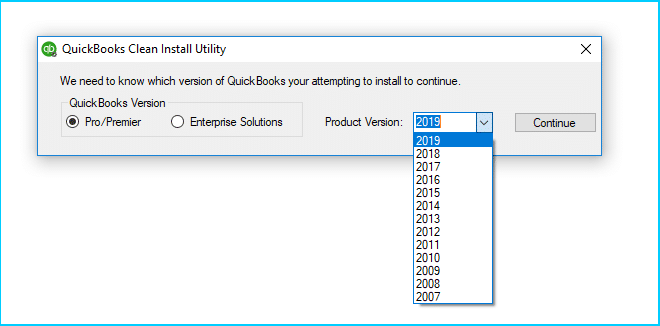
The very first method that one can opt for is to perform a clean installation of QuickBooks desktop. Sometimes it is essential to uninstall and reinstall the QuickBooks software to get rid of any damage and also avoid any further problems. This process is called the clean installation of the QuickBooks desktop. The steps involved in this process are as follows:
Hit a click on Start tab and then, move to the Control panel option.
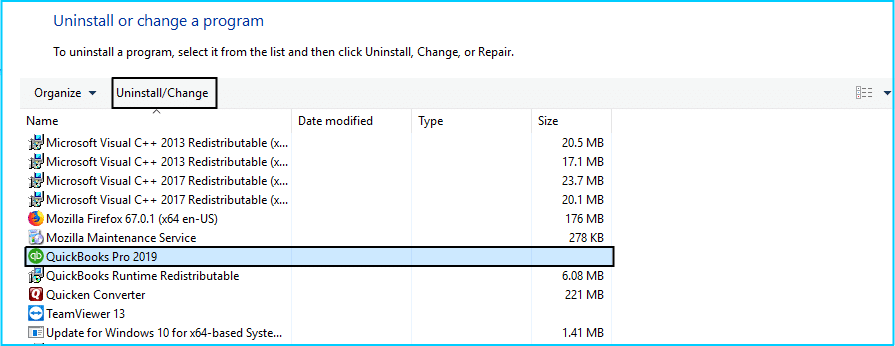
Followed by clicking on the Programs and Features tab.
You are supposed to right click and Uninstall QuickBooks desktop.
Moving ahead, you need to reinstall QuickBooks file after the uninstall gets finished, and you are good go.
Method 2: Check if you have sufficient disk space
In case the above method is not satisfying, then you can carry out this process. You can check if you are having enough disk space or not. For this, we can carry out the below steps:
To begin with, you need to click on My computer.
Visit the folder having the company file.
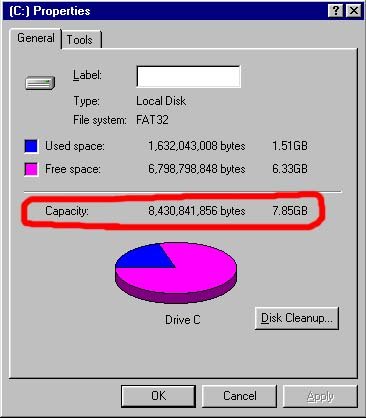
Right-click on the Hard Drive and then open the Properties option.
Moving ahead, you are supposed to Check for free space by clicking on the General tab.
Now you can either Move the company file to different hard disk or clear the space from the hard disk, where the file is stored.
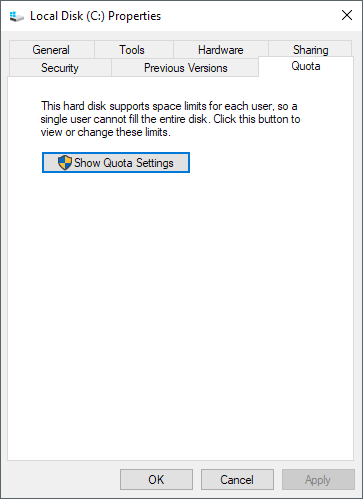
Click on the Quota tab, when the hard disk has enough space.
Once done with that you can look for the spotlight on the left side of the screen.
In such case, if the spotlight is red, it would indicate No disk quotas.
And if it is green, it means the quotas are set.
End the process by turning off the disk quotas and you are done with the process.
If none of the above methods work out, you can resolve the issue by opting to repair the QuickBooks desktop. This could resolve the issue up to certain extent. The steps involved in this process are as follows:
The initial step in the process is to click on the Start tab.
Open the Control panel.
Moving ahead you are supposed to move to the Programs tab.
Followed by clicking on the Program and Features tab.
You need to find and select the QuickBooks option and then select the Uninstall option.
Now you need to click on QuickBooks window.
Hit on Repair tab.
Hit a click on Next and hit Repair.
Method 4: Rename the .ND and .TLG files
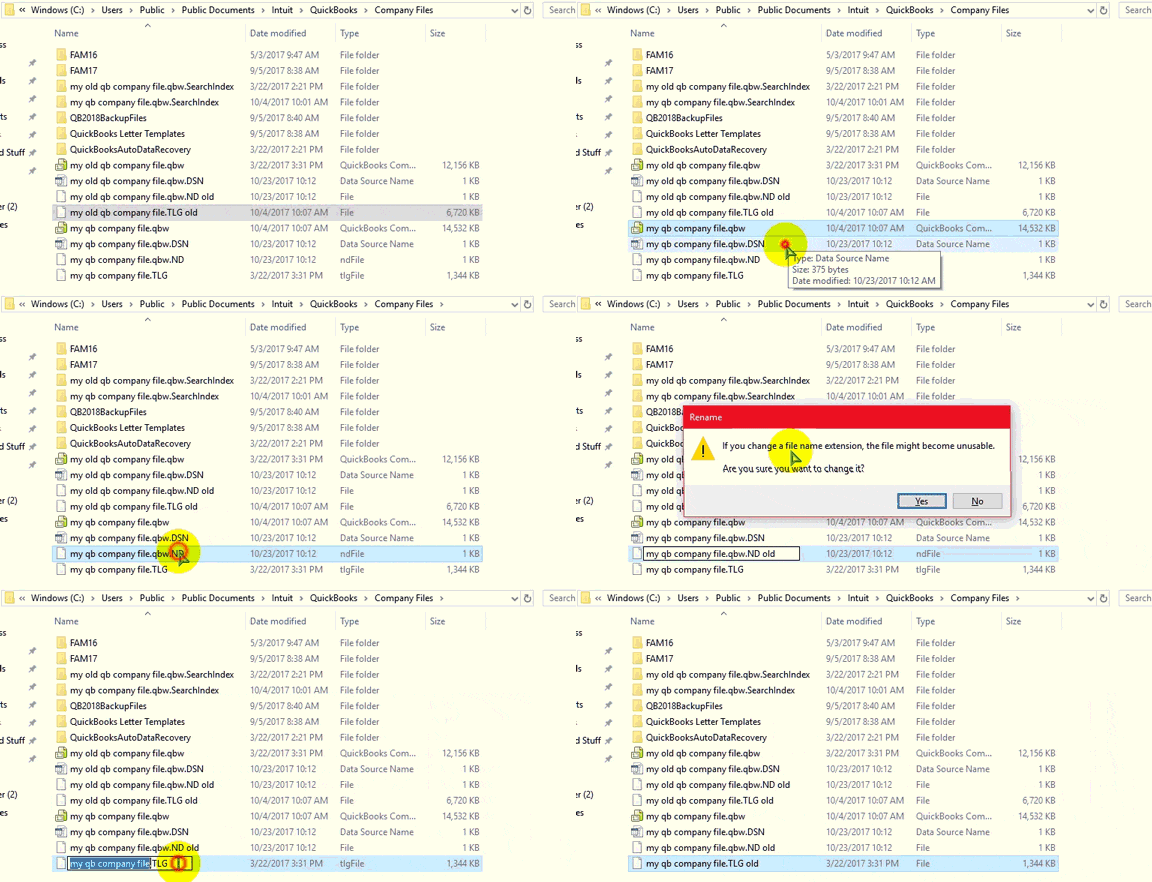
The .ND and .TLG files are a part of QuickBooks files. In case these files are corrupted, then you might encounter errors, while opening QuickBooks files. Renaming these files can be possible by carrying out the steps below:
Initially, open the folder housing the company file.
Look for the files with the same file name as the company file but with .ND and .TLG extensions.
Right-click on each file and hit on the Rename option. Include the word '.OLD' at the end of each file name.
End the process by opening the QuickBooks again and Sign in to the company file.
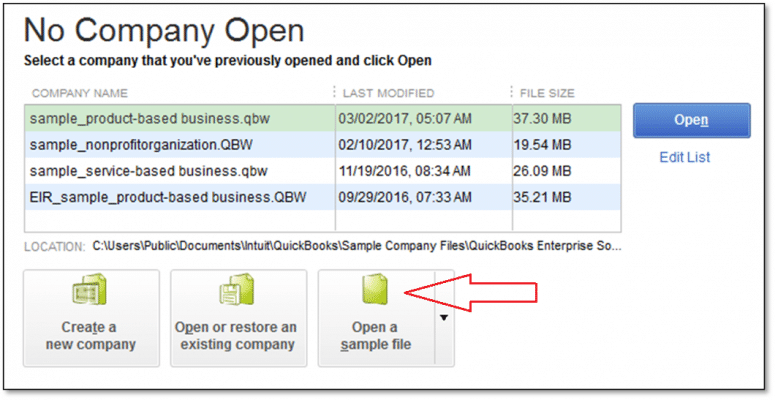
By opening a sample company file, one just tests if there is any issue remaining with the company file and with QuickBooks applications using the sample company file. If the sample company file doesn’t open and show an error, it means that the QuickBooks installation is damaged and need to be repaired.
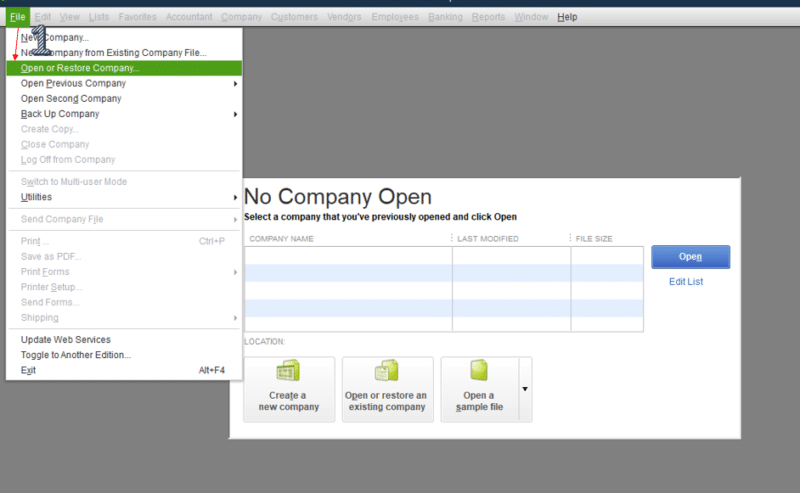
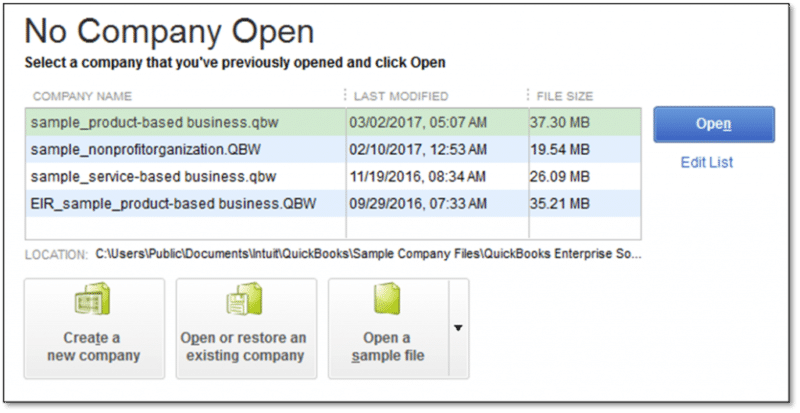
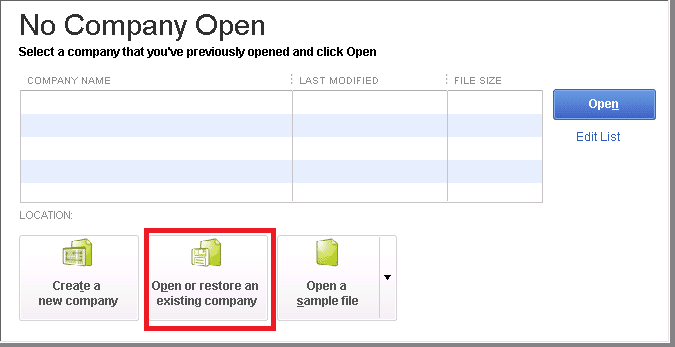
You can select to open a Sample company file in No company open option. And then choose from any of the sample company files.
After opening the sample files, proceed to the next step. In case the file is not opened and shows the same issue, then, you need to repair the QuickBooks installation files.
Conclusion!
We hope that the above-stated methods should be sufficient in fixing the QuickBooks error 6000, 304. However, there can be a situation where users might not be able to fix the issue even after carrying out the steps above. In such a situation, they can get in touch with our XpertBooks Pro experts team by dialing 1.800.761.1787. Contacting our experts can help you in fixing the various errors with much ease and that too permanently. So, do not hesitate in calling us anytime, as our professionals will be happy to help you!
QuickBooks Error 6000 304 - FAQs
Can I use QuickBooks Auto Data Recovery to fix error 6000 304?
This error cannot specifically be fixed by using the Auto Data Recovery tool. However, this tool can be used for restoring the company files if the same got corrupted.
Is there a QuickBooks tool to automatically fix this error?
QuickBooks File Doctor is an effective tool that can help in the extermination of such error.
Can I convert the company file to a different version of QuickBooks to resolve the error?
No! Conversion of the company files will not fix the ongoing error or other company file errors encountered in QuickBooks.
Can network issues or firewall settings contribute to error 6000 304?
Yes! Network-related issues can incite Error 6000 304. This issue may be caused due to poor internet connectivity or due to a technical hindrance caused by the Firewall.
Is there a specific time when error 6000 304 occurs more frequently?
This error generally appears when users open the QuickBooks company file.
Are you getting QuickBooks error code 6000 77 when trying to access your company file? Don't get panic, we are here to help you. This error is one of the most common critical company file related error that a user may encounter in QuickBooks at the time QuickBooks is unable to access the company file due to some reason. This error may also appear when you don't have enough permissions to gain access to any QuickBooks file. You should not ignore this error, as it can cause serious damage to your important data. So, if you are facing any such error, do not avoid it and make sure to resolve it as soon as possible. When QuickBooks Error 6000, -77 encounters, you may see the following error message on your desktop screen:
Warning
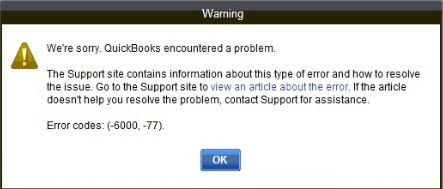
We're sorry. QuickBooks encountered a problem and needs to close. Error codes: (-6000, -77).
If you also a victim of this error, then this article can be of great help to you, as this contains all the necessary information regarding QuickBooks error code 6000, 77 and its fixation steps. You can also get in touch with our industries best error handline team in order to resolve various type of issues in QuickBooks. Our dedicated support team will ensure to provide you with the best possible accounting services.
What is QuickBooks Error 6000, 77?
As we have already said, QuickBooks error 6000, 77 is a common error, which usually occurs at the time the user tries to open a company file which is stored on your computer or network but QuickBooks is unable to access it. It mainly relates to file path issues or restrictions in accessing the data file. This error is often seen when the file is stored in the wrong folder. As a user, you are required to resolve this issue as soon as possible, as it might cause some serious damage to the data.
What are the factors causing error code -6000, -77 in QuickBooks?
There can be multiple factors causing error 6000, 77 in QuickBooks, a few of which can be as follows:
If you are running an outdated QuickBooks version, then it is most probable to come up with this error.
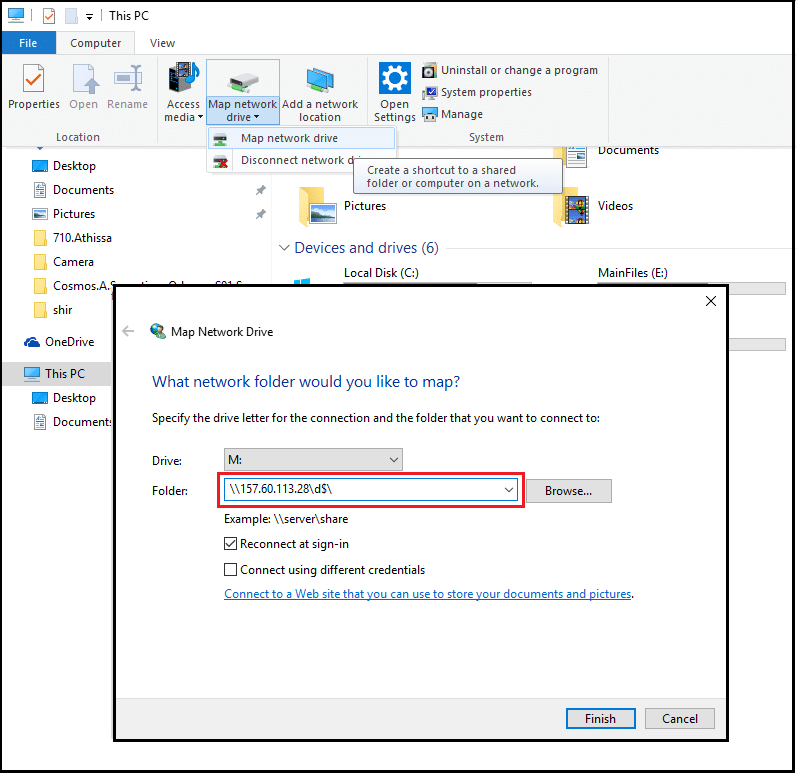
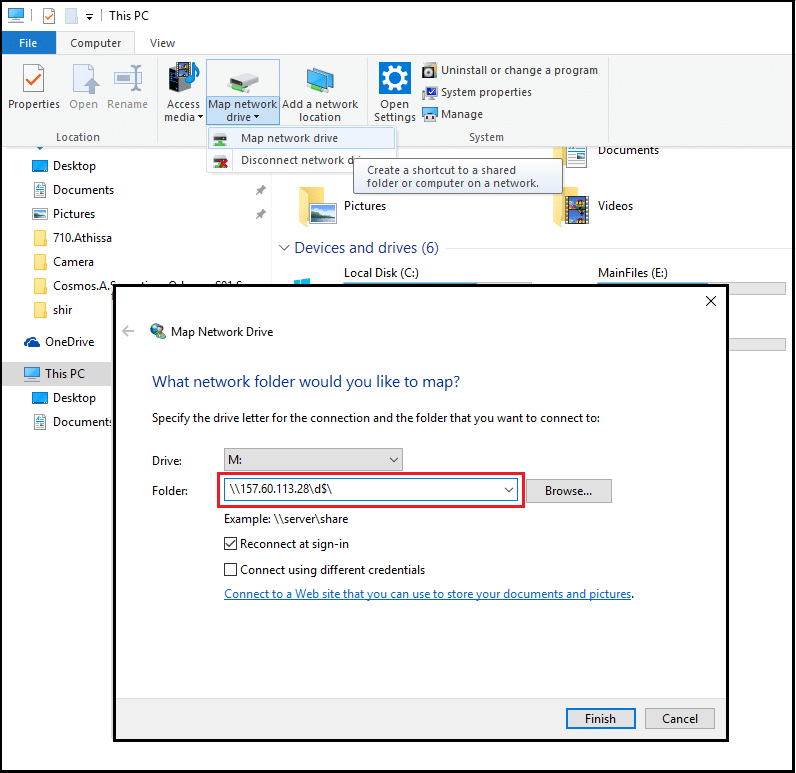
In case a mapped drive is referred to for opening the company file.
If the company file that you are trying to open is missing or damaged.
In case of the company file is stored on external storage instead of being in the local drive or a network.
The company file is damaged or corrupted.
Error 6000, 77 can also be seen, if the QuickBooks is not updated to the latest release.
You can encounter this error, in case you are having insufficient authorization to the server system.
Quick Fixes for QuickBooks Error 6000 77
Some of the quick, yet effective fixes for resolving this QuickBooks error are given as under:
Reboot QuickBooks software with more permissions. In majority of the situations, the error is removed after the software restarts and further work is needed.
Run a QuickBooks file doctor tool. This tool has the ability to repair the damaged or corrupted QuickBooks files. At times the utility fails in QuickBooks file recovery and therefore fixing the error. This is for its weak and basic underlying technology.
You are then required to move the company file to a local or network drive, in case it is previously stored on an external storage device. Try to open the QBW file in QuickBooks, see if the error has gone or it still exists.
In case the company file references the mapped drive, then change the settings and select the right server. To do this, hit a click on Open or Restore in the File menu. And then, choose to Open a company file and click on Network place. You are also required to click on the Entire network and choose the server in which the company file was stored. Lastly, you need to check if the solution works, and restart the QuickBooks software.
How to Resolve QuickBooks Error Code -6000, -77?
Now that you know little bit about the error, it is the right time to carry out the fixation methods for the same. Follow the below given manual steps to fix QuickBooks error code -6000, -77 on your own:
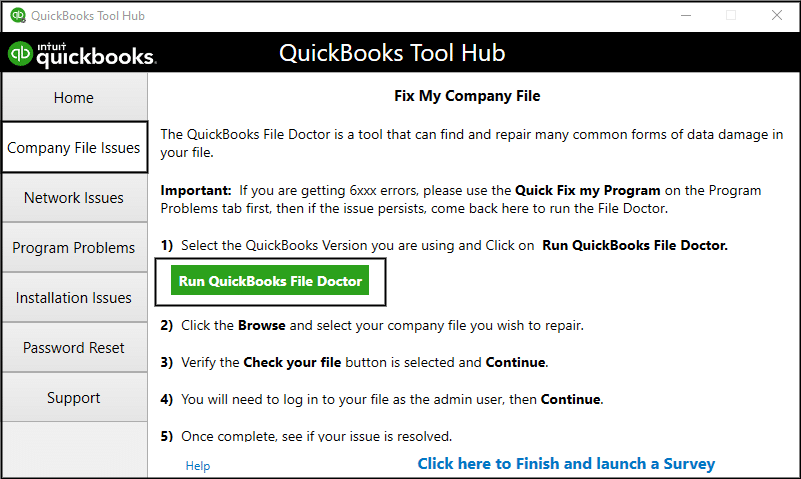
Method 1: Run QuickBooks file doctor tool
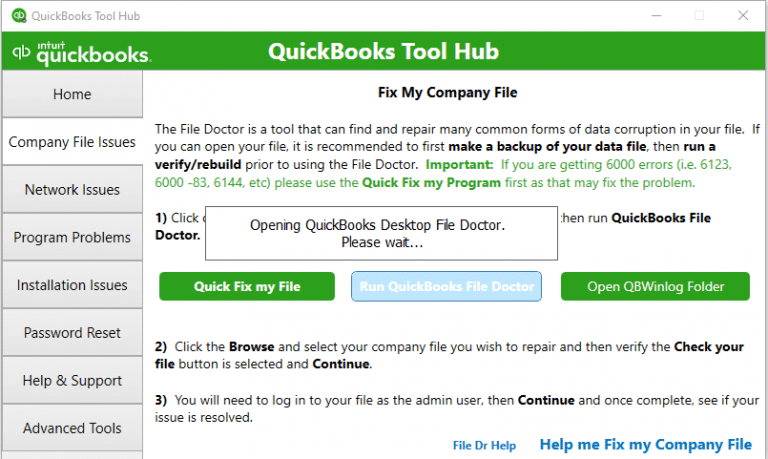
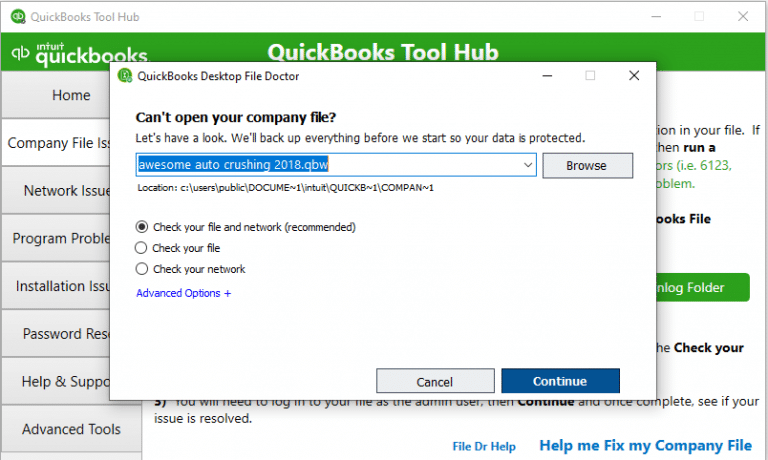
You need to run QuickBooks file doctor tool using tools hub program, in order to fix company file related problems:
Method 3: Using UNC path filename instead of using the mapped drive
You should consider using the UNC path filename rather than the mapped drive. The steps for the same are given as under:
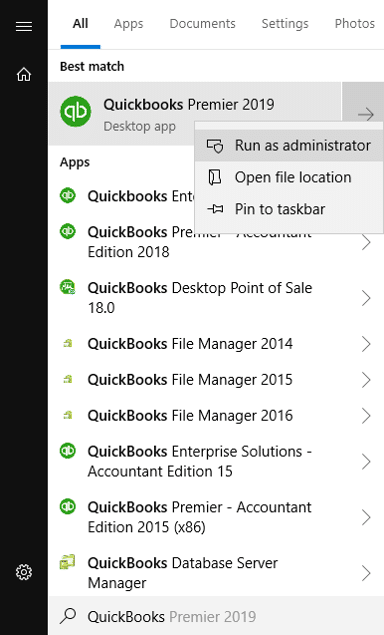
Start off with right-clicking on the QuickBooks icon and then press and hold Ctrl key.
After that choose Run as admin option from the Drop-down list.
Followed by pressing and holding Ctrl key to open the No Company window
Move to the file and then choose Open or restore the company, and also Open a company file. After that, hit on Next.
You need to select the Network from the left pane.
Then move to the folder location of the company file.
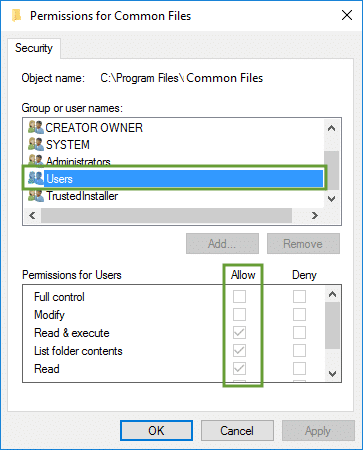
The last step is to Set the folder permissions and then open the company file.
Method 4: Changing the filename of '.ND' and '.TLG' files
The initial step in this process is to move to the folder where the company is stored.
The location of the file is C:\Users\Public\Public Documents\Intuit\QuickBooks\Company Files.
Followed by locating the files that have the same name as the company file extensions as .ND and .TLG
Hit a right-click on the Files one by one and then opt for Rename from the drop-down list.
Now, add the word .old at the end of the file and repeat the process for both of the files.
Method 5: Cleaning the blank spaces after the company name and before the company file extension
From the filename of the company file, you should remove any blank spaces.
Initially, you are supposed to log out of the QuickBooks desktop software application on the systems where QuickBooks is open.
Next step is to move to the QuickBooks company file and open it.
Move to the QuickBooks company file, you need to right-click on it and select the Rename option.
Select the name of the company file and Enter it. Also, check that there is no space in it, and then remove any spaces between the file extension and also the company name.
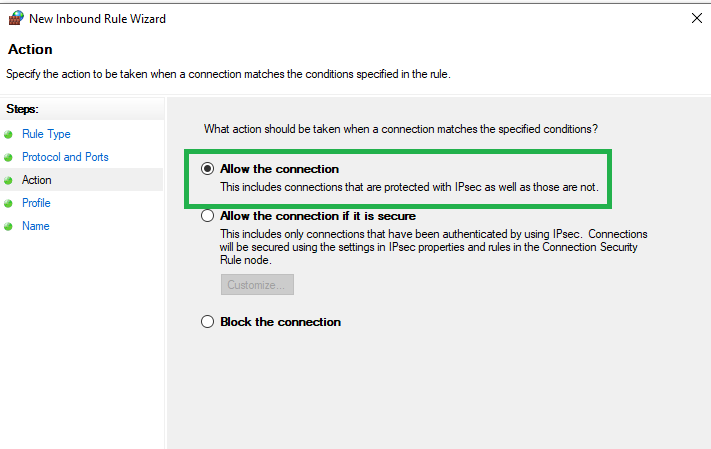
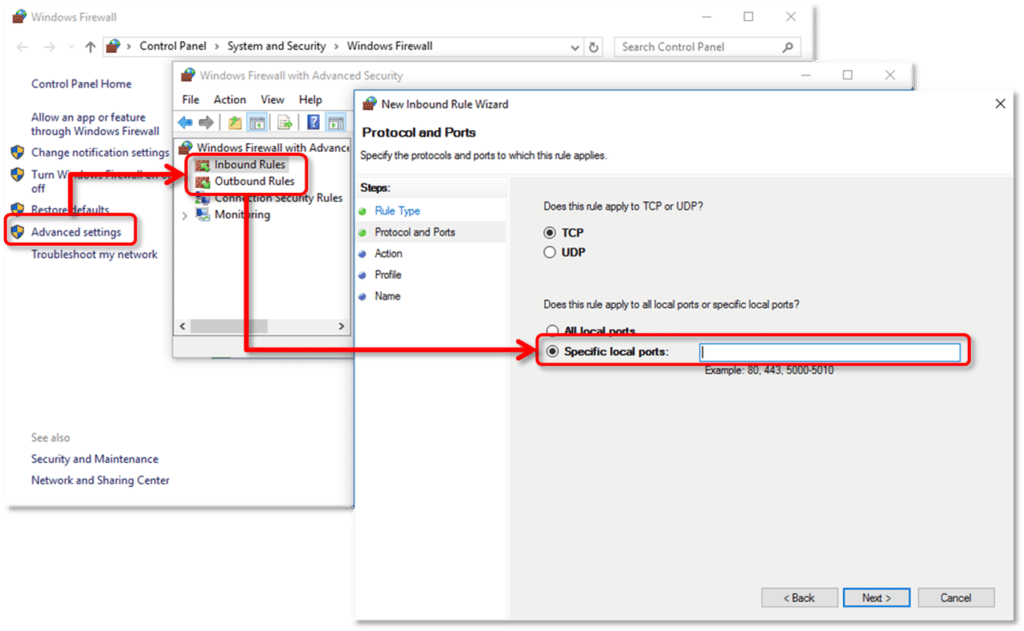
You are supposed to configure the firewall port settings to Automatic.
Manually configure the exceptions for all Firewall ports.
The last step is to either install an anti-virus defender or configure it properly.
Method 7: General fixation steps
Apart from the troubleshooting methods stated above, you can also follow some additional fixation steps to rectify this QuickBooks error 6000 77. These quick steps are as:
Talking about the general fixations, reboot the QuickBooks with more permissions. In majority of the cases, the error is removed after the software is restarted and no further work is needed.
Running a file doctor tool is another alternative. This tool has the ability to repair damaged or corrupted QB files. Also, at times this utility fails in QuickBooks file recovery and therefore fixes the error message.
Also, you can move the company file to a local or network drive, in case it was previously stored on an external storage device. Then, you need to open the QBW file in QuickBooks and check if the error has gone or it still exists.
In case the QuickBooks company file references the mapped drive, then change settings and select the right server. For this, tap on Open or Restore option in the File menu. And also, choose Open a company file and click on Network place. You are also required to click on the Entire network and choose the Server in which the company file has been stored. The last step is to check if the solution worked or not, and then reboot the software.
To make the troubleshooting methods simpler for you, we have crafted the quick methods to resolve QuickBooks error -6000, -77 in the following infographic.
Summing Up!
This brings us to the conclusion of this post where we hope that the information and the methods we have discussed above might be of great help to us in fixing the QuickBooks error 6000 77. However, for any further trouble or for any other information, you can call us anytime using our dedicated helpline i.e.,1.800.761.1787, and our team of professionals will be happy to help you!
FAQs
Can I use QuickBooks Tool Hub to fix Error 6000, 77?
Yes. By downloading and installing the QuickBooks Tool Hub, you can run the Company File Issues > Run QuickBooks File Doctor Tool to automatically scan and repair file-related problems that cause this error.
Is Error 6000, 77 related to multi-user mode in QuickBooks?
Yes, sometimes this error appears if the company file is being accessed in multi-user mode incorrectly or the file is stored in a location that is not properly shared with all users.
What are the various errors in Error 6000 series?
This series of QuickBooks company file errors include Error code 6000 77, Error 6000 80, QB Error 6000 301, and Error 6000 305 including other errors.
How can I prevent Error 6000, 77 in the future?
1. Always keep your company file on a local or properly shared drive. 2. Regularly backup your company file. 3. Ensure proper folder permissions. 4. Update QuickBooks to the latest release. 5. Keep firewall and antivirus exceptions configured correctly for QuickBooks.
QuickBooks Error Code 6000, 80 is a company file-related error that generally occurs when the QuickBooks desktop failed to open, restore or back up the company file (.QBW). The error simply means that QuickBooks is unable to establish a secure connection with the company file due to some reasons such as: corrupted data, misconfiguration of hosting or network related interruptions. It is important to fix the error as soon as possible, as it can restrict you from working on your company file and affect important business operations. You can fix this error by checking hosting settings, repairing the company file, or using QuickBooks File Doctor tool. There can be multiple factors causing this annoying error, which will be discussed later in this post.
What is QuickBooks error 6000, 80?
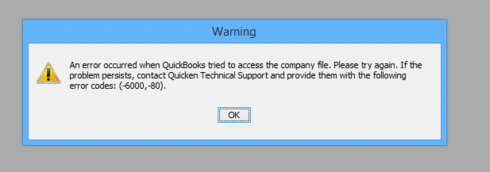
QuickBooks error 6000, 80 is a common error, that can usually appears on both local and network setup. The users may face difficulty while opening and working with the company file, as a consequence of this error. This error comes in -6000 series error that the users often encounter while working with the company file. This error is generally related to company file and pops up on the screen with an error message. Description and details:
Error Number
Error 6000 80
Error Name
QuickBooks Error code 6000 80
Description
Error 6000, 80: QuickBooks encountered an error while trying to access the company file.
Developer
Intuit Inc.
Software
QuickBooks
Applies to
Windows XP, Vista, 7, 8
Error -6000 -80 can also be seen during the program installation, while related software is running in the background, while Windows opening or Windows shutdown, or even during the installation of the Windows software package. If you are a victim of this error, then this article can be of great assistance to you, as in this post, we will be trying to assist you in getting rid of from this error. Ensure to read this article till the end, or if you are short of time, then you can simply contact our certified professionals and discuss the issue with us.
What Triggers the QuickBooks Desktop Error 6000, 80?
Checkout the possible causes behind to occurring the QuickBooks error message 6000, -80:
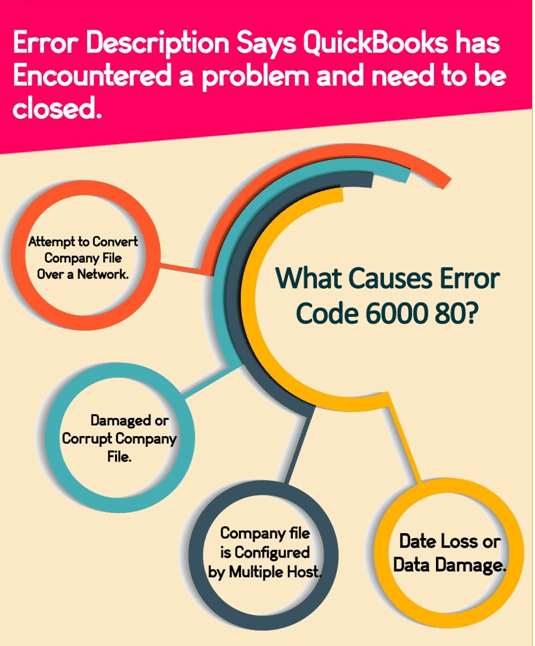
Any sort of data damage in the company file can lead to Error 6000, 80.
In case the QuickBooks software unable to communicate with the server.
If there is any kind of damage in the files, especially the ones with .qbw as extension.
You can also encounter this sort of error, when you try to convert a file to a company file that too, over a network and not on a local hard disk.
In case multiple systems are configured as host for the QuickBooks data file, then in that case you are probable to encounter this error.
This sort of error is also seen if the file size is larger for the corresponding .TLG file.
Symptoms and signs of QuickBooks error 6000, 80
You can identify this error by checking out the signs and symptoms below:
You can identify this error, if you are unable to open the company file.
There is any message window appearing on the screen with the error code itself.
Another symptom for the same can be if the QuickBooks program becomes unresponsive.
You can also spot this error, if you are unable to work on your system as Windows become sluggish.
If your active QuickBooks program or screen crashes, then you can encounter -6000, -80 error.
Methods to Get Rid of QuickBooks Error 6000, 80
There can be multiple options that one can opt for in order to get rid of QuickBooks company file error code 6000, 80. Let us check out each of the methods one by one. We have categorized the solutions for multi-user and single-user mode user separately.
Condition 1: While Using in Multi-user mode
If you are using multi-user mode, then check out the solutions below:
Method 1: Copying the backup or company file
First of all, you should either copy to the local hard drive, such as C drive, or the backup file or the company file which is supposed to be updated.
If you are using QuickBooks in single-user mode, then the solutions for you might differ from the above-mentioned ones. The name of the solutions might seem to be similar, but the steps generally differ in both the users modes. So, make sure to carry out the solutions listed below:
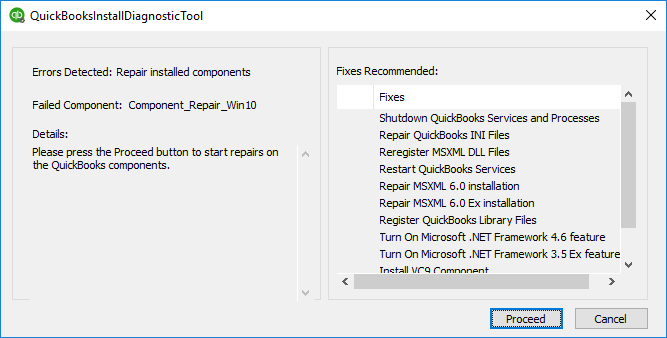
Method 1: Using QuickBooks install diagnostic tool and detect the data damages
It should be noted that the run-through doesn’t actually repair the data damages in QuickBooks data file, but it detects whether there are any sort of data damages or irregularities in it or not.
Either recover the QB data using QuickBooks ADR or restore the most recent backup.
The company file might have some sever issues, if the error repeats. So, you would require to address the damaged and fix them in time with the help of professionals or any kinds of tools to fix the damaged QuickBooks company file.
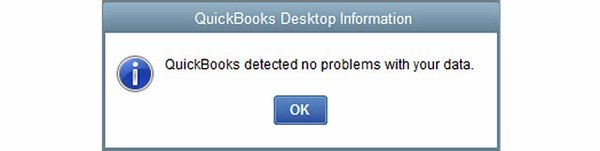
In case you are witness of “No problem detected in QuickBooks company file” message and error persist, then consult a professional.
Method 2: Copying to local hard drive
The very first thing is to either copy to the local drive, just like the C drive, .qbb file, or .qbw file, whichever is to be updated.
Either restore a backup or update the QuickBooks company file.
Copy the same to original location of the restored or updated file.
Manually Fixation of the QuickBooks error 6000 80
In case the above methods did not work for you, then you can manually resolve the QuickBooks error code 6000, 80 by carrying out the steps below:
Configure the firewall or security software to permit the internet access to the QuickBooks desktop files on all systems and still getting the issue to continue to the next step.
You need to check and Set up permissions to access the company file properly.
Scan the company files folder and create the Network description (.nd) file.
Now you have to Verify the hosting on the systems. And ensure that scanning results into Turning the hosting on.
You need to Open the company file from a different location to check for the damage from a different location.
Also, open the file from the hosting system. In case you are able to do this, then copy the company file to another location.
Coming towards the end of this post, we expect that the information that we have shared above might be of some help in fixing the QuickBooks error 6000 80. However, in case the error persists or if you are facing any sort of difficulty with the error fixation methods, then do not waste much time and simply contact our professionals, as the data damage issue can be a sensitive case and sort of experimenting might cause serious data loss.
FAQs
What does QuickBooks Error 6000 80 represent?
This error, including the errors in the Error 6xxx series represents company file issues that prevent users from opening the company files.
Which error notification appears with Error code 6000 80 in QuickBooks?
The error message states, “Error 6000, 80: An error occurred when QuickBooks tried to access the company file.”
Is there any tool by Intuit to fix Company file issues?
Yes! Intuit has rolled out the composite Tool Hub program. This tool contains features like Quick Fix My program, file doctor, install diagnostic tool which can be used for resolving the company file errors in QuickBooks.
Can I fix the Company file issue by using the Verify and Rebuild tool?
Yes! This tool is inbuilt in QuickBooks and can be used for resolving data integrity issues affecting the company files.
How to Rebuild the Company file?
1. Go to the File menu tab, and from there, hit a click on Utilities. 2. The next step is to choose the Rebuild data option. 3. Before starting with the rebuilding process, back up the company files.