

Well, the perks of incorporating QuickBooks Desktop are not hidden from anyone. This software rolls in with tons of features and functionalities. So, if you have finally decided to incorporate QuickBooks Desktop Enterprise, then it is the beginning of better organization of your day-to-day accounting and bookkeeping activities. The decision comes with lots of questions. As a newbie, you might not know the installation or upgrade process. QuickBooks Enterprise is advanced accounting software that helps countless business owners manage their accounting activities. If you are looking for a comprehensive guide to install and set it up, today's segment will be pretty helpful. So, make sure to read this segment till the end.
Whereas, if you know nothing about QuickBooks and don't want to experiment with the software, contact professionals with renowned experience in dealing with such tasks. You can also consult the XpertBooks Pro team and clear your clouds of confusion related to your accounting software. Our industry's best accounting experts will be happy to install and set up QuickBooks Desktop Enterprise for you, without any technical issue.
Table of Contents
What is QuickBooks Enterprise Solutions?
Before you dig in deep and learn the process of installing and setting up QuickBooks Desktop Enterprise, let us first take a glance at this software. QuickBooks Desktop Enterprise is accounting software, known worldwide for its efficiency, easy-to-use interface, and productivity. Entrepreneurs all over the world prefer this accounting software and rely on it for all sorts of accounting and bookkeeping activities. It assists in managing accounting activities efficiently, in the least possible time. It is developed by Intuit and includes lots of features and functionalities. Now that you know a little about the software, it is time to begin with the installation process.
Important points to remember
- Ensure that while installing and configuring QuickBooks Enterprise, you have the system's admin rights. This is also important to set up file sharing and the network properly.
- Moreover, you should have a good knowledge of company financials. Learn the process to set up the company files and decide who gets access.
- Another important thing is to back up all financial and bookkeeping data from the previous accounting software. As per IRS guidelines, hold this data for up to 10 years.
- In case you are going to use QuickBooks Enterprise in multi-user mode, test the network bandwidth. If you are not going to use file sharing, this step can be avoided. Confirm that the network connection is fast enough to run Enterprise on every workstation.
- Choose a large-sized file and note its size.
- Share the file over the network. Note that this might take some time.
- Use this formula to test the bandwidth: file size x 8 / copy time.
- Configure the firewall for QuickBooks Enterprise.
- Also, check the system requirements for running QuickBooks Enterprise properly.
The process to install and set up QuickBooks Desktop Enterprise involves four simple steps:
1. Testing the network
- Backing up the earlier accounting system
- Selecting the option for setting up the network
- Testing the network bandwidth
- Verifying firewall and antivirus settings
- Checking the system requirements
- Checking the compatibility requirements
2. Installing QuickBooks Enterprise
- Downloading Enterprise from your Intuit account
- Installing Enterprise on the server
- Configuring the QuickBooks database server manager
3. Setting up multi-user hosting
- Providing access to company files
- Installing QuickBooks Desktop on all workstations
- Setting up multi-user hosting
- Registering QuickBooks Desktop Enterprise
- Creating a company file
- Scanning the company file
4. Configuring Enterprise for your business
- QuickBooks Desktop setup
- Creating users and roles
In this post, we will explore each of the steps in detail. Let us begin:
Step 1: Preparing and testing the network
Well, before installing QuickBooks, the most important things to know are networking, file sharing, and permissions. Take a backup of the accounting system and then configure it. After that, set up the network using one of the three options listed below:
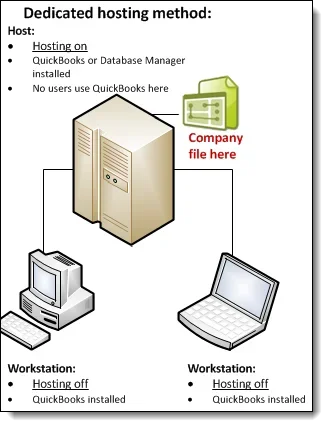
Central server option:
This option demands downloading and installing the QuickBooks Database Server Manager, where you can store all company files.
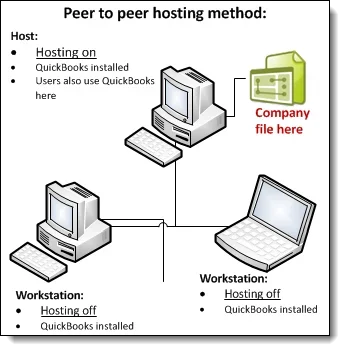
Peer-to-peer option:
The next option involves downloading and installing QuickBooks Enterprise on every workstation. One of the systems stores the company file, while the other users access files over the network.
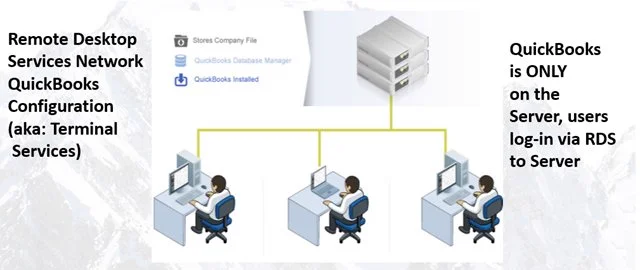
Remote desktop services:
In the third option, QuickBooks Enterprise is already installed on the central server. Others access it remotely instead of opening the company file directly.
Read Also: QuickBooks Error Code 3371 Status Code 11118: How to Settle It?
Step 2: Installing QuickBooks Enterprise
Now you are supposed to install the QuickBooks Enterprise version, for which the steps below can be implemented:
- Close all tabs and programs, including the antivirus program on the system.
- Sign in to your Intuit account and go to the official QuickBooks downloads page to download the latest version of QuickBooks Enterprise.
- Install the software by carrying out the on-screen instructions.
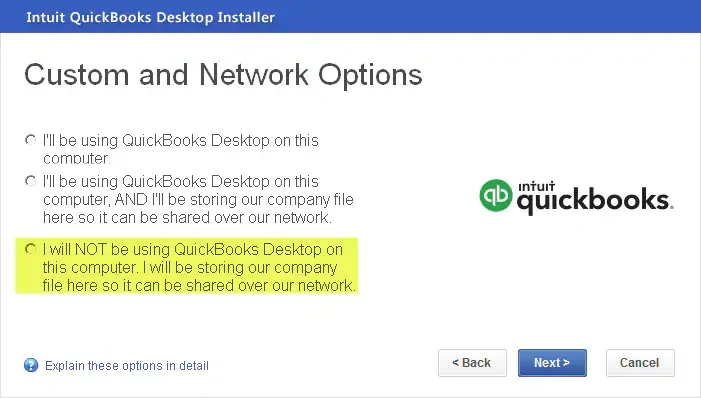
- You will then be required to select one of the three options appearing on the screen (Express, Custom, or Network install).
- Once the configuration process completes, carry out the remaining on-screen prompts.
Step 3: Setting up multi-user hosting
Multi-user hosting allows one PC to host multi-user access. In case you have installed the QuickBooks Database Server Manager, you don’t need to turn on multi-user hosting on the server.
- Only one computer should host multi-user access.
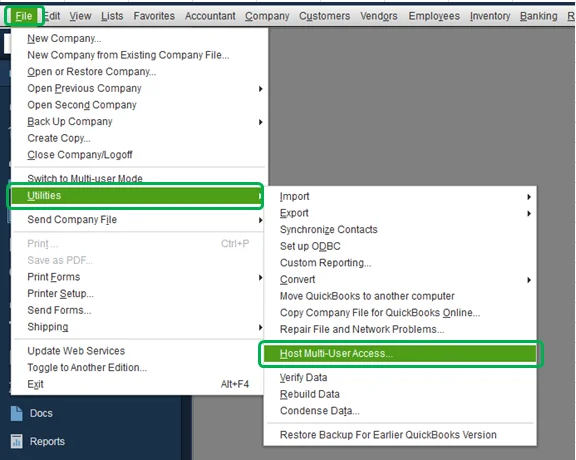
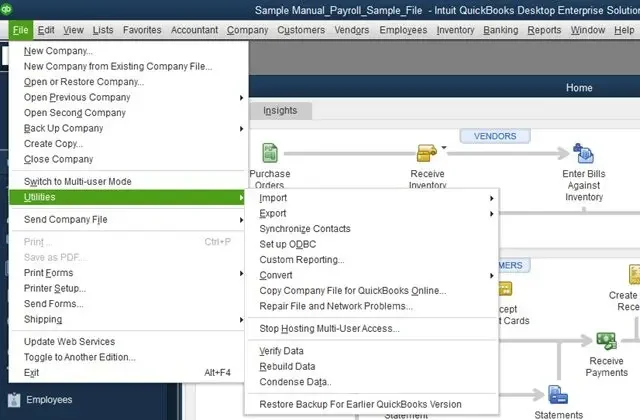
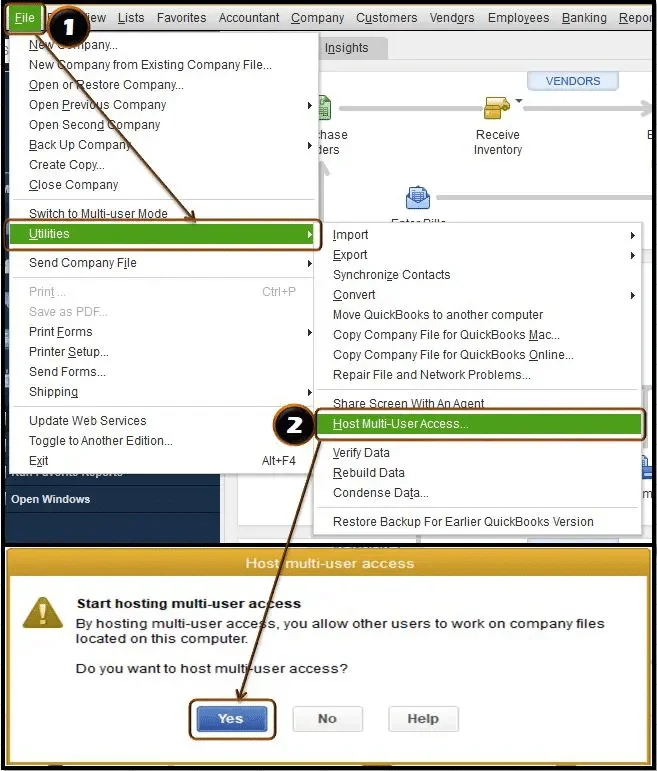
- On the server, open QuickBooks Desktop, go to the File menu, and select Utilities.
- If you see Stop hosting multi-user access in the Utilities menu, hosting is already ON — leave it as is.
- If you see Host multi-user access instead, click it and then click Yes to confirm.
- Close and reopen the company file. Click Yes and move ahead.
- On workstations, make sure Host multi-user access is turned OFF.
Read Also: QuickBooks Install Diagnostic Tool - Fix Common Installation Errors
Step 4: Configuring QuickBooks Enterprise for your business
Setting up QuickBooks Enterprise is simple. Carry out the basic instructions and then click the Start tab.
Quick start center:
This is used to create invoices, bills, checks, and sales receipts. With this, you can also view customer and vendor account balances. It helps maintain entries in QuickBooks and makes it easy to view details of any client or vendor with pending payments.
Reviewing the chart of accounts:
QuickBooks creates the chart of accounts based on your business during the setup. Review it — this helps you edit anything with ease. Back up all the company data files. The best way to take a backup of the company file is the online backup that comes with an active subscription.
Payroll:
If you subscribe to payroll, add the year-to-date payroll information. If it is missing, the payroll tax information might be incorrect.
Backing up the company file:
The online backup service is the best option for backing up the company file. It is part of the active subscription and works safely.
Step 5: Creating users and roles
This step is part of the fourth step, where you create roles and users in QuickBooks Enterprise. The steps involved are as follows:
Setting up a role:
- Start QuickBooks Desktop Enterprise.
- Move to the Company menu, click Users, then Set Up Users and Roles. Click the Role List tab.
- Click New.
- Type the role name in the role name field, or select an existing role.
- Provide access levels to the activities.
- Click OK.
Setting up a user:
- Open the User List tab and click New.
- Fill in the user name in the user name field.
- Type the password in the password field and confirm it.
- Assign the roles to this user and click OK.
Congratulations, you are all done!
Sum up!
At the end of this post, we expect that the information shared above helped you in successfully installing and setting up QuickBooks Desktop Enterprise. Our XpertBooks Pro team works day and night to provide the best possible services. Do not hesitate to contact us — our experts and certified professionals will be happy to help you.
FAQs
What should I do if I’m having trouble installing QuickBooks Desktop Enterprise?
Trouble installing QuickBooks Desktop Enterprise is pretty common. The basic troubleshooting steps include:
1. Verify that the system meets the basic requirements.
2. Restart the system.
3. Close all open programs, including the antivirus program.
4. Try to install QuickBooks Desktop Enterprise again.
What if I can’t find my license number or product number?
When you purchase QuickBooks Desktop Enterprise, you get an email containing the license and product numbers. You can also find them in your Intuit account (CAMPs). If you can’t access them, but the software is installed on another system, follow the steps below:
1. Open QuickBooks Desktop Enterprise on the other system.
2. Press F2 (or Ctrl + 1) to open the Product Information screen.
3. Write down the license and product number and hit OK.
How do I download and install an update or patch?
Visit the official QuickBooks downloads page from your Intuit account and download the latest version. Carry out the on-screen instructions to install the update, or consult a professional.
How do I restore the company file?
1. Visit the File menu and click Open or Restore Company.
2. Choose Restore a backup copy, click Next, and follow the on-screen prompts.
3. For detailed instructions on each backup and restore option, check the Help menu.
What should I do if I forget my password?
If you see “The password you typed is incorrect”, your password might include mixed-case characters. QuickBooks supports case-sensitive passwords:
1. Try logging in with the Admin login name and click OK without typing a password.
2. Enter the password with Caps Lock or Num Lock turned off.
3. Type the password in a text editor first to confirm the keyboard is working.
4. Enter the password without any space before or after it.
Or click the I forgot my password link and carry out the on-screen instructions.
Can I install different versions of QuickBooks Desktop Enterprise?
Yes. You can install multiple versions of QuickBooks Desktop Enterprise on the same system. The point that matters is that all users of a company file must use the same version to avoid any mess. Different versions can be open at the same time, but different editions must be opened one at a time.
How do I purchase additional user licenses?
QuickBooks Desktop Enterprise permits more than one user to access the company file at the same time. You can purchase additional licenses instead of buying additional copies of Enterprise. Go to the Help menu, click Manage my license, then Buy additional user license, and follow the on-screen instructions.
Do I need Internet Explorer to run QuickBooks Desktop Enterprise?
No — not anymore. Internet Explorer was retired by Microsoft, and modern QuickBooks Desktop versions use their own built-in components for web-related features. Just make sure your system runs Windows 10 or Windows 11 (with Microsoft Edge available) and meets the system requirements for QuickBooks Desktop Enterprise.
Checkout these topics also:
Steps to Fix Unrecoverable Error in QuickBooks Desktop
QuickBooks Component Repair Tool - Fix Installation Errors
QuickBooks Unable to Locate PDF Viewer - How to Fix It?