

Back in the year 2012, Intuit released the QuickBooks File Doctor tool to help users repair company file and network issues. Please note that the standalone File Doctor is discontinued — the tool now runs only from the Company File Issues tab of the QuickBooks Tool Hub.
In this article, we will explain what the QuickBooks File Doctor tool is and how you can use it to fix company file and network issues. If you need help along the way, call our QuickBooks experts.
What is the QuickBooks File Doctor tool?
QuickBooks File Doctor is a free repair tool from Intuit that fixes 6000-series errors, H-series errors, and damaged company files. It works only on Windows computers — it is not available for QuickBooks for Mac users.
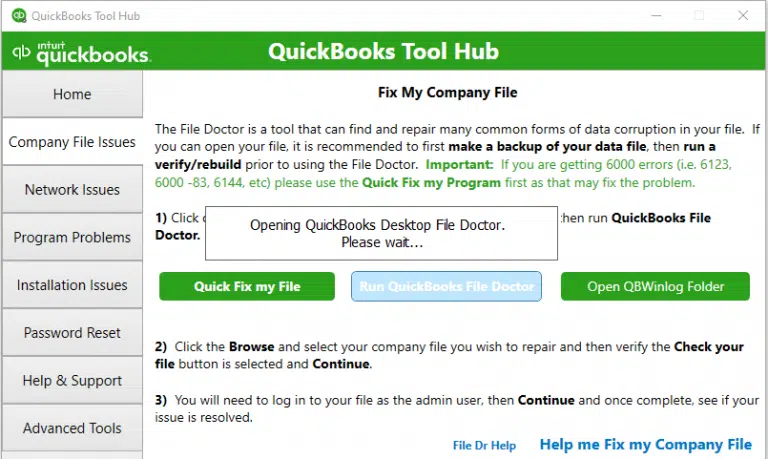
Errors fixed by the QuickBooks File Doctor tool
QuickBooks File Doctor can help you resolve the following errors and issues:
| Error / Issue |
|---|
| QuickBooks error 6150 |
| QuickBooks error 6000-82 |
| QuickBooks error 6000-305 |
| QuickBooks error 6000-301 |
| Network errors |
| Installation errors |
| Errors when updating QuickBooks |
| Firewall ports poorly configured |
| QuickBooks errors 6147 and 6130 |
| Other 6000-series errors |
| Multi-user mode errors |
| Damaged company files |
| Data corruption errors |
| H202 to H505 errors |
| Unable to open the QuickBooks company file |
Step 1: Download and install the QuickBooks Tool Hub
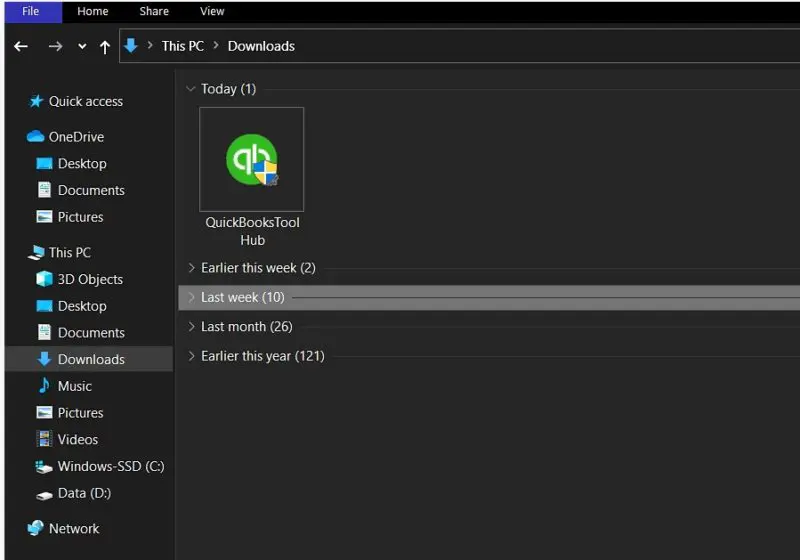
- Press Ctrl + J in your browser to open the downloads list, or open your Downloads folder.
- Double-click QuickBooksToolHub.exe to start the installation.
- Accept the license agreement, click Next, and then click Install.
- Once the installation finishes, click Finish.
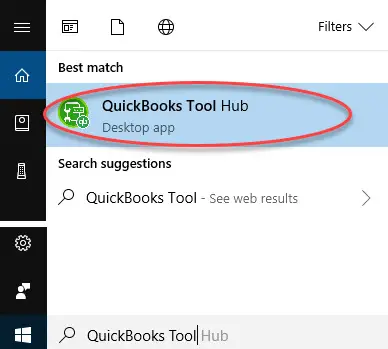
- Open the QuickBooks Tool Hub from the desktop icon. Check the Home tab to confirm you are using the latest version (1.6.0.8).
Note: Download the Tool Hub only from Intuit's official page.
Step 2: Run the QuickBooks File Doctor
Before running the File Doctor, try the Quick Fix My File function first:
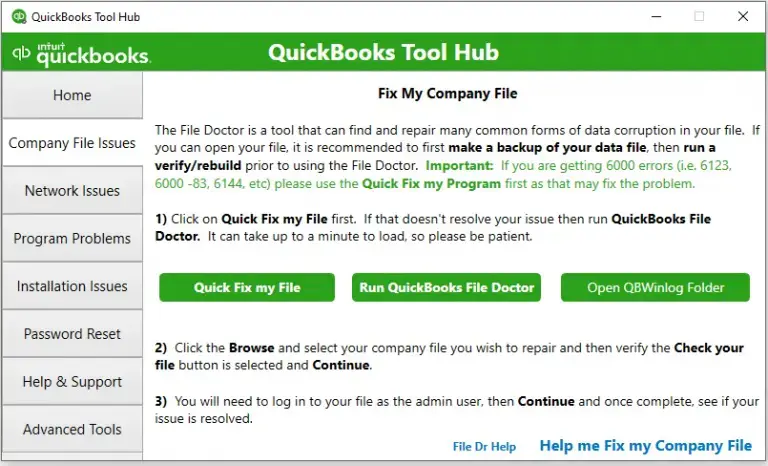
- Close QuickBooks and open the Tool Hub.
- Go to the Company File Issues tab and select Quick Fix My File.
- Once the process completes, reopen QuickBooks and check whether the error is resolved.
If the error persists, run the QuickBooks File Doctor:

- In the Tool Hub, go to the Company File Issues tab and select Run QuickBooks File Doctor.
- Select your company file from the drop-down menu. If you cannot see it, click Browse and find the file.
- Choose Check your file and click Continue.
- Enter your QuickBooks admin password and click Next.

- Wait for the scan to finish — it can take up to 5 minutes depending on the file size.
Important points to remember before running the QuickBooks File Doctor
- Have your QuickBooks admin credentials ready.
- Make sure you have a proper internet connection.
- File Doctor works best with company files smaller than 2 GB.
- Update QuickBooks to the latest version before running the tool.
- Close QuickBooks before running the File Doctor.
Limitations of the QuickBooks File Doctor tool
- It works only on Windows computers, not on Mac.
- Network diagnosis and repair may not work properly if multiple QuickBooks versions are installed on the system.
- Very large company files may take a long time to scan or may not be repaired.
Most probable outcomes
- File Doctor fixed the issue: Reopen your company file and check whether the error is gone.
- File Doctor did not detect any problem: Try Quick Fix My Program from the Tool Hub's Program Problems tab.
- Issue detected but cannot be resolved: Restore a recent backup or contact our QuickBooks experts.
Winding up!
The QuickBooks File Doctor is a handy free tool for fixing company file and network issues. By downloading the latest Tool Hub, trying Quick Fix My File first, and then running the File Doctor with your admin credentials, you can resolve most 6000-series and H-series errors without much trouble.
Frequently asked questions
Is QuickBooks File Doctor free?
Yes. The QuickBooks File Doctor is a free repair tool from Intuit, and it is included in the QuickBooks Tool Hub.
Can I use QuickBooks File Doctor on a Mac?
No. The File Doctor works only on Windows computers — it is not available for QuickBooks for Mac users.
How long does the File Doctor scan take?
The scan time depends on the file size. In the majority of cases, it takes up to 5 minutes.
Do I need to back up my data before using File Doctor?
Yes. Always create a backup of your company file before running the File Doctor.
What should I do if File Doctor cannot fix the issue?
Restore a recent backup of your company file. If the problem continues, contact our QuickBooks experts for further assistance.