

Are you facing QuickBooks Error 15311 and don't know how to fix it? Well, don't worry, as this article is a complete guide on how to resolve QuickBooks error code 15311. This error is basically a payroll update error, which might be seen at the time when the payroll update process takes place, or when QuickBooks is unable to connect to the payroll service. This error appears on the screen and displays a message stating:
| Error 15311 | "QuickBooks update cannot be completed successfully" |
|---|---|
| Problem | "Cannot connect to QuickBooks payroll". |
This error can be a bit annoying for the users to deal with, but carrying out the procedure discussed later in this post can help you in tackling the issue. So, make sure to read this segment till the end and find out the methods to fix this error. You can also reach out to our QuickBooks payroll experts for help with any payroll update issue.
In order to fix this error, you need to have an idea of when and where QuickBooks update error 15311 takes place. So, here are the symptoms of this error:
- Update error 15311 occurs and crashes the active program window.
- The system often crashes with 15311 when running the same program.
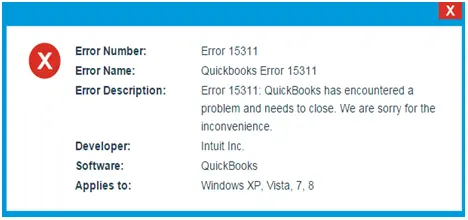
- Also, the QuickBooks error itself appears on the screen.
- Windows runs slowly and does not respond to mouse or keyboard inputs.
- The system freezes for a couple or seconds.
Read Also: QuickBooks Update Error 15240 (Causes and Solutions)
What may trigger QuickBooks payroll error 15311?
There can be certain reasons behind the occurrence of the error, a few of the most common ones are enumerated below:
- Incomplete or corrupted QuickBooks installation.
- Virus or malware attack.
- QuickBooks files got deleted or damaged.
- Windows registry entries related to QuickBooks software are corrupted.
- Corrupted files from the downloaded QuickBooks files.
- Incorrect TLS/security settings blocking the secure connection to the payroll servers.
- Also, the error can be seen when anything interrupts the update process of the software.
Easy Methods to Get Rid of the QuickBooks Payroll Error 15311
To get rid of the QuickBooks error 15311, you can adopt any of the below-stated methods. Let us check those methods one by one:
Method 1: Download and install a digital signature certificate
Make sure that you have the latest digital signature certificate set up on your system. The steps to set up the latest digital signature are given as under:
- The first step is to press the Windows key and then in the search box type QBW32.exe.
- If the file is not visible, then click on More results.
- Click on the Computer icon.
- Then locate the QBW32.exe file in the search results.
- Right-click the QBW32.exe file and select the Properties option.
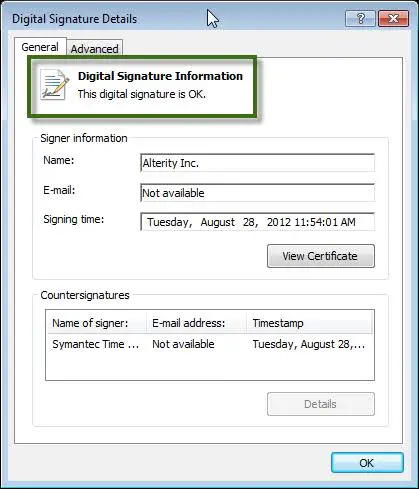
- Now go to the Digital Signatures tab and make sure that Intuit Inc. is listed.
- The next step is to select it and click on Details.
- After that, select View Certificate in the digital signature details window.
- You will see the certificate window — select Install Certificate.
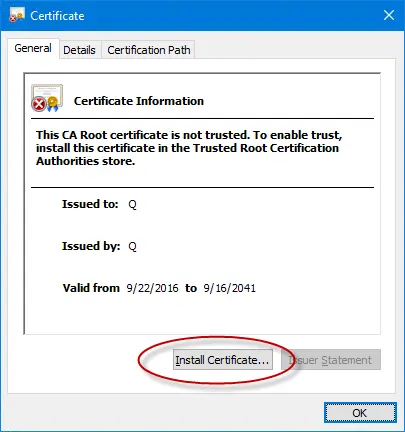
- Keep clicking on Next till the Finish button appears.
- Click on Finish.
- Lastly, reboot the system to allow the changes to take effect.
- Also, check whether the error persists or not.
Method 2: Verify the internet and TLS security settings
The payroll update needs a secure connection to Intuit's servers, which requires TLS 1.2 to be enabled in the internet settings. Follow the steps below:
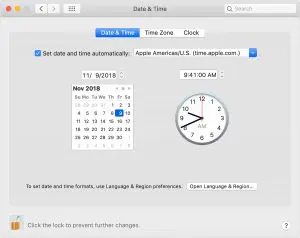
- First, make sure that the date and time of the system are correct.
- Right-click the time display on the taskbar and choose the correct date, time, and time zone if needed.
- Next, press Windows + R, type inetcpl.cpl, and hit Enter to open the Internet Properties window.
- Go to the Connections tab and choose LAN settings.
- Check the box next to Automatically detect settings.
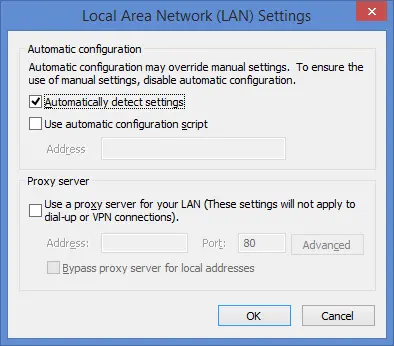
- Make sure the proxy server fields are blank, if you don't plan to use a proxy.
- Now go to the Advanced tab and scroll down to the Security section.
- Check Use TLS 1.2 (and Use TLS 1.3 if it is listed).
- Make sure Use SSL 2.0, Use SSL 3.0, Use TLS 1.0, and Use TLS 1.1 are unchecked.
[Image: Internet Options Advanced tab showing TLS 1.2 enabled - Screenshot]
- Click Apply and then OK.
- Restart QuickBooks and try downloading the payroll update again.
Important: Never enable SSL 2.0 or SSL 3.0 to fix a payroll update error. These are old, insecure protocols with known vulnerabilities (such as POODLE), and Intuit's servers no longer accept them. Enabling them exposes your system without fixing anything.
Read Also: QuickBooks Error Code 12152 (Causes and Fixing Methods)
Method 3: Uninstall the QuickBooks Desktop related entry
Another method is to uninstall the QuickBooks related entry and then reinstall the software. The steps to be followed are as follows:
- Take the cursor to the bottom-left of the screen and right-click the Start button to open the Start context menu.
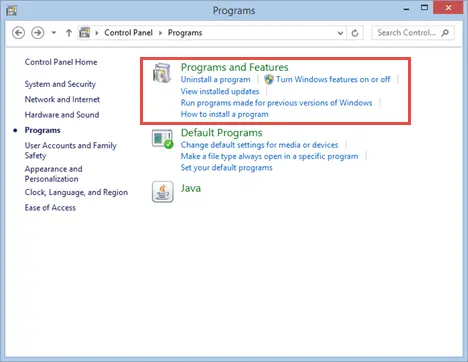
- Choose the Programs and Features option.
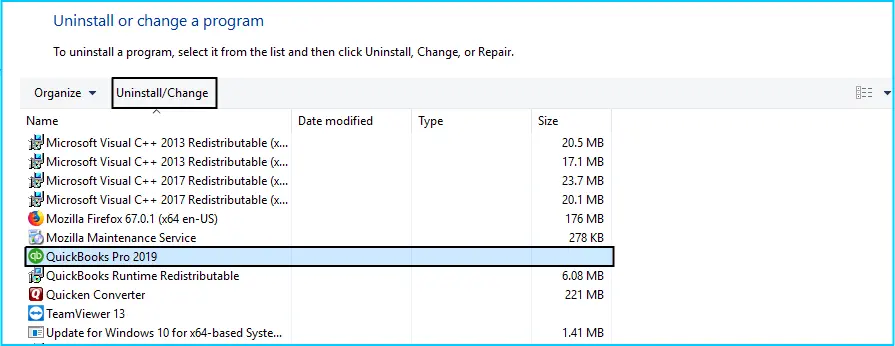
- Locate QuickBooks Desktop in the list of installed programs.
- Click on Uninstall/Change in the top menu.
- Follow the on-screen prompts to complete the uninstallation.
- Reinstall QuickBooks Desktop and check whether the error is resolved.
Method 4: Manually resolve QuickBooks error 15311
The manual steps to resolve this QuickBooks error are enlisted below:
- Ensure that your QuickBooks payroll subscription is activated.
- Update your QuickBooks Desktop to the latest release version.
- Make sure the Payroll Service Key is correct:
- Go to Employees and click My Payroll Service.
- Click Manage Service Keys.
- Click Edit and check if the key is correct.
- Click Next and then click on Finish.
- Finally, reboot your computer system.
Read Also: QuickBooks Tool Hub Program - Fix Common Problems and Errors
Conclusion!
Carrying out the steps enlisted above can help you in getting rid of QuickBooks error code 15311. However, there can be situations when none of the above methods work — in that case, make sure to consult our XpertBooks Pro team and ask our professionals to troubleshoot this issue for you. We are a group of certified professionals who work round the clock to provide the best possible technical assistance.
Frequently Asked Questions
What is QuickBooks Error 15311?
This error indicates issues in update process.
What causes QuickBooks error 15311?
The possible causes are QuickBooks installer corruption, Virus attack, QuickBooks files deleted and incompatibility.
How to fix Error 15311 in QuickBooks?
This issue can resolve by:
1st Method: Install the "latest digital signature certificate".
2nd Method: Configure the Internet settings.
3rd Method: Uninstall QuickBooks-related entry.
Similar Articles:
QuickBooks Update Error 15240 (Causes and Solutions)
QuickBooks Error Code 12152 (Causes and Fixing Methods)
QuickBooks Tool Hub Program - Fix Common Problems and Errors