
Did you just receive the following error? "Error 1321: The installer has insufficient privileges to modify the file." This is a common error and usually arises when the installer does not have permission to write to a specific file or folder. Updating the privileges and access rights fixes this QuickBooks error code 1321 in most cases — but there can be other causes too, which need different solutions. Such errors can be annoying, but don't worry — it's fixable. You just need to follow some DIY steps below.
What is QuickBooks Install Error 1321?
QuickBooks error 1321 generally appears when you try to install or update the software. This error stops the installation or update from completing. When this error occurs, a message appears on your screen that reads, "The installer has insufficient privileges to modify the file." You may see one of the following error messages on your desktop:
| Problem | Error Description |
|---|---|
| Warning | Error 1321: The installer has insufficient privileges to modify the file |
| Error | The installer has insufficient privileges to modify the file C:\Program Files\Intuit\QuickBooks\sdkeventl.DLL |
| Error | The installer has insufficient privileges to modify the file C:\Program Files\Intuit\QuickBooks\CfScan.DLL |
| Error | The installer has insufficient privileges to modify the file at C:\Program Files\Intuit\QuickBooks YEAR\QBONLI32.DLL |
Note: When you click the Retry button, you may see another error message, and your software installation or update may fail.
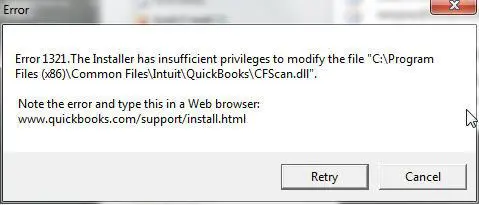
Many users have reported error 1321 when the installer cannot write certain files because of missing permissions. The exact path in the error message may vary depending on your installation.
What are the reasons for QuickBooks error code 1321?
The most common reasons behind this error are:
- Windows permissions for the folder containing the file are restricted.
- The antivirus or firewall is blocking QuickBooks.
- The installation of QuickBooks is incomplete, or important QuickBooks files are missing from the directory.
- The file is damaged or currently in use.
- The UAC (User Account Control) settings are set too high, so QuickBooks does not get the permissions it needs to install or update.
- The computer was not shut down properly after the last use.
Signs and symptoms of QuickBooks error 1321
These pointers can help you identify install error 1321 in QuickBooks:
- You receive a message like "The installer has insufficient privileges to modify the file C:\Program Files\Intuit\QuickBooks\CfScan.DLL". This is the clearest sign.
- The software responds sluggishly during installation or update.
- Windows shows a permission prompt or access-denied message for the QuickBooks folder.
Methods to Troubleshoot QuickBooks Error Code 1321
Perform the solutions below in order to rectify the QuickBooks install error 1321:
Method 1: Run the QuickBooks Install Diagnostic Tool from the Tool Hub
The QuickBooks Tool Hub can resolve common errors that appear while installing the software:
- Close QuickBooks and all other running applications.
- Download the latest QuickBooks Tool Hub (version 1.6.0.8, current as of late 2026) from Intuit's official support article and save it on your desktop.
- Double-click the downloaded file to open it.
- Follow the on-screen instructions to install it and agree to the Terms and Conditions.
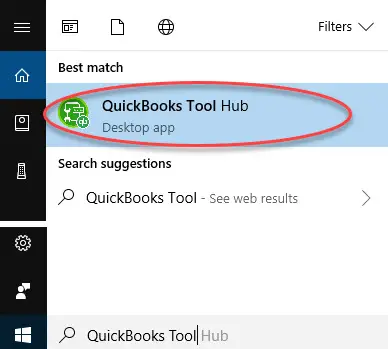
- Once installed, double-click the QuickBooks Tool Hub icon on your desktop to open it.

Note: If you cannot find the icon, search for QuickBooks Tool Hub in the Windows search bar and select it.
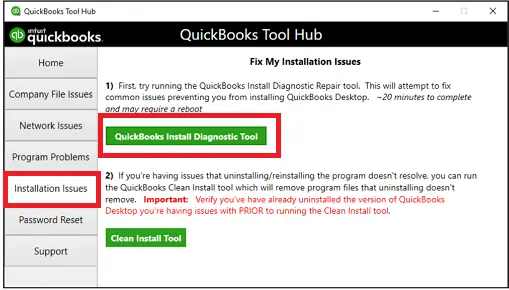
- In the Tool Hub, select the Installation Issues tab.
- Choose QuickBooks Install Diagnostic Tool here. (Note: the scan may take up to 20 minutes.)
- Once the tool finishes the scan, restart your system.
Method 2: Temporarily turn off the antivirus and retry the install or update
Sometimes security software blocks the installer from writing files. The steps are:
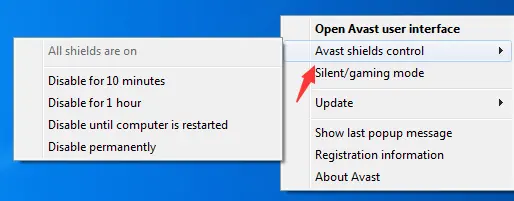
- Temporarily disable your antivirus or other security software.
- Install QuickBooks Desktop or update it to the latest release.
- Turn your antivirus or security software back on immediately after.
Note: Disabling security software while connected to the internet is not recommended. Disconnect from the internet before disabling the antivirus, and re-enable the antivirus before reconnecting.
Read Also: QuickBooks Component Repair Tool: Uses, Fixes & the Tool Hub Way
Method 3: Create a new Windows administrator account
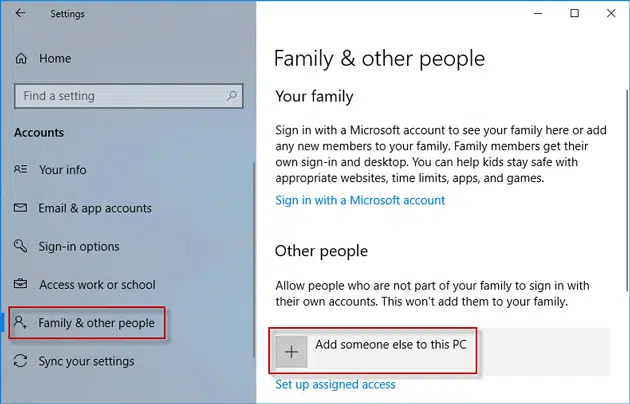
If your current Windows user profile has corrupted permissions, installing from a fresh admin account can resolve the issue. Steps for Windows 10 and 11:
- Press the Start (Windows) button and go to Settings.
- Select Accounts, then Family & other users (on Windows 11) or Other users (on Windows 10).
- Click Add someone else to this PC. (A Microsoft account window will open — this may take a moment.)
- Click I don't have this person's sign-in information.
- Click Add a user without a Microsoft account.
- Enter a username and click Next. This creates a new local account (set as a standard account by default).
- To make it an admin account:
- Select the account name and click Change account type.
- Select Administrator and click OK. You are all set!
- Log out of your current account, log in to the new admin account, and run the QuickBooks installer.
Method 4: Change the Windows permissions on the QuickBooks folder
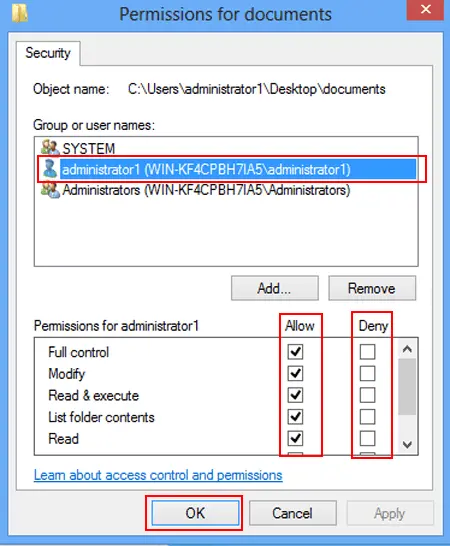
This is the core fix for error 1321 — giving Windows the right permissions on the folder shown in the error message:
- Press Windows + R to open the Run box.
- Type the path to the folder shown in your error message and press Enter. The folder is usually one of these (replace
<year>with your version):C:\Program Files\Intuit\QuickBooks <year>(64-bit QuickBooks)C:\Program Files (x86)\Intuit\QuickBooks <year>(32-bit QuickBooks on 64-bit Windows)C:\Program Files\Intuit\Enterprise Solutions <version>(QuickBooks Enterprise)
- In the folder window, right-click an empty area and select Properties.
- Go to the Security tab and click Edit.
- Select Administrators in the group list, then check Allow next to Full control.
- Select SYSTEM as well and grant it Full control too.
- Click OK, then close the Properties window.
- Run the QuickBooks installer or update again.
Read Also: Fix QuickBooks Error 1911: Couldn't Register Library File
Method 5: Retry the update after disabling the antivirus
- When the error appears, click Retry and let the update try to finish.
- If the issue persists, click Cancel, then temporarily disable the antivirus (see Method 2).
- Try installing QuickBooks Desktop again properly.
Method 6: Run the Windows System File Checker
If Windows system files are damaged, the installer may fail with permission errors. The System File Checker scans and repairs them:
- Press Windows + R to open the Run dialog.
- Type cmd, then press Ctrl + Shift + Enter to open Command Prompt as administrator.
- Type sfc /scannow and press Enter. The scan will take some time — let it finish.
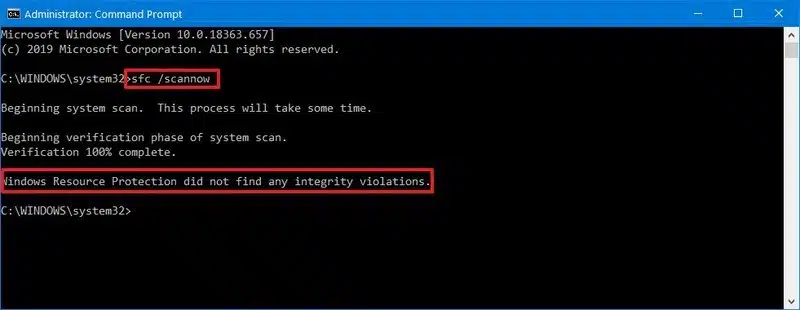
- Once done, review any error messages on the screen and restart your computer.
- Try the QuickBooks installation or update again.
If nothing above works, a clean install of QuickBooks Desktop (uninstall, rename the installation folders, reinstall) is the last resort before calling for help.
Conclusion!
In this article, we have covered all the important information related to QuickBooks error code 1321, and we hope you can fix this error on your own. However, if the issue persists even after performing all the troubleshooting steps above, we recommend contacting our XpertBooks Pro experts team. For further assistance, call us. Our experts have access to modern tools and technology and can help you fix this issue quickly.
FAQs
How can I fix QuickBooks Error 1321 without uninstalling the software?
Run QuickBooks as administrator, adjust the Windows folder permissions on the QuickBooks installation folder (Method 4), and temporarily disable your antivirus/firewall during the install.
Can a corrupt Windows user profile cause QuickBooks Error 1321?
Yes. A damaged Windows user profile can block the installer from accessing the paths it needs. Creating a fresh Windows administrator account (Method 3) often resolves it.
Does Error 1321 affect my company files?
No. Error 1321 affects only the installation or update process. Your existing company files remain safe.
Will a clean install fix QuickBooks Error 1321 permanently?
A clean install removes corrupted installation files and is often the final fix when permission repairs do not work. It does not touch your company data files.
Why does QuickBooks Error 1321 say “The installer has insufficient privileges”?
This happens when the Windows user account or the folder permissions prevent the QuickBooks installer from writing the files it needs — most often in C:\Program Files\Intuit\QuickBooks.
Related Articles: