

Learn how to set your Windows firewall and security settings for QuickBooks Desktop:
Have you ever realized that a simple internet block for QuickBooks programs due to firewall might land you into some huge technical glitches. Well, that isn’t as tiny as it looks like. Firewall can be one major reason of causing different errors. Thus, working upon this issue can prevent you from experiencing major issues later on. These errors can be halted by either updating the firewall to the latest version or by configuring the firewall software. Not just that, you can also add some exceptions for QuickBooks firewall ports by simply carrying out some basic steps.
There can be certain other steps that you might require to implement, to get rid of various errors. This segment is drafted in a way that you are successfully able to configure firewall and security settings for QuickBooks desktop by the end of it. Thus, keep scrolling..!
NOTE! In case you need any professional guidance in setting up firewall and security settings, then you can get in touch with our team of professionals, and your queries will be addressed shortly.
What is Firewall?
Before you explore the ways to configure QuickBooks firewall ports, it is essential to first understand what a firewall actually is. Firewall is a must-have application that saves the system from various threats like malware, viruses, and unwanted programs. In certain cases, the firewall blocks the internet access required to run QuickBooks and the company file. This kind of issue is often encountered while using QB desktop in a multi-user environment. In such a case, you will have to update the firewall to the latest release, or manually configure the firewall. The process for configuring and updating the firewall will be mentioned later in this post.

Read this Also: How to transfer QuickBooks from Old Computer to a New Computer?
Methods to set up QuickBooks desktop firewall ports and security settings
Configuring firewall and security settings involve some basic set of steps, which we have elaborated below. Checkout the following steps to configure firewall & internet security settings for QuickBooks desktop:
Method 1: Automatically Configure Firewall Ports
Open QuickBooks Tool Hub, go to Company File Issues, and click Run QuickBooks File Doctor.
Method 2: Manually Configure Exceptions for QuickBooks Firewall Ports
If the QuickBooks file doctor tool didn't help you, then try performing the manual steps.
- Open QuickBooks Database Server Manager.
- Now find the QuickBooks Desktop 2018/2019/2020/2021 or 2022.
- And write the Port Number and use it for QuickBooks Firewall Ports exceptions.
Step 1: Steps to Manually add QuickBooks firewall ports exceptions
In case you are using multiple versions of QuickBooks desktop on the same PC, follow the below-given steps for each QuickBooks version:
- In order to add firewall port exceptions for QuickBooks, the initial step is to open Windows Start menu.
- Type in Windows Firewall into the search option, followed by opening Windows Firewall.

- Next step is to hit a click on Advanced Settings.
- Right click on Inbound Rules, along with that select New Rule.
- You now have to click on Port and click on Next.
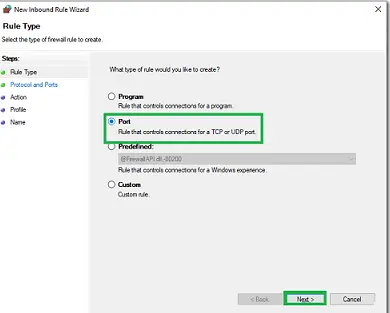
- Make sure that TCP is selected.
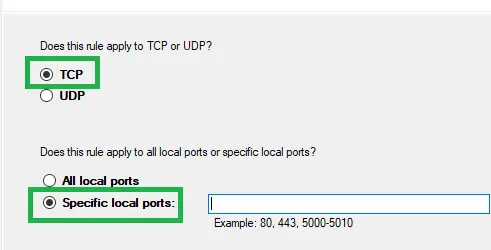
- Now enter the ports which you need for your QuickBooks year versions, in the Specific ports field.

- The ports can be selected from below options:
- QuickBooks Desktop uses port 8019. For QuickBooks Desktop 2018, use 8019, 56728, 55378-55382.
- QuickBooks Desktop 2022:8019, XXXXX
- QuickBooks Desktop 2021:8019, XXXXX
- QuickBooks Desktop 2020:8019, XXXXX
- QuickBooks Desktop 2019: 8019, XXXXX
- QuickBooks Desktop 2018: 8019, 56728, 55378-55382
- QuickBooks Desktop 2017: 8019, 56727, 55373-55377
- For QuickBooks Desktop 2019 and later, open 8019 and the dynamic port shown in QuickBooks Database Server Manager > Port Monitor tab.
- You will then have to Enter the port number and hit Next tab.
- Once done with that, hit a click on Allow the Connection and then, click on Next.

- Moving ahead, you need to ensure all the files are marked, only if prompted.

- Name the rules and click on Finish to end the process.
You will have to repeat these steps for Outbound Rules. The same steps are to be carried out, only instead of selecting inbound rules, select outbound rules and you are good to go. After these steps, open QuickBooks desktop again in QuickBooks multi-user mode and check if the problem has been resolved.
Read Also: How to Fix QuickBooks Desktop Update Error Code 16026?
Important Note:
It should be noted that you are required to keep a note that QuickBooks Desktop 2021, 2020, and the versions to be introduced use dynamic ports. These ports are specific firewall ports assigned at the time of installation. With this, it is ensured that the QuickBooks software gets exclusive use of a given port. To get the dynamic port number, here are the steps that you can follow:
- Begin with opening the Windows start tab.
- Enter in QuickBooks Database Server Manager into the search box and also open the same.
- Move to the Port monitor tab.
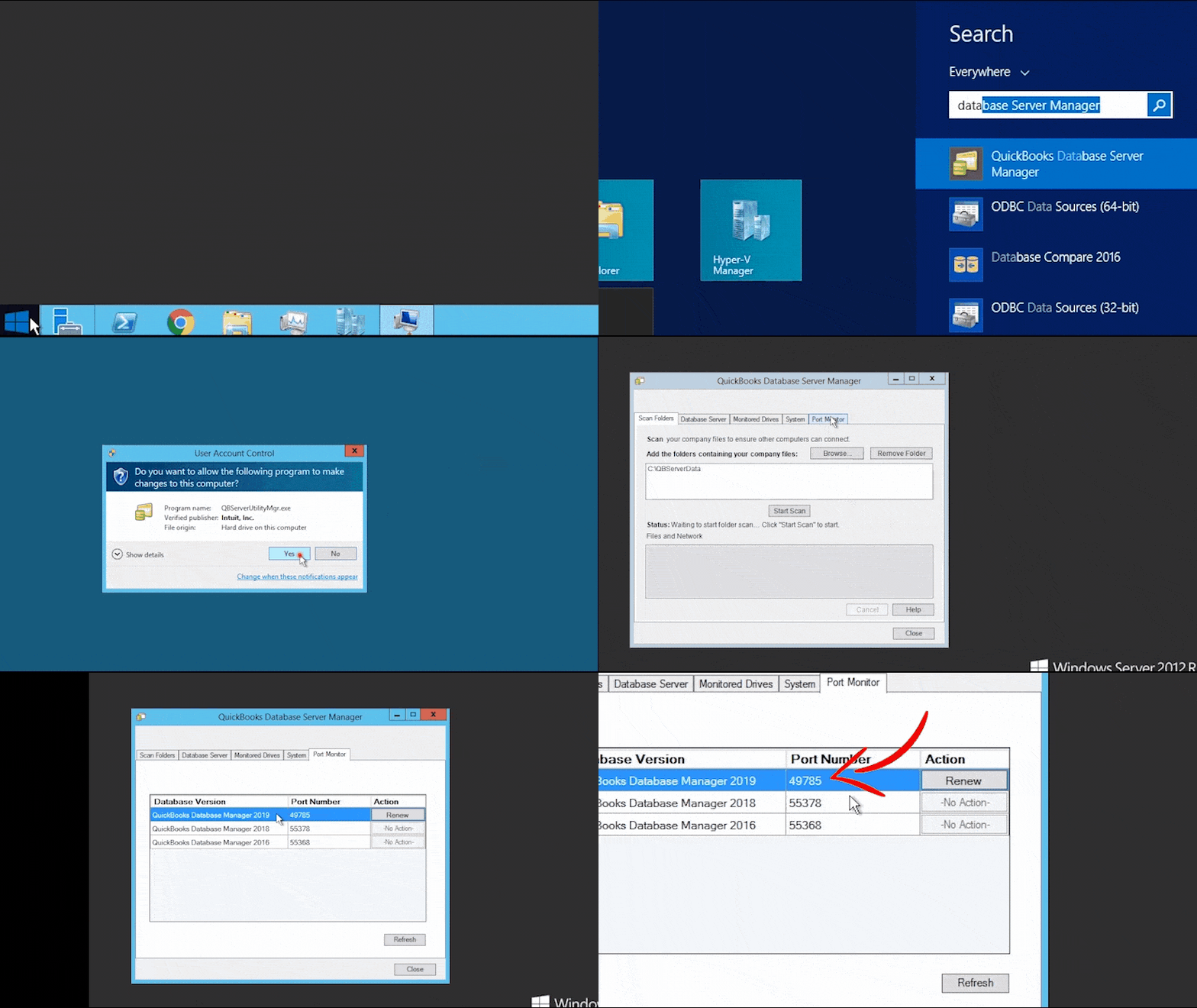
- Now you need to check your QuickBooks version.
- The last step is to take a note of the Port number used for firewall port exception.
After completing the steps, you will have to keep a note that the assigned port number can be changed by opting for the renew option. After that move to the scan folders tab and select scan now tab. The steps will reset the firewall permissions. And you can renew the ports only for the desktop 2019 and later versions.
Step 2: Make Firewall Exceptions for your QuickBooks Programs
There are some executable files which are used by QuickBooks. Find this list go through the selection below to configure the firewall or antivirus program. Follow the steps below for each file:
| Executable files | Location |
| AutoBackupExe.exe | C:\Program Files\Intuit\QUICKBOOKS YEAR |
| Dbmlsync.exe | C:\Program Files\Intuit\QUICKBOOKS YEAR |
| DBManagerExe.exe | C:\Program Files\Intuit\QUICKBOOKS YEAR |
| FileManagement.exe | C:\Program Files\Intuit\QUICKBOOKS YEAR |
| FileMovementExe.exe | C:\Program Files\Intuit\QUICKBOOKS YEAR |
| QuickBooksMessaging.exe | C:\Program Files\Intuit\QUICKBOOKS YEAR |
| QBW32.exe | C:\Program Files\Intuit\QUICKBOOKS YEAR |
| QBDBMgrN.exe | C:\Program Files\Intuit\QUICKBOOKS YEAR |
| QBGDSPlugin.exe | C:\Program Files\Intuit\QUICKBOOKS YEAR |
| QBServerUtilityMgr.exe | C:\Program Files\Common Files\Intuit\QuickBooks |
| QBCFMonitorService.exe | C:\Program Files\Common Files\Intuit\QuickBooks |
| QBLaunch.exe | C:\Program Files\Common Files\Intuit\QuickBooks |
| QBUpdate.exe | C:\Program Files\Common Files\Intuit\QuickBooks\QBUpdate |
| OnlineBackup.exe | C:\Program Files\QuickBooks Online Backup |
Quick NOTE: If you find Program Files (x86), this indicates that you are using a 64-bit operating system.
- Open Start menu and then type Windows firewall and opening the same.
- Next step is to press Advanced Settings and Right-click on Inbound Rules.
- Click on New Rule >> Program >> Next options respectively.
- Select the Program Path and Browse options.
- Followed by finding file location and select Next tab.
- Now hit a click on Allow the Connection and hit Next.
- Also ensure that all the files are marked and then click on Next.
- Create a rule, and name it. After that choose Finish.

- Perform the same steps for Outbound Rules as well.
See Also: How to Rectify QuickBooks Delivery Server Down Error?
Step 3: Configure Antivirus and Windows Firewall
You are required to add an exclusion in Windows Defender or installed Antivirus program. The steps involved here are as follows:
- Open Windows Defender Security Center.
- After that open the Virus and threat protection option.
- Once done with that, hit a click on Add an exclusion and choose Folder.
- Followed by adding Intuit Folder in C drive as exclusion.
- Last step is to click on OK tab.
Step 4: Configure Firewall Programs
- When a user uses a number of firewalls and the changing versions, then Intuit is unable to do the Additional configuration setups. Take help from the Software publisher’s website.
- Intuit is not involved in supporting different internet security programs. Therefore, you would have to Add exceptions for QuickBooks firewall ports. In case the error still persists, then add the following directories to your anti-virus program.
Step 5: Add QuickBooks Firewall Port Extensions on your Antivirus or Firewall (3rd Party Configuration)
Ensure that the TCP is chosen. Enter all the ports which are required. In the manually configure QuickBooks firewall ports exceptions, see the port number suitable for your QuickBooks version. Add ports for each year in case you have used multiple year versions of QuickBooks Desktop.
| Executable files | Location |
| AutoBackupExe.exe | C:\Program Files\Intuit\QUICKBOOKS YEAR |
| Dbmlsync.exe | C:\Program Files\Intuit\QUICKBOOKS YEAR |
| DBManagerExe.exe | C:\Program Files\Intuit\QUICKBOOKS YEAR |
| FileManagement.exe | C:\Program Files\Intuit\QUICKBOOKS YEAR |
| FileMovementExe.exe | C:\Program Files\Intuit\QUICKBOOKS YEAR |
| QuickBooksMessaging.exe | C:\Program Files\Intuit\QUICKBOOKS YEAR |
| QBW32.exe | C:\Program Files\Intuit\QUICKBOOKS YEAR |
| QBDBMgrN.exe | C:\Program Files\Intuit\QUICKBOOKS YEAR |
| QBGDSPlugin.exe | C:\Program Files\Intuit\QUICKBOOKS YEAR |
| QBServerUtilityMgr.exe | C:\Program Files\Common Files\Intuit\QuickBooks |
| QBCFMonitorService.exe | C:\Program Files\Common Files\Intuit\QuickBooks |
| QBLaunch.exe | C:\Program Files\Common Files\Intuit\QuickBooks |
| QBUpdate.exe | C:\Program Files\Common Files\Intuit\QuickBooks\QBUpdate |
| OnlineBackup.exe | C:\Program Files\QuickBooks Online Backup |
If you are using a 64-bit Operating System, then add executable files at the location Program files.
Also See: How to Fix Webmail Password Issues in QuickBooks Desktop?
Read this also: Cannot Open QuickBooks Portable Company File – How to Fix It?
Winding Up!
After following all the above steps now you are able to configure QuickBooks firewall ports and security settings and check that you are able to use your software correctly. However, if the problem still occurs then something is blocking QuickBooks and needs to be resolved. However, if the problem still occurs, then something is blocking QuickBooks and needs to be resolved. Do not hesitate in reaching our U.S. based accounting experts. Our experts team is available 24/7 and will give you instructions to resolve all your firewall problems.
FAQ's - Configure Firewall Ports for QuickBooks
Why do I need to configure firewall and security settings for QuickBooks?
The firewall and security programs need to be mandatorily configured to discard any chances of hindrances when QuickBooks connects to the server.
What firewall and security settings should I configure for QuickBooks Desktop?
A few important settings that need to be configured in the firewall are:
1. The user should allow for Inbound and outbound access for QuickBooks .exe files which include QBW32.exe, QBDBMgr.exe, QBUpdate.exe, etc.
2. Incorporating exceptions QuickBooks in the security programs, including the antivirus and the Firewall.
3. Turning on the network access and ports for QuickBooks in the firewall.
4. Allowing permissions for QuickBooks files and folders.
Are there any specific ports that I need to open in my firewall for QuickBooks?
Yes! These ports used by QuickBooks include:
1. Port 80 (HTTP)
2. Port 8019 (QuickBooks Desktop communication)
3. Port 56728 (QuickBooks Database Server Manager)
Other helpful articles:
How to Fix Validation Code is Incorrect During QuickBooks Desktop Activation?
How Can I Get My W-2s into EFW2 Format?
Learn how to solve QuickBooks Desktop doesn't start or won't open issue