QuickBooks Banking Error 103 means your bank rejected the login QuickBooks sent it — your credentials are wrong, outdated, or the bank needs you to allow third-party access first. Log in to your bank's website directly to confirm your credentials work, then update them in QuickBooks and reconnect the feed.
It's the start of the month. You open QuickBooks Desktop, click to download your bank transactions, and instead of fresh data you get a flat rejection: Error 103. The bank basically said, "Nope, we don't recognize this login."
Frustrating? Absolutely. But here's the reassuring part: Error 103 is almost never a QuickBooks problem. It's a *login* problem. Somewhere between QuickBooks and your bank, the credentials don't match — and that usually takes about five minutes to sort out once you know where to look.
Let's get you back in.
What is QuickBooks Banking Error 103?
Error 103 shows up when your bank refuses the sign-in attempt QuickBooks makes on your behalf. In QuickBooks Desktop, you'll see it in the Bank Feeds Center when you try to sync. (Desktop users sometimes see it labeled as an OL-103 error — same thing.)
Think of it this way: QuickBooks is knocking on your bank's door with a username and password, and the bank is saying the key doesn't fit. Until the bank accepts the login, no new transactions can download. Everything already in QuickBooks is untouched — this error blocks new downloads only.
Why does Banking Error 103 happen?
The usual suspects:
You changed your bank password or username recently and didn't update it in QuickBooks. This is the number-one cause, by a mile.
You picked the wrong bank when setting up the feed. Banks have look-alike names (think "First National Bank" in five different states), and it's easier than you'd think to link the wrong one.
Your bank requires explicit permission for third-party apps like QuickBooks to connect. Some banks call this "third-party access" or "external app access" — if it's turned off, the login gets rejected even when the credentials are perfect.
Your account was closed, merged, or moved to a different login portal by the bank.
The bank added a new security step (a verification code, a security question) that QuickBooks can't get past on its own.
How do you know it's Error 103?
The error code 103 appears in the Bank Feeds Center during a sync.
The sync fails for one account while your other feeds may work fine.
You can log in to your bank's website manually without any trouble — it's only the QuickBooks connection that's rejected.
You may see wording about an invalid login or the bank being unable to verify your credentials.
Solutions that actually fix Banking Error 103
Start at the top. Most people never make it past Solution 2.
Solution 1: Log in to your bank's website directly
Don't touch QuickBooks yet. First, confirm your credentials actually work.
Open your browser and go to your bank's website yourself — type the address, don't click through anything from an email.
Log in with the exact username and password QuickBooks is using.
If you can't get in, stop here. Reset your password with the bank, then come back and update QuickBooks (Solution 2).
If you get in fine, look around: are there any alerts, required actions, or new terms to accept? Clear anything the bank is waiting on.
While you're there, check the bank's settings for anything about third-party or external app access. If your bank requires you to enable it for QuickBooks, turn it on now.
Solution 2: Update your sign-in info and re-sync
Now that you know the credentials are good, make sure QuickBooks is using the right ones.
In QuickBooks Desktop, go to Banking > Bank Feeds > Bank Feeds Center.
Select the account showing Error 103 and run a sync.
When QuickBooks prompts you for your bank login, type your current credentials manually. Don't let the browser or a password manager auto-fill stale ones — type them fresh.
If your bank sends a verification code or asks a security question, complete that step in the moment. QuickBooks can't finish the connection without it. (If the bank keeps asking for extra verification through QuickBooks, you may be dealing with [Banking Error 185](/troubleshoot-quickbooks-banking-error-185/) instead — worth a look.)
Let the sync run. If the credentials are right and third-party access is enabled, this is where it usually starts working.
Solution 3: Deactivate and reactivate the bank feed
If the sync still fails, the stored connection itself may be the problem. A clean re-link fixes that.
Go to Banking > Bank Feeds > Bank Feeds Center.
Select the problem account and deactivate bank feeds for it. (This stops the feed — it does not delete any transactions already in QuickBooks.)
Close the Bank Feeds Center completely, then reopen it.
Set the feed up again from scratch: Banking > Bank Feeds > Set Up Bank Feed for an Account.
Search for your bank carefully this time — make sure you're picking the exact institution and login portal you actually use, not a look-alike.
Enter your current credentials, complete any verification, and sync.
Solution 4: Update QuickBooks and check what's blocking the connection
The final sweep:
Update QuickBooks Desktop: go to Help > Update QuickBooks Desktop, click Update Now, select Get Updates, and restart QuickBooks when finished. Banks update their security standards regularly, and older QuickBooks versions can get locked out.
Confirm your internet connection is working.
Temporarily disable any VPN — banks are notorious for rejecting logins that come through VPN servers.
Check that your firewall or antivirus isn't blocking QuickBooks from reaching your bank's servers.
Conclusion!
That brings us to the end of the troubleshooting methods for QuickBooks Banking Error 103. We hope the solutions explained above helped you understand the possible cause of the error and resolve it. If the error still appears or you run into any difficulty while following the steps, consider consulting a qualified and experienced QuickBooks professional for further assistance.
FAQs
Is Error 103 the same as Error 109?
Not quite. Error 103 means the bank rejected your login outright — wrong or outdated credentials, or the wrong bank selected. Error 109 means your bank wants you to update your password or take some action on their site. They're neighbors, not twins.
What if my credentials are definitely correct and I still get Error 103?
Then it's almost always the third-party access setting at your bank, or you linked a look-alike bank during setup. Check both — those two account for nearly every "but my password is right!" case.
Will I lose transactions while Error 103 is active?
No. The error only stops new downloads. Once the connection is fixed, QuickBooks picks up the missed transactions normally.
Do I need to call my bank?
Usually not. But if you've enabled third-party access, confirmed your credentials, and re-linked the feed and it still fails — yes, call them. Ask specifically whether they block third-party aggregator connections on your account type.
Price levels in QuickBooks Desktop let you automatically charge different customers different prices. Enable them under Edit > Preferences > Sales & Customers > Company Preferences (Custom Pricing section), create your levels in Lists > Price Level List, then either assign a price level to a customer or apply one directly on a sales form.
Quick question: do all of your customers pay the same prices?
If you're like most businesses, the answer is no. Your loyal wholesale buyer who's been with you for five years gets better pricing than a first-time retail customer. Your nonprofit client gets a discount your corporate clients don't. Maybe contractors get 15% off list price, always, no negotiation needed.
So how do you handle that in QuickBooks without manually adjusting every single invoice line and hoping you remember who gets what? That's exactly what price levels are for. Set the pricing rules once, and QuickBooks applies the right prices automatically.
One clarification before we dive in, because QuickBooks has made this confusing over the years: classic price levels (what this guide covers) are available in QuickBooks Desktop Pro, Premier, and Enterprise. If you use QuickBooks Desktop Enterprise with a Platinum subscription, you may see Advanced Pricing and price rules instead — a more powerful version of the same idea. When you turn on Advanced Pricing, your existing price levels get converted into price rules. For most small businesses, classic price levels are plenty.
Before you start: two things worth knowing
1. Price levels need to be turned on first.
They're not active by default. If you go looking for the Price Level List and it's not there, that's why — you haven't enabled the feature yet. (Step 1 below covers this.)
2. There are two types of price levels — pick the right one.
Fixed percentage price levels: Increase or decrease the price of *all* items by a set percentage for a customer. Example: your wholesale customers get 10% off everything. Simple, broad, easy to manage.
Per item price levels: Set specific custom prices for individual items per customer. Example: your best client pays $8 for Product A (normally $10), $5 for Product B (normally $5.50), and full price for everything else. More precise, more setup work. Note: per item price levels require QuickBooks Desktop Premier or Enterprise — they're not available in Pro.
Think about which one matches how you actually price. Most businesses start with fixed percentage and only move to per item when specific deals demand it.
How to set up and use price levels, step by step
Step 1: Turn on price levels
Go to Edit, then select Preferences.
Click Sales & Customers on the left, then the Company Preferences tab.
In the Custom Pricing section, select Enable Price Levels (or the equivalent option to turn on price levels).
If you use fixed percentage price levels, you can also set rounding preferences here — for example, rounding discounted prices to the nearest dollar so you don't end up with odd amounts like $47.63.
Click OK.
Step 2: Create your price levels
Go to the Lists menu and select Price Level List.
Click the Price Level button at the bottom and choose New.
Give the price level a clear name — "Wholesale 10% Off" beats "Level 1" every time. Future you will thank present you.
Choose the type:
For fixed percentage: enter the percentage and whether it's a discount or markup. A 10% wholesale discount, a 5% contractor discount — whatever your pricing structure looks like.
For per item: you'll set individual prices for each item in the list. Take your time and double-check the numbers — these override the standard rates.
Click OK to save.
Create one price level for each pricing tier you offer. Three to five levels covers most businesses; if you have twenty, your pricing might be more complicated than it needs to be.
Step 3: Apply price levels — two ways to use them
Here's the part people miss: creating a price level does nothing until you actually apply it. You have two options.
Option A: Assign a price level to a customer (automatic)
This is the set-it-and-forget-it approach. Every time you create a sales form for this customer, QuickBooks applies their price level automatically.
Go to the Customers menu and open the Customer Center.
Double-click the customer in the list.
Go to the Payment Settings tab.
In the Price Level dropdown, choose the price level for this customer.
Save.
From now on, invoices, sales receipts, and sales orders for this customer use their pricing automatically. You don't have to remember anything.
Option B: Apply a price level directly on a sales form (one-off)
For one-time deals or customers without an assigned level:
Create the invoice (or sales receipt, or sales order) as usual.
On the item line, go to the Rate column and click the dropdown.
Choose the price level to apply to that item. QuickBooks shows the adjusted amount next to each level, so you can see the result before you commit.
Save the transaction.
This is perfect for the "just this once" discount — no need to change the customer's permanent settings.
Step 4: Test it before you trust it
Create a test invoice for a customer with an assigned price level and check the rates. Do the numbers match what you intended? A two-minute test now beats discovering a pricing mistake on fifty invoices later.
And remember — price levels only apply going forward. They don't retroactively change prices on invoices you've already created. That's by design.
If you haven't set up your products and services yet, price levels won't have much to work with — see our guide on [setting up items in QuickBooks Desktop](/setup-items-quickbooks-desktop/) first. And for the invoicing side of things, our walkthrough on [creating an invoice in QuickBooks Desktop](/create-an-invoice-in-quickbooks-desktop/) pairs nicely with this one.
Common mistakes to avoid
Creating price levels before enabling the feature. If the Price Level List isn't in your Lists menu, the feature isn't on. Go back to Step 1. This trips up more people than you'd think.
Expecting price levels to fix old invoices. They only apply to new sales forms created after the level is assigned. Old invoices keep their original prices — which is what you want for accurate records.
Forgetting about rounding. A 15% discount on a $19.99 item gives you $16.9915. Without rounding rules, your invoices end up with ugly, unprofessional-looking amounts. Set your rounding preference when you enable the feature.
Using per item levels in QuickBooks Pro. Per item price levels need Premier or Enterprise. If the option isn't available, that's why — use fixed percentage levels instead, or consider whether an upgrade makes sense.
Naming levels cryptically. "PL-3" means nothing six months from now. "Contractor 15% Off" is self-documenting. Your future self — and anyone else who touches your books — will appreciate it.
Confusing price levels with discounts on the invoice. You can do both, but they stack. If a customer has a 10% price level *and* you add a 10% line discount, they're getting roughly 19% off, not 10%. Know which tool you're using and why.
Conclusion!
That brings us to the end of this guide on price levels in QuickBooks Desktop. We hope the steps explained above helped you set up custom pricing tiers and apply them to the right customers automatically. If you run into any difficulty while following the steps, consider consulting a qualified and experienced QuickBooks professional for further assistance.
FAQs
Do price levels work on all sales forms?
Yes — invoices, sales receipts, sales orders, and credit memos. If a customer has a price level assigned, it applies automatically across all of them. You can also apply a level manually to individual lines on any sales form.
What's the difference between price levels and Advanced Pricing?
Classic price levels (this guide) are simple: fixed-percentage or per-item pricing tiers assigned to customers. Advanced Pricing — available in QuickBooks Desktop Enterprise with a Platinum subscription — uses price *rules* with conditions based on customer, item, quantity, dates, and more. If you turn on Advanced Pricing, QuickBooks converts your existing price levels into price rules automatically.
Can I give different prices to different jobs for the same customer?
Yes. Price levels can be assigned at the job level too, not just the customer level. So if one job for a client is billed at standard rates and another gets preferred pricing, you can set that up separately.
If I change a price level, does it update past invoices?
No. Changes to a price level only affect new transactions going forward. Past invoices keep the prices they were created with, which keeps your historical records accurate.
QuickBooks Banking Error 102 means QuickBooks can't connect to your bank's website — usually because the bank is doing maintenance or having server issues. It typically clears up on its own within 24 hours. Meanwhile, check your bank's website directly for alerts, manually sync your bank feeds from the Bank Feeds Center, and re-enter your bank login credentials if you've changed them recently.
You sit down to reconcile, expecting this week's transactions to be waiting in your bank feeds. Instead: Error 102. No new transactions. Your books are suddenly a week behind, and you've got a reconciliation to finish.
Sound familiar? Here's the thing most people don't realize about Error 102: it's almost never your fault, and it's almost never QuickBooks' fault either. Nine times out of ten, your *bank's* website is down for maintenance or having a rough day, and QuickBooks simply can't get through. Your money is fine. Your data is fine. The connection is just... busy.
So before you start rebuilding things in QuickBooks, let's figure out what's actually going on — and fix the part you can control.
What is QuickBooks Banking Error 102?
Banking Error 102 appears when QuickBooks tries to connect to your bank or credit card company's website to download transactions and can't establish the connection. In QuickBooks Desktop, you'll see it in the Bank Feeds Center when you try to sync.
The critical thing to understand: this error is about the *connection between QuickBooks and your bank*, not about your company file or your data. Everything already in QuickBooks — your transactions, your reconciliations, your balances — is completely safe. QuickBooks just can't reach out and grab the new transactions right now.
If you're seeing other bank feed codes too, they may need different handling — for example, our guide on [OL and OLSU bank feed errors in QuickBooks](/fix-ol-and-olsu-bank-feeds-errors-in-quickbooks/) covers those.
Why does Banking Error 102 happen?
The usual suspects:
Your bank's website is down for scheduled maintenance or dealing with an outage or server problem.
There's a temporary communication failure between QuickBooks (or Intuit's servers) and your bank.
Your bank login credentials changed — new password, new username — and QuickBooks is still using the old ones.
The bank updated their website, changed security requirements, or moved their login page, and QuickBooks hasn't caught up yet.
Your internet connection dropped, or your firewall, antivirus, or VPN is blocking the bank feed connection.
You're running an older QuickBooks release that can't talk to your bank's updated systems.
How do you know it's Error 102?
The error code 102 appears in the Bank Feeds Center when you try to sync or download transactions.
No new transactions download, even though you know activity happened on the account.
You may see a message saying QuickBooks couldn't connect to your financial institution.
The problem often starts suddenly — feeds worked yesterday, nothing changed on your end, and now they don't.
That last one is actually a useful clue. If nothing changed on your side, the problem is almost certainly on the bank's side.
Solutions that actually fix Banking Error 102
Start at the top. Most people never make it past Solution 2.
Solution 1: Give it a little time (seriously)
We know — not the answer you wanted. But Error 102 most commonly means your bank is doing maintenance or having server trouble, and those issues resolve on their own, typically within 24 hours.
Try syncing again in a few hours. If it works, you just saved yourself a lot of unnecessary troubleshooting.
Intuit's own guidance says these bank-side issues can take up to 24 hours (sometimes a bit more) to clear.
There's no point rebuilding bank connections for a problem that lives on your bank's servers. Patience is genuinely the fix here, most of the time.
Solution 2: Check your bank's website directly
Before touching anything in QuickBooks, investigate the bank's side.
Open your browser and log in to your bank's website directly — not through QuickBooks.
If you can't log in there either, the problem is 100% on the bank's end. Check their status page or give them a call.
Look for any messages, notifications, or alerts about maintenance, outages, or required actions on your account. Banks often post these right on the login page or account dashboard.
Review your account pages and transaction history. If those load fine, the bank's site is up and the issue is specifically with the QuickBooks connection.
If you recently changed your bank password, that's very likely your culprit — QuickBooks is still trying the old credentials.
Solution 3: Sync your bank feeds manually
Sometimes the connection just needs a nudge.
In QuickBooks Desktop, go to Banking, then Bank Feeds, then Bank Feeds Center.
Select the account showing Error 102.
Click Sync All (or the sync/download button for that account).
Let it run. If it connects this time, watch for prompts — QuickBooks may ask you to re-enter your bank login credentials or complete a multi-factor authentication step.
Enter your current credentials carefully. And if your browser auto-fills passwords anywhere in this process, double-check it's not filling in an old one.
Solution 4: Update your bank sign-in information
If your bank login changed — or if QuickBooks just needs a fresh handshake — updating the credentials often clears the error.
Go to Banking > Bank Feeds > Bank Feeds Center.
Select the problem account and look for the option to edit or update your sign-in information.
Manually enter your current bank username and password (don't rely on saved or auto-filled entries).
Save, then sync the account again.
Also worth checking: has your bank added new security steps, like mandatory two-factor authentication or a terms-of-service acceptance? Those can block QuickBooks until you complete them on the bank's website first.
Solution 5: Deactivate and reactivate bank feeds for the account
If syncing and new credentials didn't help, a clean re-link often does.
Go to Banking > Bank Feeds > Bank Feeds Center.
Select the problem account and deactivate bank feeds for it. (This stops the feed — it doesn't delete any transactions already in QuickBooks.)
Close the Bank Feeds Center, then reopen it.
Set up bank feeds for the account again from scratch: Banking > Bank Feeds > Set Up Bank Feed for an Account.
Follow the prompts, enter your current bank login, and complete any verification steps.
Try syncing once more.
Solution 6: Check your connection and update QuickBooks
The boring-but-effective final checks:
Make sure your internet is actually working — open a couple of websites to confirm.
Temporarily disable any VPN, which can interfere with bank connections.
Update QuickBooks Desktop: go to Help > Update QuickBooks Desktop, click Update Now, select Get Updates, and restart QuickBooks when it's done. Older versions sometimes can't communicate with banks that have updated their own systems.
Check that your firewall or antivirus isn't blocking QuickBooks from reaching the internet.
Still seeing bank feed errors with a different code — like 185, which involves security verification? That's a different beast; see our guide to [troubleshoot QuickBooks Banking Error 185](/troubleshoot-quickbooks-banking-error-185/).
Conclusion!
That brings us to the end of the troubleshooting methods for QuickBooks Banking Error 102. We hope the solutions explained above helped you understand the possible cause of the error and get your bank feeds syncing again. If the error still appears or you run into any difficulty while following the steps, consider consulting a qualified and experienced QuickBooks professional for further assistance.
FAQs
What exactly is QuickBooks Banking Error 102?
It's a bank feed connection error. QuickBooks can't reach your bank's website to download transactions — usually because of maintenance, a server issue, or a temporary connection failure on the bank's side.
Will I lose any transactions because of Error 102?
No. The error only stops *new* downloads. Everything already in QuickBooks stays put, and once the connection is restored, the missed transactions download normally. If you're in a hurry, you can also enter transactions manually in the meantime.
How long should I wait before troubleshooting?
Give it 24 hours first — that's how long bank-side maintenance and outages typically take to clear. If it's still failing after that, work through the solutions above.
Is Error 102 the same as Error 105?
They're close cousins. Both mean QuickBooks can't connect to your bank, both usually trace back to the bank's website, and Intuit documents them together. The fixes are essentially the same.
To create a budget in QuickBooks Desktop, go to Company > Planning & Budgeting > Set Up Budgets, click Create New Budget, choose your fiscal year and budget type (Profit and Loss or Balance Sheet), then enter your monthly amounts. You can build it from scratch or start from last year's actual numbers.
Let me ask you something. Do you actually know whether your business is on track this year — or are you just hoping?
Most small business owners run on gut feel. Revenue looks okay, the bank account isn't empty, so things must be fine. Right? Then December arrives and the tax bill is a nasty surprise, or you realize you've been bleeding money on expenses for six months without noticing.
A budget fixes that. It turns "I think we're doing okay" into "we're $4,200 under budget on payroll and $1,800 over on supplies." That's the difference between steering your business and just riding in it.
One clarification before we start, because people mix these up: a budget is your plan for what you expect to earn and spend. A forecast is QuickBooks' projection of where you're actually heading based on current trends. This guide covers budgets — the plan. (QuickBooks Desktop can do forecasts too, from the same Planning & Budgeting menu.)
Before you start: two things worth checking
1. Is your fiscal year set correctly?
Your budget follows your fiscal year, so if that's wrong, your budget will be wrong too.
Go to the Company menu and select My Company.
Click the pencil icon (Edit), then choose Report Information.
Check the first month of your fiscal year. Most businesses use January, but if yours starts in, say, July, make sure that's what's set.
Click OK to save any changes.
2. Review last year's numbers
The best budgets aren't guesses — they're informed by history. Take a quick look at last year's actuals before you start typing numbers.
Go to Reports > Company & Financial and select Profit & Loss Detail (or Balance Sheet Detail if you're budgeting the balance sheet).
Change the date range to Last Fiscal Year and refresh.
Skim through it. Which expenses were bigger than you remembered? Where did revenue actually come from? Those observations are the raw material for a realistic budget.
How to create a budget, step by step
Step 1: Open the budget setup window
Go to the Company menu, hover over Planning & Budgeting, and select Set Up Budgets.
The budget window opens. If you've created a budget before, QuickBooks shows the most recent one — don't worry, you're about to make a new one.
Step 2: Create a new budget
Click Create New Budget in the Set Up Budgets window.
A setup wizard walks you through the choices below.
Step 3: Choose your fiscal year and budget type
Select the fiscal year this budget is for — usually the upcoming year.
Choose the budget type:
Profit and Loss: The most common choice. You budget your income and expenses month by month. This is where most businesses should start.
Balance Sheet: For budgeting assets, liabilities, and equity. More advanced — useful if you're planning major purchases or tracking loan paydowns.
If you picked Profit and Loss, you can add extra detail: budget by Customer:Job or by Class (if you have class tracking turned on). Budgeting by class is great if you want to see which product line or location is pulling its weight.
Click Next.
Step 4: Start from scratch or from last year's actuals?
QuickBooks gives you two starting points:
Create budget from scratch: A blank grid. Every number is yours to enter. Best when last year was unusual — a startup year, a pandemic year, a year you'd rather not repeat.
Create budget from previous year's actual data: QuickBooks pre-fills the grid with last year's real numbers, and you adjust from there. For most established businesses, this is the smarter starting point. It's much easier to tweak real numbers than to invent them.
Pick one and click Finish. The budget grid opens.
Step 5: Enter your monthly amounts
Now the actual budgeting. The grid shows your accounts down the left and the twelve months across the top.
Click into a month cell for an account and type the amount. For income accounts, enter what you expect to earn; for expense accounts, what you expect to spend.
Work through the accounts that matter — you don't need to budget every tiny account. Focus on the big ones: revenue, payroll, rent, cost of goods sold, marketing.
Don't just copy one month across the whole year if your business is seasonal. A landscaping company in December looks nothing like a landscaping company in June. Adjust month by month.
When you're done, click OK to save.
Tip: it's better to have a rough budget for the important accounts than a "perfect" budget you never finish. Done beats perfect here.
Step 6: Actually use it — run budget reports
Here's the uncomfortable truth: a budget you never look at is just a spreadsheet with extra steps. QuickBooks has built-in reports that compare your plan against reality.
Go to Company > Planning & Budgeting and look for Budget Overview and Budget vs. Actuals reports.
Run Budget vs. Actuals monthly. It shows your budgeted amounts next to what really happened, with the variance. That's where the insights live.
Big variance on an expense line? Dig in. Consistently under budget on revenue? Time to adjust the plan or the strategy.
Make it a monthly habit — ten minutes with this report will tell you more about your business than an hour of staring at your bank balance.
And since budgets and cash flow go hand in hand, you may also want to read our guide on [tracking cash flow in QuickBooks Desktop](/track-cash-flow-in-quickbooks-desktop/) — because a budget tells you the plan, and cash flow tells you whether you can actually afford it.
Common mistakes to avoid
Budgeting with the wrong fiscal year. If your fiscal year starts in July but your budget runs January to December, every comparison report will be nonsense. Check the fiscal year first (see "Before you start" above).
Putting annual totals in January. The budget grid is monthly. If your annual insurance premium is $12,000, don't type $12,000 into January unless you actually pay it in January. Spread costs across the months they really hit.
Creating the budget and never opening it again. The number-one budgeting mistake isn't a wrong number — it's building the thing and ignoring it. Schedule a monthly budget review. Put it on the calendar like any other meeting.
Budgeting every account to the penny. You'll burn out. Budget the accounts that move the needle — revenue, major expense categories — and leave the small stuff alone. Precision on ten accounts beats guesswork on a hundred.
Forgetting that budgets can change. A budget isn't carved in stone. If halfway through the year your reality looks nothing like the plan, update it. A budget that reflects the real world is useful; one that doesn't is decoration.
If you ever want to analyze your budget outside QuickBooks — say, in a spreadsheet you can share with your accountant — check out our guide on [exporting reports as Excel workbooks in QuickBooks](/export-reports-as-excel-workbooks-in-quickbooks/).
Conclusion!
That brings us to the end of this guide on creating a budget in QuickBooks Desktop. We hope the steps explained above helped you set up a budget, enter realistic numbers, and start comparing your plan against actual results. If you run into any difficulty while following the steps, consider consulting a qualified and experienced QuickBooks professional for further assistance.
FAQs
Can I create more than one budget?
Yes. You can create multiple budgets — for different years, or a Profit and Loss budget plus a Balance Sheet budget, or budgets broken down by class. QuickBooks lets you switch between them in the Set Up Budgets window.
Can I edit a budget after creating it?
Absolutely. Go back to Company > Planning & Budgeting > Set Up Budgets, select the budget, and change any numbers you like. One note: QuickBooks doesn't let you edit a prior year's budget once that year has passed, so make your adjustments while the year is current.
What's the difference between a budget and a forecast in QuickBooks?
A budget is your plan — the numbers you decide on. A forecast is QuickBooks' projection of future performance based on your actual data and trends. Budgets are about intention; forecasts are about trajectory. Both live under Company > Planning & Budgeting.
Do I need class tracking to make a useful budget?
No. A straightforward Profit and Loss budget by account is plenty for most small businesses. Class tracking (or Customer:Job breakdowns) just adds an extra layer of detail if you want to budget by department, location, or product line.
QuickBooks Error 6000 78 means QuickBooks can't access your company file — most often because the file is stored on a USB drive, external hard drive, or a network folder QuickBooks can't reach reliably. The fastest fix is to copy the company file to your local C: drive and open it from there. If that works, the storage location was your problem.
You're at your desk, coffee in hand, ready to get some actual work done. You double-click the company file and... "Error -6000, -78." QuickBooks shrugs and gives up.
Here's the reassuring part: 6000 78 is almost always about *where* your company file lives, not about the file being broken. QuickBooks is picky about storage — it wants the file on a stable local drive or a properly set-up server. Put it on a USB stick, a cloud-synced folder, or a flaky network share, and QuickBooks will refuse to play ball. This error is its way of saying "I can't work with this location."
The good news? Location problems are easy to fix. Let's do it.
What is QuickBooks Error 6000 78?
Error 6000 78 is a company-file access error. When you try to open your .QBW file, QuickBooks attempts to establish a stable connection to wherever that file is stored. If the location is unreliable — a removable drive, a network path with permission problems, a folder buried twenty levels deep — QuickBooks can't guarantee safe access to your data, and it throws this error rather than risk corrupting your books.
Think of it this way: QuickBooks would rather refuse to open the file than open it from a location where your data could get damaged. Annoying in the moment, but it's actually protecting you.
Why does Error 6000 78 happen?
The usual suspects:
The company file is stored on a USB drive, external hard drive, or other removable media.
The file lives in a cloud-synced folder (Dropbox, OneDrive, Google Drive) that locks or moves the file during syncing.
The file path is too long — QuickBooks struggles with deeply nested folders.
The .ND (Network Data) or .TLG (Transaction Log) files next to your company file are damaged.
Windows folder permissions don't give QuickBooks full read/write access to the file's location.
You're opening the file over a network share with connectivity or permission issues.
The company file itself has some data damage.
How do you know it's Error 6000 78?
A popup reads "Error -6000, -78" (or "-6000, 78") when you try to open the company file.
The error appears specifically when opening the file from a USB drive, network location, or synced folder.
The file opens fine on one computer but not another — pointing to a location or permissions issue on the problem machine.
QuickBooks freezes momentarily, then shows the error instead of opening the file.
Solutions that actually fix Error 6000 78
Start at the top. Most people never make it past Solution 2.
Solution 1: Move the company file to your local drive
This is the fix that resolves the majority of 6000 78 cases, because the majority of 6000 78 cases are caused by bad storage locations.
Close QuickBooks completely.
Copy (don't move — keep the original as a fallback) your company file (.QBW) to your local C: drive.
The best spot is QuickBooks' own default folder: C:\Users\Public\Documents\Intuit\QuickBooks\Company Files. This folder already has the permissions QuickBooks needs.
Open QuickBooks, go to File > Open or Restore Company, browse to the copied file, and open it.
If it opens, congratulations — the storage location was your problem. Keep working from the new location and stop opening the file from the USB drive or synced folder.
One hard rule going forward: company files should live on a local drive or a properly configured server. Never on removable media, and never in a folder that a cloud service is actively syncing. That's not a suggestion — it's how you avoid this error (and data damage) permanently.
Solution 2: Shorten the file path
Even on a good drive, a file buried in a deeply nested folder can trigger this error. QuickBooks has limits on how long a file path it can reliably work with.
Move your company file to a folder closer to the drive root — your Desktop is perfect for a test.
Avoid folder names with special characters.
Try opening the file from the new, shorter location.
If the file opens from the Desktop but not from its original folder, the path was too long or the original folder had issues. Find the file a permanent home with a short, simple path.
Solution 3: Rename the .ND and .TLG files
Damaged network configuration files are a classic cause across the whole 6000 family. Renaming them is safe — QuickBooks rebuilds them automatically.
Close QuickBooks on all computers.
Open the folder containing your company file.
Find the files ending in .ND and .TLG that share your company file's name.
Right-click each, choose Rename, and add .old to the end.
Reopen QuickBooks and try your company file.
You lose no accounting data — these files hold connection settings, not transactions.
Solution 4: Check folder permissions
If QuickBooks doesn't have full read/write access to the folder, it can't open the file — simple as that.
Right-click the folder holding your company file and choose Properties.
On the Security tab, verify the Windows users running QuickBooks have Full Control.
If not, click Edit, grant Full Control, apply, and try opening the file again.
On a network, also confirm the folder is shared properly and the host computer's QuickBooks Database Server Manager can reach it.
Solution 5: Run QuickBooks File Doctor
When the manual steps don't crack it, let Intuit's own tool take a look.
Open the QuickBooks Tool Hub (download the latest version from Intuit if you don't have it).
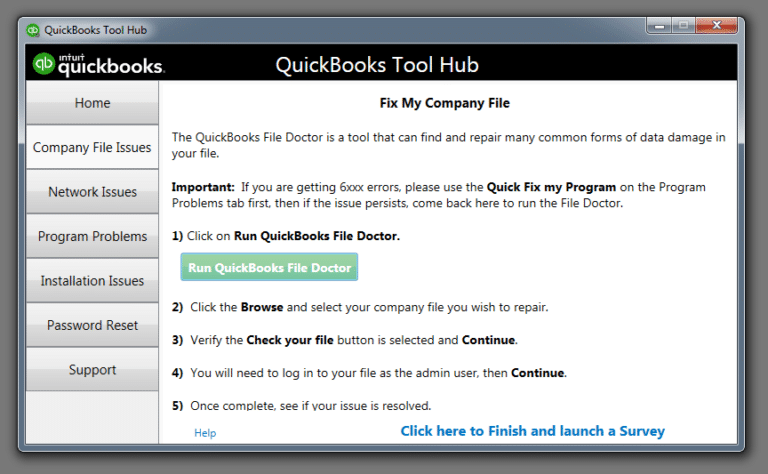
Go to Company File Issues and choose Run QuickBooks File Doctor.
Select your company file and let the scan complete.
Try opening the file again.
File Doctor checks for both network issues and file damage, so it covers both sides of this error. If the scan finds damage it can't repair, our guide on [QuickBooks company file repair](/quickbooks-company-file-repair/) walks through the deeper repair options.
If the file won't open from any location and File Doctor can't fix it, the company file itself may be damaged. Time for the backup.
Go to File > Open or Restore Company and select Restore a backup copy.
Choose your most recent backup (.QBB) and restore it to a clean local folder — not the old problematic location.
Re-enter any transactions recorded after the backup date.
Last resort, as always. Most 6000 78 cases are location problems and never reach this step.
Conclusion!
That brings us to the end of the troubleshooting methods for QuickBooks Error 6000 78. We hope the solutions explained above helped you understand the possible cause of the error and get your company file open again. If the error still appears or you run into any difficulty while following the steps, consider consulting a qualified and experienced QuickBooks professional for further assistance.
FAQs
Is Error 6000 78 the same as Error 6000 77?
They're siblings in the 6000 family — both are company-file access errors — but 6000 77 more often involves folder permission problems, while 6000 78 leans toward storage-location issues like USB drives and bad paths. You may also read: QuickBooks Error 6000 77
Can I keep my company file on OneDrive or Dropbox if I'm careful?
Honestly? Don't. Cloud sync services lock and move files during syncing, which is exactly the kind of interruption that triggers this error — and worse, can corrupt your company file. Use a proper server setup for multi-user access, or a local drive for single-user. Your data is worth more than the convenience.
Why does the file open on one computer but not another?
That points to a local problem on the failing computer: different file path, different permissions, a mapped drive that isn't connecting, or a damaged QuickBooks installation on that machine. Work through the solutions on the problem computer specifically.
Will renaming the .ND and .TLG files delete anything?
No. Those files contain network configuration settings, not your accounting data. QuickBooks recreates them automatically the next time the company file opens. Renaming (rather than deleting) just gives you a fallback if you ever need the old ones.
XpertBooks Pro is a top-notch business accounting and finance consulting firm. We are a hub of technocrats who cater the best quality services. Our professionals work with an aim to cater utmost satisfaction to our clients.
Request a Call Back
Need urgent assistance for your QuickBooks errors?
Stuck with an error? Our certified experts fix most issues in under 30 minutes — no waiting on hold.