
QuickBooks Error 6000 1076 means QuickBooks can't open your company file, most often because the QuickBooks installation itself is damaged or misconfigured. Start by updating QuickBooks and running File Doctor from the Tool Hub. If those don't work, rename the .ND and .TLG files, check hosting settings, and repair the installation.
You're trying to open your company file and QuickBooks greets you with Error 6000 1076. Same story as its cousins in the 6000 family — locked out of your own books, deadline looming, patience thinning.
Here's the twist with 1076: while errors like 6000 107 usually point at a damaged support file, 1076 more often means something's wrong with the QuickBooks *installation itself*. That changes the troubleshooting order a bit.
Let's walk through it.
What is QuickBooks Error 6000 1076?
Error 6000 1076 is a company-file access error in the 6000 series. It appears when you try to open your .QBW company file and QuickBooks hits a wall — the program can't properly launch or connect to the file because something in the installation or environment is damaged or misconfigured.
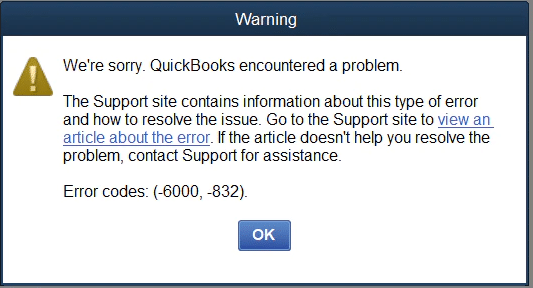
The typical message reads something like: "QuickBooks encountered a problem when opening the company file."
Your data isn't necessarily damaged. But you can't reach it until the underlying problem is fixed.
Why does Error 6000 1076 happen?
The usual suspects:
- A damaged or corrupted QuickBooks installation. The most common cause — program files got corrupted by a failed update, a crash, or disk issues.
- Damaged .ND or .TLG files. The network descriptor and transaction log files that sit next to your company file can go bad, especially in multi-user setups.
- Incorrect hosting configuration. A workstation trying to host the company file (or multiple computers hosting at once) causes access errors.
- Firewall or antivirus blocking QuickBooks. Security software can block the QuickBooks Database Server Manager from doing its job.
- Incomplete or failed QuickBooks update. An update that didn't finish cleanly leaves the installation in a half-working state.
- Windows system file issues. Corrupted system files can take QuickBooks down with them.
How do you know it’s Error 6000 1076?
- The code -6000, -1076 appears when opening the company file.
- QuickBooks may open but fail the moment you select the file — or it may show the error before the "No Company Open" screen even loads.
- The error persists across restarts.
- A sample company file may fail too — that's a strong hint the *installation* is the problem, not your data.
Solutions that actually fix Error 6000 1076
Start at the top. Most people never make it past Solution 2.
Solution 1: Update QuickBooks Desktop
A surprising number of 1076 errors come from incomplete or outdated installations. Update first — it's quick.
- Open QuickBooks (to the "No Company Open" screen is fine).
- Go to Help > Update QuickBooks Desktop.
- Click Update Now, check Reset Update if it's available, then select Get Updates.
- Let the update finish completely, restart QuickBooks, and try opening your company file.
Solution 2: Run QuickBooks File Doctor
Intuit's repair tool handles both file damage and network issues.
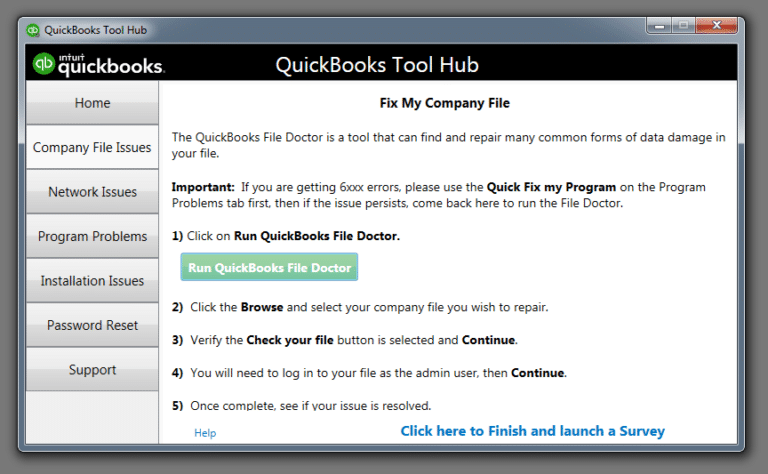
- Download the QuickBooks Tool Hub from Intuit's official site if you don't have it yet.
- Open the Tool Hub and go to Company File Issues.
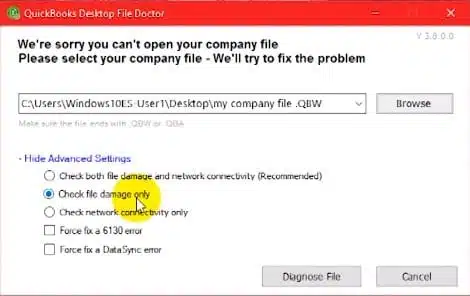
- Select Run QuickBooks File Doctor.
- Browse to your company file, enter your QuickBooks admin password when asked, and let the tool scan and repair.
- When it finishes, open QuickBooks and try your file again.
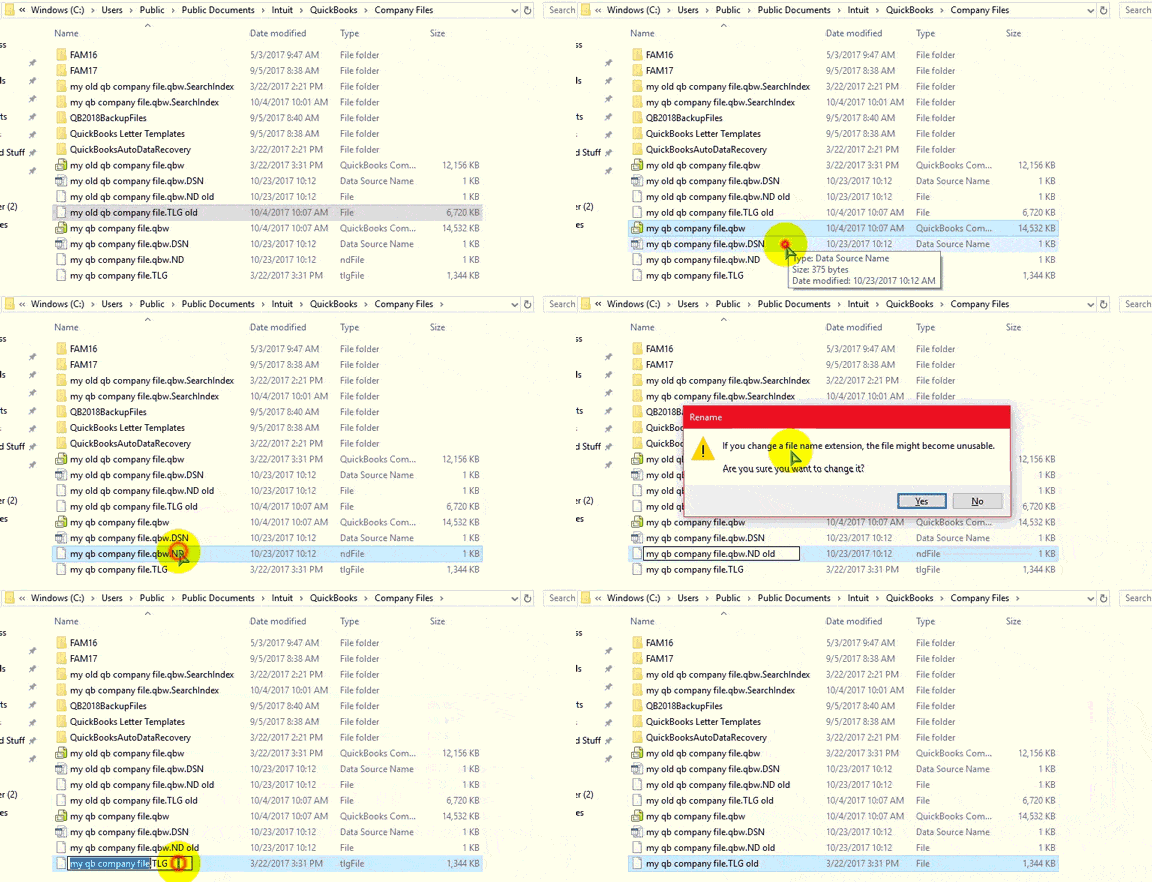
Solution 3: Rename the .ND and .TLG files
Damaged support files are a common trigger. Renaming them forces QuickBooks to rebuild fresh ones — your data stays untouched.
- Close QuickBooks Desktop completely.
- Open the folder containing your company file.
- Find the files matching your company file's name with .ND and .TLG extensions (for example, `MyCompany.qbw.nd` and `MyCompany.qbw.tlg`).
- Right-click each one, choose Rename, and add `.OLD` to the end.
- Reopen QuickBooks and try your company file. QuickBooks recreates both files automatically.
Solution 4: Check hosting settings on every computer
Hosting misconfiguration is a classic in multi-user environments.
- On each workstation (every computer except the one hosting the file), open QuickBooks.
- Go to File > Utilities.
- If you see Stop Hosting Multi-User Access, click it — that workstation should not be hosting.
- If you see Host Multi-User Access, leave it alone — that's correct for a workstation.
- Only the server (the computer where the company file lives) should have hosting enabled.
- Try opening the company file again.
Solution 5: Repair the QuickBooks installation
If the file opens nowhere — not even a sample file — the installation itself is the prime suspect.
- Close QuickBooks.
- Open the Windows Control Panel > Programs > Programs and Features.
- Find QuickBooks Desktop in the list, select it, and choose Uninstall/Change, then Repair.
- Follow the prompts and let the repair finish.
- Restart your computer, open QuickBooks, and try your company file.
If the repair doesn't help, a clean uninstall and reinstall is the next step. Back up your company file first — actually, back it up before *any* of this. (You have backups, right?)
Solution 6: Check folder permissions and firewall
- Make sure the folder holding your company file grants full read/write permissions to all QuickBooks users.
- Confirm your firewall and antivirus allow QuickBooks programs and the ports they need. If you recently installed new security software, test with it temporarily disabled.
- On the server, make sure the QuickBooks Database Server Manager is running and up to date.
Conclusion!
That brings us to the end of the troubleshooting methods for QuickBooks Error 6000 1076. We hope the solutions explained above helped you understand the possible cause of the error and get your company file open again. If the error still appears or you run into any difficulty while following the steps, consider consulting a qualified and experienced QuickBooks professional for further assistance.
FAQs
Is Error 6000 1076 a sign my company file is corrupted?
Not necessarily. This error more often means the QuickBooks installation or environment is the problem — which is why a sample file failing too is such a useful clue. If your file opens fine on another computer with a healthy QuickBooks install, your data is fine.
What’s the difference between Error 6000 107 and 6000 1076?
Error 6000 107 usually traces back to a damaged .TLG transaction log file. Error 6000 1076 more often means the QuickBooks installation itself is damaged or misconfigured. The fixes overlap, but 1076 leans harder on updating, File Doctor, and repairing the installation.
Will repairing QuickBooks delete my company data?
No. Repairing or reinstalling QuickBooks only touches the program files — your company file (.QBW) and its data live separately. That said, always have a current backup before doing any repair work. Always.
How do I stop this from happening again?
Keep QuickBooks updated, close it properly instead of force-quitting, run only one host in multi-user mode, and keep regular backups. Most 1076 cases trace back to a failed update or an improper shutdown — both are preventable.