
Intuit QuickBooks has successfully transformed the way businesses carry out their accounting and bookkeeping activities. But at the same time, there are certain errors and technical bugs that hinder the smooth performance of this software. One error code that has been reported many times is QuickBooks error 6000, 301. As is clearly visible, this error code belongs to the 6000 series error and is often encountered while attempting to use a company file in QuickBooks Desktop.
Damaged or corrupted company files, improper network configurations, and outdated software versions are all common contributors to this problem. Keeping that in mind, we have come up with this post, where we will discuss the causes and quick fixes for error code 6000, 301. Make sure to read this post till the end.
What Is QuickBooks Error 6000, 301?
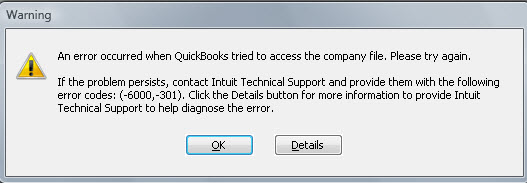
As mentioned above, error 6000, 301 belongs to the 6000 series of errors. It comes up with an error message stating:
| Warning | An error occurred when QuickBooks Desktop tried to access the company file. Please try again. If the problem persists, contact Intuit Technical Support and provide them with the following error codes: (-6000, -301). |
We often encounter this error while opening the company file in different QuickBooks versions. It is usually seen when we try to open a company file with low disk space, and it makes managing day-to-day accounting difficult. There can be multiple factors causing this error code – a few of them are discussed below.
Factors Leading to QuickBooks Error 6000, 301
Company file error code 6000, 301 in QuickBooks can be caused by multiple factors. Let us look at each of the causes one by one:
- Corrupted QuickBooks Desktop support files, which include:
- The Transaction Log (.TLG) file
- The Network Descriptor (.ND) file
- The Data Source Name (.DSN) file
- Trying to open a QuickBooks Desktop company file stored on a server while accessing it through the QuickBooks Database Server Manager.
- The .QBW company file itself is corrupted.
- Using third-party encryption software on the company file, which can hamper the workflow.
- A damaged database service name file.
Effects of QuickBooks Error Code 6000, 301
The effects of this error are as follows:
- Users cannot access the damaged company file.
- The company file may need to be rebuilt.
- Massive time crunch for the accounting team.
- Extra data usage and time-management issues.
Read Also: How to Fix QuickBooks Loan Manager Not Working Error
Easy Methods to Resolve QuickBooks Error 6000, 301
Now that we have explored the facts related to QuickBooks company file error code 6000, 301, it is time to learn the methods to get rid of this error. Let us check out each resolution one by one:
Method 1: Disable the Encryption Software
Note: If you find any encryption software on your system, we advise you to disable it. We do not recommend using any third-party encryption software to encrypt the QuickBooks company file.
- Contact the encryption software vendor for proper guidance on disabling it.
- Avoid using any third-party encryption software on QuickBooks files going forward.
Method 2: Download and Run the QuickBooks File Doctor
You should download and run the QuickBooks File Doctor tool and scan for errors in the company and network files. The steps are as follows:
- Download and install the QuickBooks Tool Hub from Intuit's official website – the File Doctor is now built into it.
- Open the Tool Hub and go to the Company File Issues tab, then run QuickBooks File Doctor.
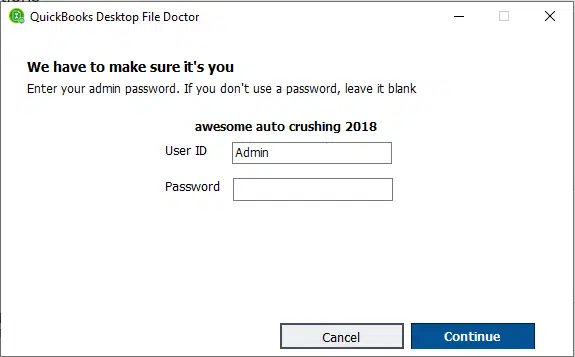
- Use the drop-down list to find your company file, or click Browse to locate it, then click Continue.
- Select Check your file and network, then enter the Admin password and click Next.
- Choose Workstation if you are running File Doctor on a workstation, or Server if you are on the server computer.
- Let the diagnosis finish, then try opening the company file again.
Method 3: Reboot Your System
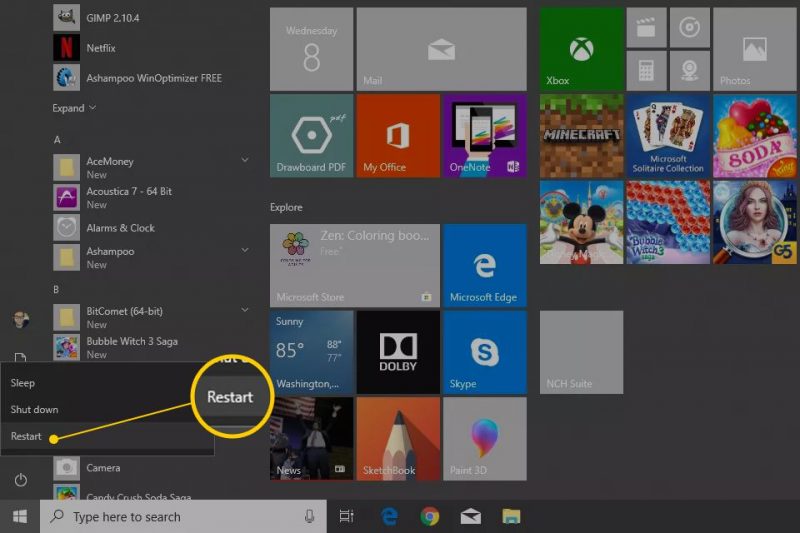
Another way to get rid of error code 6000, 301 is to restart the system. Restarting clears temporary glitches that can block QuickBooks from reaching the company file. Simply restart the system and check if the error persists.
Method 4: Update QuickBooks Desktop
Make sure to update QuickBooks Desktop to the latest release – an outdated version is one of the most common triggers for this error.
Manual Update
- Click Close company/Log off from the File menu, then click File and select Exit.
- Right-click the QuickBooks Desktop icon and choose Run as administrator, making sure you land on the No Company Open screen.
- Select Update QuickBooks Desktop from the Help menu.
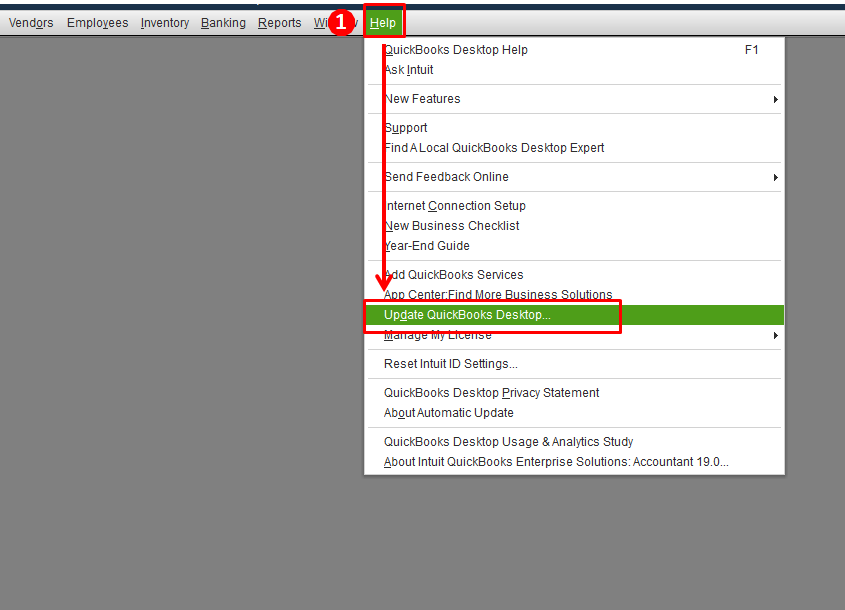
- Go to the Options tab, click Mark All, then click Save.
- Switch to the Update Now tab, check the Reset Update box, and click Get Updates.
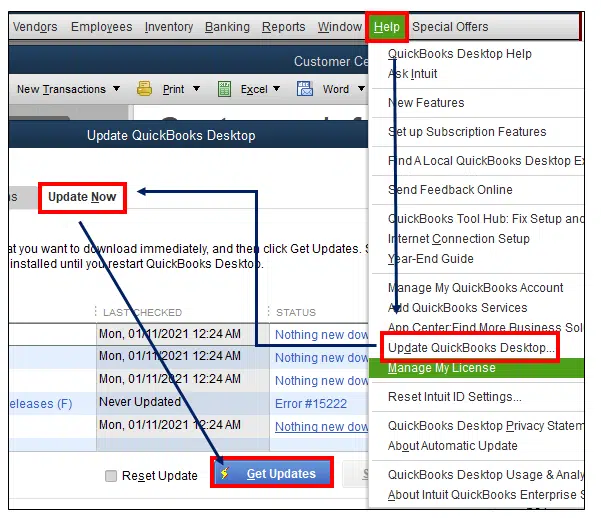
- When the update completes, close QuickBooks, reopen it, and click Yes if it asks to install the update. Then reboot the system.
Automatic Update
- Click Update QuickBooks from the Help menu.
- Go to the Update Now tab and check the boxes for the updates you want.
- Use Reset Update to clear previous update downloads (this may increase download time).
- Click Get Updates, then reboot the system and accept the option to install the new release.
Method 5: Rename the QuickBooks .ND and .TLG Files
Coming to this method, renaming the .ND and .TLG files often fixes the error, since QuickBooks rebuilds these network files automatically. The steps are:
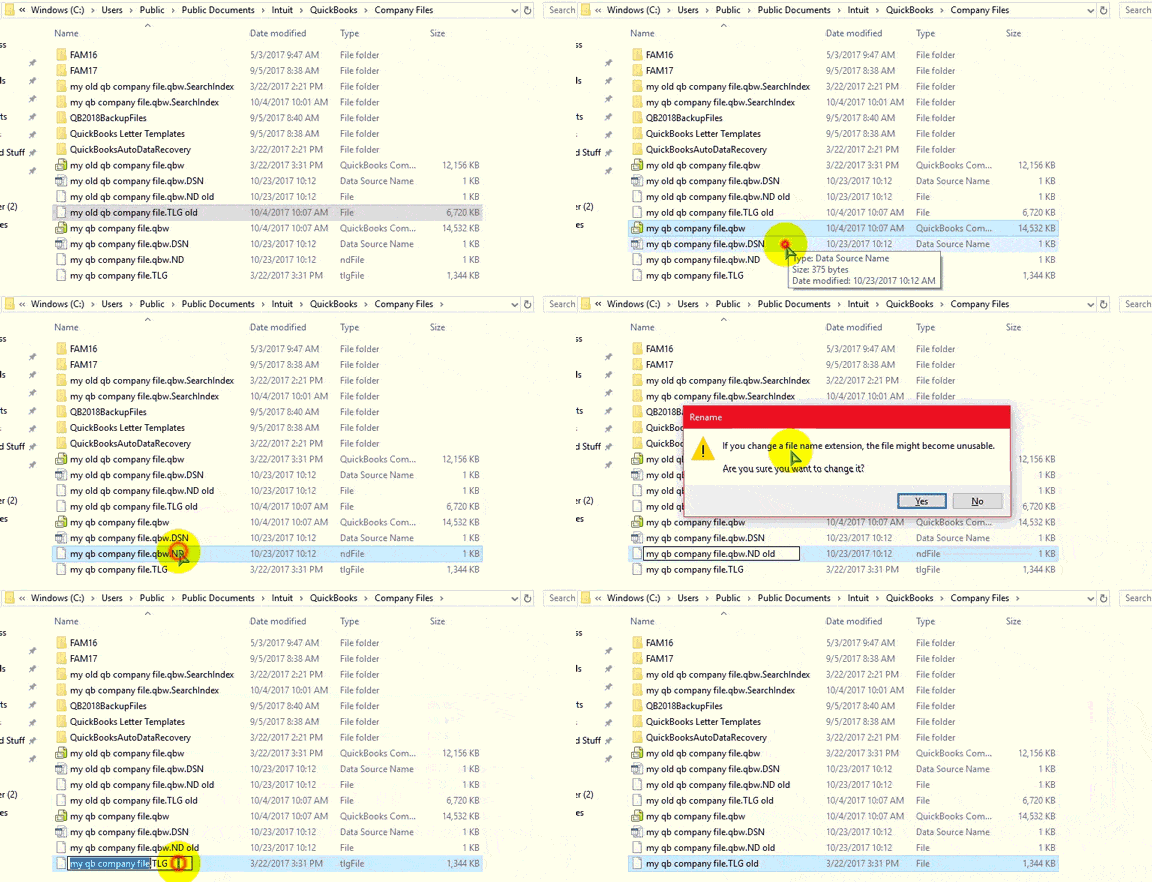
- Open the folder containing the company file.
- Find the files with the same name as your company file but with .ND, .TLG, and .DSN extensions.
- Right-click each file, select Rename, and add .OLD at the end of the file name.
- Try opening the company file again – QuickBooks will recreate fresh network files.
Method 6: Repair the QuickBooks Desktop Software
Repairing the installation can fix corrupted program files behind error 6000, 301. The steps are:
- Go to the Start menu and open the Control Panel.
- Click Programs, then Programs and Features.
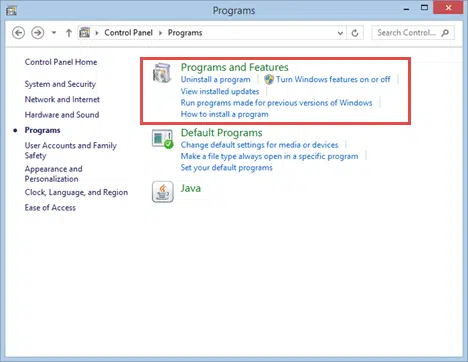
- Select QuickBooks from the list and click Uninstall/Change.
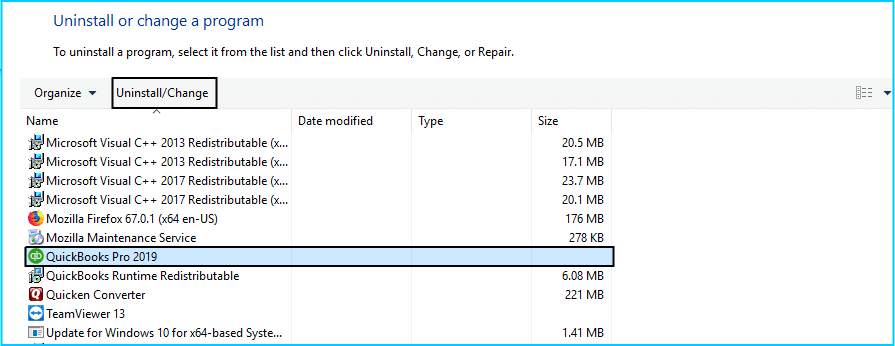
- In the QuickBooks installation window, click Next, select Repair, and click Next again.
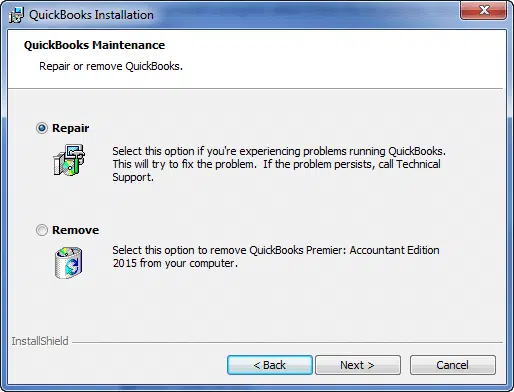
- Click Finish and reboot the system.
Read Also: How to Fix QuickBooks Not Enough Memory or Space Issue
Sum up!
This brings us to the end of this post. We hope the information shared above helps you fix QuickBooks error code 6000, 301 with ease. However, if you cannot fix the error even after carrying out the steps above, it is better to consult an accounting professional. You can get in touch with our QB specialists, and our experts will be happy to fix the error for you.
FAQs
What is QuickBooks Error 6000, 301?
This error belongs to the 6000 series of error codes associated with the company file. It appears when you try to open or work on the company file in QuickBooks Desktop.
What is the .ND file in QuickBooks?
The .ND file is the Network Descriptor file – it stores network configuration so workstations can access the company file on the server. Renaming it lets QuickBooks rebuild it fresh.
How do I rectify Error 6000, 301?
The methods to resolve this error are: disable encryption software, run QuickBooks File Doctor, reboot the system, update QuickBooks, rename the .ND and .TLG files, and repair the QuickBooks Desktop installation.
Can low disk space cause Error 6000, 301?
Yes. Insufficient disk space while opening the company file is one of the known triggers – free up space before retrying.
Get other useful links: