
QuickBooks Error 6000 305 means QuickBooks can't open your company file — usually because of a network setup problem or damaged configuration files (.ND and .TLG). Fix it by checking that only your server hosts the file, renaming the .ND and .TLG files so QuickBooks rebuilds them, or copying the company file to your local drive. One of those three resolves it for most people.
Picture this: it's payroll day. You double-click your company file, QuickBooks starts thinking... and then — "Error -6000, -305." Your entire set of books, locked behind a message you never asked for.
Frustrating? Absolutely. But here's the part that should lower your blood pressure: this error almost never means your data is gone. It means QuickBooks can't *reach* your company file cleanly — and that's a connection problem, not a data problem. Your transactions, your payroll records, your reconciliations are all sitting safely inside that file. QuickBooks just can't get the door open right now.
So don't panic, and definitely don't start deleting things. Work through the fixes below in order, and you'll very likely be back in your books within the hour.
What is QuickBooks Error 6000 305?
Error 6000 305 belongs to the 6000 family of company-file errors — the ones that stop you from opening your company file at all. It fires when QuickBooks tries to access your .QBW file and hits a wall somewhere along the way.
That wall is usually one of two things. Either the *network path* to the file is wrong — hosting turned on in the wrong places, permissions that changed overnight, a server that isn't cooperating — or the little *configuration files* that sit next to your company file (the .ND and .TLG files) have gone bad. Actual damage to the company file itself is possible but far less common than people assume.
The bottom line: treat this as an access problem first, a file-damage problem second.
Why does Error 6000 305 happen?
The usual suspects:
- More than one computer on the network has multi-user hosting turned on. Only the server should host — workstations hosting the file is the single most common trigger.
- The .ND (Network Data) or .TLG (Transaction Log) files next to your company file are damaged or out of sync with the .QBW file.
- The Windows folder holding your company file doesn't give QuickBooks full read/write permissions — often after a Windows update quietly resets things.
- The company file is sitting on a USB drive, an external hard drive, or a cloud-synced folder (Dropbox, OneDrive) instead of a proper local drive or server.
- Firewall or antivirus software is blocking QuickBooks from reaching the file over the network.
- You're running an outdated release of QuickBooks Desktop, and it can't talk properly to a newer operating system or network setup.
How do you know it’s Error 6000 305?
- A popup reads "Error -6000, -305" (or "-6000, 305") when you try to open the company file.
- QuickBooks freezes, hangs, or closes during the open process.
- Other users on the network can open the file fine while you can't — or nobody can open it at all.
- The error shows up right after a Windows update, a server restart, or after the company file was moved to a new location.
Solutions that actually fix Error 6000 305
Start at the top. Most people never make it past Solution 3.
Solution 1: Fix your hosting setup
In multi-user environments, only ONE computer — the server — should host the company file. When a workstation also has hosting turned on, the two fight over the file and you get a 6000-series error. Checking this takes about two minutes per computer.
- On every workstation (not the server), open QuickBooks and go to File > Utilities.
- If you see Stop Hosting Multi-User Access, click it. That workstation was hosting when it shouldn't be.
- If you see Host Multi-User Access, leave it alone — hosting is already off there, which is correct.
- Repeat on each workstation, then try opening the company file again.
Yes, it's almost too simple. But misconfigured hosting causes a huge share of 6000 305 cases.
Solution 2: Rename the .ND and .TLG files
These small configuration files sit right next to your company file and tell QuickBooks how to find it over the network. When they get corrupted, Error 6000 305 is a classic result. Renaming them is completely safe — QuickBooks automatically rebuilds fresh ones the next time the file opens.
- Close QuickBooks on all computers first.
- Open the folder where your company file (.QBW) lives.
- Find the files with the same name as your company file but ending in .ND and .TLG — for example, MyCompany.qbw.nd and MyCompany.qbw.tlg.
- Right-click each one, choose Rename, and add .old to the end (so MyCompany.qbw.nd becomes MyCompany.qbw.nd.old).
- Open QuickBooks and try your company file again.
No accounting data is lost in this process. The .ND and .TLG files hold network settings, not transactions.
Solution 3: Copy the company file to your local drive
This one is a diagnosis and a fix rolled into one. If the file opens from your local drive, your network setup is the problem — not the file.
- Copy your company file (.QBW) to your Desktop or C: drive. Copy, not move — keep the original where it is.
- In QuickBooks, go to File > Open or Restore Company, browse to the copy, and open it.
- If it opens fine, the original location (server, shared folder, network drive) has a configuration or permissions issue. Have the host computer rescan the folder with QuickBooks Database Server Manager, or keep working from a proper local/server location.
- If it still won't open locally, the file itself likely has damage — continue with the solutions below.
Solution 4: Check the folder permissions
QuickBooks needs full read and write access to the folder holding your company file. A Windows update or a new IT policy can silently change permissions, and suddenly nobody can open the file.
- Right-click the folder containing your company file and choose Properties.
- Go to the Security tab and confirm the Windows users who run QuickBooks have Full Control.
- If they don't, click Edit, grant Full Control, apply the changes, and try opening the file again.
- In a multi-user setup, also confirm the folder is shared correctly and that the QuickBooks Database Server Manager service is running on the host computer.
If you're not comfortable changing Windows permissions on a business network, hand this step to your IT person. It takes them two minutes.
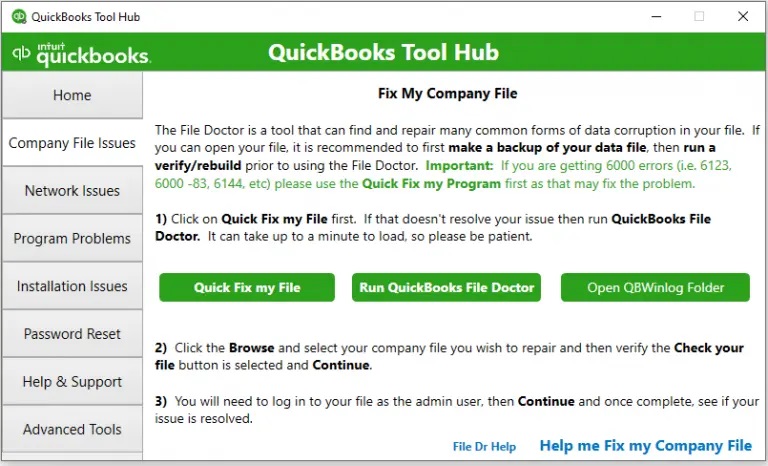
Solution 5: Run QuickBooks File Doctor
File Doctor is Intuit's own repair tool, and it's designed for exactly this kind of error — it checks for both company file damage and network problems.
- Download and install the latest QuickBooks Tool Hub from Intuit's website if you don't have it.
- Open Tool Hub and go to Company File Issues.
- Choose Run QuickBooks File Doctor, select your company file from the list, and let the scan finish.
- When it's done, reopen QuickBooks and try your company file again.
File Doctor sometimes catches things the manual steps miss, so it's worth running even if the earlier solutions seemed to work — just to confirm everything is healthy.
If QuickBooks itself is misbehaving badly — crashing on startup, freezing before you even pick a file — you might be looking at a deeper installation problem rather than a company-file problem. In that case, our guide on the [QuickBooks unrecoverable error](/quickbooks-unrecoverable-error/) covers what to do next.
Read Also: How to Fix QuickBooks Error 6000 78
Solution 6: Update QuickBooks Desktop
Running an old release alongside a newer Windows or network setup is asking for trouble. Updates frequently include fixes for exactly these file-access issues.
- Go to Help > Update QuickBooks Desktop.
- Click the Update Now tab, select Get Updates, and wait for the download to finish.
- Restart QuickBooks and try opening your company file.
- If several people share the file, make sure everyone is on the same release. Mismatched versions across workstations cause their own 6000-series headaches.
Solution 7: Restore from a backup
If nothing above worked, the company file itself may be damaged beyond what the tools can repair. That's what backups are for.
- Go to File > Open or Restore Company and choose Restore a backup copy.
- Pick the most recent backup (.QBB file) and restore it to a clean local folder.
- Check which date the backup is from — you'll need to re-enter any transactions recorded after that date.
This is the last resort, not the first step. The vast majority of 6000 305 cases never need it.
Conclusion!
That brings us to the end of the troubleshooting methods for QuickBooks Error 6000 305. We hope the solutions explained above helped you understand the possible cause of the error and get your company file open again. If the error still appears or you run into any difficulty while following the steps, consider consulting a qualified and experienced QuickBooks professional for further assistance.
FAQs
Is Error 6000 305 a sign my data is corrupted?
Not necessarily. More often it's a network or configuration problem — wrong hosting settings, damaged .ND/.TLG files, or changed folder permissions. None of those touch your actual accounting data. If the file opens fine from a local copy (Solution 3), your data is healthy and the problem is the network path.
Can I just delete the .ND and .TLG files instead of renaming them?
Renaming is safer than deleting, but the effect is the same: QuickBooks recreates both files automatically when the company file opens. Either way, you lose no accounting data.
Why does this error keep coming back after I fix it?
Because the root cause is still there. The most common repeat offenders: a workstation that keeps re-enabling hosting, or a company file stored in a cloud-synced folder like Dropbox or OneDrive. QuickBooks company files should live on a local drive or a properly configured server — not in a sync folder.
Is Error 6000 305 the same as Error 6000 304?
They're close relatives — both belong to the 6000 family and both block you from opening the company file — but they have different triggers and slightly different fixes. You may also read: QuickBooks Error 6000 304