
QuickBooks Error 6000 107 means QuickBooks can't open your company file, most often because the transaction log (.TLG) file is damaged. The quickest fix is to rename the .TLG and .ND files so QuickBooks rebuilds them. If that doesn't work, run QuickBooks File Doctor from the Tool Hub and check your hosting settings.
It's the start of your workday. You double-click your company file, QuickBooks thinks about it for a moment — and then slaps you with Error 6000 107. Your books are locked behind a code you didn't ask for.
Deep breath. This one looks scary, but it's actually one of the more fixable errors in the 6000 family. In most cases, a single small file is the troublemaker — and replacing it takes about two minutes.
Here's what's happening and how to get back into your company file.
What is QuickBooks Error 6000 107?
Error 6000 107 appears when QuickBooks tries to open your company file (.QBW) and something blocks it. The 6000-series codes are all company-file access errors, and the 107 suffix points at the most common culprit: a damaged transaction log (.TLG) file.
QuickBooks keeps a few companion files next to your company file — the .TLG (transaction log) tracks recent changes, and the .ND (network descriptor) helps QuickBooks find the file on a network. When one of these gets corrupted, QuickBooks can't complete the open, and you get Error 6000 107 instead of your books.
Why does Error 6000 107 happen?
The usual suspects:
- A damaged .TLG file. The transaction log is the number one cause. It can get corrupted by a crash, a power outage, or QuickBooks closing improperly.
- A damaged .ND file. Less common, but the network descriptor file can go bad too, especially in multi-user setups.
- Incorrect hosting settings. If a workstation (instead of the server) is trying to host the company file, access errors follow. Only the server should host.
- Damaged company file. Sometimes the .QBW itself has issues, not just its companions.
- Insufficient folder permissions. QuickBooks needs full read/write access to the folder holding your company file.
- Firewall or antivirus interference. Security software can block QuickBooks from reaching the file, especially over a network.
- An outdated QuickBooks version. Older releases have bugs that newer updates fix.
How do you know it’s Error 6000 107?
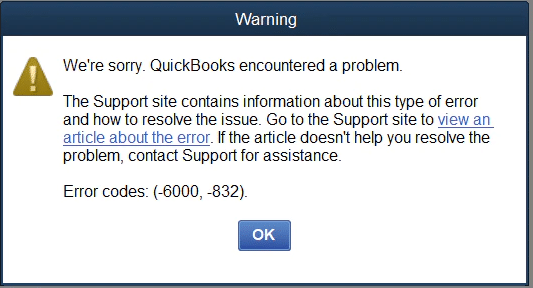
- The error code -6000, -107 appears when you try to open the company file.
- QuickBooks may freeze briefly before showing the error.
- The company file won't open at all — you're stuck at the "No Company Open" screen.
- Other files (like a sample company file) may open fine, which tells you the problem is with *this* file, not QuickBooks itself.
Solutions that actually fix Error 6000 107
Start at the top. Most people never make it past Solution 2.
Solution 1: Rename the .ND and .TLG files
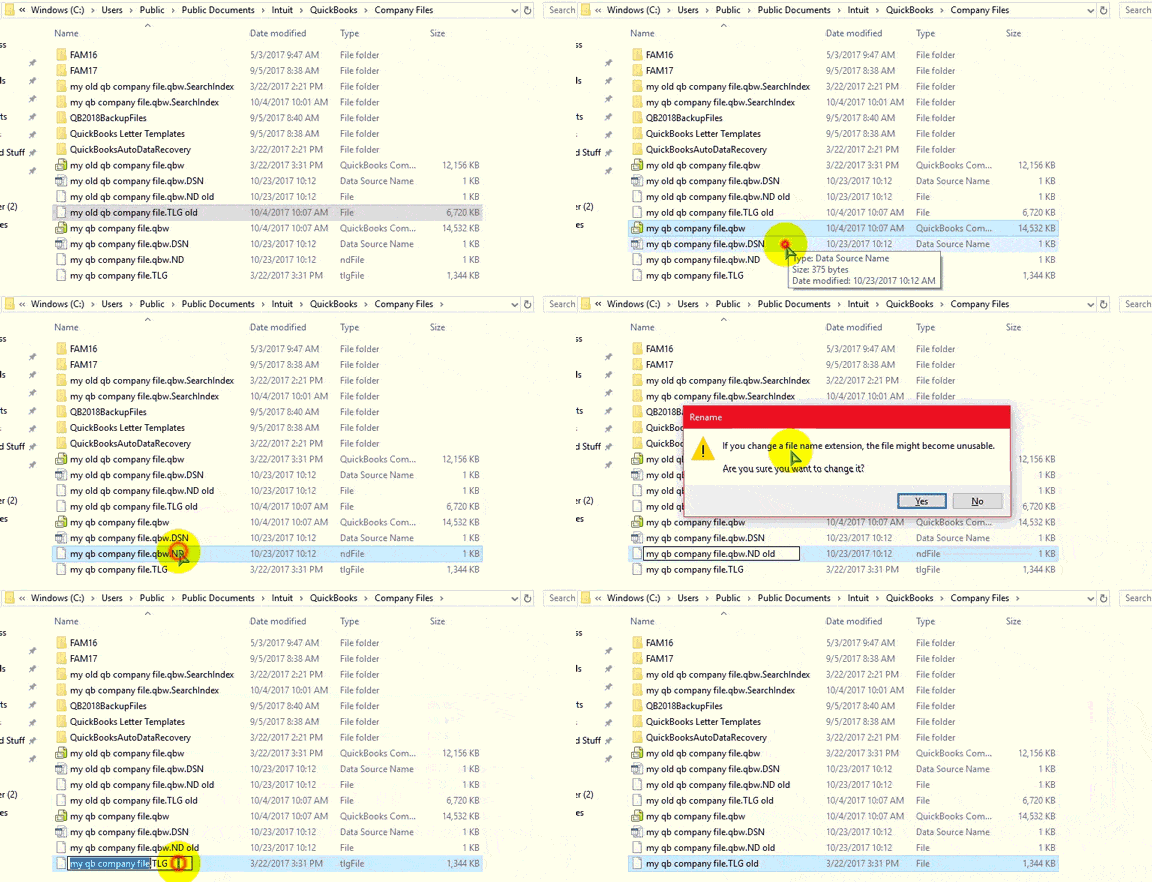
This is the classic fix, and it works because renaming forces QuickBooks to create fresh, healthy versions of these files automatically. Your data is safe — these files don't hold your transactions.
- Close QuickBooks Desktop completely.
- Open the folder where your company file is stored.
- Find the files with the same name as your company file but with .ND and .TLG extensions (for example, `MyCompany.qbw.nd` and `MyCompany.qbw.tlg`).
- Right-click each file and choose Rename. Add `.OLD` to the end of the filename (like `MyCompany.qbw.nd.OLD`).
- Reopen QuickBooks and try opening your company file.
QuickBooks will quietly rebuild both files. If your file opens — you're done. This really is the whole fix for most people.
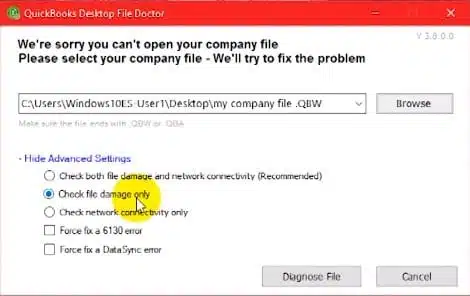
Solution 2: Run QuickBooks File Doctor
If renaming didn't help, let Intuit's own repair tool take a swing at it.
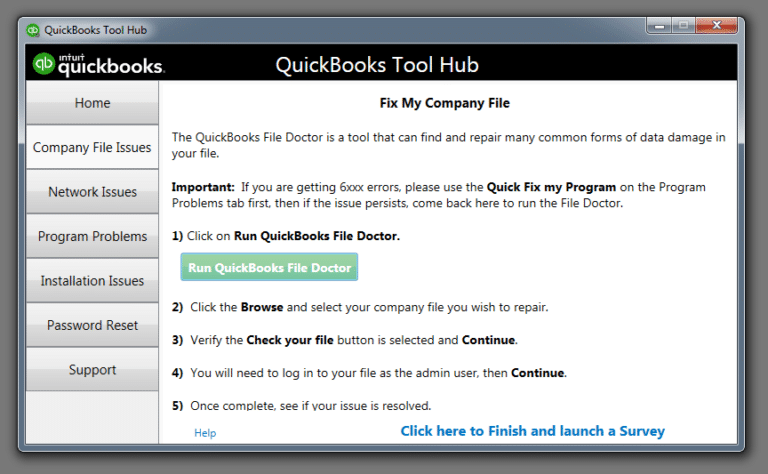
- Download the QuickBooks Tool Hub if you don't have it (get it from Intuit's site — always the official source).
- Open the Tool Hub and go to Company File Issues.
- Select Run QuickBooks File Doctor. It can take a few minutes — let it finish.
- Choose your company file from the list and let the tool scan and repair.
- When it's done, open QuickBooks and try your company file again.
Solution 3: Check your hosting settings
Bad hosting configuration is a sneaky cause, especially in multi-user setups.
- On each *workstation* (not the server), open QuickBooks.
- Go to File > Utilities.
- Look at what's listed: if you see Stop Hosting Multi-User Access, click it — that computer shouldn't be hosting.
- If you see Host Multi-User Access, leave it alone — that's the correct state for a workstation.
- Only the server (the computer where the company file lives) should have hosting turned on.
- Try opening the company file again.
Solution 4: Update QuickBooks Desktop
Outdated versions carry bugs that updates fix.
- Open QuickBooks and go to Help > Update QuickBooks Desktop.
- Click Update Now, then select Get Updates.
- Restart QuickBooks when the update finishes and try your file again.
Solution 5: Copy the company file to your local drive
This tells you whether the problem is the file or its location.
- Copy your .QBW company file (just the .QBW) to a new folder on your Desktop.
- Open QuickBooks and try opening the file from there.
- If it opens, the problem is with the original location — network issues, permissions, or a path that's too long. Move your working file to a simpler, local path.
- If it still fails, the file itself likely needs repair — go back to Solution 2 or restore from a backup.
Solution 6: Check firewall and folder permissions
- Make sure the folder holding your company file gives full read/write permissions to all QuickBooks users.
- Check that your firewall and antivirus aren't blocking QuickBooks programs. QuickBooks needs certain ports open to access files over a network.
- If you recently installed new security software, that's a prime suspect.
Conclusion!
That brings us to the end of the troubleshooting methods for QuickBooks Error 6000 107. We hope the solutions explained above helped you understand the possible cause of the error and get your company file open again. If the error still appears or you run into any difficulty while following the steps, consider consulting a qualified and experienced QuickBooks professional for further assistance.
FAQs
Will renaming the .TLG file delete any of my data?
No. The .TLG file is just a transaction log that QuickBooks uses during operation. Renaming it doesn't touch your actual company data — QuickBooks rebuilds a fresh one automatically the next time you open the file.
Is Error 6000 107 the same as Error 6000 1076?
They're related but different. Error 6000 107 usually points to a damaged .TLG file. Error 6000 1076 more often means the QuickBooks *installation itself* is damaged. The fixes overlap, but 1076 sometimes needs a QuickBooks repair or reinstall.
Can I prevent this error from coming back?
Mostly, yes. Always close QuickBooks properly (don't force-quit), keep only the server hosting, update QuickBooks regularly, and back up your company file on a schedule. Power outages are the one cause you can't fully control — a UPS on the server helps.
What if none of these solutions work?
Restore your most recent backup: File > Open or Restore Company > Restore a backup copy. And keep making regular backups going forward — they're your safety net for exactly this situation.