In recent times, cybercrime cases have seen a sharp rise, which in turn gives rise to the QuickBooks password recovery process. There can be various instances when you might require to reset password for QuickBooks admin and other users. When you login to your QuickBooks, admin password is automatically created by the software. Due to security updates and various other security threats, you might require to reset the password. It is very essential for the users to maintain their admin account and keep changing the password frequently, in order to maintain the authenticity and privacy.
At times, QuickBooks user might find it difficult to reset the password as it involves various steps. So, in order to ease the process for you, we have come up with today's article. We are going to guide you through the entire process to reset password for QuickBooks admin and other users. So, make sure to read this article till the end carefully. Or an alternative to this can be, consulting XpertBooks Pro team. Our aim is to ensure you that you get the best possible guidance in resetting the password for QuickBooks admin and other users.
Points to remember
Before you get started with the process to reset the QuickBooks password, it is very important to jot down certain points and consider them, in order to avoid any sort of further issue.
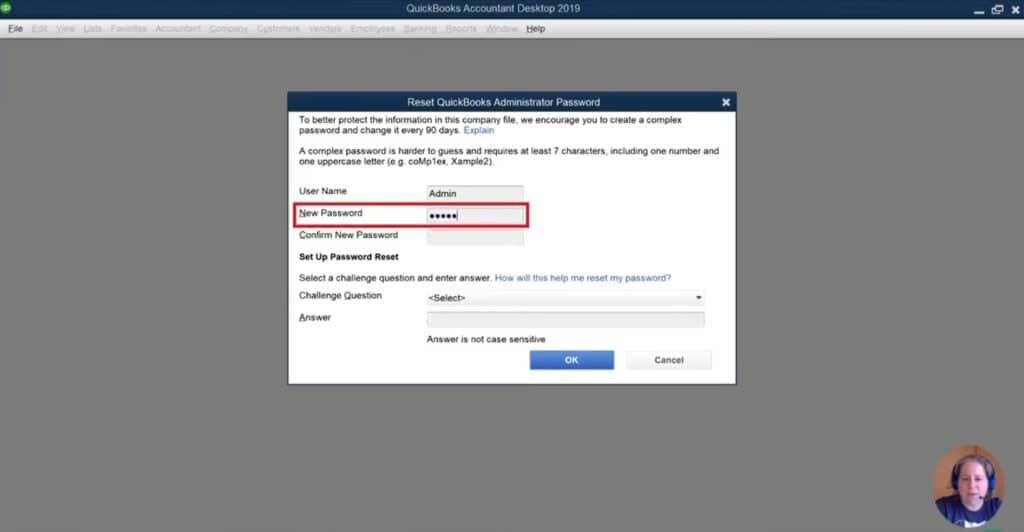
The first and foremost thing is to keep in mind is that, the password should be of minimum 7 characters, so that it meets the password criteria.
The next thing to consider is that, password should have at least one numeric character.
Also, you should reset the password at a timely interval, so as to ensure that the security is maintained.
Another important thing is to keep in mind that the caps lock and number lock should be off, while creating the password.
In order to avoid threat, it is important for users to maintain the complexity of the password.
Spaces are not allowed in password.
At times, the users choose to leave the admin password to their data file empty or completely blank, so the password may actually be blank in certain cases. However, the point should be noted that intuit does not recommend this practice for security purposes.
Information you need to know for resetting the password for QuickBooks desktop
Before you begin with the process to change the admin password or user password, there are certain precautions that the QuickBooks accounting software carry out in order to authenticate the identity. The entire process might require certain information and account details, which we have listed below:
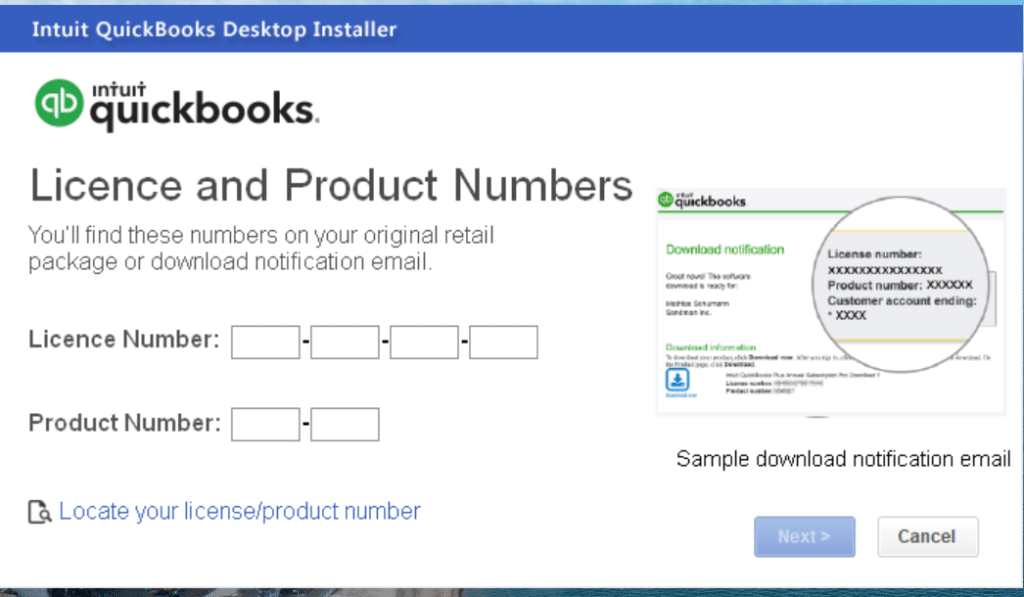
QuickBooks 15-digit license number is a must.
You might also require the email id of that specific contact.
Also, you need to have the zip code registered with QuickBooks.
Also, the registered contact number or the registered business contact number must be available with the user.
Full name of an authorized contact should be present with the user.
The point here that matters is to ensure that the details are entered in the same way as they appear on the intuit account. Once the mentioned details are collected, you are all set to change the password.
Finding out the type of password you have to reset your password for QuickBooks Desktop
You can either reset the admin password, or a normal user password. If you are unable to decide which password you are supposed to reset, then you can check out the process to select between the two, below:
Admin password
Admin password can be selected in case:
You do not have to enter a username while signing in the software. This basically means that you are only have to enter the password, while you signs in QuickBooks software.
Another case when you would have to reset the admin password is that, if the username is admin or another admin username you created earlier.
User password
In case you are not an admin user or you do not have the admin credentials or admin rights, then in that case QuickBooks admin can reset your password for you. You can contact your admin and ask them to carry out the process to reset a user password. The steps to reset user password will be discussed later in this post.
Steps to Reset Password for QuickBooks Admin and Other Users
Now that you have decided the type, carry out the steps for your particular password type. The point to be noted here is that in case you are upgrading to QuickBooks desktop 2020, then ensure to reset the password in your earlier version of QuickBooks first. Now, let us check out the steps you need to carry out for each of the type one by one:
Case 1: Changing admin password for QuickBooks 2020
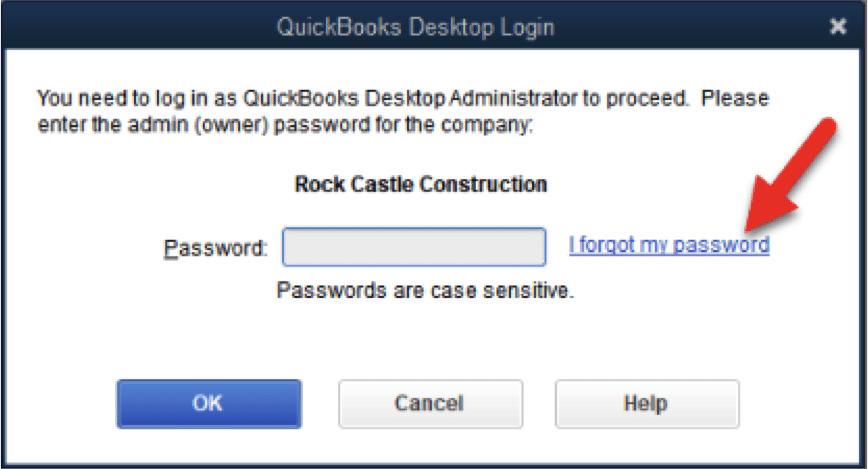
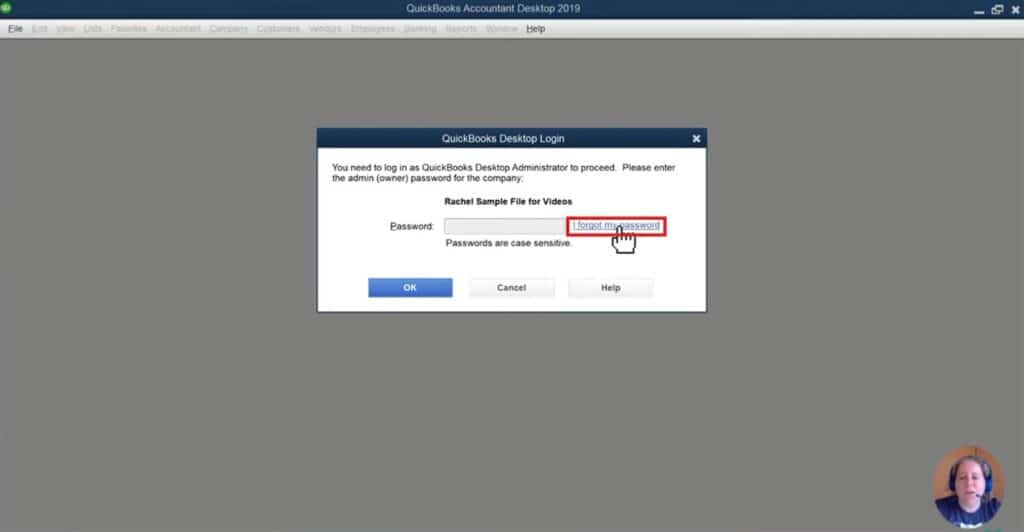
If you are QuickBooks 2020 user, then you might require to select "I forgot my password" on the company login window.
Once you have selected the above option, you will have to select email id from the drop-down list and then click on next option. This will send you an email containing a token to reset the password.
Note that the drop-down list is not available or is not showing your particular email address, then you can select the "don't see your email in the list above?" option and carry out the instructions available on the screen.
Last step in the process is, to enter the token that you received via email and then reset the password successfully
Case 2: Resetting the password for QuickBooks 2019 (admin)
To begin with this process, it is supposed to select "I forgot my password" from the login window.
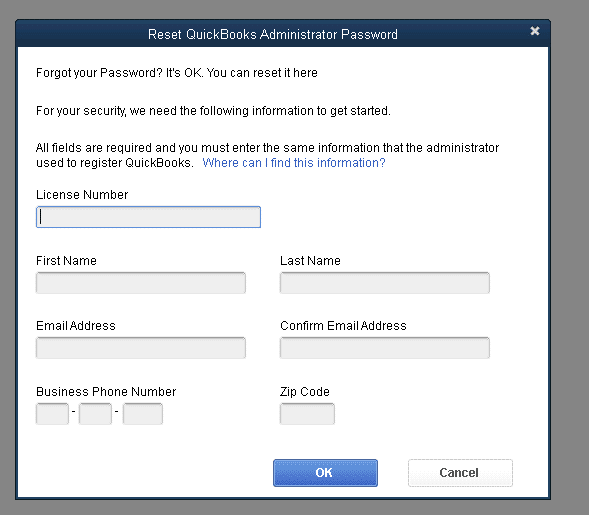
Next step is to click on the link and enter the required information. The information might involve the following:
License number
Name
Email address
ZIP code
And the phone number
Now, click on OK tab and this will send you a code to your registered email.
To end the process, carry out the onscreen instructions and you are done with creating a new password.
Case 3: Changing the password while knowing it (for other versions of QuickBooks)
Open the Company file and move to the Next step.
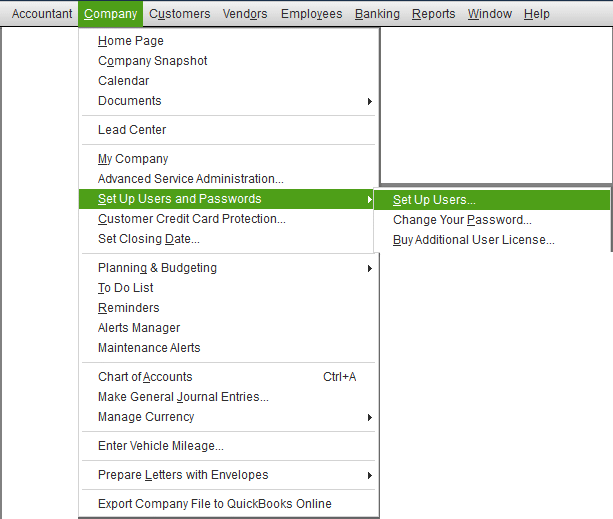
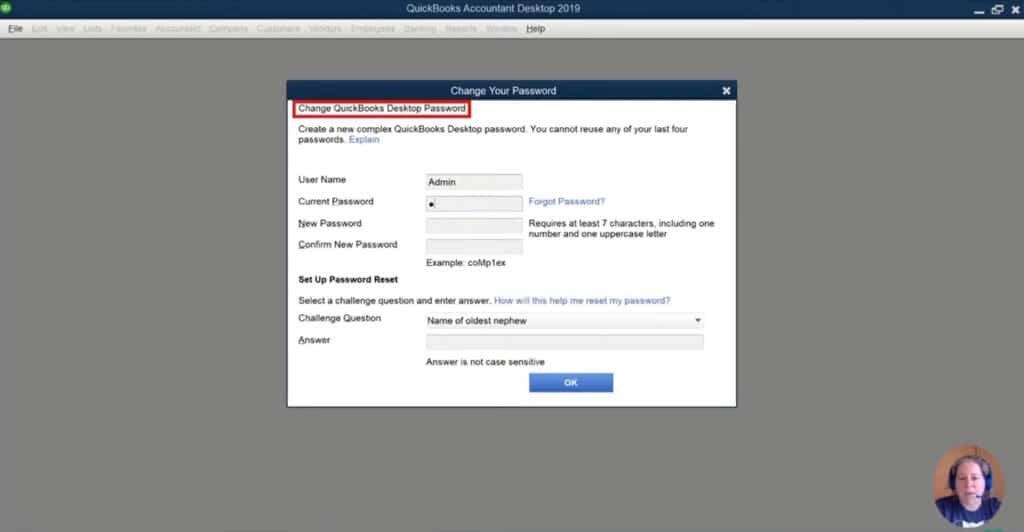
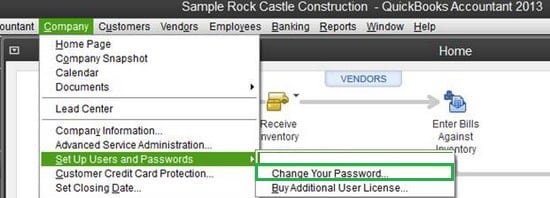
Choose the Company tab and choose Setup users and passwords option, followed by selecting Change your password.
Now enter the Current password in the current password field.
Next step is to enter the New password in the new password field, and then again enter the same in the confirm new password field.
End the process, make sure to click on the OK tab.
Case 4: Forgotten or lost password (Other versions of QuickBooks)
In this case, you might have two options to recover the lost password. We will be checking each of the options one by one.
Reset the admin password with the help of security question
You are required to select I forgot my password from the QuickBooks desktop login screen.
After that click on answer the Security question and hit OK tab.
After the message stating "your password and challenge answer and question have been removed, and your company file is no longer password protected" appears on the screen, you need to click on Close.
Once done with that, change QuickBooks password window will appear and the user now will be required to click on enter a new password and new challenge question.
At the end of the process, you will have to click on OK tab and the file will open up.
Changing the password using reset code (admin only)
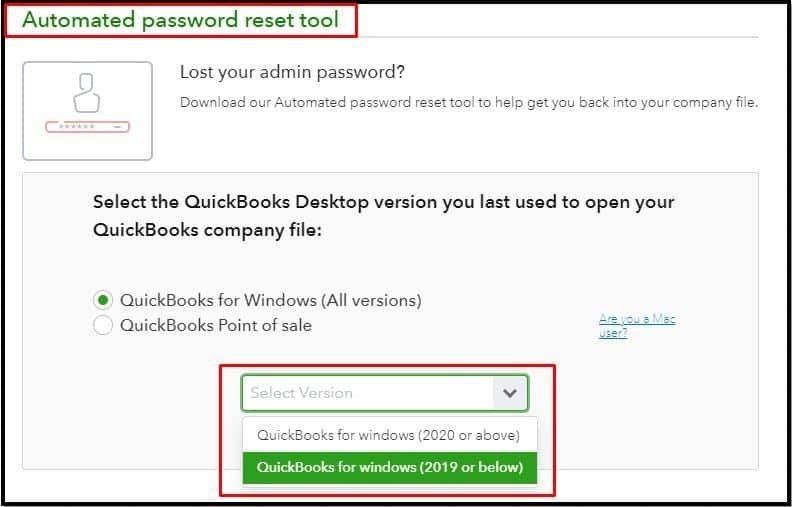
Click on the tool based on the version of QuickBooks that you are using currently.
Next step is to fill in the QuickBooks license number and other important information being asked by the software, and then click on Submit option.
Make sure to accept the License agreement and click on Download option.
You will now have to click on Download now option that will appear on the next screen.
Moving ahead, enter the token number that you might have received on the Registered email address.
Now select the same QuickBooks version that you selected earlier.
And click on the browser for company file option, followed by selecting the company file you wish to reset the password for.
This brings you to the end of this process, where you have to enter the New password in the required field and then hit on the reset password option which will complete the reset password process successfully.
Changing user password
Now that you have learnt the process to change the admin password, it is time to find out the process to reset a user password. The steps involved in this process are as follows:
Initially, you are required to sign in as an admin user, which means to sign in with admin credentials.
And then move to the Company option, followed by selecting the Set of users and passwords tab.
Once done with that, you have to select the Set of users.
Moving ahead, you will be required to enter the Admin password once again, only if asked.
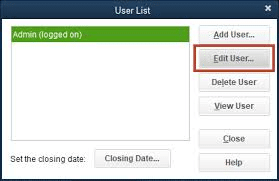
Now in the user list, choose the users for which you are wishing to change the password and then click on Edit user.
Fill in the New password in the required field.
Take on next twice, and end the process by selecting Finish option.
Changing the user password and admin password involves certain steps that we discussed above in today's article. Thus, we hope that the information we have shared in above might be of some help for changing the password with much ease. However, if in case you might not be able to reset the password, even after reading the entire article, then it is highly recommended to consult a certified professional as the password is a sensitive case.
FAQs
Q.1. What if QuickBooks password is lost?
A.1. If you have misplaced the password, you should click on I Forgot my Password.
Q.2. How many times can QuickBooks password can be changed?
A.2. You can change your time as many times as you want provided you have correct answers to the questions.
Q.3. Is there any tool to reset a misplaced password?
A.3. Yes! The password reset tool can reset a lost password.
From the time QuickBooks has been launched, small and medium sized been heavily benefitted by this application. Now it is being considered as one of the best accounting software available in the market. This software has made many complicated tasks like accounting, bookkeeping, payroll etc, a lot simpler and less time taking. Every year Intuit, the maker of QuickBooks launches a new version of the application that consists of upgraded and new features ensure efficient performances.
QuickBooks may be a very effective software, but it's users often face technical glitches or errors affecting business operations. These errors can be easily fixed by the users, and if not, QuickBooks support services are readily available. Today, we are going to discuss about QuickBooks payroll error 30114 that occurs when trying to update QuickBooks Payroll or process employee payroll. This is a common payroll-related error that generally appears when QuickBooks is unable to complete payroll operations due to damaged program files or if there is an issues with the payroll service. Due to this error, a user may fail to process the payroll and download the latest payroll updates. If you are a victim of this error, then we have put together this comprehensive guide explaining the possible causes and the most effective troubleshooting solutions. Thus, keep read on!
What is QuickBooks Error 30114?
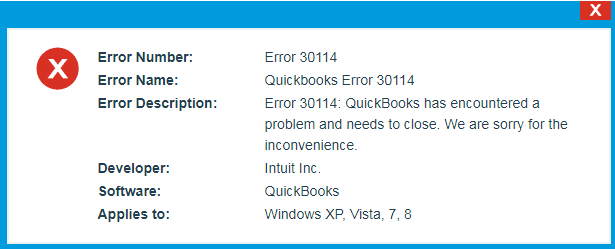
QuickBooks error 30114 is a common payroll error that usually appears when there is an issue with your payroll setup. You may also see this error when QuickBooks is unable to open the important payroll components. This error related to direct deposit issues in QuickBooks. Due to this error, users are unable to make their payments in the direct deposit mode. You might see the following error message on your screen:
In this article, we will discuss about the QuickBooks payroll error 30114. This issue occurs mainly during an installation process or while shutting down the Windows during operation system of windows installation.
Causes of QuickBooks payroll error 30114
These are the possible causes behind the QuickBooks payroll error message 30114:
Windows registries are corrupted or damaged.
The QuickBooks installation process was not proper, and when installed a corrupted file, this error might have occurred.
QuickBooks linked files were removed accidentally by other applications.
Because of malware effects or virus attacks on networks, this error appears on the screen repeatedly.
Solution 3: Utilize the disk clean-up tool to delete all the junk files
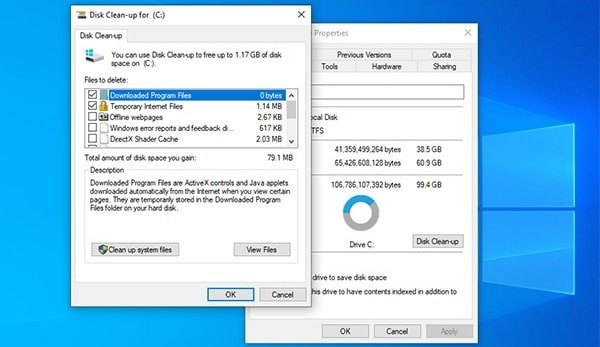
The system clean up tool will help the users to free up space in the system and also help in the remove the junk files from computer. The steps are given as follows:
Hit a click on “Windows Start Menu” option.
The user needs to go to Search bar and then type “File Explorer.”
Once done, the file explorer will open on the screen of the system.
Now select “My Computer” option from the available preferences.
Hit a right-click on the hard drive (C:\drive)
Now the user have to select the Properties and then view the free space in the window.
Solution 4: Update the System Device Drivers
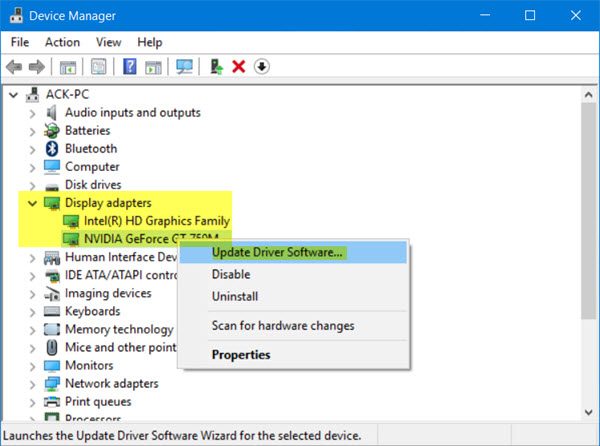
Go to Search bar and then enter Device manager option.
After it appears on your screen and then click on Enter key.
The user have to now select a category to check out the name of the devices and then hit a click on “Update” button.
Now click on “Search Automatically for updated driver software”.
Once done, the user will have to select the “Update Driver.”
If Windows is not able to locate a new driver, then try to look up the device manufacture website and proceed with on-screen guidelines.
Fixing QuickBooks payroll error 30114 is not that complicated. In case the users still face the issue, then it is suggested that they seek assistance from XpertBooks Pro team that are available throughout the day. Our professionals can help identify the root cause and guide you through the appropriate troubleshooting process.
Frequently Asked Questions
What are payroll errors in QuickBooks?
All the technical issues that result in discrepancies in employee payments, erroneous tax calculations, and other payroll-related issues come under the category of payroll errors.
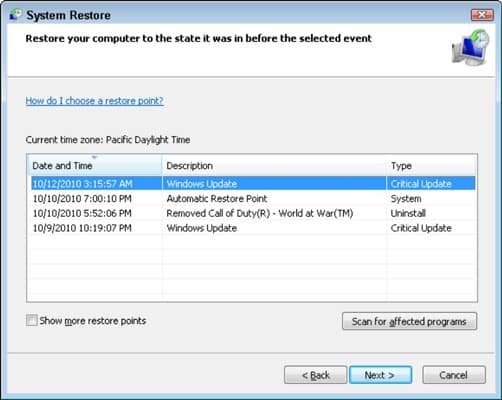
Can a System Restore help resolve Error 30114 in QB Payroll?
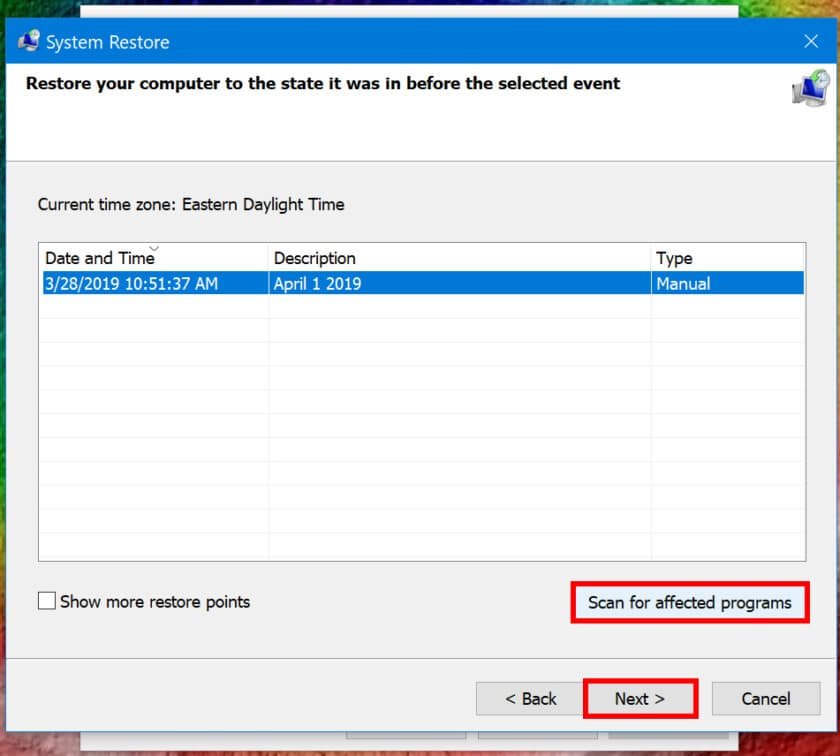
Yes! In many cases, opting for Windows Restore has proved effective in troubleshooting different payroll errors, including Error 30114.
What are the various QuickBooks Payroll errors?
The various Payroll errors include QuickBooks Error PS077, Error PS058, Error code PS032, and other errors belonging to PSXXX series.
What are the Symptoms of QuickBooks payroll error 30114?
You can detect this error when these symptoms match with your problem. 1. The error message “Error 30114” suddenly pops up on the screen. 2. The system keeps on freezing periodically. 3. The system responds slowly to the entered command. 4. When the active window crashes frequently. 5. System crashes periodically after a specific period while processing the program.
Do you have landed into QuickBooks error code 15101? No need to panic, we have got you covered. Often when using QuickBooks premier software, you might crash into such an error. This particular error might happen at the time of downloading or updating QuickBooks payroll or desktop. You may also come across this snag when your PC freezes for a while. The QuickBooks update error 15101 can be experienced due to a handful of factors, which we will be discussing later in this segment. This error appears on the screen with a warning message:
“Error 15101: When updating QuickBooks desktop or payroll”.
Before you head forward, you need to have proper internet settings by configuring your LAN setting on the internet to resolve it. Get a grip of such an error, by going through this segment till the end. Whereas, if you aren’t interested in manually fixing QuickBooks error code 15101, then connecting with our professionals tech geeks using our helpline number 1.800.761.1787 is suggested.
What is QuickBooks Error 15101?
QuickBooks error 15101 is an update error that generally encounters when users update their copy of QuickBooks. This error basically belongs to the 15xxx series of error codes and pops up when QuickBooks tries to download the latest updates but fails due to missing or outdated digital signature certificates. This error is commonly seen in QuickBooks desktop versions like Premier, especially when you are using payroll services that require regular updates. We recommend you to fix this error as soon as possible to avoid further complications in updates or payroll processing.
QuickBooks error code 15101: Signs and Symptoms
The below-stated are the signs and symptoms of the QuickBooks error code 15101:
The Windows operating system crashes while working.
Causes and Fixes to QuickBooks Payroll Error Code 15101
Error 15101 indicates that there is some problem with your internet connection, digital signature verification or system configuration. It means QuickBooks desktop is unable to connect with the update server. Here are the possible causes and solutions for the QuickBooks error code 15101:
Cause 1: Issues with the internet settings
Solution: Checking the internet explorer settings
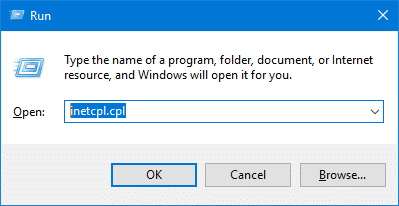
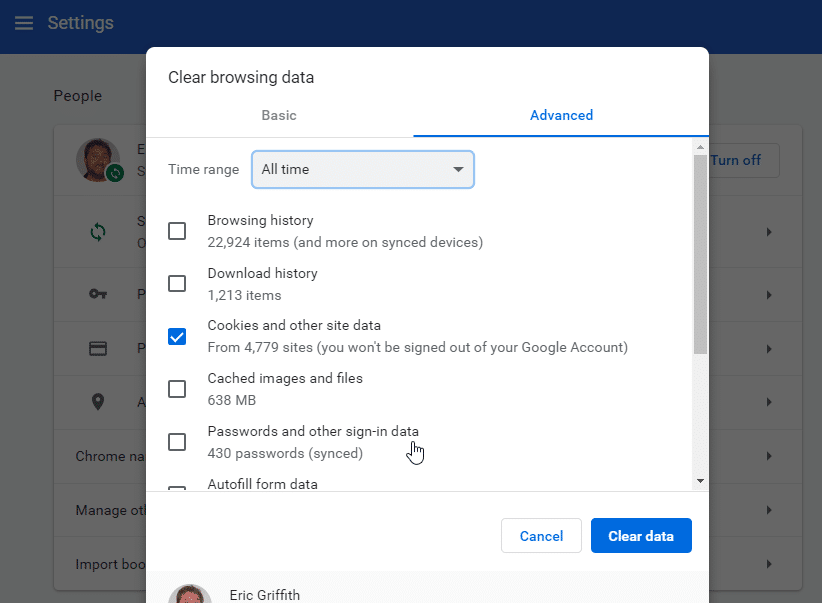
Open Run windows by pressing the Windows + R keys and type INETCPL.CPl on the open box and also hit a click on OK tab.
Choose General tab and also click on Delete and choose Temporary internet files and website files.
Heading forward, hit on the Delete tab.
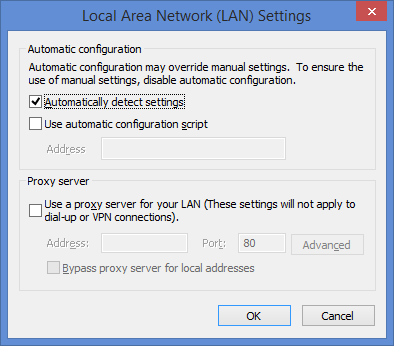
Now choose the Connections tab and also hit on the LAN settings
Afterward, Detect settings and hit on OK.
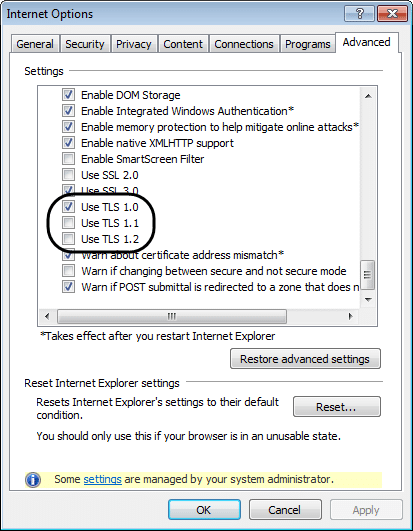
Now, head to the Advanced tab and scroll down to the Security section.
Verify if TLS 1.2 is checked and TLS 1.0 and TLS 1.1 is unchecked.
Cause 2: Missing digital signature certificate
Solution: Installing digital signature certificate
This process requires to Download and install digital signature certificate on your PC.
Subsequently, you need to look for and find the QBW32.exe file.
Windows 7 users can go to Windows search option.
Then hit on More results in Windows search.
Afterward, choose the Computer icon in the search box.
In the search box, type QBW32.exe that has type of application.
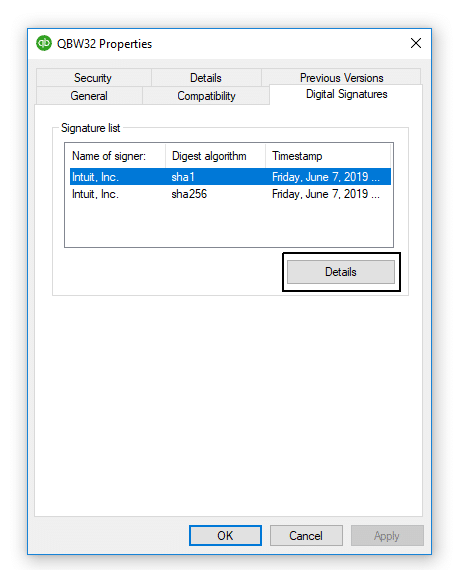
Right-click on QBW32.exe and select Properties.
Choose Digital signature tab and also ascertain that you have selected Intuit Inc. from the signature list.
Hit a click on Details.
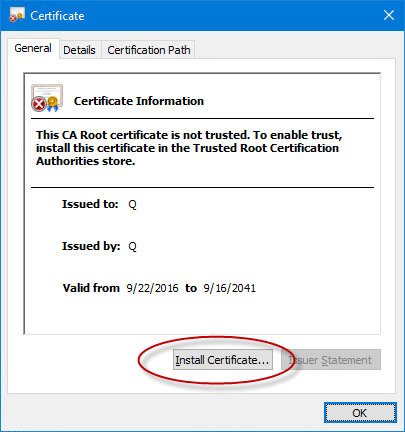
You need to choose View certificate in Digital signature details window.
Now move to certificate window and select Install certificate.
Subsequently, hit on the Next tab until you get a dialog box with the Finish tab.
Now hit on Finish and then reboot the system.
Open the QuickBooks software and complete the process by downloading the update again.
Cause 3: QBWebconnector.exe stopped working
Solution: Terminate the QBConnector.exe file
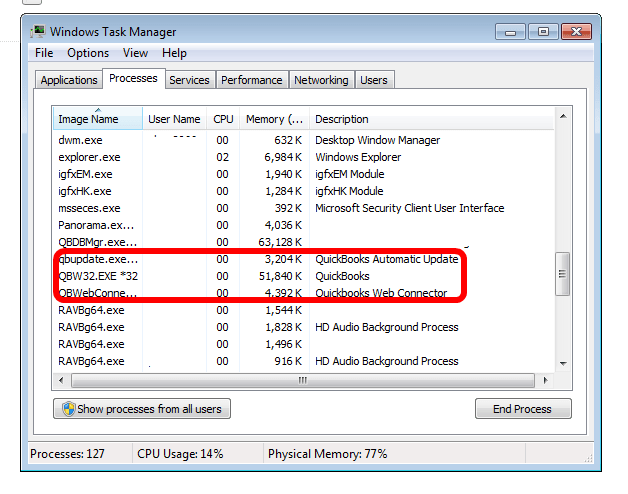
Press and hold Ctrl+ Alt + Del keys.
Proceed to Processes tab and look for QBConnector.exe
Right click on the file and also choose End Process.
Additional Solutions to Fix Error 15101 When Updating Desktop or Payroll
You can also follow these methods if the above causes and fixes aren't able to resolve the problem for you.
Solution 1: Run the reboot.bat file
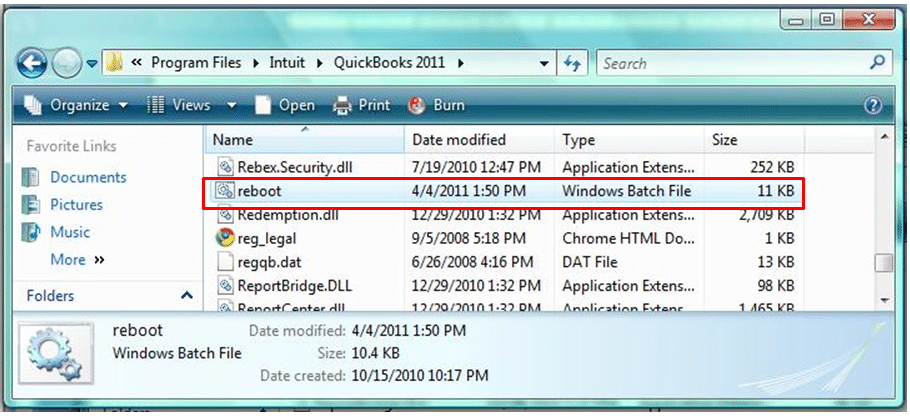
You can find the batch file named Reboot.bat in the QuickBooks folder. Running it can help in the resolution of error 15101. The steps below should help you:
This process demands to close QuickBooks software.
Right-click the QuickBooks icon and also choose Properties.
Proceed to the Shortcut tab and hit on Open file location.
Find the Reboot.bat or reboot file from the list on the screen.
Once located, right-click the Reboot.bat file and choose run as admin.
Hit on the Yes tab to get User account permission.
Now a CMD window will open and display a different file scrolling.
Reboot the system.
Open QuickBooks desktop and also click on the Install option to download the latest updates, if any.
Finally, restart QuickBooks to check for the effectiveness of this method in resolving Error code 15101.
Solution 2: Perform a clean installation of QuickBooks
Another viable option is to go for a clean installation. To proceed ahead with this process, follow the directions given below:
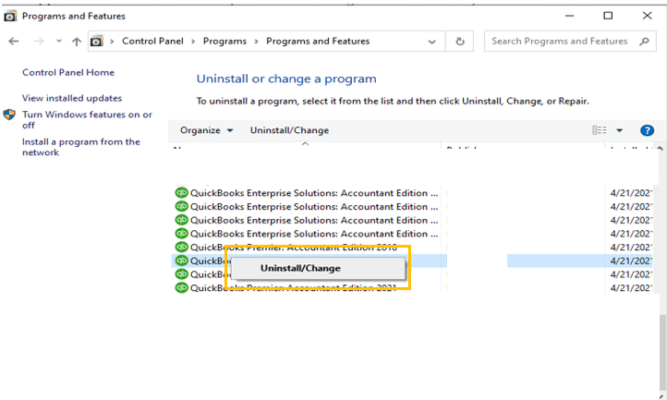
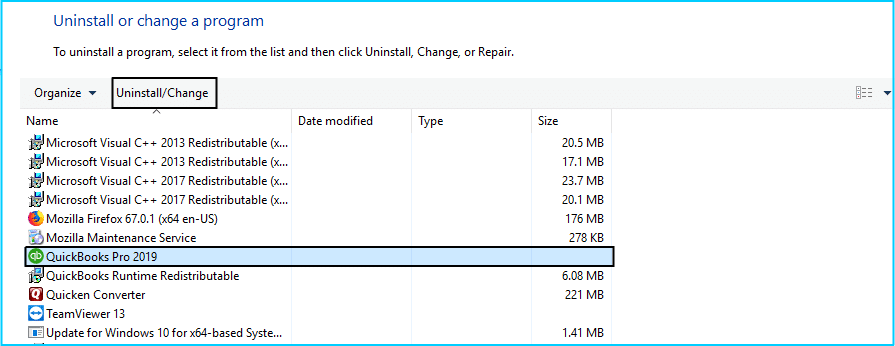
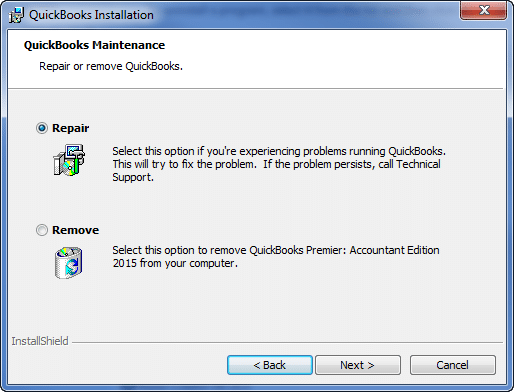
You are supposed to uninstall QuickBooks desktop.
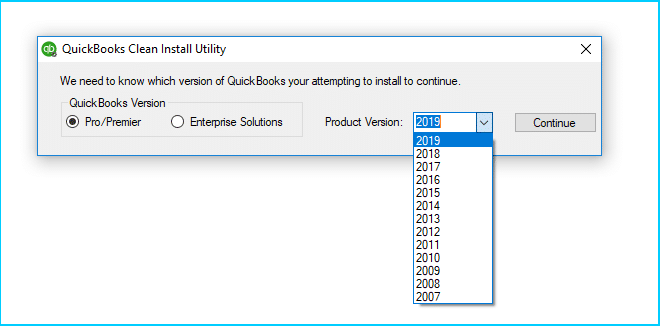
The next step requires Uninstalling the QuickBooks desktop software using the QuickBooks Clean Install Utility
You also need to Rename the installation folder afterward.
Just in case you are using windows and also attached to the internet with a high-speed link, then you would be able to restart the system in safe mode setting with networking mode. You need to restart the system later on.
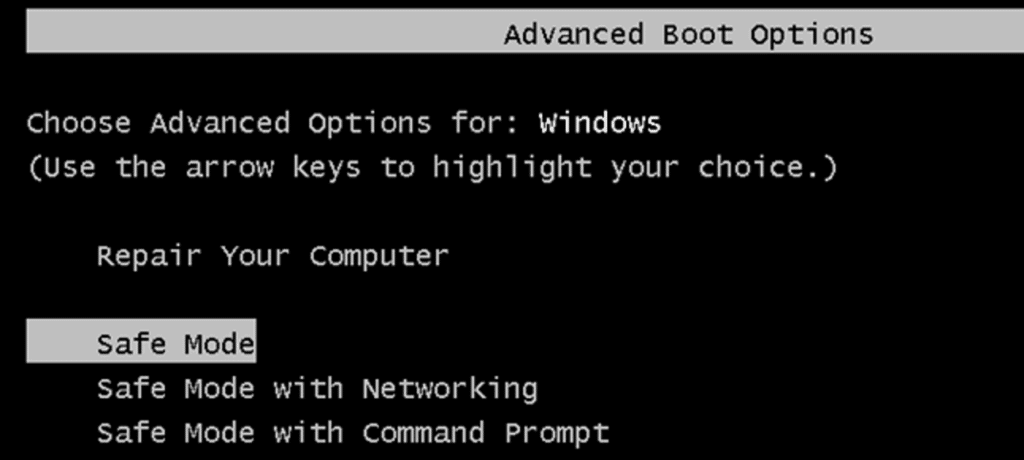
Choose Safe mode with networking after repeatedly tapping the F8 key in the bootup.
After that, choose the Operating system you wish to restart.
Hit on Enter tab.
Now, opt for login and also choose the System admin which will give you access to all computer programs.
Enter the Admin password.
Choose the Yes option when specified to work in a Safe mode setting.
Afterward, open QuickBooks and perform the task again.
End the process by rebooting the system.
Solution 4: Alter your firewall settings
In certain cases, the Windows firewall obstructs the seamless functioning of a majority of software in your system- QuickBooks Desktop being no exception. Under such circumstances, certain technical snags show up. The Error 15101 may incite because of this reason. As such, follow the steps below:
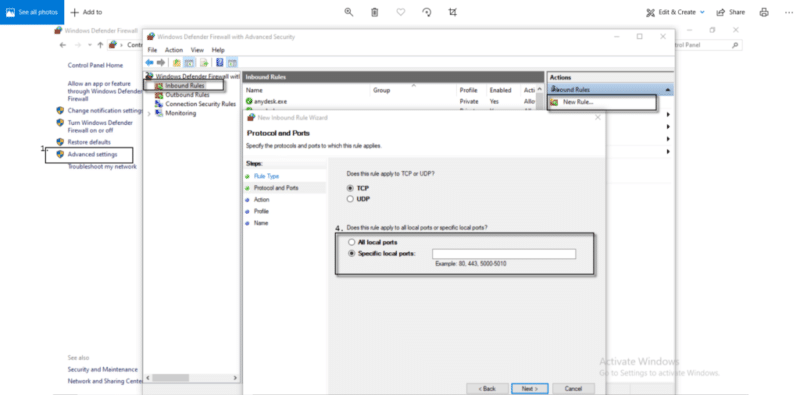
Go to Start menu and open Windows Firewall by searching for Firewall in the search box.
Head to Advanced Options.
Rright-click on Inbound Rules and click on New Rule.
Now go into Program option, followed by hitting Next.
Tap on Browse and select This Program Path.
Later on, search for QuickBooks executable files and choose them.
Then, hit on Next.
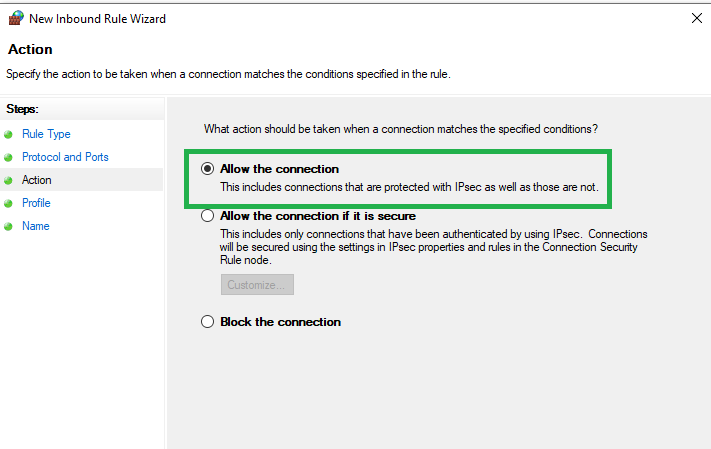
Allow the connection and hit on Next.
Double-check that all options are marked.
Then tap on Next.
Create a rule and give a name on it. For example: "QBFirewallException(name.exe)."
Once all the steps are implemented, open your QuickBooks and check the error got uprooted.
Heading towards the end of this segment, we expect that the steps and procedures that we have mentioned above might be of some assistance in tackling the QuickBooks error code 15101. However, if you are dicey with the process or if you continue to land into the same error again and again, then connect with our XpertBooks Pro team. Our professional tech geeks will ensure to provide you with impeccable possible accounting assistance.
FAQs
What causes Error 15101 in QuickBooks?
This error is generally provoked due to the following factors: 1. Misconfigured Internet settings 2. The digital Signature certificate for Intuit may not be installed or updated. 3. Termination of QBWebconnector.exe service can also lead to Error 15101. 4. Poor internet connectivity can also cause this error.
What are the solutions of this error?
This QuickBooks update error can be repaired by following the Solutions below: 1: Run Reboot.bat. 2: Clean Install QuickBooks. 3: Access the Safe Mode with Networking. 4: Make changes to the Firewall settings.
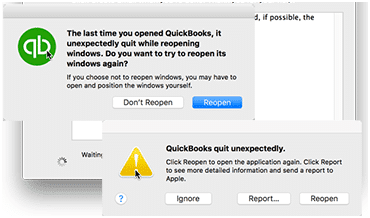
Experiencing QuickBooks keeps crashing issues in Windows? Well, if that is the case, then do not put the data and the system at risk and simply learn the right fixes to chuck off QuickBooks crashing and stops working problem. QuickBooks keeps crashing, and as a result, you might not be able to run the QuickBooks program. You can experience such an error when there is any issue with the company file or installation file. As a result of such an error, the QuickBooks desktop usually crashes and freezes.
If your QuickBooks desktop is constantly crashing, then going through this piece of writing will surely be of some assistance. However, if you aren’t interested in performing the steps manually, then we suggest you to get in touch with our XpertBooks Pro experts and our tech geeks will ensure to provide you with immediate assistance in fixing the QuickBooks keeps crashing issue in Windows.
When may lead to QuickBooks closes unexpectedly or crashing error?
You may encounter the crashing error while performing one of the following tasks:
While emailing a large report
When working randomly on transactions, such as Invoices and Sales Orders
Also, when you are running many reports side by side
At the time of working in different Centers
You can get the crashing error while working in the Report Center
Solution steps to implement to fix QuickBooks keeps crashing while opening company file
You can try implementing the below stated set of steps to fix the QuickBooks crashes while opening company file. Let us explore each of the measures one by one:
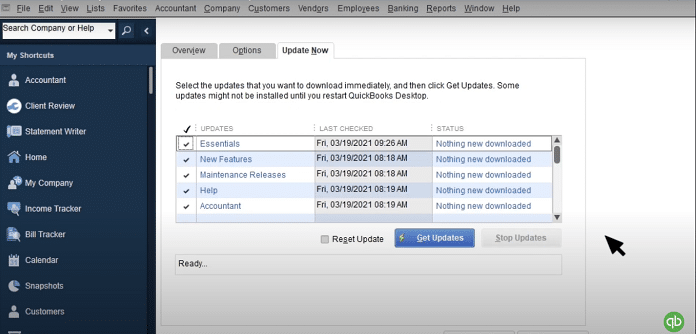
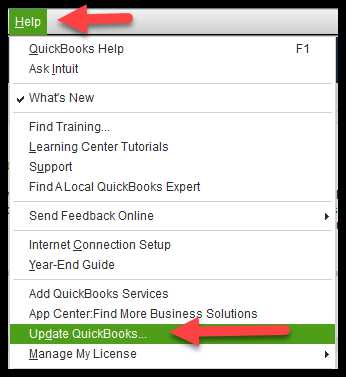
Solution 1: Updating your QuickBooks and Windows OS
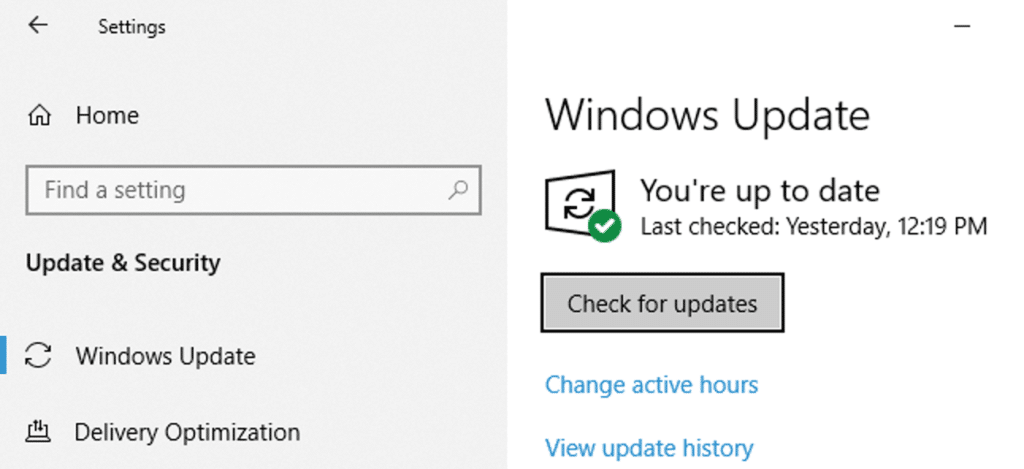
Hit a right click on Start tab.
Then head to the Settings tab.
Go for Update and security option.
Moving ahead, hit a click on Check for updates tab.
The database server manager tool will automatically scan the damaged company file and try to find and rectify the issue.
Wrapping-up.!
By the end of this segment, we believe that you might be able to successfully rectify the QuickBooks keeps crashing issues in Windows. However, troubleshooting technical issues can sometimes take longer than expected. If you would rather save time and avoid unnecessary downtime, you can reach out to XpertBooks Pro. As an independent service provider, we offer quality technical assistance for accounting software related issues. Our goal is to help users resolve problems efficiently while minimizing disruptions to their daily workflow. Our professionals will ensure to provide you with the right set of steps to fix the issue.
QuickBooks is one of the best accounting software available in the market and has benefitted businesses of different sizes. This application is packed with many powerful features like tracking sales, expenses, invoices, inventory management, payroll, generating financial reports, and lots more. Moreover, each year a newer and updated version of QuickBooks is released by Intuit, which consists of new and improved features making business operations a lot simpler and hassle-free. But glitches and errors are not uncommon in QuickBooks, after all it is just a software. Some errors can be easily fixed by users, while few can be complicated, where support experts have to intervene.
QuickBooks Payroll Error PS034 is a very common issue that users often face. This error happens while updating QuickBooks payroll. In this article, we will in detail discuss this issue which will include why this error occurs and the possible solutions. So, keep reading on!
What is QuickBooks error code PS034?
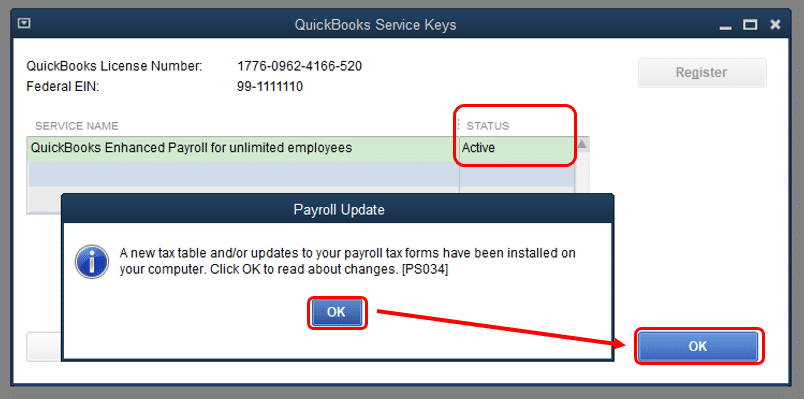
QuickBooks error PS034 is a payroll update error that usually pops up when when QuickBooks fails to download payroll updates. This error could also be appear due to incorrect billing information or damaged files. This error mainly indicates that QuickBooks is unable to verify or process payroll data properly. The following error message might appear on your screen when the error PS034 in QuickBooks problem happens:
Error Code:
Error PS034
Software Developer:
Intuit QuickBooks Inc.
Error Description:
A new tax table/or updates to your payroll tax forms have been installed on your computer. Hit a click on OK to read about changes. [PS034]
QuickBooks has come across an issue and needs to close. We apologize for the inconvenience.
Possible Causes:
Older QuickBooks version, Invalid Tax tables or Payroll Files. Corrupt QuickBooks Company file or
Symptoms:
Your Program window will crashes, Windows runs sluggishly
Possible Solution:
Check the new Updates & Info of QuickBooks and payroll, Verify that you are a ‘Registered User’
Causes of QuickBooks Payroll Error PS034
The tax table or payroll files may be invalid.
Billing information might not be correct or invalid.
QuickBooks company files are corrupted.
Intuit could not get the ‘Requisite files’ because of Invalid files or a Network failure.
With the right troubleshooting steps, QuickBooks error code PS034 can be fixed easily, allowing you to continue payroll processing without any hassle. Checkout these DIY solutions to troubleshoot this error by your own:
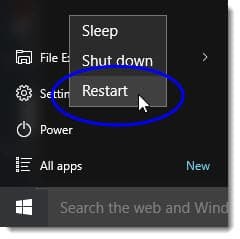
Solution 1: Restart system
Restarting and rebooting your system is often known to solve many issues without even trying any other methods.
The first step is to login to your QuickBooks Account.
Then reboot your computer and the concerned Database.
Once the reboot is completed successfully, now log in again to your QuickBooks Account.
Now shut down the background applications if any of them are open.
Now perform the update again.
Solution 2: Verify if you are a Registered User
Firstly you have to open QuickBooks Desktop.
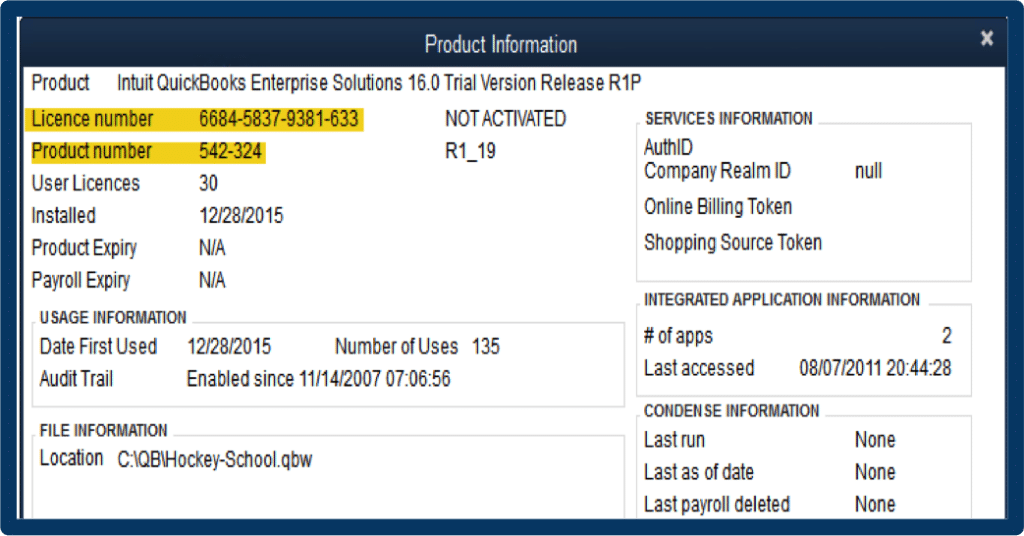
Press the function Key F2 in order to check whether or not you are a registered user.
You will come across a product information window, and there, see the first entry to check if you are a registered user in QuickBooks desktop or not.
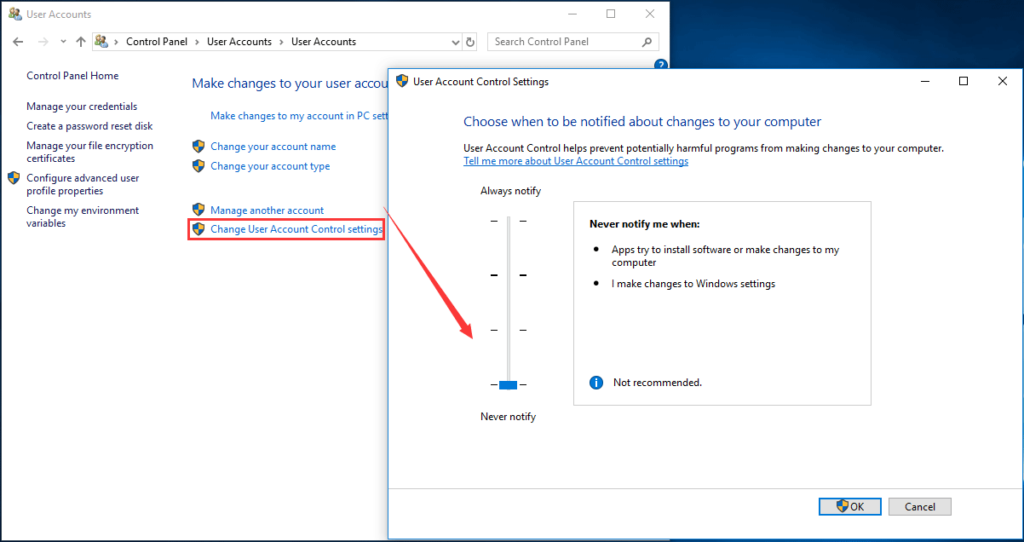
Firstly, you have to switch off User Account controls before you start off with the Update. Follow the below steps:
Firstly go to start.
In the search box, you have to type - ‘Change user account control.'
Now turn off the settings.
Solution 6: Check the Antivirus or firewall settings
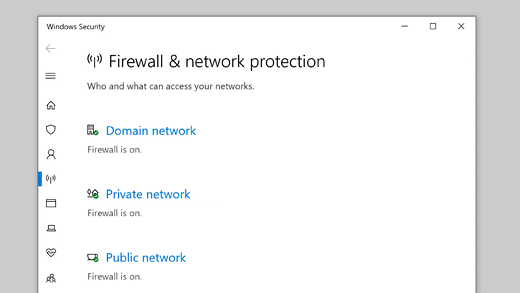
There can be a situation where because of the Advanced Settings, the firewall settings or the anti-virus software settings might be blocking the updates and thereby causing the error. In this situation, you either switch off the firewall or whitelist QuickBooks Payroll in order to avoid any such errors.
In case the QuickBooks Payroll error PS034 doesn’t get resolved, then it is suggested you reach out to the payroll accounting consultant providers. Our team at XpertBooks Pro, is available 24/7 to help identify the root causes and guide you through the appropriate troubleshooting process.
FAQs related to QuickBooks Error PS034
How can I fix Error PS034?
The various solutions to fix this error are: 1: Restart the computer. 2: Check the registration status 3: Check for new updates. 4: Scan system files. 5: Configure Windows Firewall
What are QuickBooks PSXXX errors?
The family of PSXXX error codes subsumes different error codes of variegated origin that appear when updating QuickBooks Payroll. These include Error PS107, Error PS034, Error PS038, and Error PS077, including other error codes.