
QuickBooks Error 6000 78 means QuickBooks can't access your company file — most often because the file is stored on a USB drive, external hard drive, or a network folder QuickBooks can't reach reliably. The fastest fix is to copy the company file to your local C: drive and open it from there. If that works, the storage location was your problem.
You're at your desk, coffee in hand, ready to get some actual work done. You double-click the company file and... "Error -6000, -78." QuickBooks shrugs and gives up.
Here's the reassuring part: 6000 78 is almost always about *where* your company file lives, not about the file being broken. QuickBooks is picky about storage — it wants the file on a stable local drive or a properly set-up server. Put it on a USB stick, a cloud-synced folder, or a flaky network share, and QuickBooks will refuse to play ball. This error is its way of saying "I can't work with this location."
The good news? Location problems are easy to fix. Let's do it.
What is QuickBooks Error 6000 78?
Error 6000 78 is a company-file access error. When you try to open your .QBW file, QuickBooks attempts to establish a stable connection to wherever that file is stored. If the location is unreliable — a removable drive, a network path with permission problems, a folder buried twenty levels deep — QuickBooks can't guarantee safe access to your data, and it throws this error rather than risk corrupting your books.
Think of it this way: QuickBooks would rather refuse to open the file than open it from a location where your data could get damaged. Annoying in the moment, but it's actually protecting you.
Why does Error 6000 78 happen?
The usual suspects:
- The company file is stored on a USB drive, external hard drive, or other removable media.
- The file lives in a cloud-synced folder (Dropbox, OneDrive, Google Drive) that locks or moves the file during syncing.
- The file path is too long — QuickBooks struggles with deeply nested folders.
- The .ND (Network Data) or .TLG (Transaction Log) files next to your company file are damaged.
- Windows folder permissions don't give QuickBooks full read/write access to the file's location.
- You're opening the file over a network share with connectivity or permission issues.
- The company file itself has some data damage.
How do you know it’s Error 6000 78?
- A popup reads "Error -6000, -78" (or "-6000, 78") when you try to open the company file.
- The error appears specifically when opening the file from a USB drive, network location, or synced folder.
- The file opens fine on one computer but not another — pointing to a location or permissions issue on the problem machine.
- QuickBooks freezes momentarily, then shows the error instead of opening the file.
Solutions that actually fix Error 6000 78
Start at the top. Most people never make it past Solution 2.
Solution 1: Move the company file to your local drive
This is the fix that resolves the majority of 6000 78 cases, because the majority of 6000 78 cases are caused by bad storage locations.
- Close QuickBooks completely.
- Copy (don't move — keep the original as a fallback) your company file (.QBW) to your local C: drive.
- The best spot is QuickBooks' own default folder: C:\Users\Public\Documents\Intuit\QuickBooks\Company Files. This folder already has the permissions QuickBooks needs.
- Open QuickBooks, go to File > Open or Restore Company, browse to the copied file, and open it.
- If it opens, congratulations — the storage location was your problem. Keep working from the new location and stop opening the file from the USB drive or synced folder.
One hard rule going forward: company files should live on a local drive or a properly configured server. Never on removable media, and never in a folder that a cloud service is actively syncing. That's not a suggestion — it's how you avoid this error (and data damage) permanently.
Solution 2: Shorten the file path
Even on a good drive, a file buried in a deeply nested folder can trigger this error. QuickBooks has limits on how long a file path it can reliably work with.
- Move your company file to a folder closer to the drive root — your Desktop is perfect for a test.
- Avoid folder names with special characters.
- Try opening the file from the new, shorter location.
If the file opens from the Desktop but not from its original folder, the path was too long or the original folder had issues. Find the file a permanent home with a short, simple path.
Solution 3: Rename the .ND and .TLG files
Damaged network configuration files are a classic cause across the whole 6000 family. Renaming them is safe — QuickBooks rebuilds them automatically.
- Close QuickBooks on all computers.
- Open the folder containing your company file.
- Find the files ending in .ND and .TLG that share your company file's name.
- Right-click each, choose Rename, and add .old to the end.
- Reopen QuickBooks and try your company file.
You lose no accounting data — these files hold connection settings, not transactions.
Solution 4: Check folder permissions
If QuickBooks doesn't have full read/write access to the folder, it can't open the file — simple as that.
- Right-click the folder holding your company file and choose Properties.
- On the Security tab, verify the Windows users running QuickBooks have Full Control.
- If not, click Edit, grant Full Control, apply, and try opening the file again.
- On a network, also confirm the folder is shared properly and the host computer's QuickBooks Database Server Manager can reach it.
Solution 5: Run QuickBooks File Doctor
When the manual steps don't crack it, let Intuit's own tool take a look.
- Open the QuickBooks Tool Hub (download the latest version from Intuit if you don't have it).
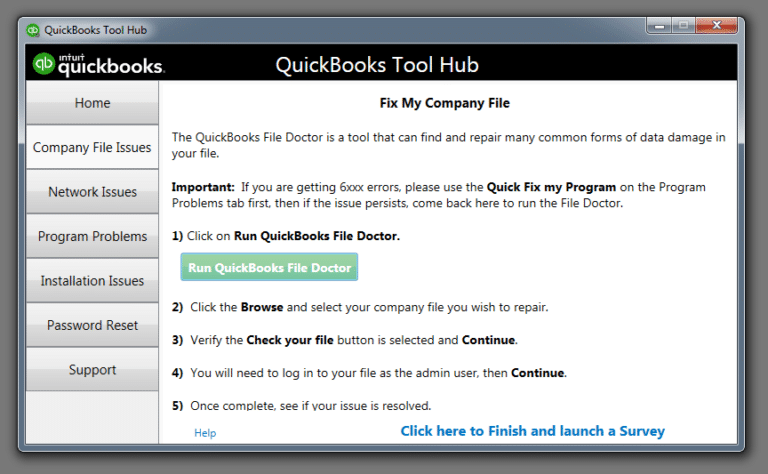
- Go to Company File Issues and choose Run QuickBooks File Doctor.
- Select your company file and let the scan complete.
- Try opening the file again.
File Doctor checks for both network issues and file damage, so it covers both sides of this error. If the scan finds damage it can't repair, our guide on [QuickBooks company file repair](/quickbooks-company-file-repair/) walks through the deeper repair options.
Read Also: How to Fix QuickBooks Error 6000 305
Solution 6: Restore from a backup
If the file won't open from any location and File Doctor can't fix it, the company file itself may be damaged. Time for the backup.
- Go to File > Open or Restore Company and select Restore a backup copy.
- Choose your most recent backup (.QBB) and restore it to a clean local folder — not the old problematic location.
- Re-enter any transactions recorded after the backup date.
Last resort, as always. Most 6000 78 cases are location problems and never reach this step.
Conclusion!
That brings us to the end of the troubleshooting methods for QuickBooks Error 6000 78. We hope the solutions explained above helped you understand the possible cause of the error and get your company file open again. If the error still appears or you run into any difficulty while following the steps, consider consulting a qualified and experienced QuickBooks professional for further assistance.
FAQs
Is Error 6000 78 the same as Error 6000 77?
They're siblings in the 6000 family — both are company-file access errors — but 6000 77 more often involves folder permission problems, while 6000 78 leans toward storage-location issues like USB drives and bad paths. You may also read: QuickBooks Error 6000 77
Can I keep my company file on OneDrive or Dropbox if I’m careful?
Honestly? Don't. Cloud sync services lock and move files during syncing, which is exactly the kind of interruption that triggers this error — and worse, can corrupt your company file. Use a proper server setup for multi-user access, or a local drive for single-user. Your data is worth more than the convenience.
Why does the file open on one computer but not another?
That points to a local problem on the failing computer: different file path, different permissions, a mapped drive that isn't connecting, or a damaged QuickBooks installation on that machine. Work through the solutions on the problem computer specifically.
Will renaming the .ND and .TLG files delete anything?
No. Those files contain network configuration settings, not your accounting data. QuickBooks recreates them automatically the next time the company file opens. Renaming (rather than deleting) just gives you a fallback if you ever need the old ones.