

Are you looking for an easy process to download, install, and verify QuickBooks payroll tax tables? Your search ends here. This segment gives you the complete walkthrough to download, install, and verify QuickBooks payroll tax tables.
Updating the software to the latest release is highly recommended, because every payroll update brings the most current and accurate rates and calculations for supported federal and state tax tables, payroll tax forms, and e-file and pay options. You should update the tax table every time employees are paid.
To update the tax table, you need an active payroll subscription. Payroll tax table versions change several times a year, so instead of quoting a version number that goes stale, this article shows you how to check your installed version and compare it with the latest release published by Intuit. (As of early October 2026, the latest US payroll update is 22616, released September 22, 2026, per Intuit's official payroll news page – always verify the current release before updating.)
Table of Contents
QuickBooks Payroll Tax Tables: An Overview
Before you learn the process to download, install, and verify QuickBooks payroll tax tables, you should first understand what a payroll tax table is. A payroll tax table is basically a chart with different columns that helps you figure out the correct taxes to withhold from an employee's paycheck. Withholding taxes are affected by factors such as the income amount, the worker's marital status, and the pay schedule. There are more facts related to the payroll tax table, which we will discuss later in this article.
Points to note before updating the QuickBooks payroll tax table
Before you begin updating the QuickBooks payroll tax table, make sure you comply with the points below:
- You must have an active payroll subscription to update the tax table.
- Make sure QuickBooks Desktop is updated to a supported release.
- An active internet connection is required for updating the payroll tax table.
- Download the tax table at least within 45 days of its release – or better, update it each time employees are paid.
- Turn on automatic updates in QuickBooks Desktop if you want payroll tax table updates to download automatically as soon as they release.
What comes with a payroll update?
Every payroll update typically rolls in three kinds of changes:
Tax table updates
New or revised federal and state withholding tables and rates for the period.
Forms updates
Updated payroll tax forms (for example, federal Form 941) when the tax agencies release new versions.
E-file and pay updates
Changes to electronic filing and electronic payment options, when applicable.
If you do not have auto-update enabled, close and reopen QuickBooks after downloading the tax table updates to complete the installation.
Read Also: Fix QuickBooks Error Code 179 (During Backup Forcing Rebuild)
Steps to check your current payroll update
To check your installed payroll update, carry out the steps below:
- Go to the Employees menu and choose Get Payroll Updates.
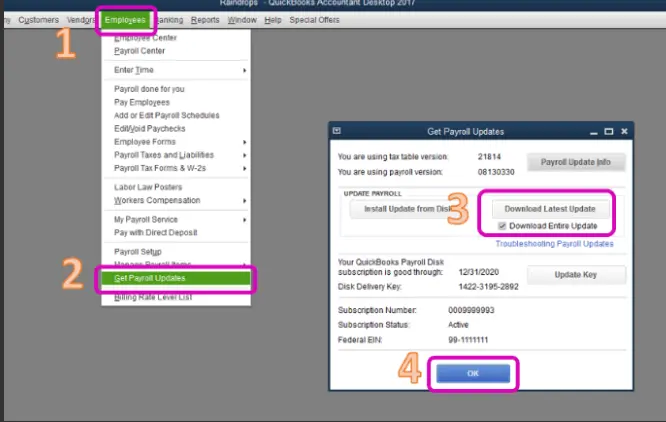
- Check the number next to "You are using tax table version:".
- To see whether your version is the latest, open Payroll Update Info – it shows your installed version and what the current release includes.
- You can also compare your version against the latest payroll news and updates published on Intuit's official support site.

Tip: Payroll update numbers and tax table versions change frequently through the year. The reliable way to stay current is to check the Payroll Update Info window and Intuit's payroll news page – not a version number quoted in an old blog post.
Downloading the Latest Tax Table in QuickBooks Desktop
To download the latest tax table in QuickBooks Desktop, carry out the steps below:
- To begin with, go to the Employees menu.
- Choose the Get Payroll Updates option.
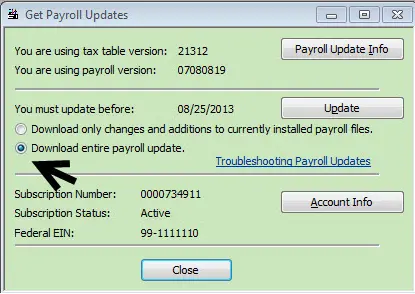
- Select the Download Entire Update checkbox.
- Select Update (or Download Latest Update).
- When the download completes, an informational window appears. Click OK.
To update the payroll tax table automatically, turn on automatic updates in QuickBooks Desktop.
How to verify the installed tax table version
- From the Employees menu in QuickBooks, select My Payroll Service, then Tax Table Information.
- The first numbers under "You are using tax table version:" reflect your tax table version.
- Compare this version with the latest version published in Intuit's payroll news and updates. If yours is older, download the latest update using the steps above.
- Make sure you are using a supported QuickBooks Desktop release to download tax table updates.
Read Also: Resolve QuickBooks Desktop OL and OLSU Bank Feeds Errors
A note for US and Canada payroll users
US payroll updates (federal and state withholding tables, Forms 941/940, e-file options) and Canadian payroll updates (TD1 amounts, CPP/QPP, EI, QPIP rates) are published separately by Intuit and change every quarter. Because these numbers go stale within weeks, always check the current tax table article on Intuit's official support site for your country instead of relying on figures quoted in older posts.
Fixing payroll update errors after updating tax tables
If amounts (such as TD1 amounts) do not update even after installing the latest tax table, check the pointers below:
- Check whether it is on or after the tax table effective date. For example, if you downloaded a tax table on June 20 but it becomes effective July 1, you will not see the updated amounts until July 1.
- After the effective date, start a payroll or close and reopen QuickBooks Desktop for the new amounts to apply.
- If you manually adjusted any amounts in the past (for example, after setting up new employees), the new tax table will not override your manual adjustments – you will have to update those amounts manually going forward.
- Also check whether any employees are set up above the basic amounts. QuickBooks automatically updates amounts only for employees on the basic amounts from previous tax tables.
Error: Payroll tax table is now out of date
When you open payroll in QuickBooks, you may see a "payroll tax table is now out of date" message, and payroll calculations may show as $0.00. The reasons behind this are:
- QuickBooks Desktop is not updated to the latest payroll tax table release.
- You are using QuickBooks in a multi-user network/environment, and not all versions of QuickBooks on the network have been updated to the latest tax table.
To resolve the error:
- First, check whether QuickBooks Desktop is using the latest product update. In a multi-user network, check all the versions on the network.
- Compare the product release number with the currently installed product update page. You can also press the F2 key in QuickBooks to check the release number.
- If the product is not updated, run the update as soon as possible. Also, make sure to back up the company file first.
If payroll updates keep failing or the "out of date" error will not clear, our QuickBooks payroll experts can diagnose and fix it for you.
Steps to Verify if the Tax Table Update is Downloaded and Installed
Once you update the tax table, you may want to confirm the update was downloaded and installed properly. QuickBooks Desktop usually installs the tax table update right after a successful download, so a separate install step is rarely needed. To verify:
- Run QuickBooks and go to the Employees menu.
- Select Get Payroll Updates.
- Click Payroll Update Info to see the installed tax table version and its details.
- For an extra check, go to Employees > My Payroll Service > Tax Table Information and confirm the version and effective date.
- You can also select Verify your Payroll Subscription to confirm your subscription is active.

Conclusion!
Updating the payroll tax table does not involve any rocket science. Performing the above steps will help you download, install, and verify QuickBooks payroll tax tables without any hassle. However, for any further information on this topic, get in touch with our XpertBooks Pro consulting team – call us and ask them to update the payroll tax table on your behalf. Do not hesitate to call us anytime; our experts and certified professionals will be happy to help you.
FAQs
How can I verify if the payroll tax tables are installed correctly?
Go to the Employees menu, select Get Payroll Updates, then click Payroll Update Info. Compare your installed tax table version with the latest version published in Intuit's payroll news and updates.
Can I use QuickBooks payroll tax tables without an active payroll subscription?
No. QuickBooks tax tables cannot be downloaded or used without an active payroll subscription.
How often should I update the payroll tax table?
Update it every time employees are paid, and at least within 45 days of each new release. Turning on automatic updates in QuickBooks Desktop is the easiest way to stay current.
Why do my payroll calculations show $0.00?
This usually means the payroll tax table is out of date. Update to the latest tax table release (and make sure every QuickBooks copy on a multi-user network is updated too).
Where can I find the latest payroll update version number?
In QuickBooks, go to Employees > Get Payroll Updates > Payroll Update Info. You can also check the latest payroll news and updates on Intuit's official support site, which always lists the current release.
Related Articles: