
Have you come across an annoying pop-up message stating “The connection to the company file has been lost. QuickBooks must close immediately. Any unsaved data will need to be re-entered” and don't know how to deal with it? There can be many underlying reasons causing connection issues. These errors often appear abruptly and interrupt your entire workflow with the company file. Difficulty in accessing the company file can lead to this kind of error. Also, if the system goes into sleep mode, you can end up with this error — or if the network card of a system is set to go into sleep mode after a certain period, it can cause the lost connection issue.
In this post, we will discuss the causes and quick fixes for this annoying error in detail. So make sure you keep reading this post till the end.
When you try to access the company file, you may see the following error message on your screen:
| Error | Description |
|---|---|
| Connection Has Been Lost | The connection to the company file has been lost. QuickBooks must close immediately. Any unsaved data will need to be re-entered. |
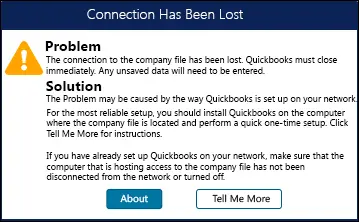
Table of Contents
Brief about Error message: Connection Has Been Lost in QuickBooks
The error name itself explains what this error is about. It appears when the software loses its connection to the company file, and QuickBooks may be forced to close immediately. If data is unsaved, it might not be recovered, and you may have to re-enter it. This means the software is unable to access the company file or a particular section of it. The “connection to QuickBooks company file is lost” issue is similar to an abort error, where the software is unable to proceed with the company file in the middle of a process. It can also damage the QBWUSER.INI file. Various factors can cause this issue, which we will discuss below.
What Causes Error: Connection Has Been Lost in QuickBooks?
You may face this error in the following situations:
- The company file is stored on another system or on a portable drive, and the connection to the storage device is disrupted.
- The power management settings in Windows put the system hosting the company file into sleep or hibernation mode.
- More than one system on the network is configured to host the QuickBooks company file.
- The systems in a multi-user setup are running different versions of QuickBooks.
- The data in the company file is damaged.
If you use a standalone system
Some common causes on a single computer include:
- An antivirus program blocking QuickBooks Desktop.
- A corrupted QuickBooks company file.
- The folder where the company file is saved needs additional permissions.
Signs and symptoms of the connection lost problem in QuickBooks Desktop
The signs below can help you identify this error:
- QuickBooks shows the error while opening, or shuts down often with an unrecoverable error.
- The system shuts down frequently without any error message.
- The software suddenly stops working and an error message pops up on the screen.
- The system crashes randomly while QuickBooks is running.
Quick steps to try before the detailed troubleshooting
Before jumping into the detailed procedures, here are a few quick tips that may resolve the error easily:
- Restart the QuickBooks Database Server Manager.
- Move the company file to a different folder.
- Set the power saving option to Never.
If you use just one computer, check these as well:
- The folder where the company file is stored might need additional permissions.
- A third-party program like an antivirus might conflict with QuickBooks.
- The QuickBooks company file itself might be corrupt.
Read Also: Fix QuickBooks Error Code C=184 Using 7 DIY Methods
Methods to Fix the Connection Has Been Lost Error in QuickBooks
Try the methods below to fix the QuickBooks connection has been lost error. For best results, follow them in the order presented:
Method 1: Restart your system and QuickBooks Desktop
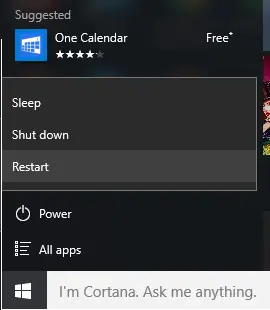
Many times, a simple reboot resolves the issue. Before trying longer solutions, restart your computer and QuickBooks and check whether the error is gone.
Method 2: Run Quick Fix My Program and File Doctor from the QuickBooks Tool Hub
The QuickBooks Tool Hub is a great utility for fixing various QuickBooks errors. Close QuickBooks before using it. The steps involved are:
Step 1: Download and install the QuickBooks Tool Hub
- Close QuickBooks.
- Download the latest QuickBooks Tool Hub (version 1.6.0.8, current as of late 2026) from Intuit's official support article, and save the file where you can access it easily.
- Open the downloaded QuickBooksToolHub.exe file.
- Follow the on-screen prompts to complete the installation, and agree to the terms and conditions.
- After installation, double-click the icon on the Windows desktop to open the Tool Hub.

If you cannot find the icon, search for QuickBooks Tool Hub in the Windows search bar.
Step 2: Run Quick Fix My Program from the Tool Hub
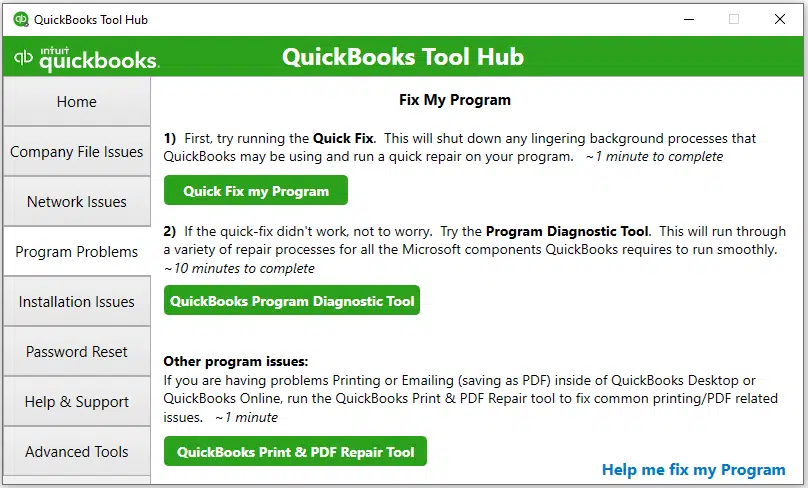
- Open the Tool Hub and go to the Program Problems tab.
- Select Quick Fix my Program. It takes about a minute to fix program-related issues.
Step 3: Run QuickBooks File Doctor from the Tool Hub
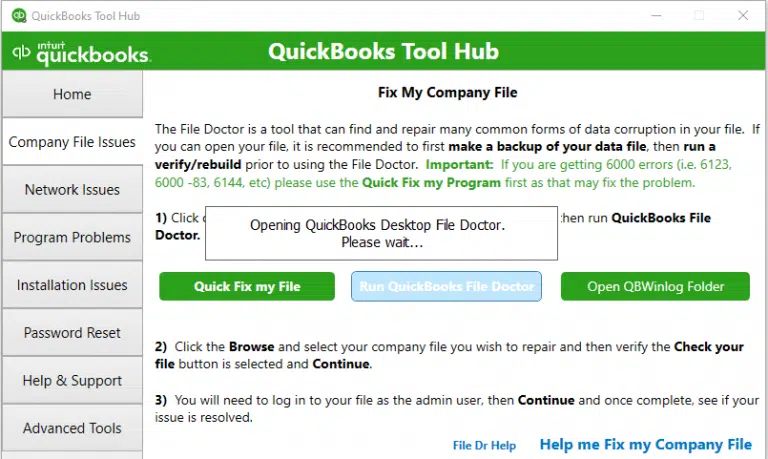
- In the Tool Hub, go to the Company File Issues tab.
- Select Run QuickBooks File Doctor.
- Choose your company file from the drop-down (or click Browse to find it), select Check your file, and click Continue.
- Enter your QuickBooks admin password and click Next.
- Review the results:
- If no issue is found, the file is OK. If the error persists, verify and rebuild the company data.
- If the tool finds an issue, let it repair the file, and restore the recent backup if needed.
For systems where the company file is stored on a portable drive: working on a company file while it sits on a flash drive is not recommended — move it to the local drive. If you must proceed, make sure the drive is properly connected, has free space at least equal to the company file size, and try disconnecting and reconnecting it.
If the data file is stored on another system on the network, check the following:
- The network connection might be unstable.
- The folder where the file is saved might need additional permissions.
- The firewall might be preventing access.
- Power saving mode might be turned on.
Read Also: QuickBooks Component Repair Tool: Uses, Fixes and the Tool Hub Way
Method 3: Check the network
Note that wireless networking is not recommended by Intuit for hosting the company file — a wired connection is far more reliable:
- Open or save another (non-QuickBooks) file on the server to confirm you have the necessary access. For example, create and delete a small text file in that folder.
- If you cannot create and delete a non-QuickBooks file in that folder, set up the Windows access permissions required for QuickBooks.
If the network is not working, or if you are uncomfortable performing these steps, consulting a professional is recommended.
Method 4: Disable the power management settings on the server
To fix the connection lost error, disable sleep and hibernation on the system hosting the company file:
- On the system where the company file is stored, open Power Options: press the Windows key, type power options, and select Power Options from the results.
- Set sleep, standby, and hibernation to Never on the host system. Also check the network adapter's power management setting (in Device Manager) and uncheck “Allow the computer to turn off this device to save power.”
Method 5: Fix the hosting on all systems
Hosting system tasks
- Make sure the QuickBooks Database Server Manager is installed on the host system. Press the Windows key and type QuickBooks Database Server Manager — if it does not appear, it is not installed, and you need to install it.
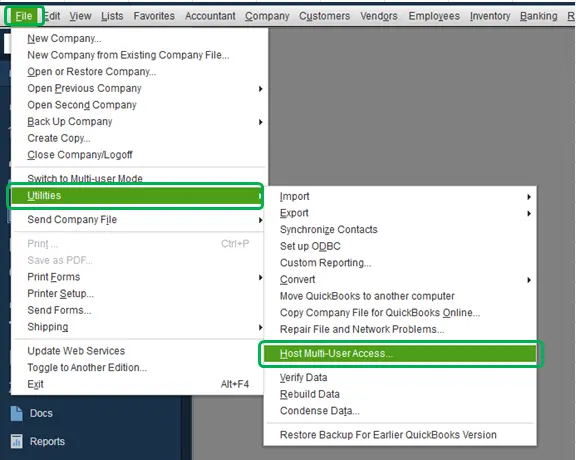
- Check the hosting setting in QuickBooks on the host:
- Open QuickBooks.
- Select File, then Utilities.
- If you see Stop hosting multi-user access, hosting is enabled — move to the next step.
- If you see Host multi-user access, select it to enable hosting on this system.

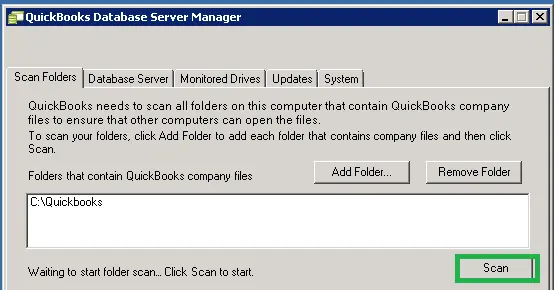
- Open the QuickBooks Database Server Manager, go to the Scan Folders tab, add the folders containing your company files, and click Scan.
Workstation tasks
- Make sure hosting is turned OFF on workstations:
- Open QuickBooks Desktop, then select File and Utilities.
- If Stop hosting multi-user access appears, select it to disable hosting on this workstation.
- If Host multi-user access appears, hosting is already disabled — move ahead.
- Open the company file using a UNC path. A UNC path (for example,
\\ServerName\SharedFolder) is the most reliable way to open a company file over a network. In QuickBooks, use File > Open or Restore Company and browse to the file through the network path rather than a mapped drive.
Method 6: Remove and re-create the .ND file
The .ND (network descriptor) file stores information about the system hosting the company file. Re-creating it often fixes connection issues:
- Press the Windows key and type QuickBooks Database Server Manager.
- Open it, click Add Folder, and select the folders storing your company files.
- Click Scan. The .ND files are re-created for each company data file.
- Click Close when the scan finishes.
Note: If you cannot find the Database Server Manager in the programs list, reinstall QuickBooks and choose the custom install option that includes the Database Server Manager.
Conclusion!
If you have read the above article carefully and implemented the methods correctly, the QuickBooks Desktop connection has been lost error should not trouble you anymore. If you are stuck at any stage or need technical assistance, do not hesitate to reach out to XpertBooks Pro. For further assistance, contact our experts. Our professionals will be happy to fix the error on your behalf.
FAQs
What causes the “Connection Has Been Lost” error in QuickBooks?
The most common causes are: the host system going to sleep, multiple systems hosting the company file, an unstable network connection, a damaged .ND file, or a corrupted company file.
Can I keep my company file on a USB flash drive?
It is not recommended. Always keep the company file on a local hard drive (or a proper server share for multi-user mode). Flash drives cause connection drops and data damage.
Why does the error appear when my computer wakes from sleep?
Because the network connection to the company file breaks during sleep. Set sleep and hibernation to Never on the system hosting the company file, and disable the network adapter's power-saving option.
Should hosting be on or off on workstations?
Hosting should be ON only on the server (the system storing the company file) and OFF on all workstations. More than one host on the network causes connection errors.
Will I lose data when this error appears?
Any unsaved data may need to be re-entered. Your saved company data is usually safe, but keeping regular backups is strongly recommended.
Related Articles:
Fix QuickBooks Error Code C=184 Using 7 DIY Methods
Resolve QuickBooks Desktop OL and OLSU Bank Feeds Errors
Fix QuickBooks Error Code 179 (During Backup Forcing Rebuild)