
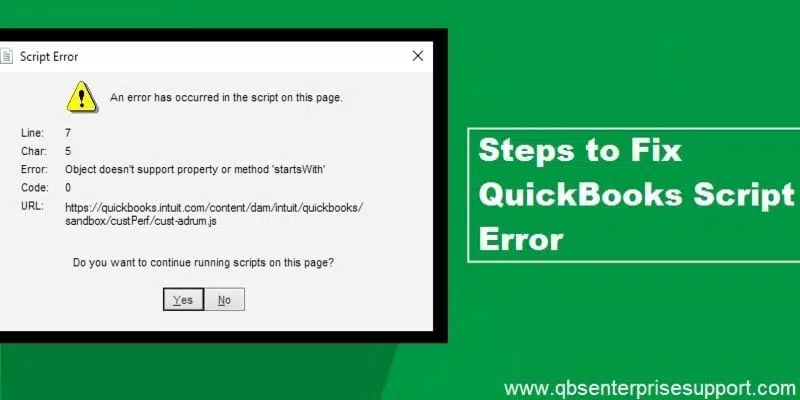
Just like any other computer software, QuickBooks has its limitations. It sometimes runs into technical issues that can stop you from performing important tasks or delay your deadlines. In this article, we will discuss the QuickBooks Script Error – a common error you may encounter. When you try to access a web-based feature inside QuickBooks (like the help window, payroll pages, or payment screens), the page may not load, and an error pops up saying a script on the page caused an error or QuickBooks could not execute a web-based script properly.
This error is typically caused by browser-related settings on your system. In some cases, script errors can interrupt your work, so it is best to fix them early.
Important: This is a minor error and has nothing to do with the safety of the page. QuickBooks Desktop displays web content using the Windows browser engine – modern versions use Microsoft Edge WebView2 – so the fixes below focus on those components, not the retired Internet Explorer.
Before moving ahead, if you need technical assistance from our experts to fix a script error, you can connect with our QuickBooks support team.
Table of Contents
QuickBooks Script Error – An Explanation
QuickBooks Script Error can be annoying and leave you scratching your head, especially when it appears in the middle of your daily work. You usually see it pop up on your screen while using a web-connected feature in QuickBooks. Unlike most other errors, a script error shows no clear cause and appears unexpectedly.
You may see scripting errors like the following:
| Problem | Description |
|---|---|
| Script Error | An error has occurred in the script on this page. Line: 22, Char: 2… |
| Script Error | QuickBooks script error for line 7, char 5 |
| Script Error | QuickBooks script error: unable to get property 'length' of undefined or null reference |
| Script Error | Script error when using payments or account applications/websites |
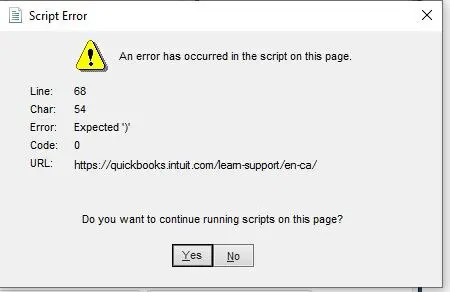
What can be the reasons for QuickBooks Desktop script error?
QuickBooks script error can be triggered by several reasons. Some of the most common ones are listed below:
- Damaged or outdated Microsoft Edge WebView2 Runtime on your system.
- Corrupted browser cache or cookies.
- An outdated Windows or Microsoft Edge installation.
- A damaged QuickBooks data file.
- Conflicting browser extensions or add-ons.
- Malware infection on your system.
- Script debugging notifications enabled in Windows Internet settings.
Read Also: Fix QuickBooks Error Code C=184 Using 7 DIY Methods
Solutions to QuickBooks Script Error (8 DIY Methods)
Below are the most effective solutions for the QuickBooks script error:
Method 1: Turn off script error notifications in Windows Internet Options
You do not need Internet Explorer for this – Windows still ships the Internet Options settings panel, which controls script behavior for Windows apps:
- Press Windows + R, type inetcpl.cpl, and press Enter. The Internet Properties window will open.
- Go to the Advanced tab.
- Under Browsing, check the following two options:
- Disable script debugging (Internet Explorer)
- Disable script debugging (Other)
- Uncheck the option Display a notification about every script error.
- Click Apply, then OK, and restart your computer.
Method 2: Update or repair the Microsoft Edge WebView2 Runtime
QuickBooks Desktop uses the Microsoft Edge WebView2 engine to display web content. If this runtime is missing, outdated, or damaged, script errors appear. Updating it is one of the most effective modern fixes:
- Go to Microsoft's official WebView2 download page: Download Microsoft Edge WebView2.
- Download the Evergreen Standalone Installer for your system (x64 for most modern PCs).
- Run the installer. If WebView2 is already installed, the installer will repair or update it.
- Restart your computer and open QuickBooks again to check whether the script error is gone.
Method 3: Clear the browser cache and SSL state
Corrupted cache data or a stuck SSL state can trigger script errors. Clear both:
- Press Windows + R, type inetcpl.cpl, and press Enter.
- On the General tab, under Browsing history, click Delete.
- Check Temporary Internet files and website files and Cookies and website data, then click Delete.
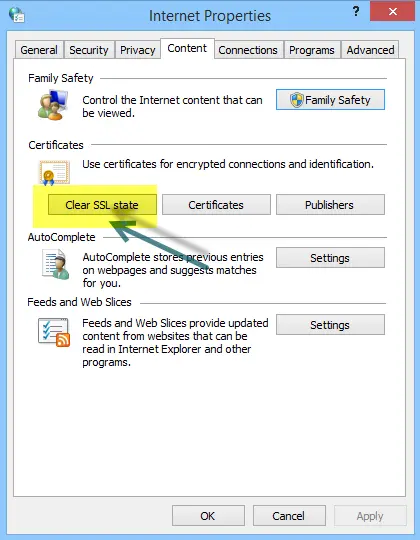
- Now go to the Content tab and click Clear SSL state.
- Click OK to close the window.
Also clear your default browser's cache (Edge/Chrome → Settings → Privacy and security → Clear browsing data) for good measure.
Method 4: Add Intuit as a trusted site
Adding Intuit's domains as trusted sites allows QuickBooks web features to run scripts without interference:
- Press Windows + R, type inetcpl.cpl, and press Enter.
- Go to the Security tab, select Trusted sites, and click Sites.
- In the "Add this website to the zone:" field, type
https://*.intuit.comand click Add. - Repeat for
https://*.quickbooks.com.
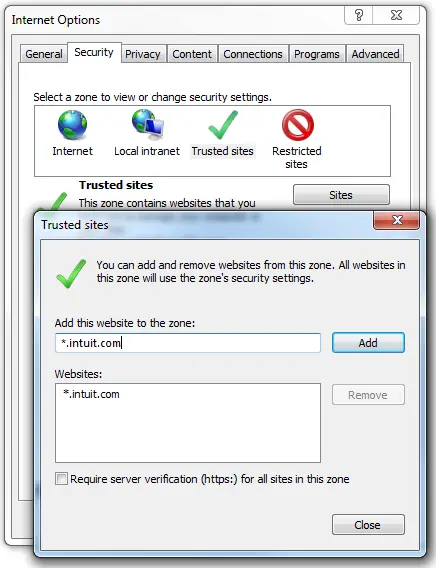
- Click Close, then OK to save the changes.
Method 5: Update Microsoft Edge and Windows
An outdated Edge browser or Windows installation can break the WebView2 engine that QuickBooks relies on:
- Open Microsoft Edge, click the three dots, go to Help and feedback, then About Microsoft Edge. Edge will check for and install updates automatically.
- Press the Windows key, type Check for updates, and install all available Windows updates.
- Restart your computer after the updates finish.
Method 6: Update QuickBooks Desktop to the latest release
Script handling improves with every QuickBooks release, so running the latest version matters:
- Open QuickBooks and go to Help, then Update QuickBooks Desktop.
- On the Update Now tab, click Get Updates.
- Once the update completes, restart QuickBooks and check whether the script error still appears.
Method 7: Disable conflicting browser extensions
A misbehaving extension in your default browser can interfere with QuickBooks web features:
- Open your default browser (Edge or Chrome) and go to Settings → Extensions.
- Temporarily disable extensions you do not recognize or recently installed – especially ad blockers and script blockers.
- Restart the browser and test QuickBooks again. Re-enable extensions one by one to find the culprit.
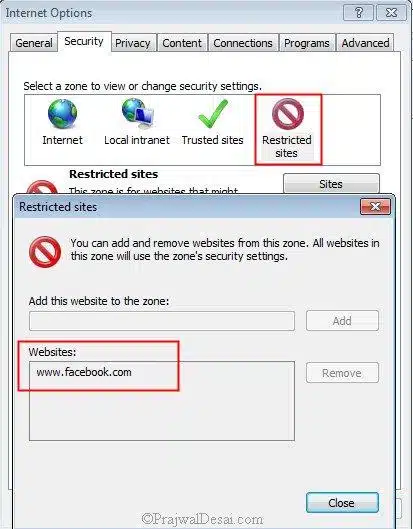
Method 8: Block the problem URL via QuickBooks Internet Connection Setup
This is the most targeted technique: if the script error always mentions the same website address, you can restrict that address from inside QuickBooks itself:
- Open QuickBooks.
- From the Help menu, click Internet Connection Setup.
- Click Next, then go to Advanced Connection Settings. (This opens the Windows Internet Properties window.)
- Go to the Security tab and select Restricted sites.
- Click Sites, then copy and paste the URL shown in your script error message into the field.
- Click Add, then Close, then OK to save the changes.
- Restart your system and check whether the error is resolved.
Conclusion!
We hope the above solutions have helped you in fixing QuickBooks Desktop script errors. If the issue still bothers you, reach out to the XpertBooks Pro team for a proper diagnosis of this error. For further assistance, call our experts – our accounting specialists will be happy to assist you or fix the error for you.
FAQs
What are script errors in QuickBooks?
Script errors appear when QuickBooks cannot properly execute a web-based script on a page inside the program – for example, in help windows, payroll pages, or payment screens. They are usually caused by browser-engine or cache issues, not by your company data.
Why does the script error keep appearing?
It usually keeps appearing because the underlying cause was not fixed – most often a damaged WebView2 Runtime, corrupted cache, or an outdated QuickBooks/Windows installation. Work through the methods above in order.
Do I need Internet Explorer to fix QuickBooks script errors?
No. Internet Explorer is retired. All the required settings are available through the Windows Internet Options panel (inetcpl.cpl) and the Microsoft Edge WebView2 Runtime.
What is Microsoft Edge WebView2 and why does QuickBooks need it?
WebView2 is Microsoft's modern browser engine that Windows applications (including QuickBooks Desktop) use to display web content. If it is outdated or damaged, web features inside QuickBooks fail with script errors.
Can a script error damage my company file?
Script errors themselves do not damage your company file – they only break the web page inside QuickBooks. But if the error keeps interrupting your work, fix it early using the steps above.
Related Articles: