
By the XpertBooks Pro support team · Last updated: October 2026
There are countless benefits offered by the QuickBooks software. However, along with those benefits come error codes and glitches that hamper the smooth functioning of the software. You may get the message "Internet Explorer is Turned Off" while opening QuickBooks Desktop. This happens because QuickBooks depends on certain Windows web components to work properly — and when those components are disabled or missing, the software refuses to open.
One thing to know upfront: Internet Explorer was retired by Microsoft in 2022 and cannot be reinstalled. So this issue is no longer about the old IE browser — it is about making sure QuickBooks has the web components it needs on a modern system. Follow the methods below carefully. If anything feels too technical, our QuickBooks experts are available.
How Does the QuickBooks Internet Explorer is Turned Off Error Manifest Itself?
QuickBooks users are usually confronted by the following error message when this issue appears:
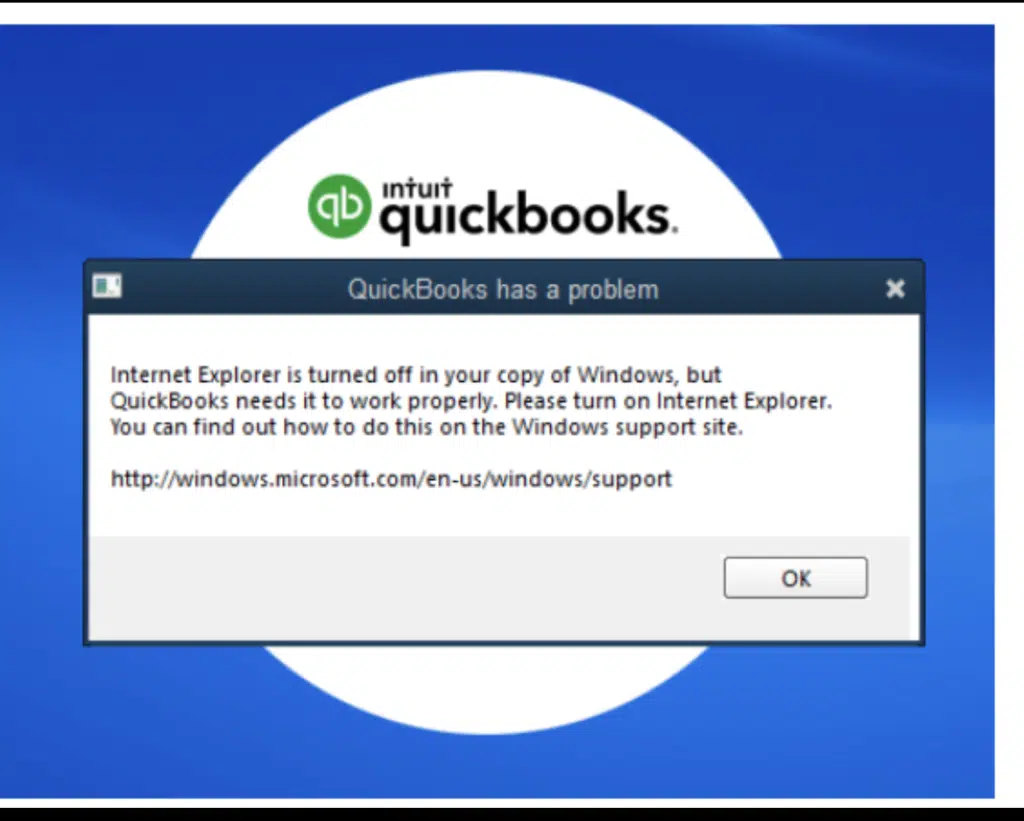
You might see the following error message on your desktop screen:
| QuickBooks has a problem | Internet Explorer is turned off in your copy of Windows, but QuickBooks needs it to work properly. Please turn on Internet Explorer. You can find out how to do this on the Windows support site. |
Causes Leading to the Internet Explorer is Turned Off Error
There are a few principal causes behind this error:
- Internet Explorer components are disabled in the Windows features.
- The web components QuickBooks needs — such as the Microsoft Edge WebView2 Runtime — are missing or damaged.
- You are using an outdated QuickBooks Desktop version that still depends on the old IE components.
- Windows updates have removed legacy IE components and changed the system configuration.
Easy Methods to Resolve the Internet Explorer is Turned Off Error in QuickBooks
Check out these updated solutions to fix the error in QuickBooks Desktop:
Method 1: Update QuickBooks Desktop to the Latest Release
Intuit has added a built-in browser to recent QuickBooks Desktop releases, which removes the old dependency on Internet Explorer. Updating to the latest release often resolves this error on its own.
- Open QuickBooks Desktop and go to the Help menu.
- Select Update QuickBooks Desktop.
- Go to the Update Now tab and click Get Updates.
- Once the download completes, restart QuickBooks and accept the option to install the new release.
[Image: Update QuickBooks Desktop to the latest release - Screenshot]
Read Also: QuickBooks Install Diagnostic Tool - Fix Installation Errors
Method 2: Install the Microsoft Edge WebView2 Runtime
Current QuickBooks Desktop versions rely on the Microsoft Edge WebView2 Runtime for web-based features such as online banking, payroll updates, and Intuit account sign-in. If this component is missing or damaged, you can see this error.
- Close QuickBooks Desktop.
- Download the WebView2 Runtime from Microsoft's official download page — https://developer.microsoft.com/en-us/microsoft-edge/webview2/ — and use the evergreen standalone installer.
- Run the installer and follow the on-screen prompts.
- Restart your computer after the installation.
- Open QuickBooks Desktop and check if the error is gone.
[Image: Install Microsoft Edge WebView2 Runtime - Screenshot]
Method 3: Turn On Internet Explorer Components in Windows Features (Windows 10 Only)
On Windows 10, the Internet Explorer 11 components are still available as an optional Windows feature. If they are switched off, QuickBooks may throw this error. Note: this option does not exist on Windows 11 — Internet Explorer was permanently removed there.
- Press Windows + R to open the Run command. Type Control and click OK.
- From the Control Panel window, go to Programs, then select Programs and Features.
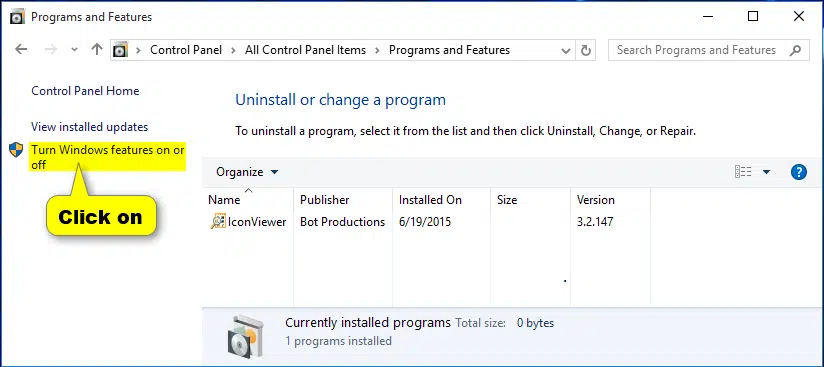
- On the left panel, click Turn Windows features on or off.
- Check the box next to Internet Explorer 11 to turn it on. Click OK.
- Restart your computer when prompted, then open QuickBooks Desktop.
Read Also: QuickBooks Error Code 1903 (An Installation Error) - Fixed
Method 4: Install Windows Updates and Restart the PC
Missing system updates can leave the web components QuickBooks needs in a broken state. Installing the latest Windows updates refreshes these components.
- Right-click the Start button and choose Settings.
- Go to Windows Update (on older Windows 10 builds: Update & Security).
- Click Check for updates.
[Image: Check for updates in Windows 11 - Screenshot]
- Install all available updates and restart your computer.
- After the restart, open QuickBooks Desktop and check if the issue is resolved.
Method 5: Uninstall and Reinstall QuickBooks Desktop
If the issue is still not resolved, a damaged QuickBooks installation may be the cause. Reinstalling gives you a clean setup with the latest components.
- Press Windows + R, type Control, and click OK.
- Go to Programs, then Programs and Features.
- Select QuickBooks Desktop from the list and click Uninstall.
[Image: Uninstall QuickBooks Desktop from Programs and Features on Windows 11 - Screenshot]
- If prompted, select Yes, then choose Remove and click Next.
- Once the uninstallation completes, click Finish and restart your PC.
- Reinstall QuickBooks Desktop using your product and license keys.
If installation problems keep coming back, our QuickBooks error troubleshooting experts can sort them out for you.
Conclusion!
We hope the QuickBooks Internet Explorer is Turned Off issue has been resolved with the troubleshooting steps discussed above. Remember, this error is really about missing Windows web components — not about browsing with Internet Explorer, which no longer exists as a reinstallable browser. If you encounter any difficulty while implementing these steps or the issue continues to persist, you may consider seeking assistance from an experienced professional. XpertBooks Pro is an independent service provider offering technical assistance for accounting software-related issues. Our experienced professionals can help identify the underlying cause and guide you through the correct troubleshooting process. For further assistance, contact our experts.
FAQ’s
What is the “QuickBooks Internet Explorer is Turned Off” issue?
This error reflects that the Internet Explorer browser has not been enabled or is misconfigured.
How can I enable Internet Explorer on my computer?
The steps to enable Internet Explorer are:
1. Hit the Windows key and then type Control Panel.
2. Now, proceed to Programs and Features.
3. Follow up by clicking on Turn Windows features on or off.
4. Now, Hit a click on Internet Explorer and Hit a click on the checkbox.
5. Hit on Ok and wait for the process to complete.
What if Internet Explorer is already enabled but the issue persists?
If the problem still persists, perform the following steps:
1. Reset Internet Explorer settings.
2. Clear the cache and also remove the temporary files in Internet Explorer.
3. Disable any unauthorized browser add-ons.
4. Try running QuickBooks as an admin.
5. Temporarily disable the antivirus or firewall.
Can I use a different browser instead of Internet Explorer with QuickBooks?
QuickBooks employs Internet Explorer as this is the default browser. However, if users go for a different browser, QuickBooks will still rely on Internet Explorer components for the tasks.
Related Articles:
QuickBooks Install Diagnostic Tool - Fix Installation Errors
QuickBooks Error Code 1903 (An Installation Error) - Fixed
Fix QuickBooks Error Code 1402 When Installing [Latest Methods]