

Struggling with QuickBooks error code 6154? This is a company file error — QuickBooks cannot open or access your company file, which blocks your normal work. The good news: it can be resolved with the right steps. You will usually see a warning message like this:
QuickBooks Error 6154 occurred when QuickBooks company file not open or QuickBooks unable to open specified folder or file.
Let us go through the real causes and the fixes that actually work.
Understanding QuickBooks Error 6154
QuickBooks Error 6154 means QuickBooks is not able to access the company file. Because this is a company-file issue, the fixes focus on the file itself — its location, its permissions, and its health — not on unrelated program settings.
What Causes QuickBooks Error Code 6154?
- The company file is damaged or corrupted.
- The company file (or its folder) was moved, deleted, or is in the wrong location.
- QuickBooks was not installed properly.
- You are not logged in with Windows administrator rights.
- Malware on the system is interfering with the file.
- The file is encrypted or compressed by Windows, so QuickBooks cannot read it.
Symptoms of QuickBooks Error 6154
- An error message appears on the screen when you try to open QuickBooks or the company file.
- QuickBooks freezes or crashes when accessing the file.
- You cannot open the company file or specific features fail to load.
- The file opens on one computer but not on another.
Read Also: How to Solve QuickBooks Error Code 1310?
Methods to Fix QuickBooks Error 6154
Method 1: Log In with Windows Administrator Rights
QuickBooks needs full permission to read the company file. If you are on a restricted Windows account, the error appears:
- Close all applications and restart your computer.
- Log in to Windows through an Administrator account.
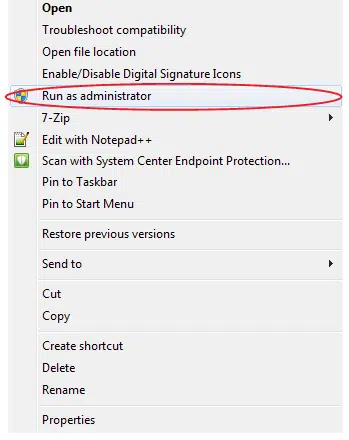
- Navigate to the folder containing your company file and double-click the .QBW file to open it.
- If the file still does not open, move to the next method.
Method 2: Run QuickBooks File Doctor from the Tool Hub
QuickBooks File Doctor is built to find and repair company-file problems like error 6154:
- Download and install the QuickBooks Tool Hub from Intuit's official support page (close QuickBooks first).
- Open the Tool Hub and go to the Company File Issues tab.
- Select Run QuickBooks File Doctor.
- Choose your company file from the dropdown, select Check your file (not the network option), and click Continue.
- Enter your QuickBooks Admin password when prompted and click Next.
- Let the scan finish — it can take a few minutes — then open QuickBooks and check the file.
Method 3: Check the Company File Location and Permissions
Error 6154 often appears when the file was moved or QuickBooks cannot reach it:
- Confirm the company file (the .QBW file) is in its correct folder — not on a removable drive, a cloud-synced folder (Dropbox/OneDrive), or a network drive that QuickBooks cannot scan.
- Right-click the company file folder, select Properties, and go to the Security tab.
- Make sure your Windows user account and the QBDataServiceUser account have Read & Execute, Read, and Write permissions.
- Open the file directly from its folder (double-click the .QBW file) instead of from the recent-files list.
Read Also: Fix Error 1920: QuickBooks Database Manager Failed to Start
Method 4: Update QuickBooks Desktop and Check the File Is Not Encrypted
- Go to the Help menu and select Update QuickBooks Desktop.
- Click the Update Now tab, check Reset Update, then click Get Updates.
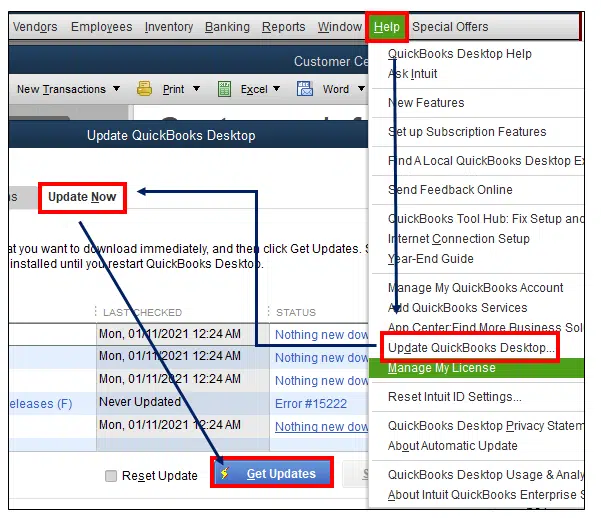
- Follow the on-screen steps and restart QuickBooks when prompted.
- Now check whether Windows has encrypted or compressed the company file:
- Right-click the .QBW file and select Properties.
- Click Advanced.
- Make sure the checkboxes for Encrypt contents and Compress contents are unchecked.
- Click OK, then Apply.
Method 5: Repair the QuickBooks Installation
If the program files themselves are damaged, repair them:
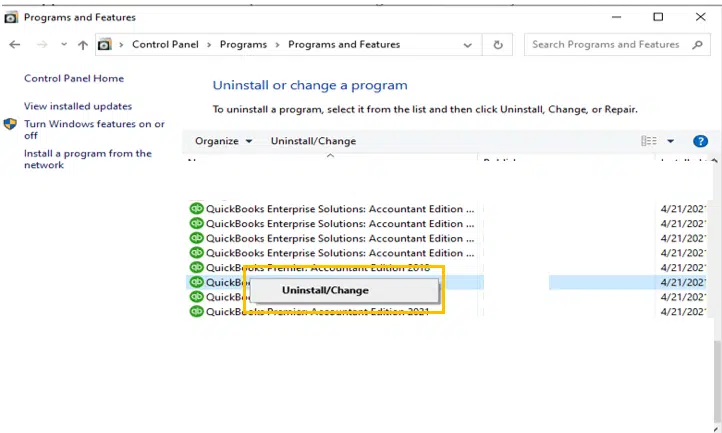
- Open the Control Panel and go to Programs and Features.
- Select QuickBooks from the list and click Uninstall/Change.
- When the QuickBooks installer window appears, select Repair and click Next.
- Wait for the repair to finish, then restart your computer and check if the error is resolved.
Conclusion!
QuickBooks Error 6154 is almost always about the company file — where it sits, who can read it, and whether it is damaged. Work through the methods above in order, and the file should open. If you still cannot access your company file, call our XpertBooks Pro team — our accounting consultants will diagnose the problem and get your books back on track.
FAQs
What is QuickBooks Error 6154?
Error 6154 is a company file error — QuickBooks cannot open or access the company file, usually because the file is damaged, moved, or QuickBooks lacks permission to read it.
Can moving the company file cause error 6154?
Yes. Moving the file to a new location — especially to a removable drive, cloud folder, or network drive — is one of the most common causes.
What should I do if the company file is damaged?
Run the Verify and Rebuild utility first, then QuickBooks File Doctor from the Tool Hub. If the file still will not open, restore your most recent backup copy.
Do I need Windows administrator rights to open the company file?
QuickBooks needs read/write permission on the company file folder. Running as an administrator (or granting the right permissions to your Windows account) fixes permission-related 6154 errors.
Related Articles:
Fixing QuickBooks Error 403 (Access Forbidden or Access Denied)
Install and Run Multiple Versions and Editions of QuickBooks on the Same Computer