

QuickBooks installer error code 1935 usually occurs when a user tries to install QuickBooks while Windows is starting up other programs. This error can also occur when you install Windows operating system components. While installing QuickBooks Desktop or Microsoft .NET Framework, any of the below error messages might appear on the screen:
| Error | Description |
| QuickBooks Installer | Error 1935: This setup requires .NET Framework. |
| Problem | Error 1935: An error occurred during the installation of assembly. |
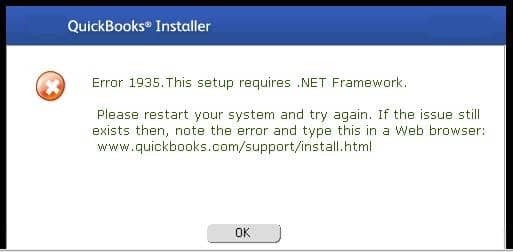
Many users consider this error to be among the most irritating errors to address. Understanding this, we have crafted this blog post for you, in which we will go over the various facts that surround this QuickBooks install error 1935. However, if you are short of time, you can consult the XpertBooks Pro team. We are a team of tech-savvy professionals who leave no stone unturned in providing the best possible support services to users.
What is QuickBooks error code 1935?
QuickBooks Error 1935 is an installation error that usually appears while installing QuickBooks or .NET Framework. It indicates that the installation process has failed due to missing components. Getting this error means you need the .NET Framework, an essential Microsoft component required for the QuickBooks program to function properly. Without this framework, you may face various software issues, including error 1935.
This installation error is generally faced by Windows 10 and Windows 11 users. It affects not only your ongoing work but also other Windows applications. Through this post, we are providing you with the steps to troubleshoot this issue and get rid of it on your own. Alternatively, if you are too occupied to perform the troubleshooting steps yourself, contact our Certified ProAdvisor.
What are the causes of QuickBooks error 1935?
As we mentioned earlier, certain possible factors lead to the QuickBooks error message 1935, which include the following:
- Damaged Windows system files.
- Antivirus applications blocking the QuickBooks installation.
- Corrupted system file entries.
- Improper deletion of apps.
- Incomplete installation of hardware and software.
- Windows system files deleted mistakenly.
- .NET Framework damaged or not installed yet.
- The .NET Framework is outdated.
How to fix QuickBooks error code 1935?
To troubleshoot this error, below we have provided step-by-step instructions to fix error 1935 when installing QuickBooks Desktop or .NET Framework.
Method 1: Run the QuickBooks Install Diagnostic Tool
Running the QuickBooks Install Diagnostic Tool is the fastest way to fix error 1935. The steps to use this tool are as follows:
- Close your QuickBooks accounting software.
- Download the QuickBooks Tool Hub from Intuit's official support page. Save the file somewhere you can find it easily.
NOTE: If you have installed Tool Hub before, you can check the version you are running from the Home tab. The latest version is 1.6.0.8.
- Open the downloaded file (QuickBooksToolHub.exe).
- Follow the on-screen steps to install and agree to the terms and conditions.
- Once the installation finishes, double-click the icon on the Windows desktop to open the Tool Hub.

- Within the Tool Hub, click the Installation Issues tab.
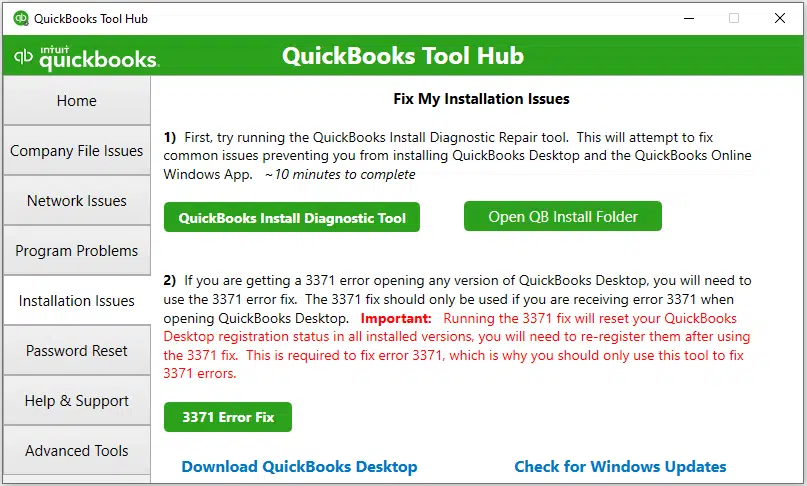
- Select QuickBooks Install Diagnostic Tool and let the tool run. This process takes 15–20 minutes depending on your internet speed.
- Once the tool finishes, reboot your system.
- Finally, install QuickBooks Desktop.
Method 2: Activate selective startup mode
Selective startup mode stops third-party programs from interfering with the installation:
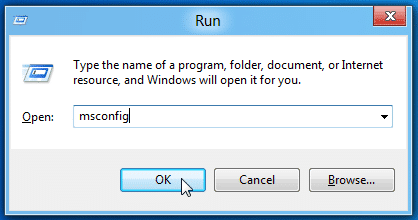
- Open the Run command box by pressing the Windows + R keys.
- Type msconfig in the search box and click OK.
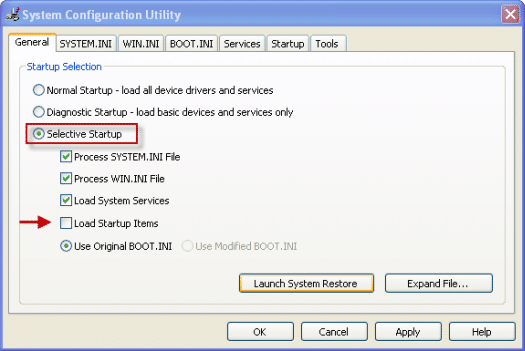
- Click General tab > Selective startup > check Load system services and Load startup items.
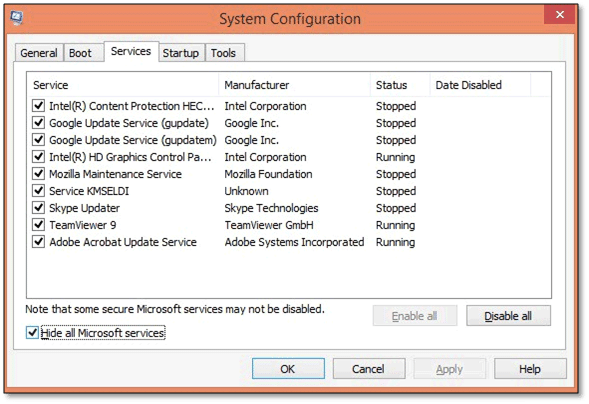
- Press the Services tab option.
- Check Hide all Microsoft services and click Disable all.
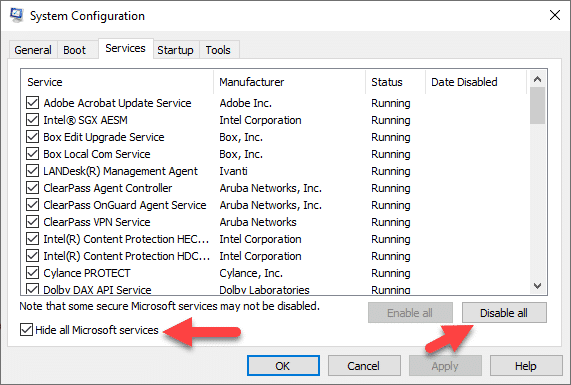
- Uncheck Hide all Microsoft services. Choose the list of services and make sure the Windows Installer checkbox is marked. Click OK.
- Click Restart in the System Configuration window.
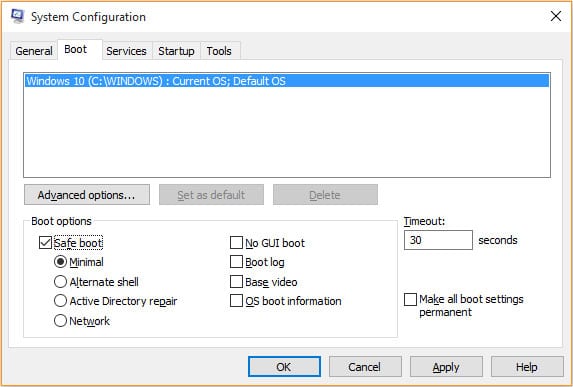
- Next, do a clean install of QuickBooks Desktop.
- Once done, press Windows + R, type msconfig, and press Enter.
- On the General tab, choose Normal startup and click OK.
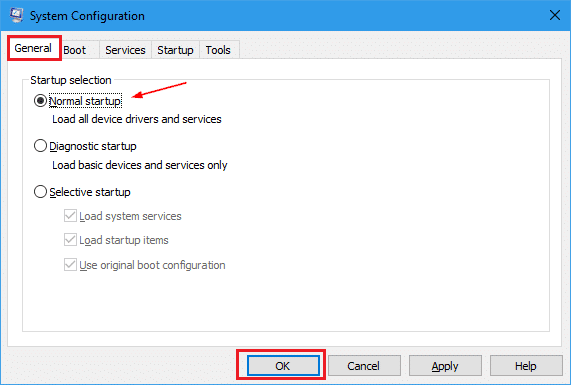
- Restart the computer to end the process.
Method 3: Repair Microsoft .NET Framework
Another solution is to repair Microsoft .NET Framework using Windows features:
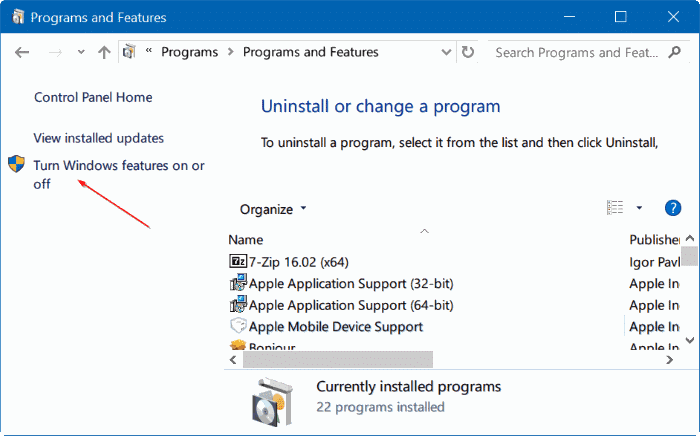
- Click the Start button, open Control Panel, and go to Programs and Features.
- Select Uninstall a program (don't worry — you aren't uninstalling anything).
- Select Turn Windows features on or off.
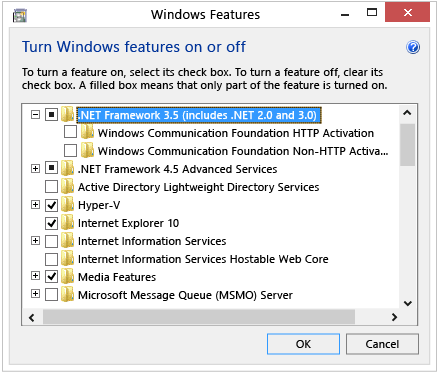
- Find .NET Framework 4.5 (or later) on the list. The steps are the same for versions 4.5 through 4.8.
- If the checkbox isn't checked: check it, click OK, and restart your computer.
- If it is already checked: uncheck it, click OK, restart, then turn it back on and restart again.
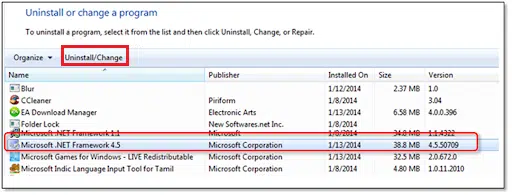
- Also check .NET Framework 3.5 SP1 the same way — turn it off and back on if it is already enabled.
- Restart the computer and try installing QuickBooks again.
Read Also: QuickBooks Error 3371 Status Code 11118: How to Settle It?
Method 4: Update .NET Framework to the latest version
If repairing didn't work, update to the latest .NET Framework (4.8 or later):
- Restart the computer where you faced QuickBooks install error 1935.
- Temporarily disable the antivirus program during installation.
- Visit Microsoft's official .NET Framework download page and download the web installer for the latest version.
- Follow the on-screen instructions to install the .NET Framework.
- Restart the computer, then install QuickBooks Desktop.
- Enable the antivirus program again once both are installed.
Method 5: Update your Windows OS
Updating the Windows operating system is also recommended to fix QuickBooks error 1935. An outdated Windows OS can cause such issues:
- Click Start and type Update in the search box.
- Open Windows Update (or Check for updates in Settings).
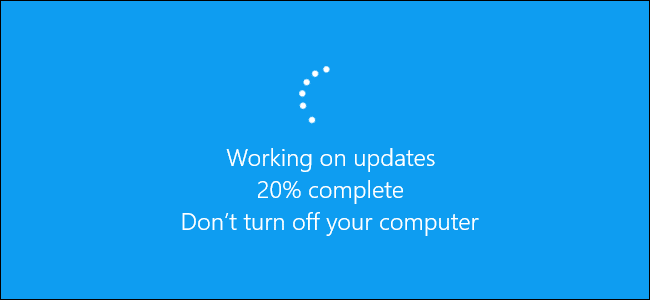
- If updates are available, click Install updates and restart your computer.
Method 6: Disable antivirus temporarily
If the above methods don't work, disable the antivirus temporarily:
- Restart the computer and disable the antivirus software for some time.
- Run the QuickBooks installation.
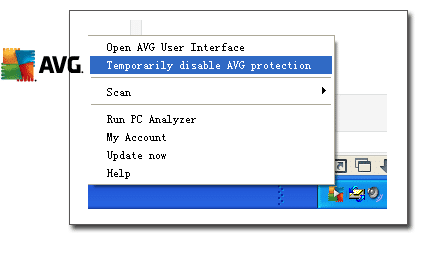
- Once the installation is done, enable the antivirus program again.
Read Also: QuickBooks Install Diagnostic Tool - Fix Common Installation Errors
Method 7: Repair the registry entries
Caution: Editing the registry is risky. Back up the registry before making any changes.
- Press the Start button and type command in the search box without hitting Enter.
- Press Ctrl + Shift and hit Enter. Click Yes on the permission dialog box.
- In the command prompt, type regedit and press Enter.
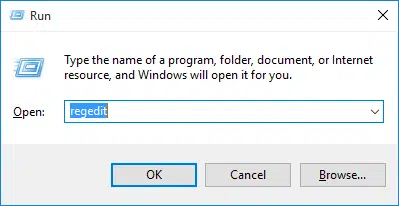
- In the Registry Editor, select the error-1935-related key.
- Under the File menu, select Export.
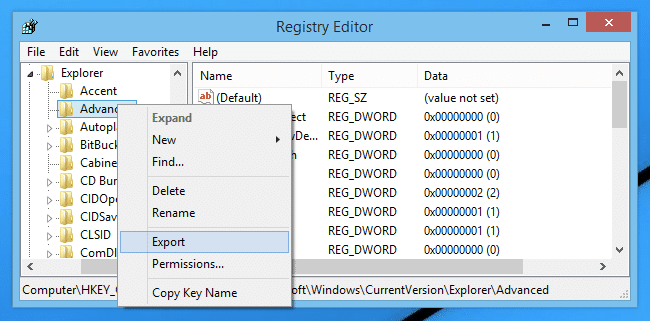
- Choose the folder to save the backup, enter a file name, and make sure Selected branch is chosen in the export range.
- Click Save with the .reg extension to back up the registry.
Method 8: Uninstall and reinstall QuickBooks Desktop (Windows 10/11)
If nothing worked, a clean reinstall of the QuickBooks programs associated with the error helps:
- Click the Start button and open Settings, then go to Apps > Installed apps.
- Find QuickBooks Desktop in the list and click Uninstall.
- Carry out the on-screen instructions to uninstall the program.
- Restart the computer and reinstall QuickBooks Desktop from your downloaded installer.
Sum up!
That's all for this blog post. We hope you find it informative and helpful, and after trying these steps, your error should vanish. In case you have any queries, or if QuickBooks error code 1935 still persists, contact our US-based accounting experts.
FAQs
What is QuickBooks error 1935?
QuickBooks error 1935 is an installation error that appears when the installer cannot complete the installation of an assembly – usually because the Microsoft .NET Framework is missing, damaged, or outdated.
Do I need to update Windows to fix QuickBooks error 1935?
Yes. An outdated Windows often causes this issue. Installing the latest Windows updates repairs missing system files and ensures compatibility with the QuickBooks installation.
What are the symptoms of QuickBooks install error 1935?
The signs include: an error message appears and QuickBooks needs to close; the computer periodically freezes for a few seconds during installation; and the installation stops partway through.
Can the QuickBooks Tool Hub fix error 1935?
Yes. The Install Diagnostic Tool inside the QuickBooks Tool Hub (latest version 1.6.0.8) is Intuit's recommended first step for error 1935 – it automatically repairs .NET Framework and other installation components.
Checkout these topics also: