

September is a rough month to be running payroll. The quarter is closing, Form 941 prep is right around the corner, and the last thing anybody needs is a tax table that's quietly out of date. That's exactly the risk sitting in a lot of QuickBooks Desktop files right now, because Intuit released QuickBooks Payroll Update 22616 on September 22, 2026, and this one carries real changes for Maine and Maryland employers.
If your team skipped it, or the download stalled halfway and nobody noticed, your next payroll could calculate Maine withholding from old tables. In this post, we'll walk through what the update actually contains, how to install it properly, how to confirm it took effect, and what to do if it refuses to cooperate. Keep scrolling till the end, because the verification step is the part most people skip, and it's the part that matters most.
What is QuickBooks Payroll Update 22616?
Payroll Update 22616 is the September 2026 tax-table release for QuickBooks Desktop Payroll. Every payroll update refreshes the data QuickBooks uses to calculate federal and state payroll taxes: withholding tables, payroll items, and the figures that eventually flow into your tax forms. When a state changes its rules mid-year, that change reaches your paychecks only through an update like this one.
Two things are worth knowing up front. First, you need an active QuickBooks Payroll subscription to receive tax-table updates at all. If the subscription has lapsed, the update simply won't arrive, no matter how many times you click download. Second, Intuit notes there are no E-File and E-Pay changes in this release, so your filing and payment workflows stay exactly as they were. The changes here are about calculation, not filing.
What Changed in QuickBooks Payroll Update 22616?
New Maine Withholding Tables
The headline change affects Maine. Update 22616 includes new Maine withholding tables effective August 1, 2026, with revised standard deductions and a high-income surcharge built into the tables. Practically speaking, that means a Maine employee's state withholding can change from the first payroll you run after installing the update, slightly for most people, and more noticeably for higher earners.
One caution here. The tables are effective August 1, but they only reach your company file when you install the update. If you've already run August or September payrolls on the old tables, don't panic, and don't start editing old paychecks. Note the difference, and let your quarter-end reconciliation and the state's own guidance drive any correction. What matters most is that payrolls from now on use the current tables.
Maryland FAMLI Payroll Items
For Maryland, the update adds Family and Medical Leave Insurance (FAMLI) payroll items to the 2026 tax tables. Maryland's FAMLI program is the state's paid family and medical leave system, and as it moves toward contribution collection, QuickBooks needs those payroll items in place so the deduction can be tracked correctly when it applies to your business.
Seeing the new items in your payroll item list doesn't mean money starts moving on its own. Review the items, confirm how they apply to your company, since employer size and your FAMLI plan setup affect your obligations, and check the Maryland Department of Labor's FAMLI guidance for your registration and contribution duties. The update gives you the tools; the setup decisions are still yours.
What Didn’t Change
Federal tables are untouched in this release, and as mentioned above, there are no E-File or E-Pay updates. If a state other than Maine or Maryland is your concern, this release doesn't change your calculations. Still, staying current is the right habit, because the next release might be the one that matters to you.
How to Download and Install QuickBooks Payroll Update 22616
Work through these steps in order. Most failed updates trace back to one of them being skipped.
- Back up your company file first. Updates occasionally collide with a damaged file, and a backup turns that from a crisis into an inconvenience.
- Go to Employees, then Get Payroll Updates.
- Choose Download Entire Update rather than a partial refresh. A full download replaces the whole tax table, which avoids half-applied states.
- Click Update and let it finish completely. Don't close QuickBooks mid-download, even if it looks stuck for a minute.
- When it completes, close and reopen QuickBooks so the new tables load cleanly.
- If you run QuickBooks in multi-user mode, make sure everyone else is logged out during the update. An open session elsewhere can block the files the update needs to replace.
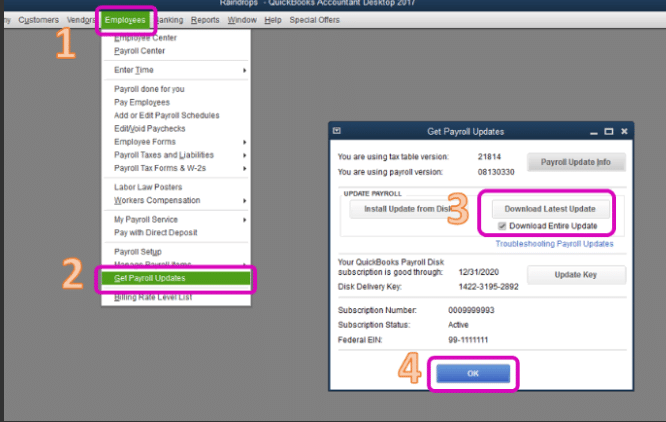
If the download errors out, or the version doesn't change afterward, jump to the troubleshooting section below.
How to Verify the Update Installed Correctly
A completed download bar is not proof. Verify the update like this:
- Go to Employees, then Get Payroll Updates.
- Click Payroll Update Info. This window shows the tax table version currently installed, along with a summary of what the latest release contains.
- Confirm the installed version reflects 22616, or a newer release if one has shipped since.
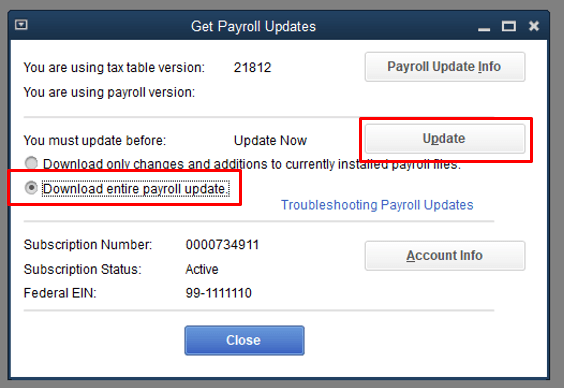
While you're there, spot-check one Maine employee's next paycheck calculation against expectations, and for Maryland, open Lists, then Payroll Item List, and confirm the new FAMLI items are present. Two minutes of checking now beats a quarter-end surprise, especially if you've ever dealt with QuickBooks calculating payroll taxes incorrectly after a missed update.
What to Do if QuickBooks Payroll Update 22616 Is Stuck or Won’t Install
This is where most people lose an afternoon, so work through the list methodically instead of retrying the same download again and again.
- Check the subscription. An expired or inactive payroll subscription silently blocks tax-table updates. Renew it first, then retry.
- Run QuickBooks as administrator. Right-click the QuickBooks icon, choose Run as administrator, and then try the update again. Windows permissions are a more common culprit than people expect.
- Update QuickBooks itself first. An outdated program release can refuse a newer tax table. Bring the QuickBooks release current, restart, and then retry the payroll update.
- Check your security software. Firewalls and antivirus tools sometimes quarantine the update's downloaded files. A temporary exception for QuickBooks during the update usually settles it.
- Watch for PS-series errors. Errors like PS032, PS033, or PS077 during a payroll update point to damaged payroll components or a damaged company file. They're a different problem from a slow download, and each one has its own fix path.
If updates fail on this machine regularly rather than just this once, the broader walkthrough of QuickBooks Desktop payroll update errors covers the deeper causes, and the PS033 fix guide handles that specific error step by step. You may also read: QuickBooks Payroll Error PS033.
Quarter-End Checks Before You Close September
Since this update landed about a week before quarter-end, add these three quick checks to your September close:
- Confirm the installed version one last time through Payroll Update Info, so Q3's final payrolls all ran on current tables.
- Review Maine liabilities. If any Q3 payrolls ran on the old Maine tables, flag the variance now so it doesn't ambush your Form 941 and state reconciliation work.
- Review the Maryland FAMLI items and your registration status, so you're set up before contributions apply to your business instead of scrambling afterward.
None of this is glamorous, but quarter-end is exactly when small payroll drifts turn into amended returns.
Conclusion!
Summing up, we covered the QuickBooks Payroll Update 22616 release in detail: the new Maine withholding tables, the Maryland FAMLI payroll items it adds, and what it leaves unchanged. We hope the steps shared above have helped you install the update and verify your tax tables with confidence before the quarter closes. If the update still won't install or you run into any difficulty while following the steps, consider consulting a qualified and experienced QuickBooks professional for further guidance.
FAQs
How do I know if I already have QuickBooks Payroll Update 22616?
Go to Employees, then Get Payroll Updates, then Payroll Update Info. The window shows your installed tax table version and what the current release includes. If it shows 22616 or higher, you're all set.
Do I need this update if I don’t have Maine or Maryland employees?
Your calculations won't change with this release, but installing it keeps your tax table current and avoids a backlog of skipped releases. There's no real downside to staying up to date.
The Maine tables are effective August 1, but I installed the update in late September. What about my August payrolls?
The update only affects payrolls calculated after installation. Don't rewrite history by editing old paychecks unless Maine's guidance or your accountant calls for it. Document the timing and reconcile it at quarter-end or year-end instead.
Does QuickBooks Payroll Update 22616 change how I e-file or e-pay?
No. Intuit notes this release contains no E-File or E-Pay changes, so your filing and payment process stays exactly the same.
My payroll update keeps failing partway. Where do I start?
Confirm your payroll subscription is active, run QuickBooks as administrator, and choose Download Entire Update. If it still fails or throws a PS-series error, work through the troubleshooting section of this post step by step.
You may also like:
If payroll updates keep failing on your system, this guide to fixing QuickBooks Payroll Update Error 15106 walks through one of the most common download errors in detail.
And if your subscription has lapsed and updates have stopped arriving, here's how to reactivate your QuickBooks Payroll subscription and get the tax tables flowing again.