

Updating QuickBooks Desktop and payroll is important — every new update brings the latest features, security fixes, and the payroll tax tables you need to calculate paychecks correctly. But updates sometimes fail with errors in the 15XXX series (like 15214, 15222, 15223, 15103, 15107) or PSXXX series. This guide covers the real causes and the fixes that work in 2026.
If you are short on time, our QuickBooks payroll experts at XpertBooks Pro will troubleshoot these errors for you.
Table of Contents
A Description of Various QuickBooks Payroll Update Errors
When QuickBooks Desktop downloads an update, it verifies the digital signature of every file — this protects your system. If QuickBooks cannot verify a signature, cannot reach Intuit's servers, or finds a damaged component, you will see one of these errors:
| Error 15214 | Error 15222 | Error 15224 |
| Error 15215 | Error 15218 | Error 15223 |
| Error 15217 | Error 15221 | Error 15225 |
| Error 15226 | Error 15227 | Error 15228 |
Before you start: confirm your payroll tax table version so you know whether the update actually applied. Go to Employees > Get Payroll Updates > Payroll Update Info. The latest US release as of this writing is 22616 (released September 22, 2026). Tax table updates are delivered only to supported releases — currently QuickBooks Desktop 2024 and Enterprise 24.0.
Read Also: How to Look for Transactions in the Merchant Service Center?
Methods to Resolve 15XXX Payroll Update Errors
Method 1: Install the Digital Signature Certificate
When QuickBooks cannot verify a file's digital signature, reinstalling Intuit's certificate fixes it:
- Go to C:\Program Files\Intuit\QuickBooks (use C:\Program Files (x86)\Intuit\QuickBooks on 64-bit Windows).
- Right-click QBW32.exe and select Properties.
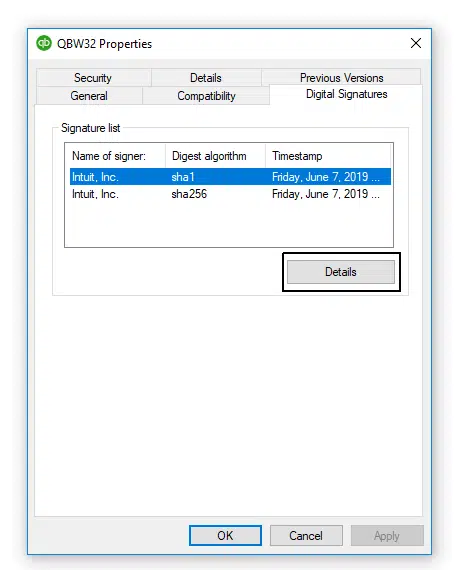
- Go to the Digital Signatures tab and make sure Intuit is selected in the signature list.
- Click Details.
- Click View Certificate, then Install Certificate.
- Click Next until you see Finish, then click Finish.
- Restart your computer, open QuickBooks, and download the update again.
Method 2: Download the Updates in Safe Mode
A conflicting program or service can block the download. Safe Mode isolates it:
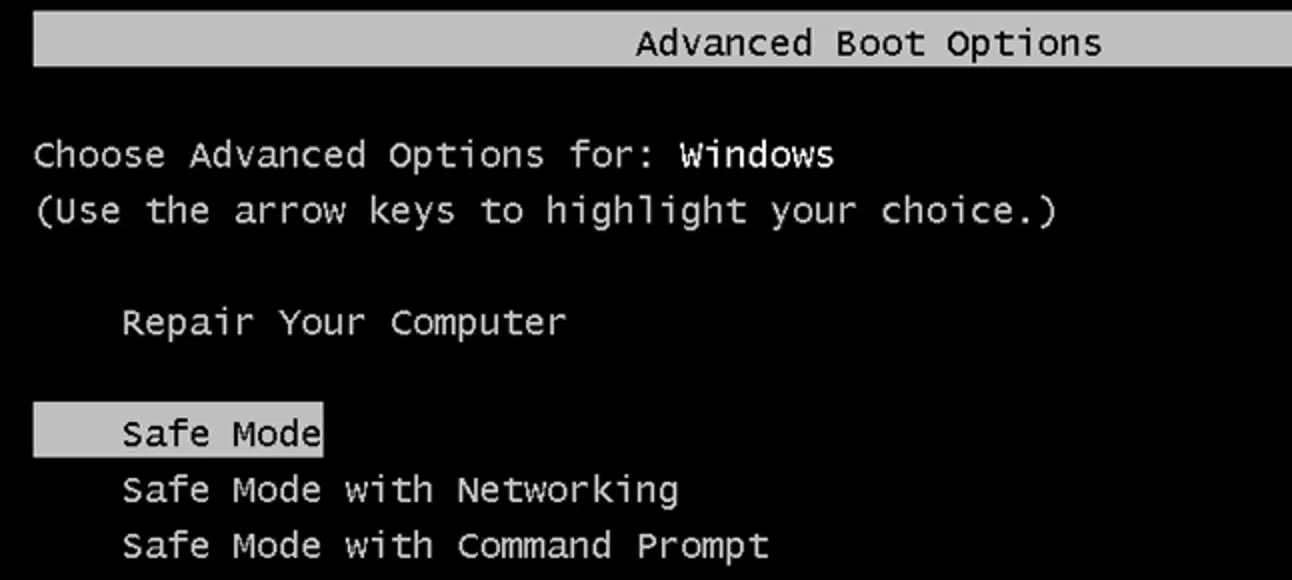
- Restart Windows in Safe Mode.
- Open QuickBooks and download the payroll update.
- If the download succeeds, restart in Normal Mode and download the update once more to complete the installation.
Read Also: How to Record a Vendor Refund in QuickBooks Desktop?
Method 3: Perform a Clean Install of QuickBooks Desktop
A damaged installation blocks updates. A clean install of QuickBooks Desktop gives you a fresh copy:
Step 1: Uninstall QuickBooks Desktop
- Press Windows + R, type control, and press Enter to open the Control Panel.
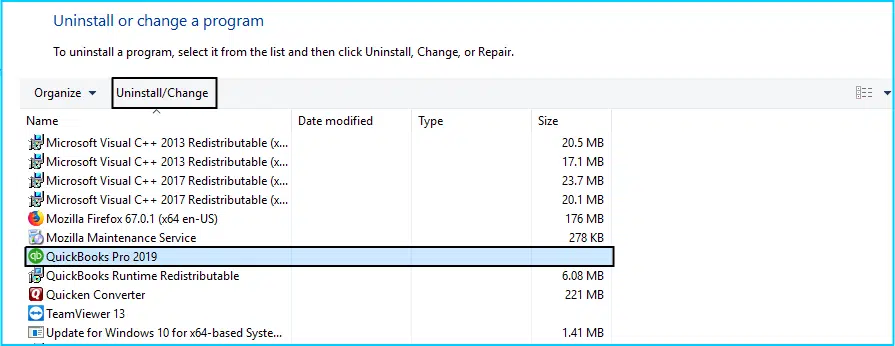
- Go to Programs and Features, select QuickBooks, and click Uninstall.
Step 2: Rename the installation folders
- Rename the QuickBooks installation folders so the old files are not reused (add .old to the folder names).
Step 3: Reinstall QuickBooks Desktop
- Download a fresh installer from Intuit's official download site.
- Keep your license and product numbers handy (find them in your Intuit account).
- Write down your QuickBooks year and version, back up your company file before you start, and complete the reinstallation.

Method 4: Update the Windows Security Certificates
15XXX errors can be caused by an expired Windows security certificate:
- Open Windows Settings > Update & Security > Windows Update and install all pending updates.
- This refreshes the root certificates Windows uses to verify downloads.
Method 5: Manually Reset the Update Components
- Close QuickBooks Desktop.
- Run the Reboot.bat file from your QuickBooks installation folder (this re-registers QuickBooks components).
- Restart your computer and open QuickBooks.
- If prompted to install an update, select Install Now.
- If the update still fails, delete the downloaded update files and download again:
- Close QuickBooks Desktop.
- Go to C:\ProgramData\Intuit\QuickBooks <version>\Components and delete the update files there.
- Open QuickBooks, go to Help > Update QuickBooks Desktop.

- Go to the Update Now tab, check Reset Update, and click Get Updates to redownload.
If the error persists, configure your firewall and internet security settings for QuickBooks Desktop so QuickBooks can reach Intuit's servers, and run the update in selective startup mode.
Read Also: Steps to Reconcile Payroll Liabilities in QuickBooks
Final Words!
The 15XXX and PSXXX payroll update errors almost always come down to one of three things: a broken digital signature, blocked connectivity, or damaged components – all covered above. Keep your QuickBooks release and payroll tax tables current, and most of these errors never appear. For hands-on help, contact our independent accounting professionals.
FAQs
What causes QuickBooks payroll update errors (15XXX)?
Most commonly: an unverifiable digital signature, a firewall or security program blocking the download, an expired Windows security certificate, or damaged QuickBooks components.
How do I check my payroll tax table version?
Go to Employees > Get Payroll Updates > Payroll Update Info in QuickBooks Desktop. Compare the version shown with the latest release published by Intuit.
Can I still get payroll updates on an old QuickBooks version?
Tax table updates are delivered only to supported releases (currently Desktop 2024 / Enterprise 24.0). Older discontinued versions stop receiving them.
Does reinstalling QuickBooks delete my company file?
No. Uninstalling QuickBooks does not delete your company files – but always create a backup before reinstalling, just in case.
Who should I call if the error keeps coming back?
Our QuickBooks payroll experts can troubleshoot it for you.
Related Articles:
How to Resolve QuickBooks Error 6190 and 816?
Steps to Restore Your Backup Company File for QuickBooks Desktop
How to Fix Payroll Service Server Error or Payroll Connection Error?