

Many QuickBooks users ask whether they can install and use QuickBooks Desktop on two or more computers. The answer is yes — but only if your license covers it. You can run QuickBooks Desktop on multiple systems using multi-user mode, which lets your team work on the same company file at the same time. It saves time and keeps everyone working with the same, up-to-date numbers.
If the setup below feels too technical, our independent accounting professionals can install and set up QuickBooks Desktop on multiple computers for you.
Is it Possible to Install QuickBooks Desktop on Multiple Systems?
Yes, it is possible to install QuickBooks Desktop on multiple systems, but the license rules decide how. As per Intuit's license terms, a single-user license allows the same person to install QuickBooks on a primary computer and one additional computer (like a laptop) — it does not allow two different people to use it. For two or more people working at the same time, you need a multi-user license with a seat for each person.
Important: Intuit stopped selling new QuickBooks Desktop Pro Plus, Premier Plus, and Mac Plus subscriptions to new US customers after September 30, 2024. QuickBooks Desktop Enterprise remains the only Desktop product sold to new buyers. Existing subscribers on older editions can keep renewing their subscriptions.
Read Also: How to Fix QuickBooks Error Code 12157?
How Many Users Can Access the Same Company File?
It depends on the edition you own:
- QuickBooks Desktop Pro: up to 3 simultaneous users in the same company file.
- QuickBooks Desktop Premier: up to 5 simultaneous users.
- QuickBooks Desktop Enterprise: up to 30 simultaneous users.
Each simultaneous user needs their own purchased license (user seat). A single-user license lets the same person use QuickBooks on two of their own computers, but it does not allow two different people to work at the same time. You can check your user license count inside QuickBooks by pressing F2 and looking at User Licenses in the Product Information window.
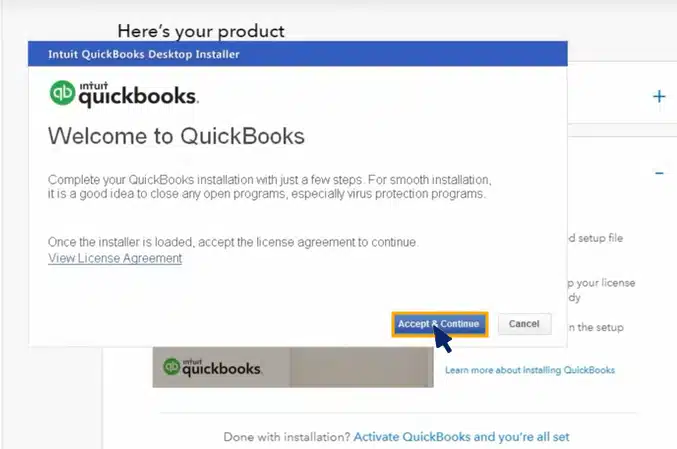
Steps to Install QuickBooks Desktop on Two Computers
Step 1: Download and install QuickBooks
- Download the QuickBooks Desktop installer from Intuit's official download site (sign in with your Intuit account) — no CD is needed.
- Save the installer file in a folder you can find easily, then double-click the .exe file to begin.
- Accept the license agreement and follow the on-screen prompts.
Step 2: Choose the installation type
- Choose Custom and Network Options (not Express) so you can configure the network setup.
- Accept the terms and click Next to continue.

Step 3: Select the network setup
- On the install-type screen, choose "I'll be using QuickBooks Desktop on this computer" if you will work on this machine, or "I will NOT be using QuickBooks Desktop on this computer" if it will only host the company file (for example, a dedicated server).
- Click Next to continue.
Step 4: Enter the product and license numbers
- Enter the product number and license number from your Intuit account or purchase email.
- Choose the install location and click Next, then Install and Finish.
- Repeat this process on every other computer, using the same license and product numbers.

Steps to Set Up and Use QuickBooks Desktop on Multiple Computers
Step 1: Set up the server computer
On a multi-user network, the computer that stores the company file is the server, and the rest are workstations.
- Install QuickBooks Desktop on the server computer with Custom and Network Install.
- Keep the company files on the server's local hard drive — not on a mapped network drive or cloud-synced folder (Database Server Manager cannot scan mapped drives reliably, which breaks hosting).
- Follow the on-screen instructions to complete the installation.
Step 2: Set folder permissions
The folder holding the company file must allow the QuickBooks service full access:
- Right-click the company file folder and select Properties.
- Go to the Security tab, click Edit, and select QBDataServiceUserXX (XX = your version).
- Allow Full Control, then click Apply and OK.

Step 3: Install QuickBooks Database Server Manager
- The Database Server Manager lets other computers find and open the company file over the network. It is installed automatically with the custom install above.
- Open it from the Start menu, scan the folder containing your company files, and confirm the file appears under QuickBooks company files found.

Step 4: Turn on hosting on the server
- On the server, open QuickBooks Desktop and go to File > Utilities.
- Select Host Multi-User Access, then click Yes.

Verify that no workstation has hosting turned on: on each workstation, open QuickBooks, go to File > Utilities, and confirm it shows Stop Hosting Multi-User Access (which means hosting is already off).
Step 5: Set up the workstations
- On each workstation, install QuickBooks Desktop and map the folder path to the company file on the server.
- Open the company file from File > Open or Restore Company and switch to multi-user mode from File > Switch to Multi-User Mode.
Conclusion!
That is the complete process to install and use QuickBooks Desktop on more than one computer — the right license, a clean install on each machine, and the server set up for multi-user hosting.
FAQs
Can I install QuickBooks Desktop on two computers?
Yes. A single-user license lets the same person install QuickBooks on a primary computer and one additional computer. Two different people working at the same time need a multi-user license with a seat for each person.
How many users can use QuickBooks Desktop Pro in multi-user mode?
QuickBooks Desktop Pro supports up to 3 simultaneous users, Premier supports up to 5, and Enterprise supports up to 30.
Can I use the same QuickBooks license on two computers in different locations?
Yes, if the same person uses both machines under a single-user license. But the company file itself cannot be opened from two locations at the same time unless you use multi-user hosting on one network — Intuit does not support live company files on cloud-synced folders like Dropbox or OneDrive.
How do I share QuickBooks reports with someone on a different computer?
You can export reports as PDF or Excel and email them. For full shared access to the same live company file, set up multi-user hosting on your local network.
Is QuickBooks Desktop still sold to new customers?
Intuit stopped selling new Pro Plus, Premier Plus, and Mac Plus subscriptions in September 2024. QuickBooks Desktop Enterprise is the only Desktop edition sold to new buyers; existing subscribers of other editions can renew.
Related Articles:
Fix QuickBooks Error 1321
Fix Company File and Network Issues with QuickBooks File Doctor
How to Fix QuickBooks Excel Could Not Open the Data File Error?
>