
As we all know, QuickBooks Desktop is one of the most popular and widely used accounting software in the world, with a global user base. To ensure you get the best experience from the software, Intuit, the maker of this software, provides regular updates as well as bug fixes. Despite these updates, you might experience some errors from time to time while working with the software. Some of the commonly found errors you may experience are 'QuickBooks has stopped working', 'QuickBooks won't open', or 'QuickBooks not responding'.
This error can result from a wide range of factors, which is why it can be difficult to fix. Through this article, we have discussed all the possible causes, symptoms, and the best methods to fix the QuickBooks has stopped working error. So, without any delay, let's get started.
But if you are short on time, or you are seeking expert assistance, they don't need to worry — our US-based error support professionals are here to rescue you. Our qualified team of experts will solve the issue for you in the least possible time and save your money and effort.
Read Also: Steps to Fix Unrecoverable Error in QuickBooks Desktop
Why does the error message “QuickBooks has stopped working or not responding” appear?
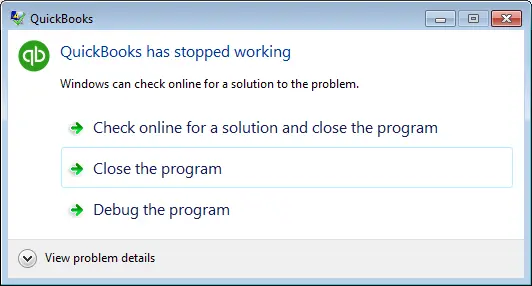
At times, while working on the software, you might run into an issue where the QuickBooks program quits unexpectedly. You might see an error message stating QuickBooks has stopped working — a Windows-generated message that pops up, stating:
| Warning | A problem caused the program to stop working correctly, or Windows is checking for a solution to the problem. |

This type of error can be quite frustrating for users, as it interrupts smooth work and at times it might even lead to losing the unsaved data.
Other causes that may lead to the QuickBooks stopped working issue
As mentioned in the introduction, there are several causes that can result in this error. Here are some of the most common factors:
- The QBWUSER.ini file on the device or the network is damaged or corrupted.
- The program's installation files or company data files are damaged or corrupted.
- A hard drive connected to the device is damaged and is not fully accessible.
- QuickBooks stops functioning properly or freezes.
- QuickBooks needs an important system resource (CPU, memory, disk space) to operate smoothly.
- Your company file name is too long, causing the software to lag and crash.
- Some Windows operating system files are damaged.
Symptoms of the QuickBooks not working issue
It is important to identify the symptoms of the problem, as it can help you fix the issue quickly. If you come across any of these symptoms while using the software, follow the troubleshooting methods discussed further in this article:
- QuickBooks Desktop does not open.
- The device freezes regularly and does not respond to input commands.
- The operating system shuts down without any apparent reason.
- The QuickBooks Desktop program stops working and crashes while in use.
- You get the QuickBooks has stopped working error message repeatedly.
Methods to resolve the QuickBooks not responding error
Since multiple factors can lead to this error, there are several methods to fix it. Follow the methods below in sequence to get rid of the QuickBooks has stopped working or not responding error. Before you begin, restart your computer and then try opening QuickBooks.
Method 1: Disable the antivirus software temporarily
- Start the method by restarting the system.
- If the error still pops up, turn off the antivirus program along with Windows Defender temporarily.
- Restart the device again to complete the process, and then check if the error is fixed. If not, move to the next solution.

Method 2: Open QuickBooks without opening the company file
Sometimes a damaged company file or window is what crashes QuickBooks at startup. Opening the program without the company file tells you where the problem lies:
- Press and hold the Ctrl key on your keyboard.
- While holding it, double-click the QuickBooks icon to open the program.
- Keep holding Ctrl until the No Company Open window appears, then release the key.
[Image: No Company Open window in QuickBooks - Screenshot]
- Now try opening your company file from the list.
- If QuickBooks opens fine but crashes when you open the company file, the issue is with the company file — continue with Method 3.
Method 3: Access the file from a new folder location on the device
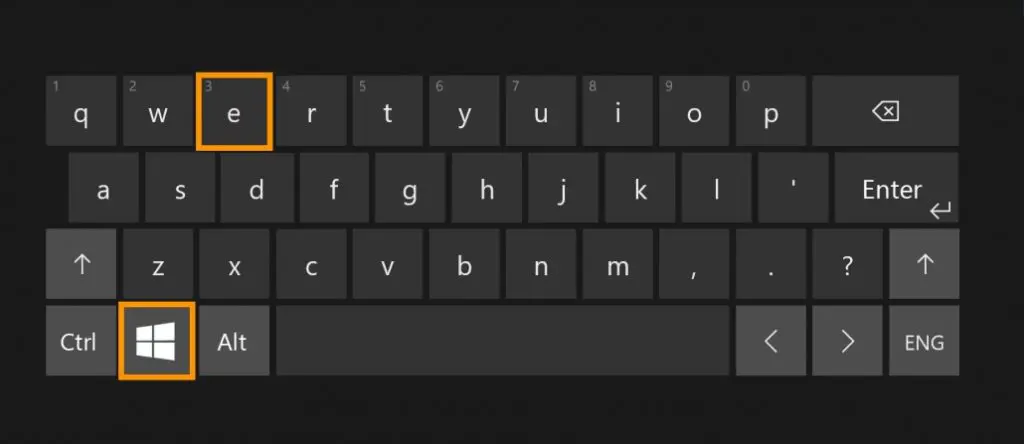
- Start by pressing the Windows + E keys together on your keyboard — this opens File Explorer.
- Locate the data file with the .qbw extension.
- Right-click it, click Copy, then go to the C: drive and create a new folder there.
- Name this new folder 'QBTEST'.
- Open the QBTEST folder and paste the data file in it by pressing Ctrl + V together.

- Open QuickBooks while holding the Ctrl key.
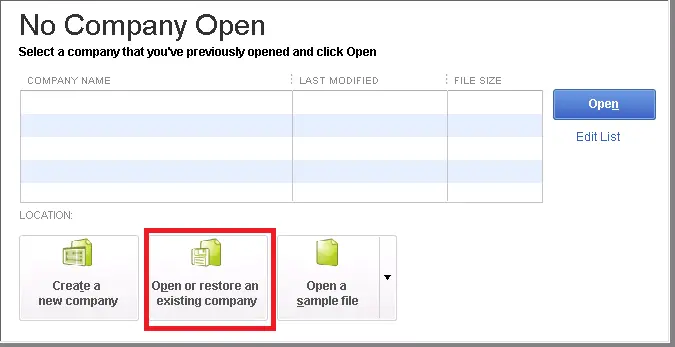
- Click Open or Restore an Existing Company and select the company file in the QBTEST folder.
- If the file opens from the new location, the original folder may be damaged or have permission issues.
Method 4: Rename the QBWUSER.ini file
- Open File Explorer and navigate to the QuickBooks user folder: C:\Users\[Your Username]\AppData\Local\Intuit\QuickBooks [year]\.
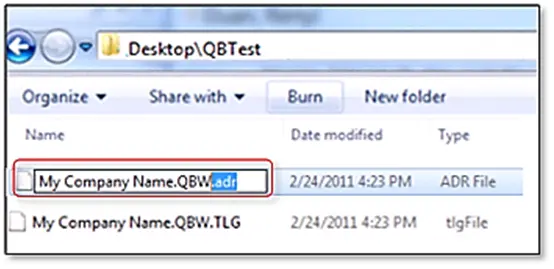
- Find the QBWUSER.ini file, right-click it, and rename it to QBWUSER.ini.old. (Renaming resets your QuickBooks preferences, so you will need to re-open your company file afterward.)
- Try opening QuickBooks Desktop again.
- If the problem persists, go back to the same folder and rename the EntitlementDataStore.ecml file to EntitlementDataStore.ecml.old — this resets your product registration, so you will need to re-register QuickBooks afterward.
- Restart the system and try opening QuickBooks Desktop again.
[Image: Rename QBWUSER.ini file in File Explorer - Screenshot]
Read Also: QuickBooks Install Diagnostic Tool — Fix Installation Errors
Method 5: Open QuickBooks Tool Hub and run Quick Fix My Program
Step 1: Download and install the QuickBooks Tool Hub
The QuickBooks Tool Hub program can fix certain errors on its own. The steps involved are:
- To begin, close QuickBooks.
- Download the QuickBooks Tool Hub file from Intuit's official website and save it somewhere easy to access.
- Find the downloaded file and double-click it to run the program.
- Follow the on-screen instructions to install it and agree to the terms and conditions.
- Double-click the icon on the Windows desktop to open the Tool Hub after installation.

Step 2: Run Quick Fix My Program from the QuickBooks Tool Hub
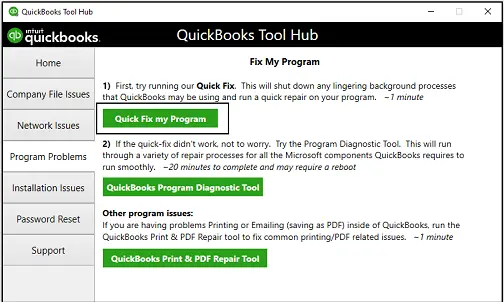
Note that if any background processes the software uses are open, Quick Fix will shut them down automatically, and it will also run a quick repair on the program:
- Select Program Problems in the Tool Hub.
- Choose the Quick Fix My Program option from the tools list.
- Now open QuickBooks Desktop along with your company file.
Method 6: Use the Clean Install Tool and QuickBooks Install Diagnostic Tool from the Tool Hub
Step 1: Run the QuickBooks Clean Install Tool first
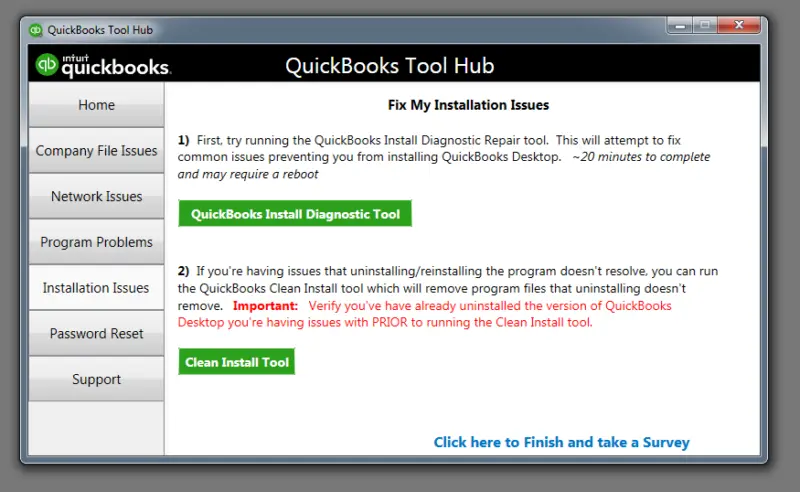
The Clean Install Tool automatically renames the old install folders, so the software can add fresh install files during reinstallation:
- Open the Tool Hub, if not already open.
- In the QuickBooks Tool Hub, choose Installation Issues.
- Click Clean Install Tool, then select OK.
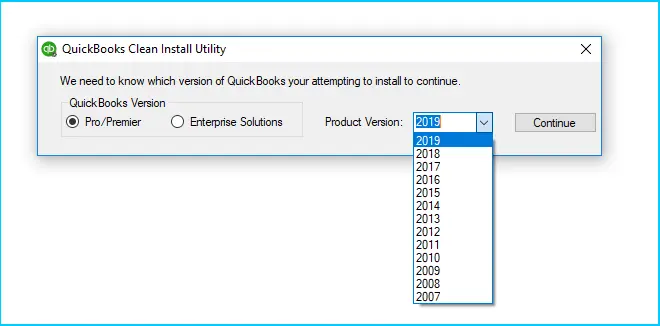
- Select your QuickBooks version, then click Continue.
- Select OK when the message "Please install your copy of QuickBooks to the default location" appears.
Step 2: Run the QuickBooks Install Diagnostic Tool
Downloading and running the QuickBooks Install Diagnostic Tool can fix the issue automatically with a few simple steps:
- Open the QuickBooks Tool Hub program on your system.
- Go to the Installation Issues tab and select the QuickBooks Install Diagnostic Tool option.
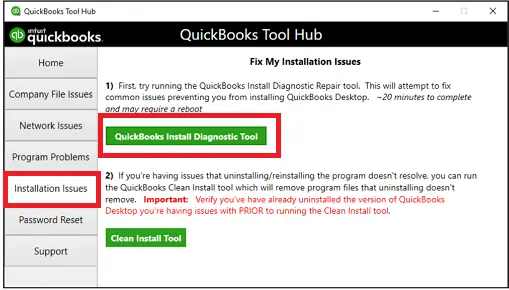
- Wait at least 20 minutes, as this process can be time-consuming.
- Once the scan ends, the tool will diagnose and fix the issue on its own.
- Reboot the system to save the changes.
Method 7: Create a new Windows admin user
You can create a new Windows admin user if the current Windows user profile is damaged:
- Press the Start button and open the Control Panel.
- Click the Add or remove user accounts link.
- In the Manage Accounts dialog box, click Create a new account.
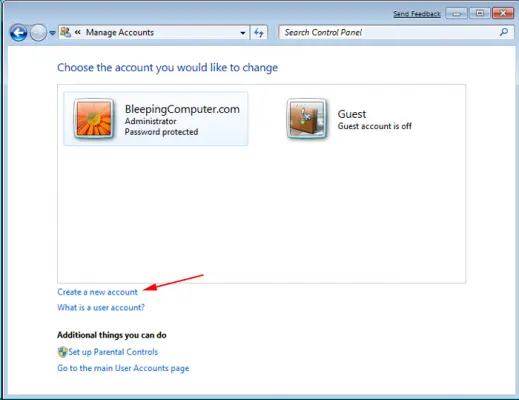
- Type the account name, select Administrator, and click Create Account.
- Log in with the new admin account, open the company file, and check whether the QuickBooks not working or not responding error persists.
Method 8: Download and run the QuickBooks Refresher Tool
- Close the QuickBooks software.
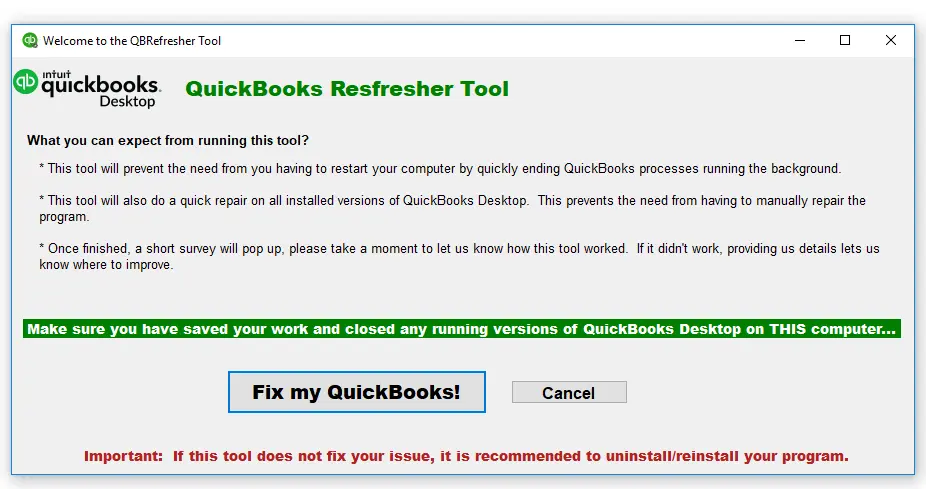
- Download the QuickBooks Refresher Tool and save the file on your system.
- Once the download completes, run the QBRefresher tool.
- Click Fix My QuickBooks Now — the tool will automatically diagnose and fix the issue.
- Finally, open QuickBooks and verify the issue is resolved.
How to fix QuickBooks stopped working after a Windows 10/11 update?
If you started seeing the QuickBooks stopped working issue after a Windows update, the steps below can help:
- Go to the Control Panel and select Windows Defender Firewall.
- Select Advanced settings and choose Outbound Rules.
- Click New Rule and select the Program checkbox.
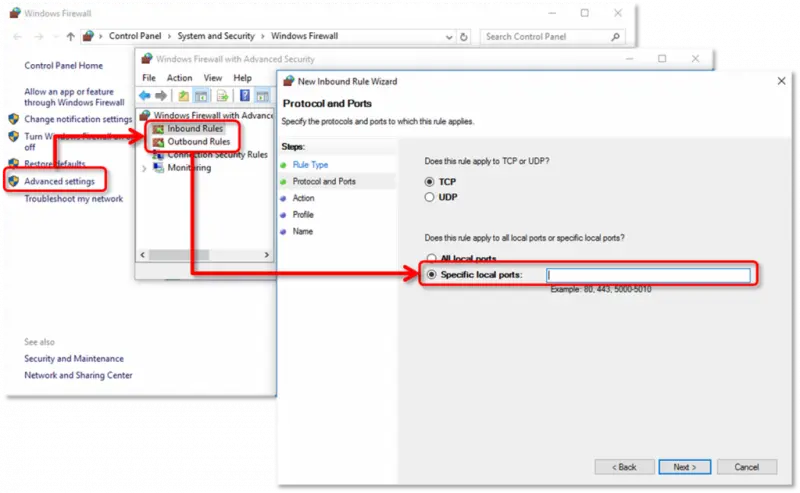
- Click Next.
- Select This program path and browse to the QuickBooks executable location.
- Select the Allow the connection option, then check the Private and Public profiles as needed.
- Give the rule a name and click Finish.
Read Also: QuickBooks Component Repair Tool - Fix Installation Errors
Concluding..!
This is everything you need to know to work your way around the QuickBooks not responding or stopped working issue. Follow these methods in the given sequence. However, if you still encounter the same issue after trying all the fixes, please contact our certified XpertBooks Pro team for further assistance. Our team of experts will make sure all your accounting queries are addressed. Our US-based support team is available 24x7, or you can chat with our executives directly. Feel free to reach us today.
For ongoing program stability, our QuickBooks support team can also review your setup with you.
FAQs
Why does QuickBooks keep saying it has stopped working?
This usually happens due to a damaged QBWUSER.ini file, corrupted program or company files, antivirus interference, or damaged Windows components. Working through the methods above in order resolves it in most cases.
How do I fix QuickBooks not responding when opening?
Hold the Ctrl key while opening QuickBooks to suppress the company file. If QuickBooks opens fine, the problem is with your company file — try opening it from a new folder location.
Can antivirus software cause QuickBooks to stop working?
Yes. Antivirus programs can block QuickBooks processes. Temporarily disabling your antivirus (Method 1) helps confirm whether it is the cause.
Will I lose my data if QuickBooks crashes?
Not usually. The crash affects the program, not your company file. Still, keep regular backups so unsaved work is never at risk.
Checkout these topics also:
Steps to Fix Unrecoverable Error in QuickBooks Desktop
QuickBooks Install Diagnostic Tool — Fix Installation Errors