

Is QuickBooks Desktop freezing every time you open it — or crashing in the middle of your work? A frozen QuickBooks screen can bring your entire accounting workflow to a halt. The good news is that most freezing problems can be fixed with a few proven methods. This guide covers the common causes of the QuickBooks Desktop freezing problem and six methods to unfreeze it.
What Causes QuickBooks Desktop to Freeze?
The freezing problem can be triggered by a variety of factors. The most common causes are:
- The company file name is too long.
- The QBWUSER.INI file is corrupted.
- The operating system is outdated or damaged.
- The company file is too large.
- QuickBooks installation files are damaged or corrupted.
- Damaged DDF and DAT files.
- The hard drive hosting QuickBooks is corrupted.
- Firewall or internet settings are blocking QuickBooks.
- Background applications are consuming too many system resources.
Signs and Symptoms of the QuickBooks Desktop Freezing Problem
- QuickBooks windows crash often and the software freezes frequently.
- Accounting operations become slow and unmanageable.
- The PC shows a frozen screen or shuts down.
- QuickBooks becomes unresponsive to keyboard and mouse input.
- The whole system feels sluggish while QuickBooks runs.
Methods to Unfreeze QuickBooks Desktop
Method 1: Rename the QBWUSER.INI File
A corrupted QBWUSER.INI file is one of the most common reasons QuickBooks freezes on startup. Renaming it forces QuickBooks to create a fresh one:
- Close QuickBooks completely.
- Press Win + E to open File Explorer and search for QBWUSER.INI (usually in C:\Users\[Username]\AppData\Local\Intuit\QuickBooks).

- Right-click the file, choose Rename, and add .old to the end (QBWUSER.INI.old).
- Reopen QuickBooks — it will create a fresh QBWUSER.INI automatically.
Method 2: Run Quick Fix My Program from the QuickBooks Tool Hub
The QuickBooks Tool Hub includes a Quick Fix My Program utility that repairs common program glitches behind freezing:
- Close QuickBooks.
- Open the QuickBooks Tool Hub (download the latest version from Intuit if you do not have it).
- Go to the Program Problems tab.
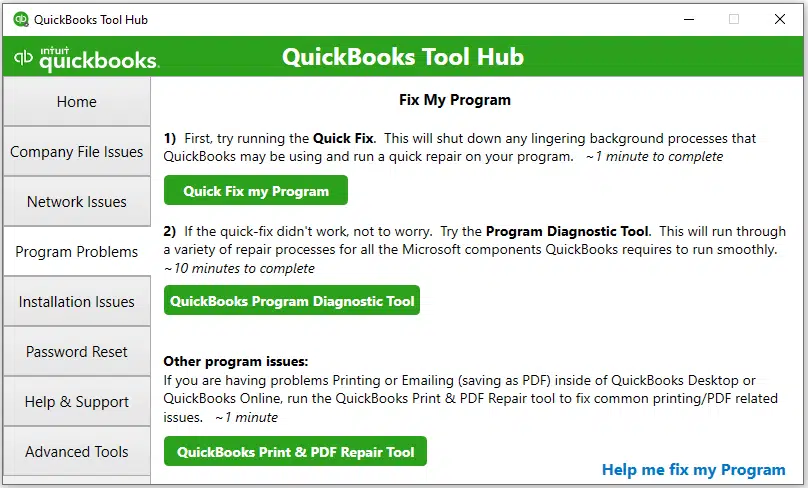
- Select Quick Fix My Program and let it run — it may take a few minutes.
- Restart your computer when it finishes, then open QuickBooks again.
Method 3: Rename the DDF and DAT Files
- Close all company files and exit QuickBooks.
- Open the QuickBooks installation directory and search for DAT and DDF files.
- Right-click each file, choose Rename, and add .old to the end of the filename.
- Reopen QuickBooks and check whether the freezing issue is resolved.
Method 4: Create a Portable Company File
Creating a portable company file compacts your data and often resolves freezing caused by a bloated or slightly damaged company file:
- Open QuickBooks and go to File > Create Copy.
- Choose Portable company file and click Next.

- Save the portable file to a location you can find easily, then click OK.
- Open the portable file to check whether the freezing is fixed.
Method 5: Verify and Rebuild Data
If the company file has data damage, QuickBooks can take a long time to open or freeze. Run Verify and Rebuild:
- Open QuickBooks and go to File > Utilities > Verify Data.

- If Verify finds problems, go to File > Utilities > Rebuild Data and click OK.
- Let the rebuild finish (it may take some time), then run Verify Data again to confirm everything is clean.
Method 6: Run the QuickBooks Install Diagnostic Tool

Freezing can also be caused by damaged Microsoft components that QuickBooks relies on. The QuickBooks Install Diagnostic Tool (in the Tool Hub under Installation Issues) repairs them:
- Open the QuickBooks Tool Hub and go to Installation Issues > QuickBooks Install Diagnostic Tool.
- Close all open programs and let the tool run — the scan can take up to 20 minutes.
- Restart your computer when the process completes.
Conclusion
We hope these methods helped you unfreeze QuickBooks Desktop. If the freezing continues after trying all six methods, the issue may need deeper diagnosis — call our XpertBooks Pro experts and we will get you back up and running.
FAQs
What is the cause of QuickBooks freezing?
QuickBooks Desktop may freeze due to a corrupted QBWUSER.INI file, damaged company file, incomplete installation, damaged DDF or DAT files, or file corruption in the QuickBooks folder.
How can I keep QuickBooks from freezing?
Keep QuickBooks updated, run regular antivirus checks, back up your company file, keep the file size manageable, and use the repair tools in the QuickBooks Tool Hub when issues appear.
Can the Verify and Rebuild tool fix the freezing issue?
Yes. If the freezing is caused by data damage in the company file, running Verify Data followed by Rebuild Data (File > Utilities) can resolve it.
Which tools can fix the QuickBooks freezing issue?
The QuickBooks Tool Hub offers Quick Fix My Program, QuickBooks File Doctor, and the QuickBooks Install Diagnostic Tool — all of which can resolve freezing caused by program or installation problems.
Related Articles:
Fix QuickBooks Has Stopped Working Error
Download and Use QuickBooks Tool Hub
QuickBooks Install Diagnostic Tool - Fix Common Installation Errors