

QuickBooks error code 7300 usually appears when QuickBooks program files are damaged, when there are conflicts with Windows settings, or when the QuickBooks installation is incomplete.
Please note: Older articles about error 7300 mention the Intuit Sync Manager. The Intuit Sync Manager was discontinued in 2016, so Sync Manager fixes no longer apply to this error.
In this article, we will explain what causes QuickBooks error 7300 and how you can fix it. If you need help along the way, call our QuickBooks experts.
What causes QuickBooks error code 7300?
This error can occur due to multiple reasons, such as:
- Damaged or corrupted QuickBooks program files.
- Issues with the company file configuration.
- Incorrect TLS or .NET Framework settings.
- Missing or incorrect folder permissions.
- An incomplete QuickBooks installation or update.
- Conflicts with background applications or security software.
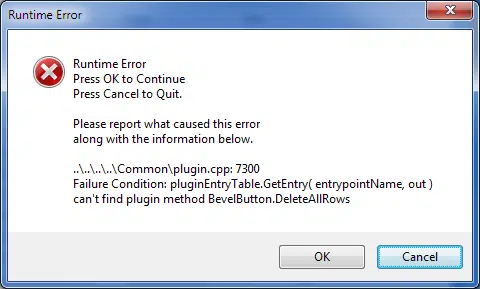
Methods to fix QuickBooks error code 7300
You can resolve error 7300 by carrying out any of the methods given below.
Method 1: Run the QuickBooks Install Diagnostic Tool from the Tool Hub
The Install Diagnostic Tool repairs damaged installation files and .NET components that can trigger error 7300:
- Download the latest version of the QuickBooks Tool Hub (1.6.0.8) from Intuit's official page and install it.
- Open the Tool Hub and go to the Installation Issues tab.
- Select QuickBooks Install Diagnostic Tool and let it run. It can take up to 20 minutes to complete.
- Once the tool finishes, restart your computer and check whether error 7300 is resolved.
Method 2: Rename the Intuit folders and reinstall QuickBooks
Renaming the Intuit folders removes damaged installation files so that a fresh install works correctly:
- Open the Control Panel and go to Programs and Features.
- Select QuickBooks Desktop from the list and click Uninstall/Change to uninstall it.
- Now rename the following Intuit folders by adding .old at the end of each folder name:
- C:\Users\(current user)\AppData\Local\Intuit\QuickBooks (year)
- C:\ProgramData\Intuit\QuickBooks (year)
- C:\Program Files (x86)\Intuit\QuickBooks (year)
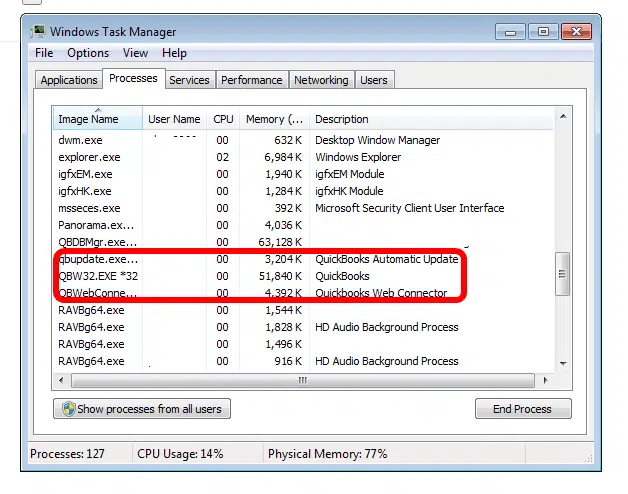
- If you get an "Access denied" message while renaming the folders, end the QuickBooks processes first:
- Right-click the Windows taskbar and select Task Manager.
- Go to the Processes tab and look for QBDBMgrN.exe, QBCFMonitorService.exe, and QBW32.exe.
- Select each process and click End task.
- Finally, reinstall QuickBooks from a fresh download using our Install QuickBooks Desktop guide.
Method 3: Check TLS 1.2 and repair the .NET Framework
QuickBooks needs TLS 1.2 and a healthy .NET Framework to run correctly:
- Press Windows + R, type inetcpl.cpl, and press Enter to open Internet Properties.
- Go to the Advanced tab and make sure Use TLS 1.2 is checked. Click Apply and then OK.
- Open the Control Panel and go to Programs and Features.
- Select Microsoft .NET Framework from the list, click Uninstall/Change, and then click Repair.
- Follow the on-screen instructions to complete the repair, then restart your computer.
To Wrap it up!
QuickBooks error code 7300 usually appears when program files are damaged, when there are conflicts with Windows settings, or when the installation is incomplete. By running the Install Diagnostic Tool from the Tool Hub, renaming the Intuit folders and reinstalling QuickBooks, or checking TLS 1.2 and repairing the .NET Framework, you should be able to resolve this error.
Frequently asked questions
What is QuickBooks error 7300?
Error 7300 is a company file or configuration-related error that usually appears when QuickBooks fails to open the company file because its program files are damaged.
Do I need the Intuit Sync Manager to fix error 7300?
No. The Intuit Sync Manager was discontinued in 2016, and Sync Manager fixes no longer apply to this error.
Will renaming the Intuit folders delete my company data?
No. Renaming the folders with .old only affects the program folders. Your company file stays safe. Reinstall QuickBooks from a fresh download afterward.
What should I do if error 7300 keeps coming back?
Run the Install Diagnostic Tool from the QuickBooks Tool Hub and make sure TLS 1.2 is enabled. If the error persists, contact our QuickBooks experts for further assistance.