

Have you ever been in the middle of a QuickBooks installation or update, only to be hit with Error Code 1330 and left wondering why? This segment will brief you on the complete steps and procedures required to fix QuickBooks error 1330. This error indicates that the digital signature is invalid. You might run into this error when trying to install or update QuickBooks Desktop on Windows 10 or Windows 11, and it can interrupt the installation process.
This error generally points to a problem with corrupted installation files, damaged system permissions, or antivirus/security restrictions interfering with the QuickBooks setup. This error could be accompanied by a warning message saying:
| Error Message: | “Error 1330 Invalid digital signature”. |
Keep reading this segment to learn how you can spot and fix this error.
Brief into QuickBooks error code 1330
The QuickBooks error code 1330 usually indicates that the data signature is invalid. There can be various reasons this error appears on the screen. It shows up with an error message stating “Invalid digital signature”. It is usually considered an installation error, and it is advised to address it immediately. To know more about this error and its fixes, make sure to read this post carefully.
What causes the occurrence of QuickBooks error 1330?
The QuickBooks error code 1330 may occur due to one or more of the following issues:
[Image: Possible causes of QuickBooks error 1330 - Screenshot]
- Damaged or corrupt QuickBooks installer file.
- Your security software is disrupting the installation process.
- A previous QuickBooks installation on your system is damaged or corrupt.
- The installation process is being disrupted by your system firewall or antivirus.
- Inaccurate date and time settings on your PC.
- Damaged Windows components (such as Microsoft .NET Framework, MSXML, or C++) required by the installer.
Read Also: QuickBooks Install Diagnostic Tool — Fix Installation Errors
Methods to troubleshoot the QuickBooks error 1330
We have listed some of the most useful solutions here to help you fix QuickBooks error code 1330. However, we recommend you create a backup of all your company data before starting the troubleshooting process.
Method 1: End only the conflicting QuickBooks processes and reinstall
Before anything else, make sure no stuck QuickBooks process is blocking the installation — but do it safely:
- Right-click the QuickBooks Desktop installer and choose Run as administrator.
- Make sure no other applications or programs are running on your computer.
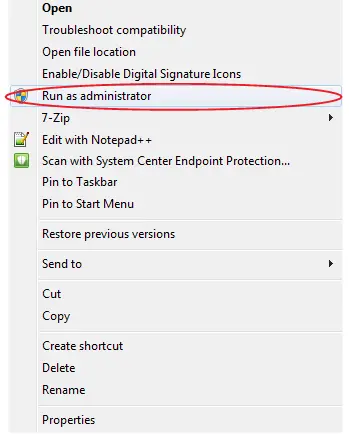
- Open Task Manager by pressing Ctrl + Shift + Esc and go to the Processes tab.
- Look for these QuickBooks processes only:
- QBW32.exe
- qbupdate.exe
- QBDBMgr.exe
- Right-click each one and select End task. Important: never end random or unfamiliar processes — ending the wrong process can crash Windows itself.
- Check that your system date and time are correct — a wrong clock can make the digital signature verification fail.
- Temporarily disable your antivirus, run the QuickBooks installer again, and re-enable the antivirus once the installation completes.
[Image: End QuickBooks processes in Task Manager - Screenshot]
Method 2: Use the QuickBooks Tool Hub (Install Diagnostic Tool)
If the installer file itself is damaged, the QuickBooks Install Diagnostic Tool can repair the Windows components QuickBooks needs:
- Download a fresh copy of the QuickBooks Desktop installer from Intuit’s official website.
- Download and install the QuickBooks Tool Hub from Intuit’s official website.
- Open the Tool Hub and go to the Installation Issues tab.
- Select QuickBooks Install Diagnostic Tool and let it run — it may take up to 20 minutes.
- Once the tool finishes, restart your computer.
- Now run the fresh installer as administrator and complete the installation.
Read Also: QuickBooks Component Repair Tool - Fix Installation Errors
Method 3: Perform a clean install of QuickBooks Desktop
If the error still appears, leftover damaged installation files may be the cause. A clean install removes them safely:
- Open the QuickBooks Tool Hub and go to the Installation Issues tab.
- Select Clean Install Tool and follow the on-screen steps — the tool automatically renames the old install folders.
- Reinstall QuickBooks Desktop using your fresh installer file.
- Open QuickBooks and check whether error 1330 is resolved.
If the error keeps returning during installation, our professional error troubleshooting team can take a closer look for you.
Conclusion!
Fixing QuickBooks error 1330 becomes easy when you follow the methods mentioned above. We hope these solutions help you get the ongoing error fixed. In case you still face the error even after performing the steps above, feel free to call us anytime. Our certified professionals will be happy to assist you and fix the error for you.
FAQs
What is QuickBooks Error 1330?
QuickBooks error 1330 is an installation error that appears when the digital signature of the installer cannot be verified. It shows the message “Invalid digital signature”.
What are the ways to fix QuickBooks Error 1330?
You can fix error 1330 by running the installer as an administrator, downloading a fresh installer, running the QuickBooks Install Diagnostic Tool, performing a clean install, or temporarily disabling your antivirus.
Can antivirus software cause QuickBooks Error 1330?
Yes. Security software can block or interrupt the QuickBooks installation, which triggers the invalid digital signature error. Temporarily disabling it during installation usually resolves the issue.
Checkout these topics also:
QuickBooks Component Repair Tool - Fix Installation Errors
Steps to Fix Unrecoverable Error in QuickBooks Desktop