
QuickBooks is trusted accounting software for businesses, but even reliable software can sometimes run into errors that disrupt daily operations. One such commonly seen and reported issue is QuickBooks error code 6000, 83. In the last few years, many users have reported encountering error (-6000, -83) while trying to access, restore, or backup their company file. The error is usually related to incorrect hosting configuration in multi-user setups, corrupted company files, or firewall and antivirus interference. The 6000 series errors can be very frustrating for users to deal with, and they can also be very time-consuming.
This article will be extremely helpful if you are troubled by this error while working in your software. Read this article carefully till the end and fix the QuickBooks company file error 6000, 83 on your own. You can also get in touch with our QuickBooks support team — our accounting experts will be more than happy to resolve the issue for you.
What is QuickBooks error code 6000, 83 and what causes it?
QuickBooks error code 6000, 83 falls under the -6000 series errors. This error can cause serious damage to the company file, so it should not be ignored. The error appears with a message stating:
| Warning | “An error occurred when QuickBooks tried to access the company file. Please try again. If the problem persists, contact Intuit technical support and provide them with the following error codes: (-6000, -83)”. |

You shouldn’t ignore this error, as it might also cause major data damage. To avoid further trouble, fix the bug as soon as possible. Keeping all those factors in mind, we have come up with this article, where we will discuss the causes, symptoms, quick fixes, and other facts related to error code -6000, -83.
How is QuickBooks error 6000, 83 actually caused?
You might encounter this frustrating error due to multiple factors, a few of which are listed below:
- Some essential QuickBooks files are missing.
- There are not proper permissions for QBDataServiceUserXX.
- You are trying to convert the company file from an earlier version over a network.
- Insufficient permissions for Windows users.
- The files are restricted by the firewall or security software.
- The Windows version isn’t a US or Canadian one.
- Damaged or corrupted company file.
- The permissions for the network server are insufficient.
- Hosting mode is enabled on multiple systems.
What are the signs and symptoms of QuickBooks error 6000, 83?
Certain signs and symptoms can help you identify QuickBooks error code 6000, 83. A few of the common signs include:
- The QuickBooks error code appears on the screen while crashing the active program window.
- The error message displays repeatedly on the screen.
- The system or QuickBooks Desktop freezes periodically.
- The Windows operating system runs slowly and does not respond to mouse and keyboard inputs.
Easy methods to resolve QuickBooks error 6000, 83 (when creating a company file)
There are multiple methods you can apply to get rid of QuickBooks error 6000, 83. We will explore each method one by one. So, without wasting any time, let us begin:
Method 1: Edit and optimize the Windows hosts file
You need admin rights to access the server and the systems connected to it — this will help you edit the Windows hosts file. If the company file is stored on a Linux server and you encounter QB error 6000, 83 while opening the file, carry out the steps below:
Step 1: Configure the Linux database server manager
- First, configure the Linux database server manager to specify the directory in the Initord.conf file. Then restart the QuickBooks application on the Windows client and ping the server.
- Then edit the hosts file.
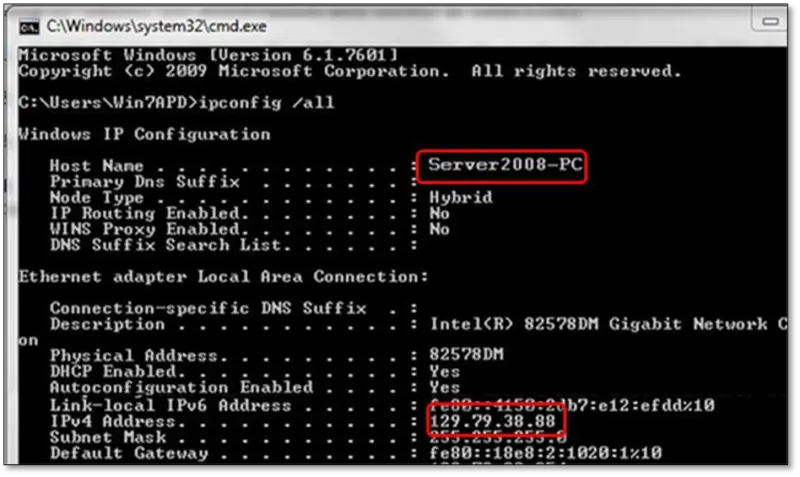
Step 2: Configure the hosts file
If you encounter the error while creating a backup, follow these steps:
- First, create a new folder at the root of the C: drive.
- Take a manual backup of the company file and save it in the folder you just created.
- Open the Windows Start menu on one of the systems connected to the network.
- Type CMD in the search bar and open the Command Prompt.
- Type ping followed by the server name, then hit Enter.
- Note down the server name and the IP address.
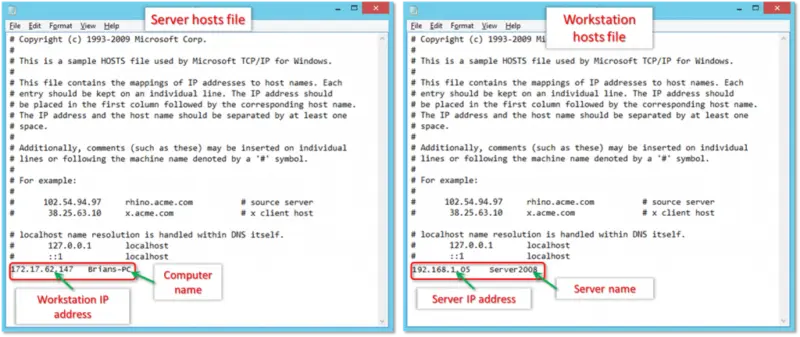
Step 3: Edit the hosts file
Next, edit the hosts file and make sure all systems connected to the server have the correct IP address and Linux server name. Start with the system showing the error:
- First, close QuickBooks on all systems connected to the network — go to the File menu and click Quit QuickBooks Desktop.
- Open the Windows Start menu, type File Explorer, and open it.
- Select This PC (it may appear as My Computer).
- Open the C: drive, then the Windows folder.
- Find the System32 folder, open the drivers folder, then the etc folder.
- Right-click the file C:\Windows\System32\drivers\etc\hosts and open it with Notepad.

- Go to the bottom of the file and add the Linux server IP address at the end. Press the TAB key and add the server name. Enter the name with the correct case, as Linux file names are case-sensitive.
- Save the file via File > Save.
Step 4: Restore the company file
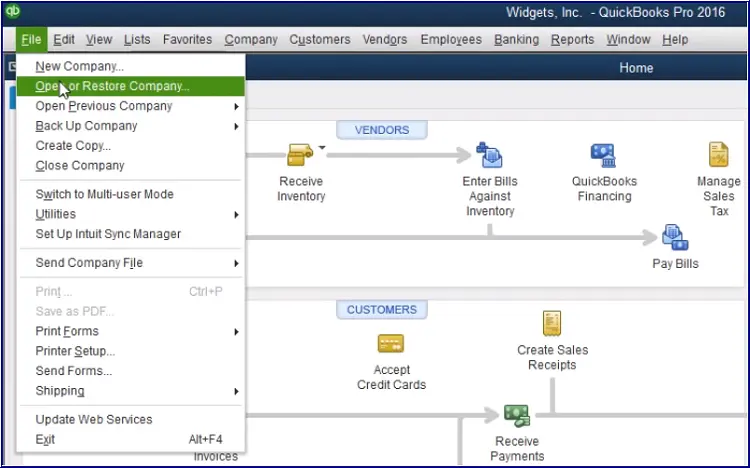
If the error appeared while you were trying to restore the company file, follow these steps:
- Verify the extension of the company file.
- Check whether the restored company file has the .qbw extension. If not, change the file extension to .qbw.
- Make sure there is no problem with the company file itself.
Example: Verify that the file name and file path are not causing error 6000, 83 in QuickBooks.
QuickBooks considers the entire file name and path when the backup is restored. Make sure there are no special characters in the file name or path.
Such as: C:\Users\Alex\My Documents\QuickBooksData\Alex123.qbw — and not C:\Users\Alex\Alex’s Documents\QuickBooksData\Alex$.qbw
Here, “Alex’s” and “Alex$” must be changed, as they contain special characters, which are not permitted.
Method 2: Check the name of the backup file
To avoid any hassle, remove all signs, symbols, and special characters from the name. Follow these steps:
- Click the Windows Start menu.
- Type File Explorer and open it.
- Find the folder containing the company file and open it.
- Select the file with the .qbb extension.
- Click Rename.
- Delete any special or unwanted characters from the file name.
- Right-click the folder and select Rename.
- Remove special characters from the folder name as well.
- Finally, restore the company file.
Read Also: Steps to Fix Unrecoverable Error in QuickBooks Desktop
Method 3: Create a portable company file
Follow these steps to create a portable company file in QuickBooks Desktop:
- First, open QuickBooks and log in as an administrator.
- Click the File menu and choose the Create Copy option.
- Select Portable Company File and click Next.
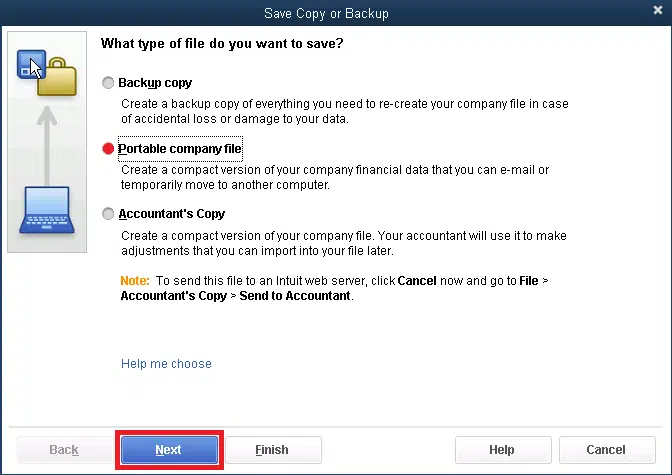
- Give your portable company file a unique name.
- Choose a location to save your portable company file — pick a place that is easy to access, such as your Windows desktop.
- Click Save, then OK.
You now have a portable company file that you can share online or save to a USB drive. The file will appear in this format: [Unique company file name].qbm.
If you can’t restore your QBB file, go back and open the company file you created the backup from:
- Follow the steps above to create a portable company file (also known as a QBM file).
- Use the portable company file to restore your company file.
Method 4: Turn off hosting on your workstations
If the company file is hosted over a network, it is very important to turn off the host multi-user access option on the workstations. Only the server system should host the files:
- Open QuickBooks on one of the workstations.
- Do not open the company file. Select the File menu and go to Utilities.
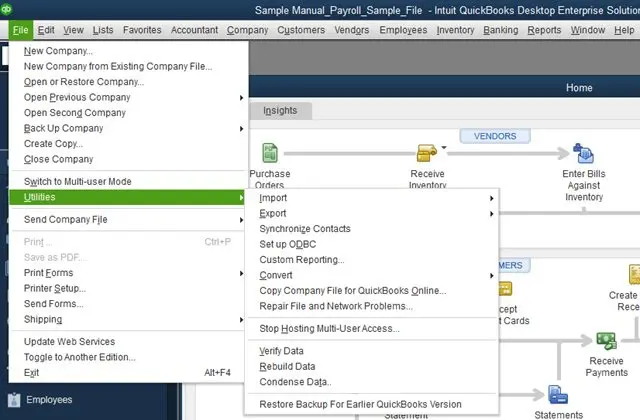
- If you see Host Multi-User Access, do not select it — move to the next workstation.

- If you see Stop Hosting Multi-User Access, click it.
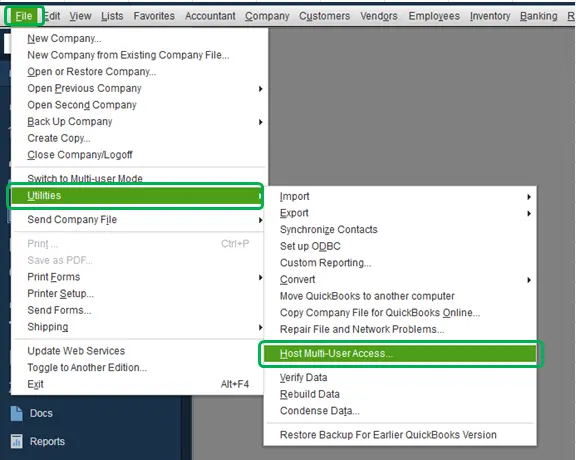
- Repeat this process on each workstation.
Method 5: Download and run the QuickBooks File Doctor tool
You can download the QuickBooks File Doctor tool from Intuit’s official website and run it to resolve the issue. The tool is also available via the QuickBooks Tool Hub. Here are the steps for using it through the Tool Hub:
- First, download the QuickBooks Tool Hub program. Once the download finishes, open it and go to the Company File Issues tab.
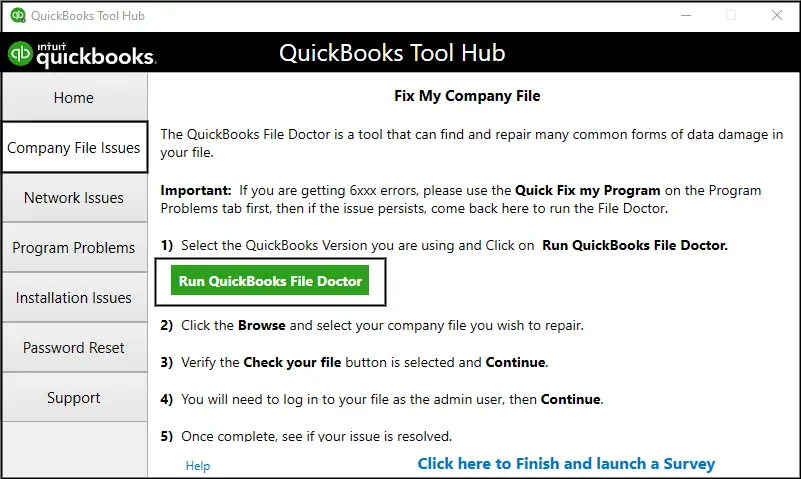
- Select Run QuickBooks File Doctor from the Company File Issues tab.
- The tool may take a few moments to open.
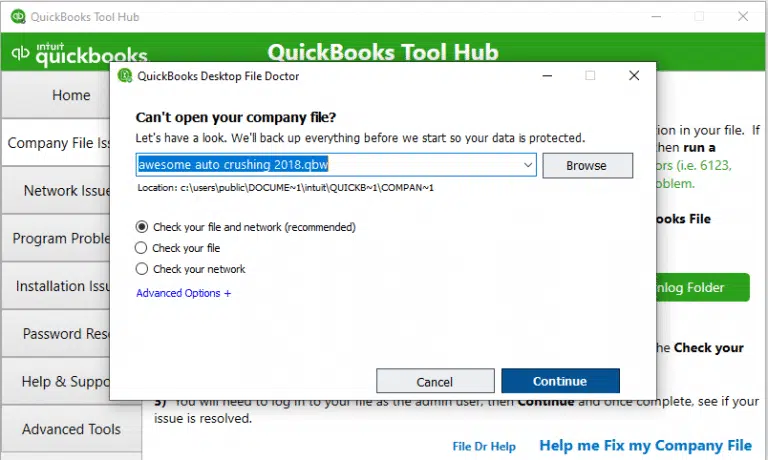
- In the File Doctor tool, click Browse to select the damaged company file.
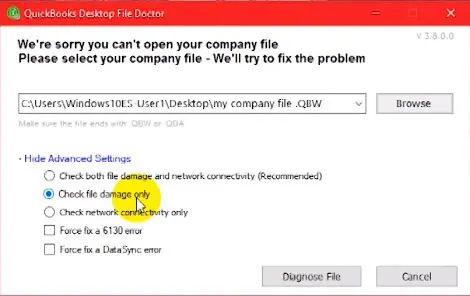
- Select Check your file and click Continue.
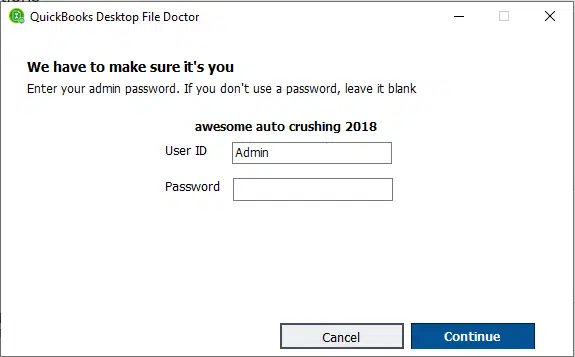
- Enter your credentials and click Next.
- The process may take some time depending on the file size.
- Once the scan completes, the issue should be resolved.
[Image: QuickBooks Tool Hub Company File Issues tab showing Run QuickBooks File Doctor - Screenshot]
Read Also: QuickBooks Install Diagnostic Tool — Fix Installation Errors
Method 6: Close all QuickBooks processes
For this method, carry out the steps below to try to fix the issue:
- Log in as the admin on the server system.
- Press Ctrl + Shift + Esc to open the Task Manager.
- Select the Users tab to show processes for all users.
- Highlight the QuickBooks processes (QBW32.exe, qbupdate.exe, and QBDBMgr.exe) and select End task.
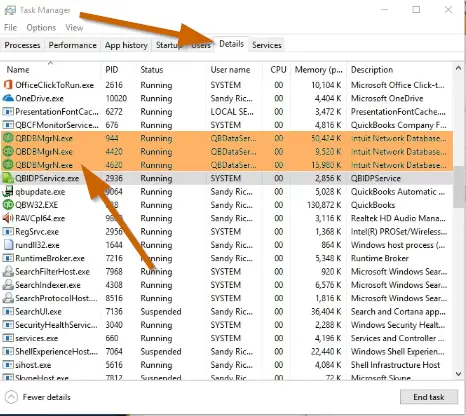
- Open the company file in multi-user mode.
- Check whether the error is resolved. If not, move to the next method.
Method 7: Manually fix error 6000, 83
- Update the QuickBooks software to the latest release.
- Configure the firewall settings for QuickBooks.
- Edit the folder permissions, only if required.
- Verify the hosting mode on the server using the QuickBooks Database Server Manager — hosting should be turned off on all other PCs.
- Make sure QBDBMgrN.exe is running in Task Manager, and check that the value in the User Name column is correct.
- Open the QuickBooks company file on the host system. You can also copy the file to the Windows desktop, then open the copied file in QuickBooks. If the error persists, restore a backup using QuickBooks Auto Data Recovery (ADR).
- If the company file opens without error, copy it back to its original location — and rename the original files before copying.
- Finally, open QuickBooks and the company file to check whether the error persists.
[Image: Windows 11 Task Manager showing QBDBMgrN.exe - Screenshot]
Winding up!
With this, we come to the end of this article. We hope the tips mentioned above help you fix QuickBooks error code 6000, 83. You can also consult our XpertBooks Pro team of professionals if you need expert assistance or are unable to deal with this error. Don’t hesitate to talk to our professionals — call us, and they will be happy to assist you and guide you through this frustrating issue.
Frequently Asked Questions
What is QuickBooks Error 6000, 83?
This error is a company file error in QuickBooks and can be occur multiple of reasons.
What is the QuickBooks File Doctor tool?
The QuickBooks File Doctor (QBFD) tool is an important tool offered by Intuit. It is now built into the QuickBooks Tool Hub program. This tool can fix various errors related to network issues and company file issues.
What are 6000 series errors in QuickBooks?
The 6000 series errors in QuickBooks refer to a group of errors that occurs in company file.
Checkout these topics also:
Steps to Fix Unrecoverable Error in QuickBooks Desktop
QuickBooks Error 3371 Status Code 11118: How to Settle It?