
QuickBooks update error 1328 appears when you update, install, uninstall, or repair QuickBooks Desktop. It shows up as a single error or right before another error, and it always references a temporary file like C:\Config.Msi\PTXXX.tmp. If you are seeing this on your screen, this guide will help you fix it.
For hands-on help, connect with our independent accounting professionals or through live chat.
Table of Contents
What does QuickBooks Error 1328 mean?
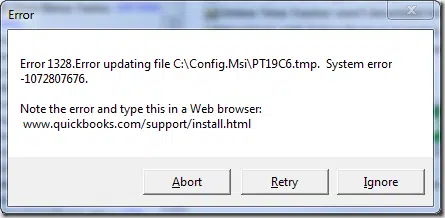
Error 1328 is a Windows Installer error – QuickBooks fails while trying to update one of its temporary installation files. You will see a message like this:
| Problem | Error 1328. Error updating file C:\Config.Msi\PTXXX.tmp. |
| Full message | Error 1328. Error applying patch to file C:\Config.Msi\PT19C6.tmp. It has probably been updated by other means, and can no longer be modified by this patch. |
What Causes QuickBooks Error 1328?
- A damaged or interrupted QuickBooks installation.
- Invalid or leftover entries from a previous install.
- Malware or virus interference.
- An improper system shutdown (power failure) during an update.
- A network error while downloading the update.
Signs and Symptoms
- You cannot update QuickBooks Desktop.
- Installing, uninstalling, or repairing QuickBooks fails.
- QuickBooks runs slowly or crashes occasionally.
- The error dialog itself appears on the screen.
Methods to Fix QuickBooks Error 1328
Method 1: Rename the Config.msi Folder
The Config.msi folder holds temporary installer files. Renaming it forces Windows Installer to rebuild it:
- Right-click the Start button and open File Explorer.
- Open the C: drive.
- Show hidden files: go to View > Show > Hidden items.
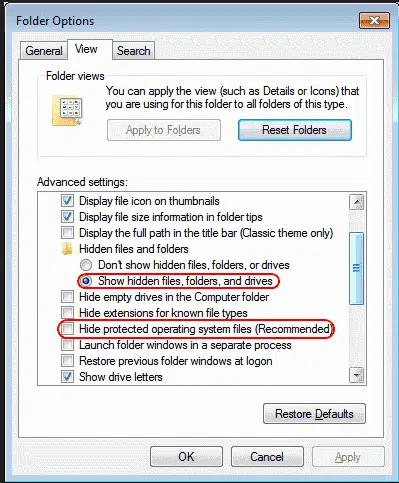
- Right-click the Config.msi folder and select Rename.
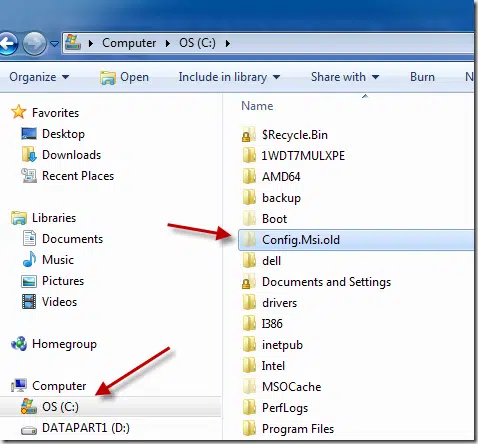
- Rename it to Config.msi.old (or anything else), then click away to save.
- Try updating QuickBooks Desktop again.
Read Also: How to Use QuickBooks Condense Data Utility?
Method 2: Use the Install Diagnostic Tool from the Tool Hub
- Close QuickBooks, then download the latest QuickBooks Tool Hub from Intuit's official support page.

- Open the downloaded QuickBooksToolHub.exe file and follow the on-screen steps to install.
- Open the Tool Hub and select Installation Issues.
- Choose QuickBooks Install Diagnostic Tool – it takes up to 20 minutes depending on your system and internet speed.
- Restart your computer after the tool finishes.
Method 3: Install Windows Updates
QuickBooks needs current Microsoft components (.NET, MSXML, C++). Update them through Windows Update:
- Open the Start menu and search for Check for updates.
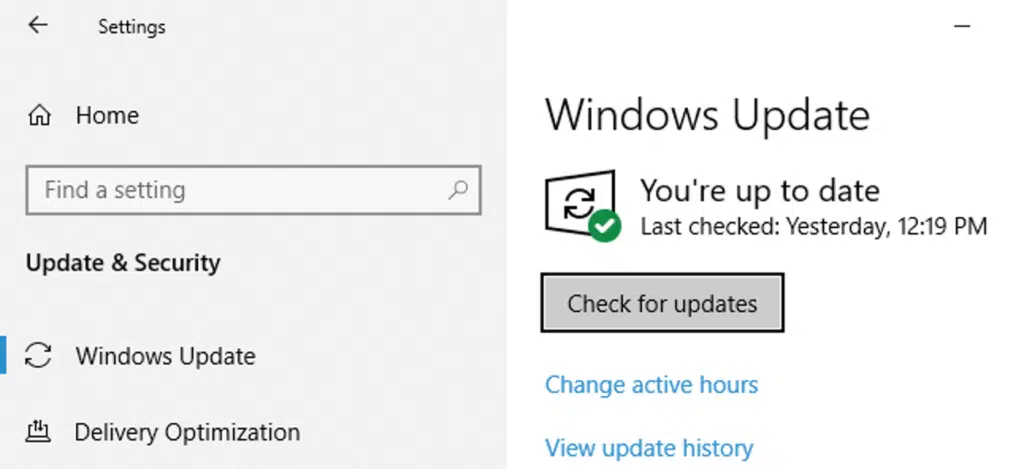
- Install all available updates and restart your computer.
- Open QuickBooks Desktop and try the update again.
Read Also: Steps to Fix QuickBooks Error 6000, 82 or 6000, 106
Method 4: Repair the QuickBooks Installation
- Log in to Windows as an administrator.
- Open the Control Panel and go to Programs and Features.
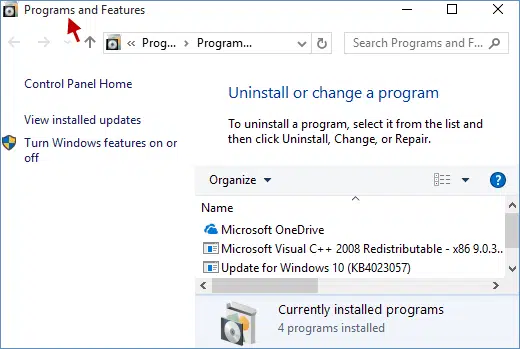
- Select QuickBooks Desktop from the list and click Uninstall/Change.
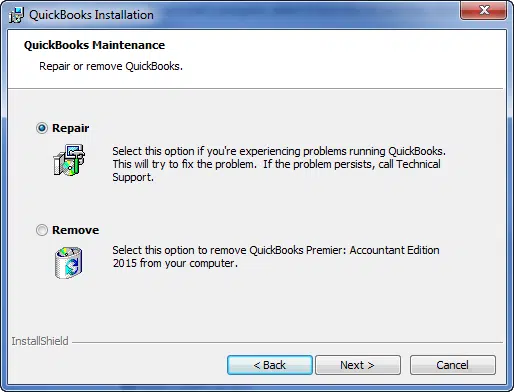
- When the QuickBooks installer window appears, select Repair and click Next.
- After the repair completes, open QuickBooks and let it apply any pending patch.
Method 5: Run the System File Checker
Damaged Windows system files can block the installer:
- Click Start, type cmd, right-click Command Prompt, and select Run as Administrator.
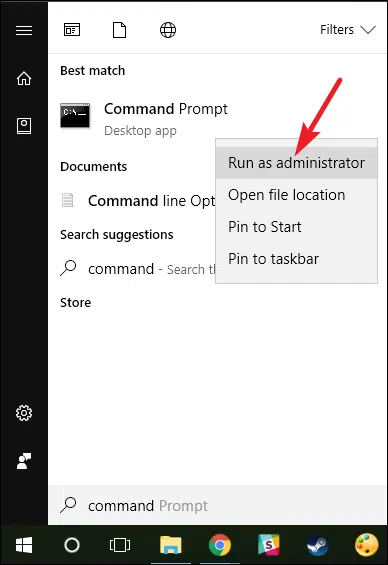
- Type
sfc /scannowand press Enter.
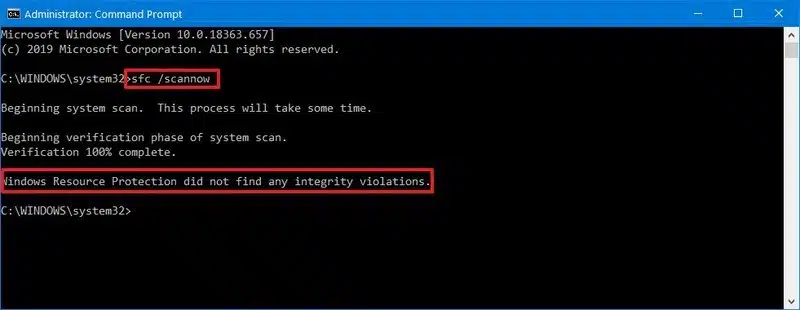
- Wait for the scan to finish, restart your computer, and try the QuickBooks update again.
Method 6: Reinstall QuickBooks with a Clean Install
If nothing above works, do a clean install of QuickBooks Desktop:
Step 1: Uninstall QuickBooks Desktop
- Open the Control Panel and go to Programs and Features (or Uninstall a Program).
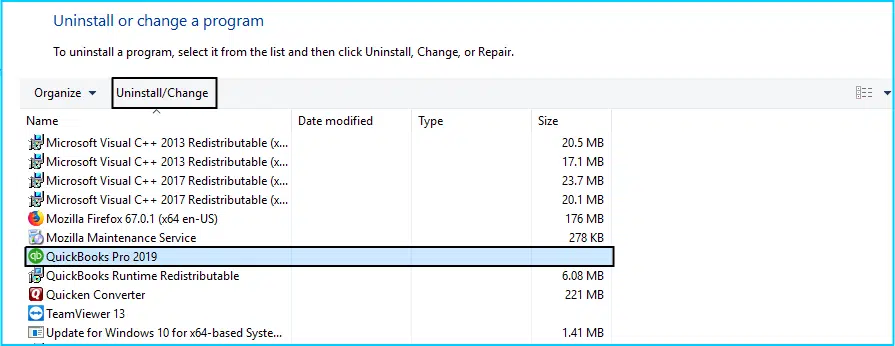
- Select QuickBooks Desktop, click Uninstall/Change, and follow the prompts.
- Restart your computer.
Step 2: Reinstall from a Fresh Download
- Download a fresh installer from Intuit's official download site – no CD needed.
- Run the .exe file and follow the installation steps.
- Keep your product and license numbers ready (find them in your Intuit account).
Read Also: How to Reconcile Payroll Liabilities in QuickBooks?
Conclusion!
Error 1328 looks alarming, but it is a temporary-installer problem – not a data problem. Start with the Config.msi rename, then escalate through the Tool Hub and repair steps. If you still cannot update, call our XpertBooks Pro team and we will troubleshoot it for you.
FAQs
How can I prevent QuickBooks update error 1328 in the future?
Keep your internet connection stable during updates, close unnecessary background programs, and keep Windows updated.
Can I get update error 1328 on a Mac?
No. This error is specific to QuickBooks Desktop on Windows. QuickBooks for Mac has its own separate update errors.
What is the Config.msi file?
Config.msi is a temporary folder Windows Installer uses during QuickBooks installation and updates. It is safe to rename – Windows rebuilds it.
Which Tool Hub tool fixes update errors?
Go to Installation Issues > QuickBooks Install Diagnostic Tool in the QuickBooks Tool Hub. Quick Fix My Program (under Program Problems) also helps with program-level issues.
Will a clean install delete my company file?
No. Uninstalling QuickBooks does not delete your company files. Still, create a backup before reinstalling.
Related Posts:
Fix Error: The Attempt to Log In with the User Name Admin Failed
How to Troubleshoot the QuickBooks Error 16026?