

Want to learn the procedure to tackle QuickBooks error H202 on a Windows Server? If that is the case, stay with this segment. In QuickBooks Desktop, you might stumble upon various typical errors — and the good news is that most of them can be resolved with a few simple steps. QuickBooks error H202 on a Windows Server is a common issue that appears due to network and hosting misconfiguration.
In this segment, we will discuss the causes and fixes for this error. You should follow these steps only if you see error H202 on your server system. If the solutions look complicated, contact your network admin before you begin. Reading the article till the end will help you get rid of the error without much hassle. You might encounter QuickBooks error H202 with a warning:
This company file is on another computer, and QuickBooks needs some help connecting.

Steps to Fix Error H202 on Windows Server
You might thinking about the factors causing this error. While every QuickBooks error has reasons behind it, the causes here are mostly network-related. Let us jump straight into the solutions.
Note: These steps were originally written for Windows Server 2012 Essentials R2, which has reached end of life. The same procedure works on current systems — Windows Server 2016, 2019, 2022, and Windows 10/11 hosting the company file.
Step 1: Check the server version you’re using
First, verify which server version you have so you can confirm these steps apply. Carry out the steps below:
- Open the Start menu on the server system.
- Type Settings in the search bar and open it.
- Select System, then About.

You will see the server version listed in the About section. If you are on a supported Windows Server version (or Windows 10/11), continue with the steps below. For the general H202 fixes that work on any setup, see our QuickBooks error troubleshooting guide.
Step 2: Install the QuickBooks Database Server Manager

If you have not already installed the QuickBooks Database Server Manager on the server for each version of QuickBooks you use, download and install it now. The Database Server Manager keeps the multi-user network stable.
You can set it up in two ways:
- Full program option: Install the full QuickBooks Desktop plus the Database Server Manager on the server computer.
- Server-only option: Install only the Database Server Manager on the server computer.
You might read also: How to Fix 'This Company File Needs to Be Updated' Error in QuickBooks
Step 3: Restart the Base Filtering Engine Service
Perform this step every time the server system is restarted. Always sign in to the server as a user with admin rights while troubleshooting.
Stopping the Base Filtering Engine Service
- Open the Start menu on the server system.
- Type Run in the search bar and open it.
- Type services.msc in the Run window and press Enter.

- Find Base Filtering Engine in the services list.
- Right-click Base Filtering Engine and select Stop.

- If an error message appears, dismiss it (or stop the service again).
These steps will disconnect the workstations temporarily — the connection will be restored later.
Scanning the QuickBooks Files
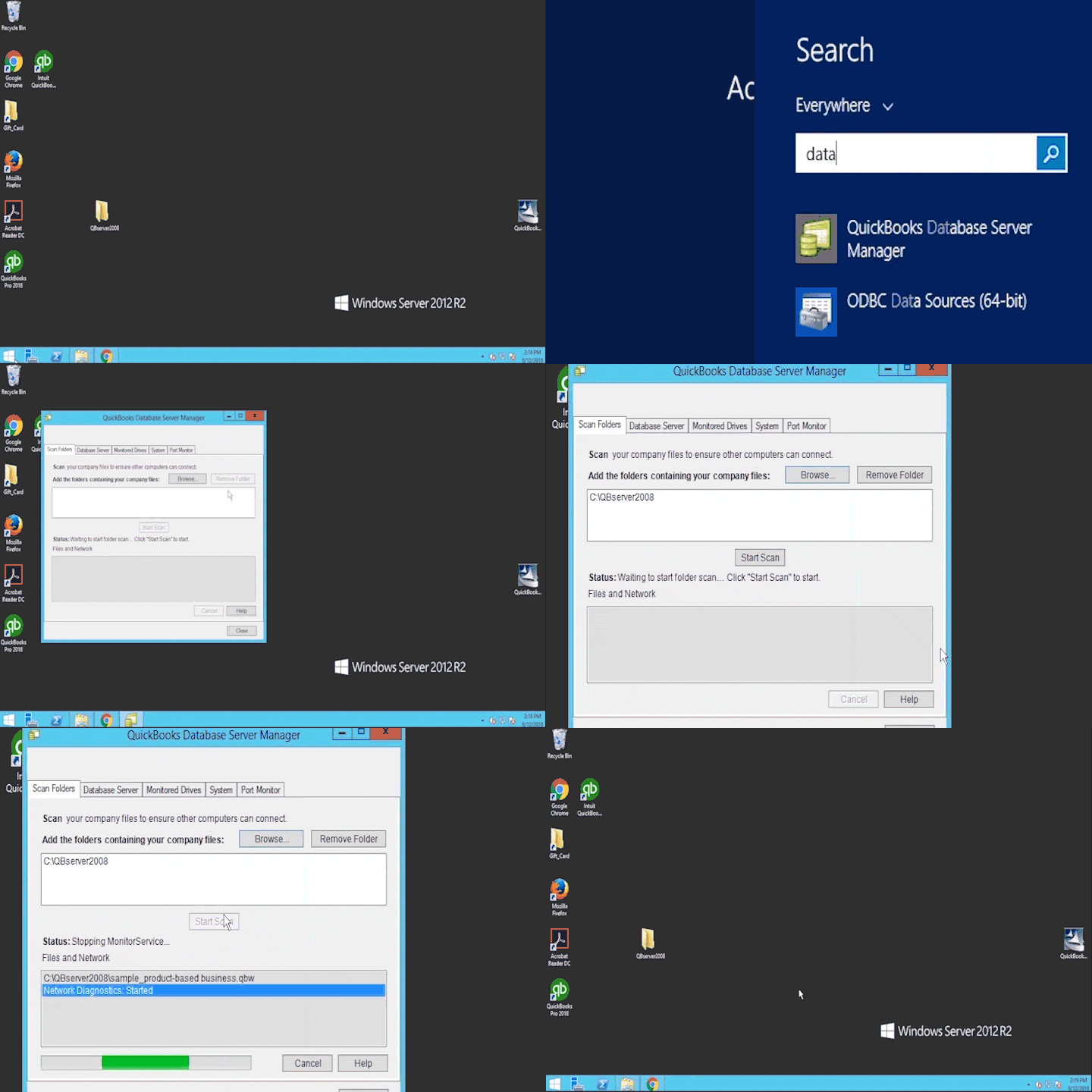
- Open the Start menu and search for QuickBooks Database Server Manager, then open it.
- Select the folder containing the company files, or click Browse to find it.
- Click Start Scan.

- Click Close once the scan finishes.
Restarting the Base Filtering Engine Service
Now start the Base Filtering Engine service that you stopped earlier:
- Open the Start menu, type Run, and press Enter.
- Type services.msc and press Enter.
- Find Base Filtering Engine in the services list.
- Right-click it and select Restart.

- If an error message appears, dismiss it and select Start again.

- Before closing the window, find Windows Firewall in the services list. If its status shows Running, the process is complete.
If Windows Firewall is not running, do this:
- Right-click Windows Firewall and select Properties.
- In the properties window, click Start to start the firewall, then click OK.
You might read also: How to Sync Outlook Contacts with QuickBooks Desktop
The Final Words..!
These were the steps to get rid of QuickBooks error H202 on Windows Server.
FAQs - QuickBooks Error H202
Can Error H202 occur in a single-user environment?
This error can appear in single-user mode in some network configurations — when QuickBooks cannot communicate with the company file, for example.
Can QuickBooks Error H202 occur in QuickBooks Online?
No! This error is only encountered in QuickBooks desktop, especially in the multi-user mode.
Is QuickBooks Error H202 caused by a problem with the company file?
Besides network and hosting misconfiguration, damaged company files can also cause this error.
Does QuickBooks Error H202 affect all users in a multi-user environment?
No. It usually affects only specific users or workstations in the multi-user setup.
Other useful links:
Methods to Fix QuickBooks Error QBW32.exe