
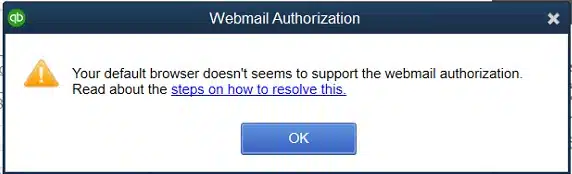
Did you know you need to reauthorize QuickBooks Desktop to keep using Gmail or Outlook 365 for emailing invoices and reports? Google and Microsoft now require modern OAuth authorization — if QuickBooks is not reauthorized, you will see a webmail authorization error when you try to send emails, and your messages will not go out. This guide walks you through reauthorizing QuickBooks and fixing the webmail authorization error step by step.
Solutions to Fix the Webmail Authorization Error in QuickBooks Desktop
Solution 1: Check That You Have the Latest QuickBooks Release
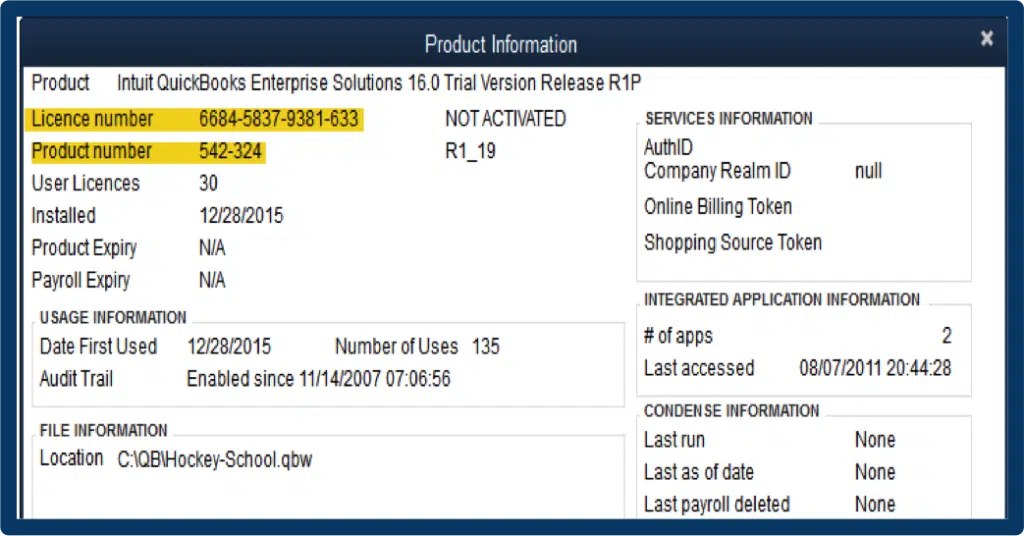
Webmail authorization requires a current QuickBooks Desktop release. Check yours first:
- Open QuickBooks Desktop.
- Press F2 to open the Product Information window.
- Check your current version and release against the latest release available from Intuit.
Solution 2: Reauthorize QuickBooks with Gmail
To keep sending emails through Gmail, reauthorize QuickBooks with your Google account:
- In QuickBooks, open any transaction or report and choose Email > Send.
- When prompted, sign in with your Intuit account.
- When the Webmail Authorization window opens, click Continue.
- Sign in with your Gmail account.

- Click Allow to grant QuickBooks access to send emails through your Gmail account. There is no need to change Google's default permissions.
- Close the browser window, then click OK in the QuickBooks Preferences window to save your changes.
Solution 3: Check Your Email Preferences
If the error persists, verify your email preferences and enable enhanced security:
- Go to Edit > Preferences > Send Forms.
- On the My Preferences tab, select WebMail and make sure your email account is listed.
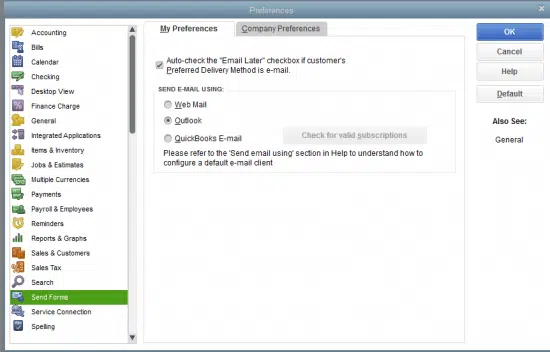
- Select your email account and click Edit.
- In the Edit Email Information window, check the Enhanced Security checkbox (this enables OAuth authorization instead of basic password authentication).
- Verify the SMTP Server Details — the correct port and server name for your email provider.

- Click OK, sign in to your Intuit account when prompted, and complete the Gmail sign-in to authorize QuickBooks.
Solution 4: Set Google Chrome as Your Default Browser
The webmail authorization window opens in your default browser. If the authorization page does not load or shows an error, set Google Chrome as the default:
- Open Windows Settings > Apps > Default apps.
- Under Web browser, select Google Chrome.

- Try the reauthorization steps again — the Google sign-in page should now open in Chrome.
Solution 5: Update QuickBooks Desktop to the Latest Release
An outdated QuickBooks release can break webmail authorization. Update it:
- Open QuickBooks and go to the Help menu.
- Select Update QuickBooks Desktop.
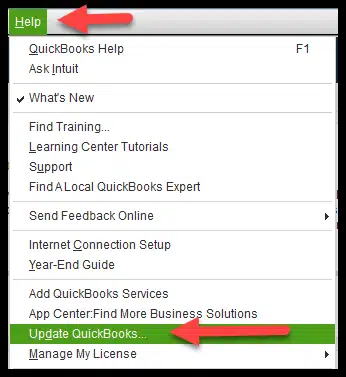
- Go to the Update Now tab, check Reset Update, and click Get Updates.
- When the download finishes, close and reopen QuickBooks and install the update.
- Retry the webmail authorization steps above.
Conclusion
Reauthorizing QuickBooks Desktop with Gmail or Outlook 365 fixes the webmail authorization error in most cases — it is simply a matter of signing in through the Webmail Authorization window and clicking Allow. If the error persists after trying all five solutions, call our XpertBooks Pro experts and we will sort it out for you.
FAQs
What is the webmail authorization error in QuickBooks Desktop?
It appears when QuickBooks cannot send emails through Gmail or Outlook 365 because the account has not been authorized with modern OAuth sign-in. Reauthorizing QuickBooks with your email account fixes it.
Why do I need to reauthorize QuickBooks to use Gmail?
Google requires third-party apps like QuickBooks to use OAuth authorization instead of basic passwords. Reauthorizing grants QuickBooks permission to send emails through your Gmail account securely.
Will reauthorizing affect my existing emails or Gmail settings?
No. Reauthorizing only grants QuickBooks permission to send emails. It does not change your Gmail settings, labels, or existing emails.
What should I do if the reauthorization fails?
Make sure your internet connection is stable, enter the correct Google or Microsoft credentials, clear your browser cache, set Chrome as the default browser, and update QuickBooks to the latest release before retrying.
Which browser should I use for webmail authorization?
Use Google Chrome. Set it as your default browser in Windows Settings > Apps > Default apps so the authorization window opens correctly.
Related Articles:
How to Set Up Email Service in QuickBooks Desktop?