
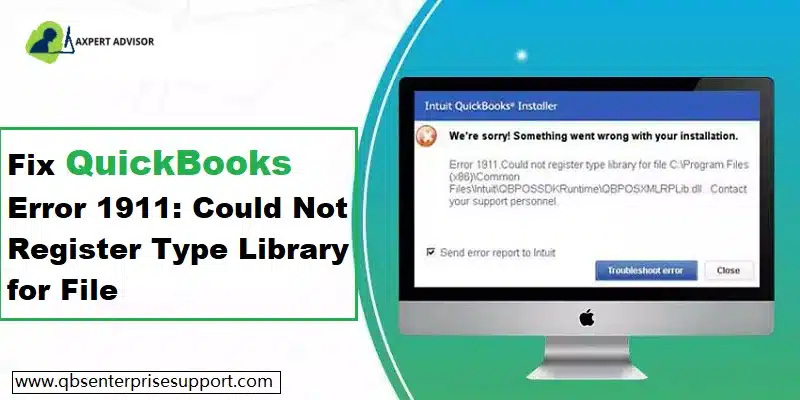
Trying to make the best use of QuickBooks accounting software, but unable to do so, as you encountered an error 1911. This is a common installation error that usually encounters when Windows is unable to register or access a required system component at the time of QuickBooks installation process. Due to this error, the installation gets stop unexpectedly and prevent QuickBooks from being installed successfully. You might come across such an error with an error message that states:
| Error Message: | Error 1911. Could not register type library for file C:\\Program Files (x86) CommonFiles\\Intuit\\QBPOSXMLRPLib.dll. Contact your support personnel. |
This error could be seen when you try to install the QuickBooks Desktop on Windows 10 or Windows 11 systems. Furthermore, when you upgrade the operating system, you might face this problem. To get a better insight into QuickBooks error code 1911, you would have to go through this segment with much care.
Methods that would work in tackling QuickBooks Error Code 1911
Well, the QuickBooks error 1911: Couldn't register type library for file can be easily tackled with the help of the methods and procedures that we have discussed below. Let us check them out one by one:
Method 1: Modify the setup editor settings
Under this method, you would have to perform the steps to configure setup editor settings. The steps include the following:
- Start off by opening the installer package in a setup editor (such as Orca).
- Furthermore, you need to open the TypeLib table.
- The next step would be to locate the row containing the File specified in the error message.
- You need to now Delete that row.
- Save the installer package and run the installation again.
- And check if the error 1911 is fixed.
Method 2: Download and review the PsExec directory
The steps for downloading and reviewing the PsExec directory are stated as under:
- Herein, you are supposed to download and install the PsExec directory.
- And look for the QuickBooks installer in the installed directory.
- Further, you need to open the Command prompt CMD.
- And run PSExec. It is basically the QuickBooks installer to Install QuickBooks on the system.
- QuickBooks install diagnostic tool is stored in the downloads folder and will be titled 1.exe
- Lastly, access the installer as normal.
Method 3: Use the QuickBooks Tool Hub (Install Diagnostic Tool)
In this particular method, you would have to run the QuickBooks Install Diagnostic Tool, which automatically detects and fixes installation-related issues including type library registration failures.
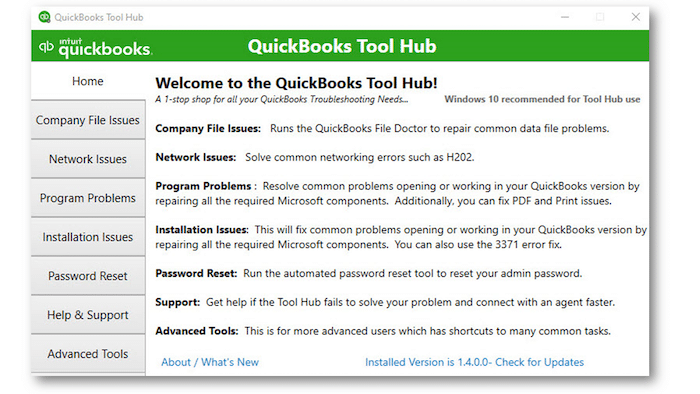
- In this particular method, you would have to download and install the QuickBooks Tool Hub from Intuit's official website.
- Open the Tool Hub and go to the Installation Issues tab.
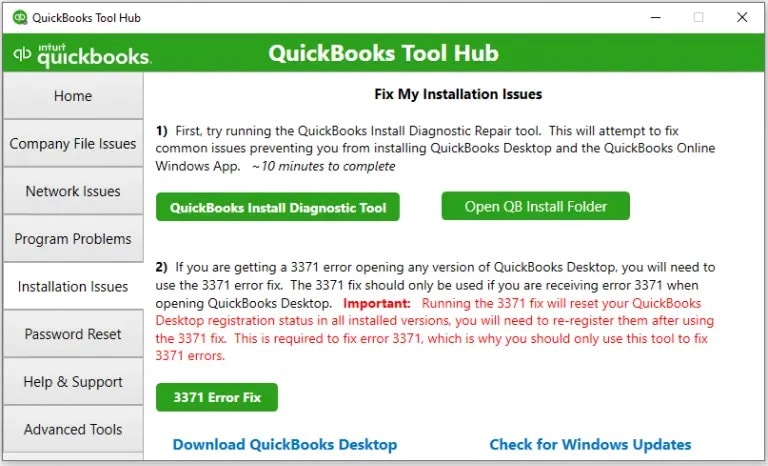
- You are then required to select QuickBooks Install Diagnostic Tool and let it run — it may take up to 20 minutes.
- Furthermore, once the tool finishes, reboot the system.
- And try installing QuickBooks Desktop again.
- Pay heed to any on-screen prompts during the process.
Method 4: Check the built-in admin settings
If none of the above methods worked for you, in that case, you can perform the below steps:
Steps for activating built-in admin
At first, you would have to activate the built-in admin, which involves the following steps:
- Press Windows + R, and the Run window will appear on the screen.
- You further need to type in CMD in the box to search and hit OK tab.
- Right-click the CMD.exe and choose to Run as an admin.
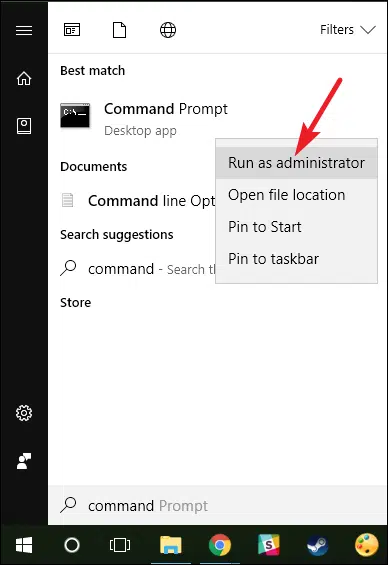
- You are then required to open the prompt window and put in the net user admin active Yes tab.
- Hit Enter key.
- Lastly, open the system in Safe mode.
Steps for adjusting the built in admin account
- Herein, you need to press Ctrl + Alt + Del keys.
- And choose the second option for Switching user.
- Later on, press the Windows key if you are Windows 8 user.
- Click on the screen to choose the User icon.
- Press Ctrl + Alt + Del tab again, and choose the default admin account.
Steps to hide built in admin account
- You are supposed to press Windows + R tab and Run Windows.
- Type in command prompt CMD.
- And right-click the Cmd.exe.
- You need to then choose Run as admin.
- Type in no in Net user admin active and hit Enter tab in the command window.
Latest steps to edit the security settings of the installation directory
- Under this process, you would have to follow the path C:\\Program Files\\Common Files.
- You need to find the Common files folders and right-click on them.
- Select the Properties from the drop-down.
- And hit Enter under the Security tab.
- You need to then select the Users in the group or Users name.
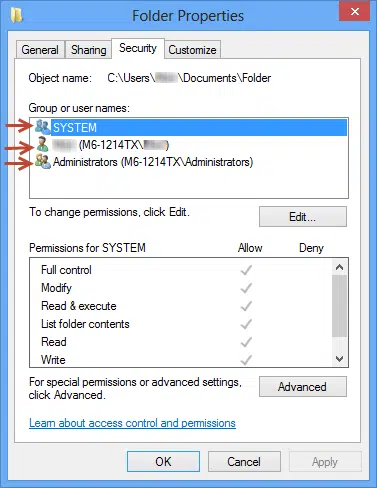
- Open the permissions for users and tap on Allow that offers permission: update/read and execute, list folder contents.
- Now choose Apply and OK tab.
Sum up!
That was all you need to know about QuickBooks error code 1911. As always, in case you have any queries, comments, or concerns, reach out to our XpertBooks Pro. Don’t get panic about anything because everything is possible with the help of our accounting consultants, and the work they do for you will be the best. Our team works to identify the root cause and help you restore normal operations as quickly as possible.
FAQs
What is Error 1911 in QuickBooks?
The Error message 1911 in QuickBooks occurs when users try to install specific versions of QuickBooks. It is an installation error that may also be encountered while updating QuickBooks to newer versions.
What causes QuickBooks Error codes?
The error can be caused due to damage in the installation files of QuickBooks. It may also occur due to poor internet connectivity, version incompatibility, damaged .dll files, or erroneous internet configuration.
How does Error 1911 appear?
QuickBooks Error 1911 appears in the form of an error message stating:
''Error 1911. Could not register type library for file C:\Program Files (x86) CommonFiles\Intuit\QBPOSXMLRPLib.dll. Contact your support personnel.''
Checkout these topics also:
QuickBooks Component Repair Tool - Fix Installation Errors
Steps to Fix Unrecoverable Error in QuickBooks Desktop