
Running into QuickBooks error code 15271 while downloading payroll updates or installing a maintenance release? This error usually shows up with a message saying that a file cannot be validated, and it stops the update from completing.
In this article, we will explain what triggers QuickBooks error 15271 and share the most effective methods to fix it.
| Error | Description |
|---|---|
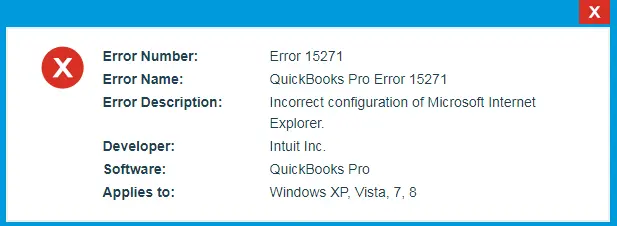
| Error 15271: | The payroll update did not complete successfully. A file cannot be validated. |
| Error 15271: | The update did not complete successfully. A file cannot be validated. |
What triggers QuickBooks error code 15271?
Several factors can trigger this maintenance release and payroll update error. The most common ones include:
- The QuickBooks Desktop installation was incomplete, or the downloaded setup files were damaged.
- The Windows registry got corrupted due to a recent change related to QuickBooks.
- A virus or malware infection damaged QuickBooks-related program files.
- QuickBooks-related files were deleted from the system by mistake.
- Windows system files required to run QuickBooks are damaged or corrupt.
- The antivirus or internet security software is blocking the QuickBooks update.
Important points to consider before fixing the error
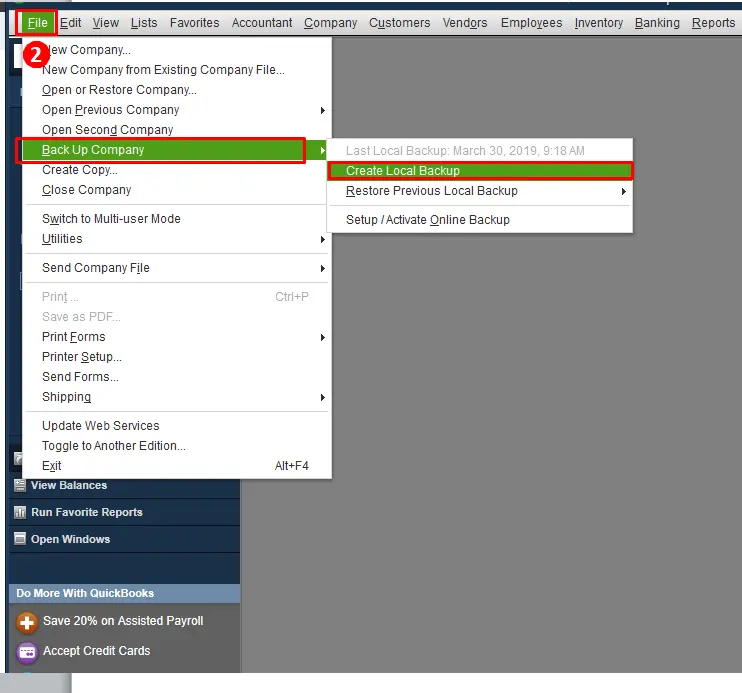
Before you start troubleshooting, back up your company file so that your data stays safe:
- Open QuickBooks Desktop and go to the File menu.
- Select Backup Company and then click Create Local Backup.
- Follow the on-screen prompts to finish creating the backup.
Methods to fix QuickBooks error code 15271
Method 1: Update QuickBooks Desktop to the latest release
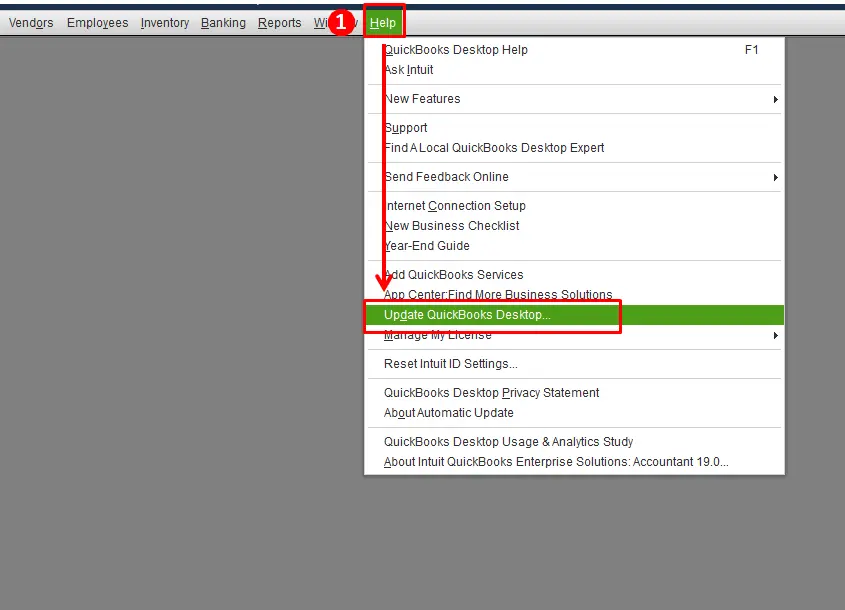
Running an outdated version of QuickBooks is one of the most common reasons behind update errors. Updating QuickBooks Desktop to the latest release often resolves error 15271:
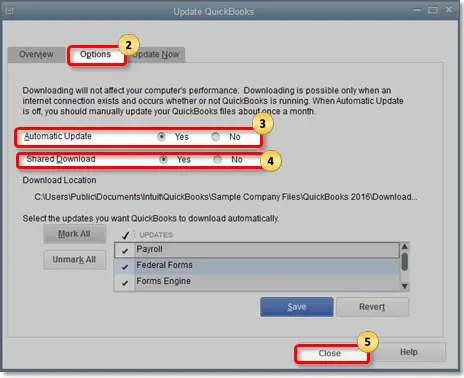
- Open QuickBooks Desktop and go to the Help menu.
- Select Update QuickBooks Desktop.
- Go to the Options tab and turn on automatic updates.
- Click Close, then download and install the latest release and restart your computer.
Read Also: QuickBooks Install Diagnostic Tool
Method 2: Run QuickBooks as administrator and install the update
QuickBooks may need elevated permissions to install updates. Running it as an administrator can fix error 15271:
- Close QuickBooks Desktop completely.
- Right-click the QuickBooks Desktop icon on your desktop and select Run as administrator.
- On the No Company Open window, go to Help > Update QuickBooks Desktop.
- Go to the Update Now tab, check the Reset Update checkbox, and click Get Updates.
- Once the update finishes downloading, close and reopen QuickBooks to install it.
Method 3: Get a fresh payroll update
If error 15271 appears while downloading payroll updates, getting a fresh payroll update usually helps:
- Open QuickBooks Desktop and go to the Employees menu.
- Select Get Payroll Updates.
- Choose Download entire update and click Update.
- Wait for the payroll update to finish downloading and installing.
If the payroll update keeps failing, reach out to our QuickBooks payroll experts for help.
Method 4: Use the QuickBooks Tool Hub
The QuickBooks Tool Hub includes the Install Diagnostic Tool, which repairs damaged installation files that can trigger error 15271:
- Download the latest version of the QuickBooks Tool Hub from Intuit's official page and install it.
- Open the Tool Hub and go to the Installation Issues tab.
- Select QuickBooks Install Diagnostic Tool and let it run. It can take up to 20 minutes to complete.
- Once the tool finishes, restart your computer and try the update again.
Method 5: Perform a clean install in selective startup mode
A clean install in selective startup mode removes damaged installation files and gives QuickBooks a fresh start:
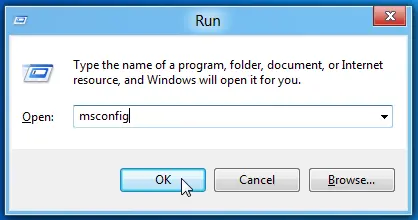
- Press Windows + R on your keyboard to open the Run box.
- Type msconfig and click OK.
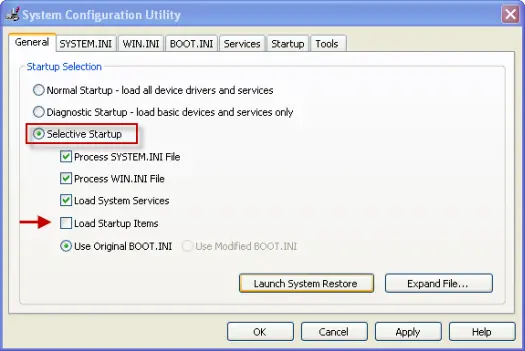
- On the General tab, select Selective startup and clear the Load startup items checkbox.
- Go to the Services tab, check Hide all Microsoft services, and click Disable all.
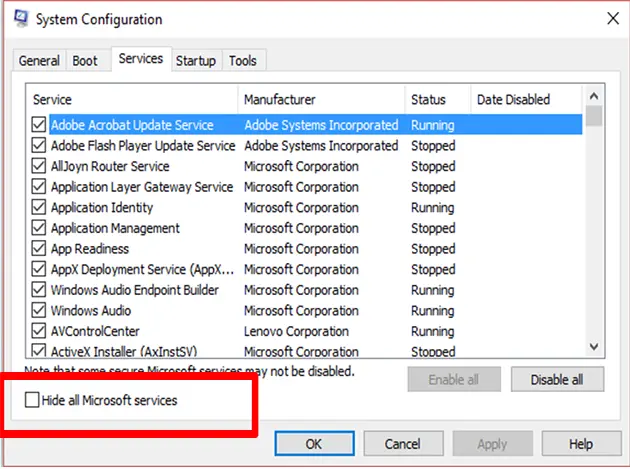
- Click OK and restart your computer.
- Uninstall QuickBooks Desktop, then install QuickBooks Desktop again using a fresh setup.
- Once QuickBooks is reinstalled, open the Run box again, type msconfig, select Normal startup, and restart your computer.
Method 6: Turn off User Account Control (UAC) temporarily
User Account Control can sometimes block QuickBooks updates on Windows 10 and 11. Turning it off temporarily can help:
- Open the Control Panel and go to User Accounts > Change User Account Control settings.
- Move the slider down to Never notify and click OK.
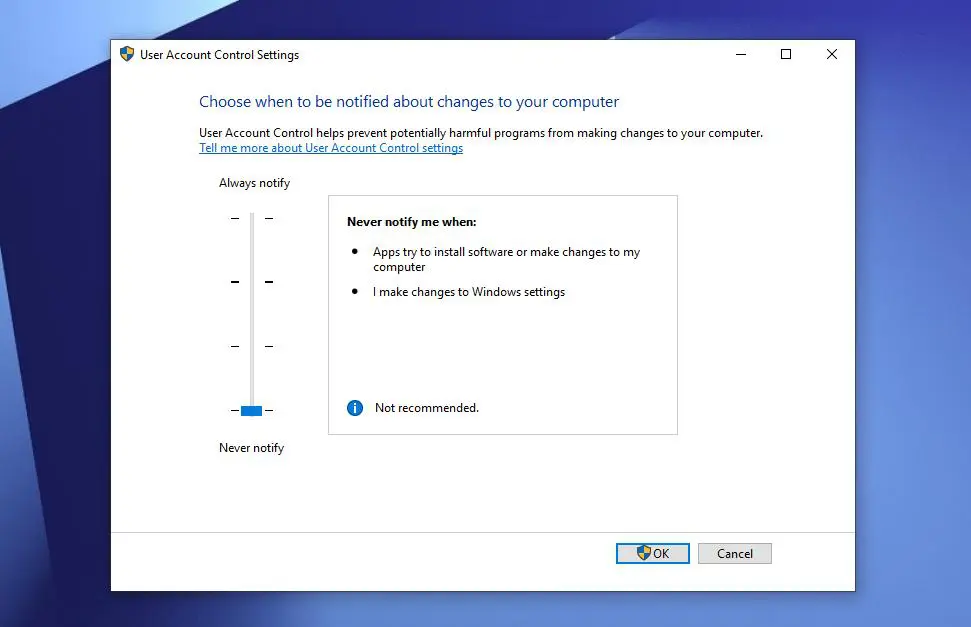
- Restart your computer and try installing the QuickBooks update again.
- Once the update installs successfully, turn User Account Control back on.
Winding up!
QuickBooks error code 15271 is a maintenance release and payroll update error that usually appears when a file cannot be validated. By updating QuickBooks to the latest release, running it as an administrator, getting a fresh payroll update, using the QuickBooks Tool Hub, performing a clean install in selective startup mode, or temporarily turning off UAC, you should be able to resolve this error and complete your updates successfully.
Frequently asked questions
What is QuickBooks error code 15271?
Error 15271 is a maintenance release and payroll update error. It appears when the payroll update or the QuickBooks update does not complete successfully because a file cannot be validated.
Why does QuickBooks error 15271 occur?
The error can be triggered by an incomplete QuickBooks installation, a corrupted Windows registry, virus or malware damage, deleted QuickBooks files, damaged Windows system files, or antivirus software blocking the update.
Should I back up my company file before fixing error 15271?
Yes. Always create a backup of your company file first by going to File > Backup Company > Create Local Backup in QuickBooks Desktop.
Will turning off UAC fix QuickBooks error 15271?
Turning off User Account Control temporarily can help on Windows 10 and 11, because UAC sometimes blocks QuickBooks updates. Remember to turn UAC back on after the update installs.
What should I do if error 15271 keeps coming back?
If none of the methods above resolve the error, perform a clean install of QuickBooks in selective startup mode, or contact our QuickBooks experts for further assistance.