
Are you hunting for the right process to fix the Intuit Data Protect backup failed issue? Or are you unable to back up with Intuit Data Protect and don't know what to do? All your worries end with this post. Intuit Data Protect backup failed is a common problem that appears when IDP cannot create or upload a backup successfully. Until the issue is resolved, your important QuickBooks data stays unprotected. This error often happens when you try to back up with Intuit Data Protect but the process doesn't complete. As a consequence, you might see one of these error messages on your screen:
| Error | Message |
| Intuit Data Protect Backup Failed: | Firewall or connection issue |
| Intuit Data Protect Backup Failed: | One of the configuration files is damaged or corrupted |
| Intuit Data Protect backup incomplete: | Files did not backup because they were open or not reachable |
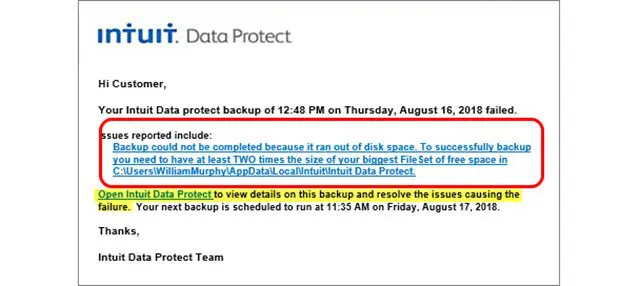
The good news is that this error is easily resolvable. The solution of Intuit Data Protect backup failure issue could require a little knowledge on Intuit's Data Protect, which we will be providing later in this segment. Go through it carefully to get a better grip on this issue.
What is Intuit Data Protect?
Before learning the solutions, it makes sense to first understand what Intuit Data Protect is. Commonly known as IDP, it is a subscription backup service by Intuit that lets you back up vital business data online to secure servers. It integrates with QuickBooks Desktop 2016 and later versions. Once activated, IDP automatically backs up your data every day at your preferred time. But at times, due to various factors, IDP fails to take the backup — and that is what this article fixes.
What triggers to Intuit Data Protect Backup Failed problem?
The backup failure can result from various factors. The most common cause is that the application can't access the file it needs to back up. Other triggers include:
- The company file you want to back up is already open on another workstation.
- The IBuEngHost.exe process is running under a local Windows user instead of the system account.
- The drive uses a file system other than NTFS.
- Firewall or antivirus software is blocking IDP files or ports.
- IDP or QuickBooks Desktop is outdated.
Read Also: How to Fix Subscription Has Lapsed Error in QuickBooks Desktop
Methods to Get rid of Intuit Data Protect Backup Failed Issue
Intuit Data Protect is a great asset for daily automatic backups. But when it fails, carry out the manual procedures below to fix the error:
Solution 1: Make Sure the Windows Firewall Isn’t Blocking Intuit Data Protect
Often the firewall blocks IDP for security reasons, and the backup fails. Check the firewall and make sure the important IDP files are allowed:
Step 1: Add Important Files to the Windows Firewall
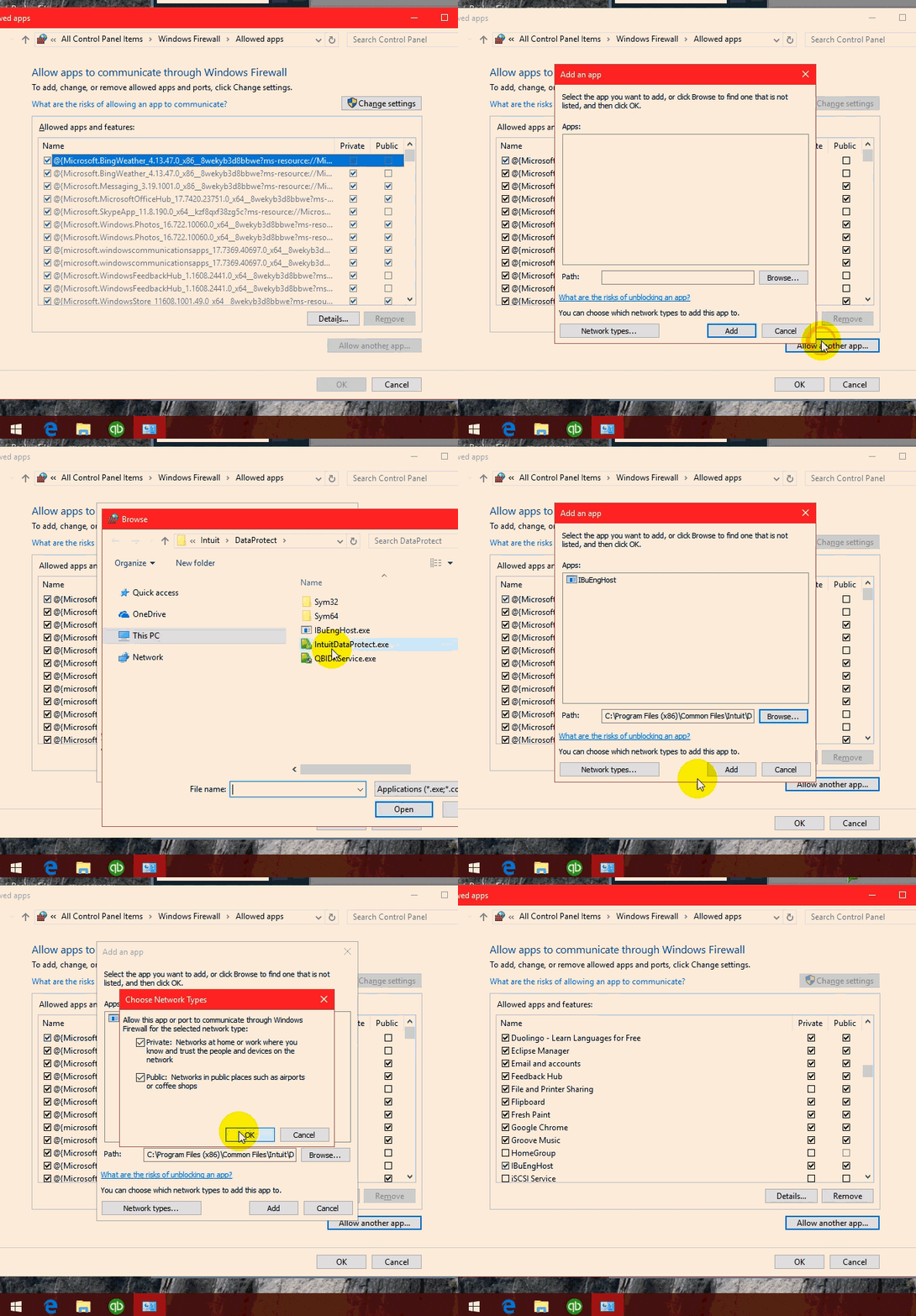
- Press the Windows key and type Firewall in the search field.
- Select Allow an app through Windows Firewall, then click Change settings and Allow another app.
- Click Browse and go to C:\Program Files (x86)\Common Files\Intuit\Data Protect.
- Select QBIDPService.exe and click Open.
- Click Network types, check Private, and click Add.
- Repeat for IBuEngHost.exe and IntuitDataProtect.exe. If Windows says the files already exist, you are all set.
Note that third-party antivirus software can also block these files — add the same exceptions there.
Step 2: Add Windows Firewall Ports
If the above didn't help, add the firewall ports IDP needs. The steps for configuring QuickBooks firewall ports and internet security settings are:
- Press the Windows key to open the Start menu and type Control Panel.
- Go to System and Security, then Windows Defender Firewall, and click Advanced Settings.
- Select Inbound Rules on the left.
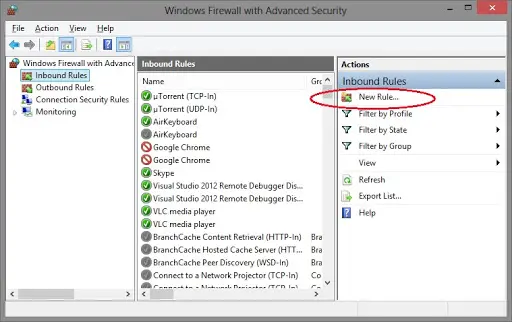
- Click New Rule on the right, choose Port, and enter the ports manually:
- Incoming port: 80
- Outgoing ports: 443, 16841
- Follow the on-screen instructions to finish, then repeat the same steps under Outbound Rules.
Step 3: Verify Intuit’s Backup Sites and Certificates Aren’t Blocked
If the firewall steps didn't work, verify that Intuit's backup domains and security certificates are reachable from your system:
- Press the Windows key and type Internet Options, then open it.
- Go to the Security tab and confirm the sites below are not in the Restricted sites zone. (Modern Windows manages these through Internet Options — you don't need the old Internet Explorer browser.)
- backup.com
- *.intuit.net
- *.intuit.com
- *.intuitdataprotect.com
- *.quickbooks.com
- workplace.intuit.com
- emerald.backup.com (updates your Intuit Data Protect certificates)
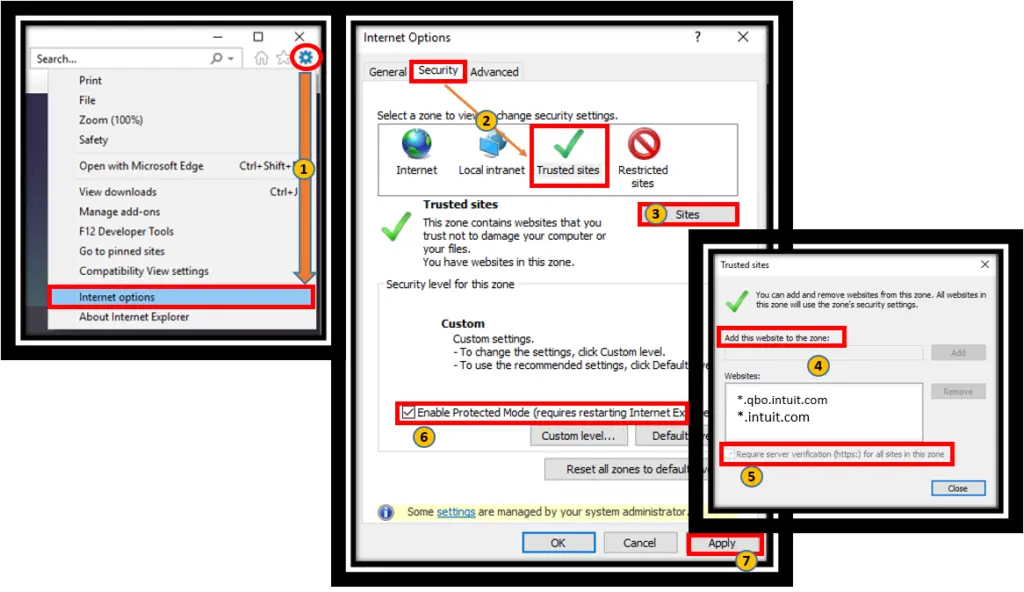
- Click Close, then OK.
- Try opening the Intuit Data Protect certificate site in your current browser — if it opens, certificates are fine.
- Attempt the backup with Intuit Data Protect again.
Solution 2: Free Up Space in Intuit Data Protect
Another fix is to free up space in Intuit Data Protect:
- Check the Intuit Data Protect version and make sure it is up to date.
- Delete old backup folders after downloading the backed-up files first.
- Reduce the backup size:
- Right-click the Data Protect icon (green padlock) and choose Open Intuit Data Protect.
- Select Change Backup Settings.
- Uncheck the files and folders you don't need to back up.
- Click Continue until you see Exit backup settings.
- Try the backup once more.
Solution 3: Use the Intuit Data Protect Diagnostic Tool
The IDP Diagnostic Tool checks your computer's memory, disk space, Windows components, and IDP version, and tests the connection to the backup service:
- Right-click the Intuit Data Protect icon (green padlock) and choose About Intuit Data Protect.
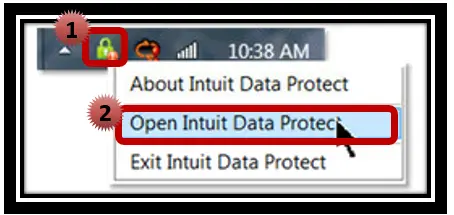
- Press Ctrl + F2 to open the Intuit Data Protect Diagnostic Tool.
- Click Run Diagnostics. If it flags a firewall or security-software issue, reconfigure that software to allow the IDP files:
- C:\Program Files (x86)\Common Files\Intuit\Data Protect\IntuitDataProtect.exe
- C:\Program Files (x86)\Common Files\Intuit\Data Protect\IBuEngHost.exe
- C:\Program Files (x86)\Common Files\Intuit\Data Protect\QBIDPService.exe
If the tool finds a problem, an error window will describe it — follow its guidance before moving on.
Read Also: How to Open QBB, QBW and QBX Files Without QuickBooks
Solution 4: Ensure QuickBooks Desktop and Intuit Data Protect Are Updated
Make sure both QuickBooks Desktop and Intuit Data Protect are on the latest release. Outdated versions are a common cause of backup failures.
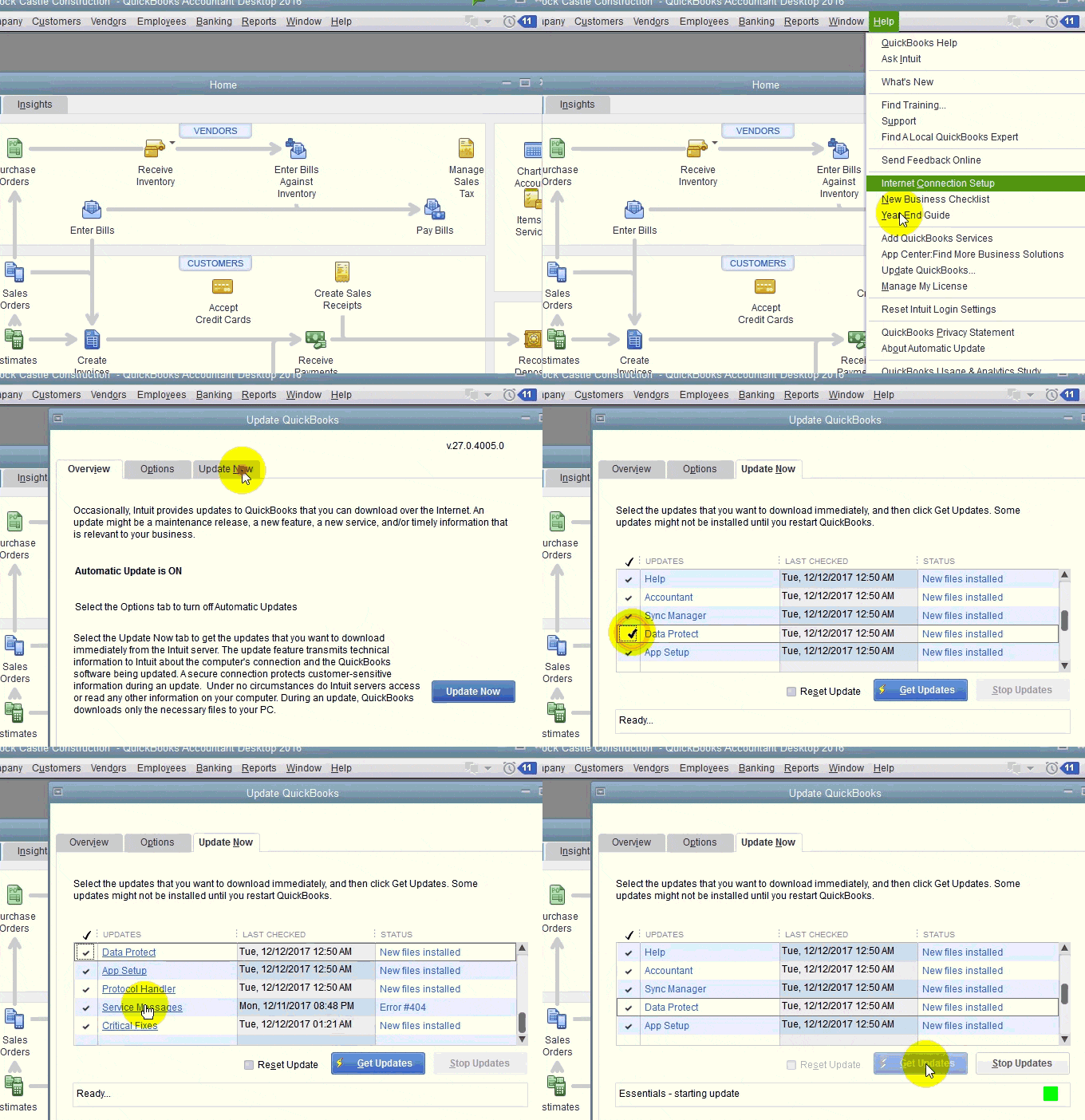
Learn how to update QuickBooks to the latest release and retry the backup.
Solution 5: Make Sure IBuEngHost.exe Is Running as the System User
IBuEngHost.exe must run as the system user for Intuit Data Protect to work properly.
Step 1: Check That the File Is Running as System
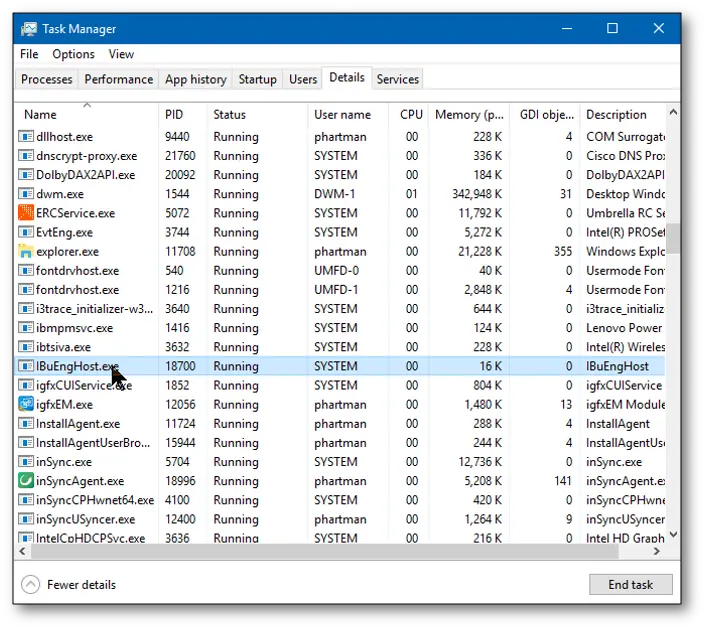
- Right-click the Windows taskbar and select Task Manager.
- Go to the Details tab and find IBuEngHost.exe.
- Confirm the User name column shows SYSTEM and the status is Running.
Step 2: If IBuEngHost.exe Isn’t Running as System
- Download a fresh installer for your QuickBooks version and save it somewhere easy to find.
- Right-click the installer and choose Run as administrator.
- Complete the reinstallation.
- Check Task Manager again — IBuEngHost.exe should now show SYSTEM as the user name with Running status.
- Attempt the backup with Intuit Data Protect again.
Solution 6: Clear the SSL State and Refresh IDP Certificates
Corrupted cached certificates can silently break IDP backups. Clearing the SSL state forces Windows to fetch fresh ones — no old browser needed:
- Press the Windows key, type Internet Options, and open it.
- Go to the Content tab.
- Click Clear SSL State, then click OK.
- Reopen Intuit Data Protect and attempt the backup again.
Solution 7: Include Data Protect in the Startup Programs
- Press Windows + R to open the Run box.
- Type msconfig and press Enter.
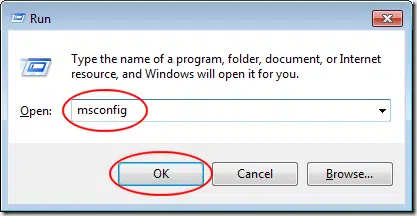
- Go to the Services tab, check the boxes next to the Intuit Data Protect / QuickBooks services, and click OK, then Apply.
- Restart the system so the services start cleanly.
Sum up!
The methods above are capable of resolving the backup failed error with Intuit Data Protect. But if the error keeps troubling you, just give us a call — we will leave no stone unturned to free you from this issue. Our error-handling experts and accounting professionals will be happy to help you.
FAQs
What does the “Intuit Data Protect Backup Failed (Firewall or Connection Issues)” error mean?
It means IDP couldn't reach Intuit's backup servers — usually due to firewall settings, blocked ports, or network connectivity problems.
How often should I back up my QuickBooks data using Intuit Data Protect?
Back up at least once a day. Regular backups ensure you have up-to-date copies of your data if anything goes wrong.
Are there specific firewall settings I should configure for Intuit Data Protect?
Yes — allow QBIDPService.exe, IBuEngHost.exe, and IntuitDataProtect.exe through the firewall, and open incoming port 80 and outgoing ports 443 and 16841.
Can I back up multiple company files using Intuit Data Protect?
Yes, you can back up multiple company files with Intuit Data Protect.
People also searched for:
Steps to Fix Portable Company File Issues in QuickBooks Desktop
How to Fix Performance Issues When Using QuickBooks Statement Writer
Steps to Fix the 'QuickBooks Backup Not Working on Windows 10' Issue