
Even the most reliable accounting software can hit a snag, and QuickBooks is no exception. QuickBooks Error Code 15241 is a payroll update error that appears while using the payroll function or installing updates. It stops QuickBooks from completing critical updates — which can disrupt payroll processing and tax table updates. The good news is that it is usually easy to fix once you know the cause.
Short on time? Get in touch with our payroll support team and let them fix it for you. You can call our experts directly.
QuickBooks Payroll Update Error 15241: A Brief Insight
QuickBooks error code 15241 appears when you open the QuickBooks payroll function or install payroll updates. You will see an error message like this:
| QuickBooks Update | [Error 15241] The payroll update did not complete successfully. The QuickBooks FCS Service is disabled. |
|---|
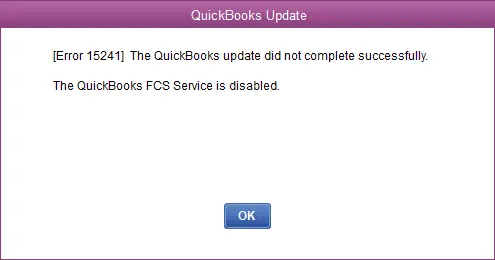
The most common cause is that the Intuit QuickBooks FCS (File Copy Service) is disabled. This service manages file transfer during QuickBooks updates, so the payroll update cannot finish while it is off.
What triggers QuickBooks error code 15241?
- The Intuit QuickBooks FCS service is disabled or not running.
- Certain QuickBooks program files were deleted by another program.
- The downloaded or installation file got corrupted.
- The QuickBooks installation is incomplete.
- A virus or malware infection damaged system files.
Major symptoms of QuickBooks payroll error 15241
- The error 15241 message pops up on the screen.
- QuickBooks or Windows crashes or freezes during the update.
- Windows runs sluggishly and stops responding to inputs.
Read Also: How to Resolve QuickBooks Error Code 6106, 1069?
Steps to Fix QuickBooks Payroll Error 15241
Step 1: Restart the Intuit QuickBooks FCS service (Windows 10/11)
This is the main fix — the error means this service is disabled:
- Close QuickBooks Desktop.
- Press Windows + R, type services.msc, and press Enter.
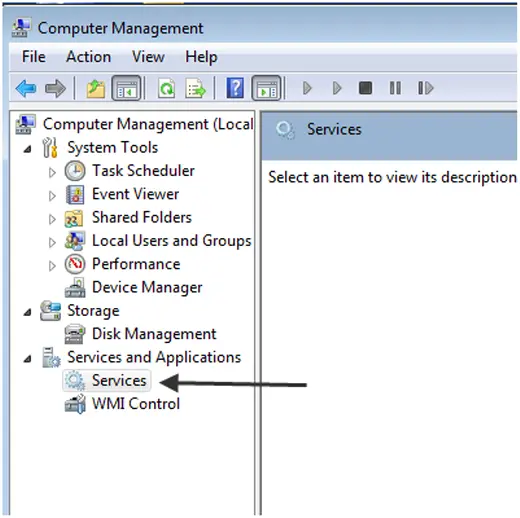
- Scroll down and double-click Intuit QuickBooks FCS.
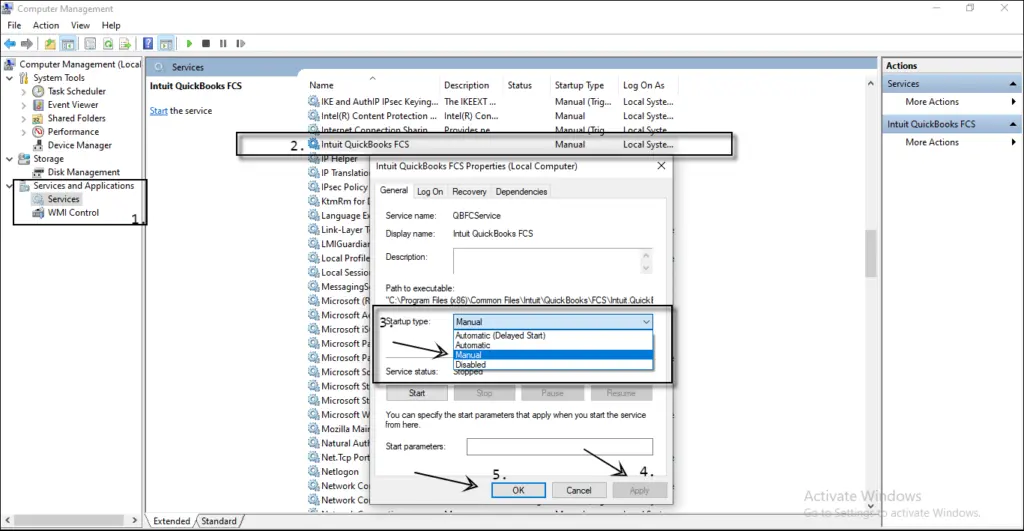
- On the General tab, set the Startup type to Manual (or Automatic), click Apply, then click Start and OK.
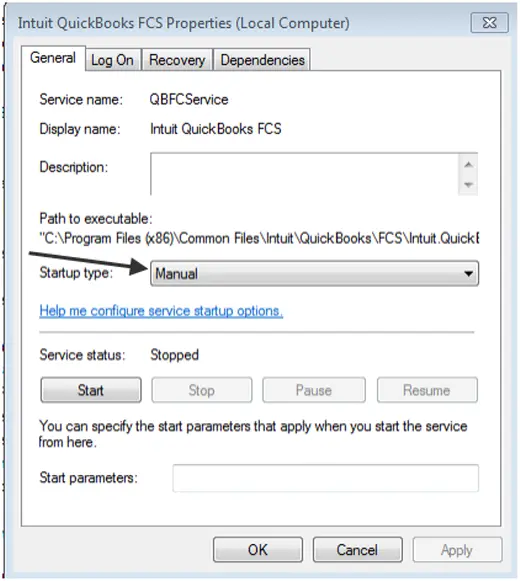
- Open QuickBooks Desktop again and download the updates.
Step 2: Update the payroll tax tables
Once the FCS service is running, update the payroll tax tables:
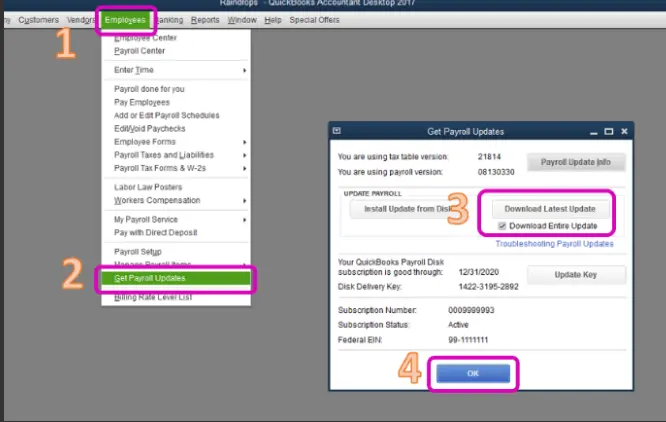
- Go to the Employees menu and select Get Payroll Updates.
- Check Download Entire Update and click Update.
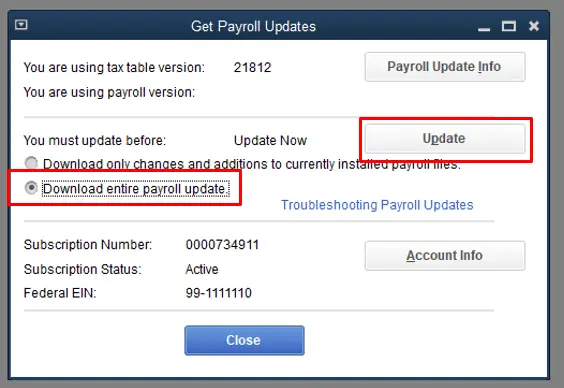
- Wait for the "download complete" message — you are done.
Read Also: Resolve QuickBooks Error Code 6010, 100
Alternate Solutions if the Error Persists
Method 1: Restart the FCS service from the Run command
- Press Windows + R, type services.msc, and press Enter.
- Find the QuickBooks FCS service, right-click it, and choose Restart.
- Then go to Employees > Get Payroll Updates and try the update again.
Method 2: Check your payroll subscription
An inactive or expired payroll subscription can also block updates:
- Go to Employees > My Payroll Service > Account Info/Preferences and sign in to your Intuit account to confirm the subscription is active.
- If the subscription lapsed, renew it and then run Get Payroll Updates again.
Method 3: Repair QuickBooks Desktop
If the installation itself is damaged, run a repair: open the QuickBooks Tool Hub, go to Installation Issues, and select QuickBooks Install Diagnostic Tool. Restart the computer when it finishes, then try the payroll update again.
Read Also: Solutions for When QuickBooks Has Stopped Working
Conclusion!
With this we come to the end of this post. We hope the solutions above help you fix QuickBooks payroll error code 15241. If the error keeps troubling you even after following these steps, get in touch with our QB payroll experts team — our experts work round the clock, so call us anytime. We will be happy to help you.
FAQs
What is Payroll Update Error 15241?
It is a payroll update error that appears when the Intuit QuickBooks FCS (File Copy Service) is disabled — the payroll update cannot complete while this service is off.
How can I fix Payroll Error 15241?
Restart the Intuit QuickBooks FCS service (Windows + R, type services.msc, find the service, set Startup type to Manual/Automatic and click Start), then run Employees > Get Payroll Updates again.
Can I process payroll if I see Error 15241 in QuickBooks?
You may not be able to process payroll until the payroll update installs successfully — fix the update error first.
Do I need a payroll update CD to fix this error?
No. Payroll updates are downloaded online through Employees > Get Payroll Updates. CD-based payroll updates are obsolete and no longer needed.
Related Articles: